> ## Documentation Index
> Fetch the complete documentation index at: https://docs.jiekou.ai/llms.txt
> Use this file to discover all available pages before exploring further.
# CC Switch
CC Switch is a cross-platform configuration manager for AI coding tools. It centralizes model provider settings from different tools in one place, so you can switch between API backends with one click without editing configuration files manually. It supports popular tools such as Claude Code, Claude Desktop, Codex, and Gemini CLI, making it suitable for individual developers and teams that frequently switch between model services.
By connecting to Interface AI, you can use directly accessible API services with Claude Code and other agents in CC Switch. No project code changes are required: create a custom provider, enter the endpoint and API key, and save it.
## Key Features of CC Switch
### Visual Configuration Management
All provider configurations are stored in a local database and can be created, edited, queried, and deleted through the interface. You do not need to edit JSON files or repeatedly configure environment variables.
### One-Click Switching
More than 50 provider presets are built in. Switching takes one click, and changes take effect without restarting the agent.
### Unified Management for Multiple Tools
* Claude Code and Claude Desktop
* Codex and Gemini CLI
* OpenCode, OpenClaw, Hermes, and more
* Cross-application synchronization of MCP services, prompts, and Skills
### Cross-Platform Support
CC Switch supports Windows, macOS, and Linux, including major distributions.
### Configuration Safety
Atomic writes and automatic backups are used. Configuration files and backups are stored under `~/.cc-switch/`, so existing settings are not damaged during switching.
## Connect Interface AI to CC Switch
Complete the integration in three steps.
### 1. Get an API Key
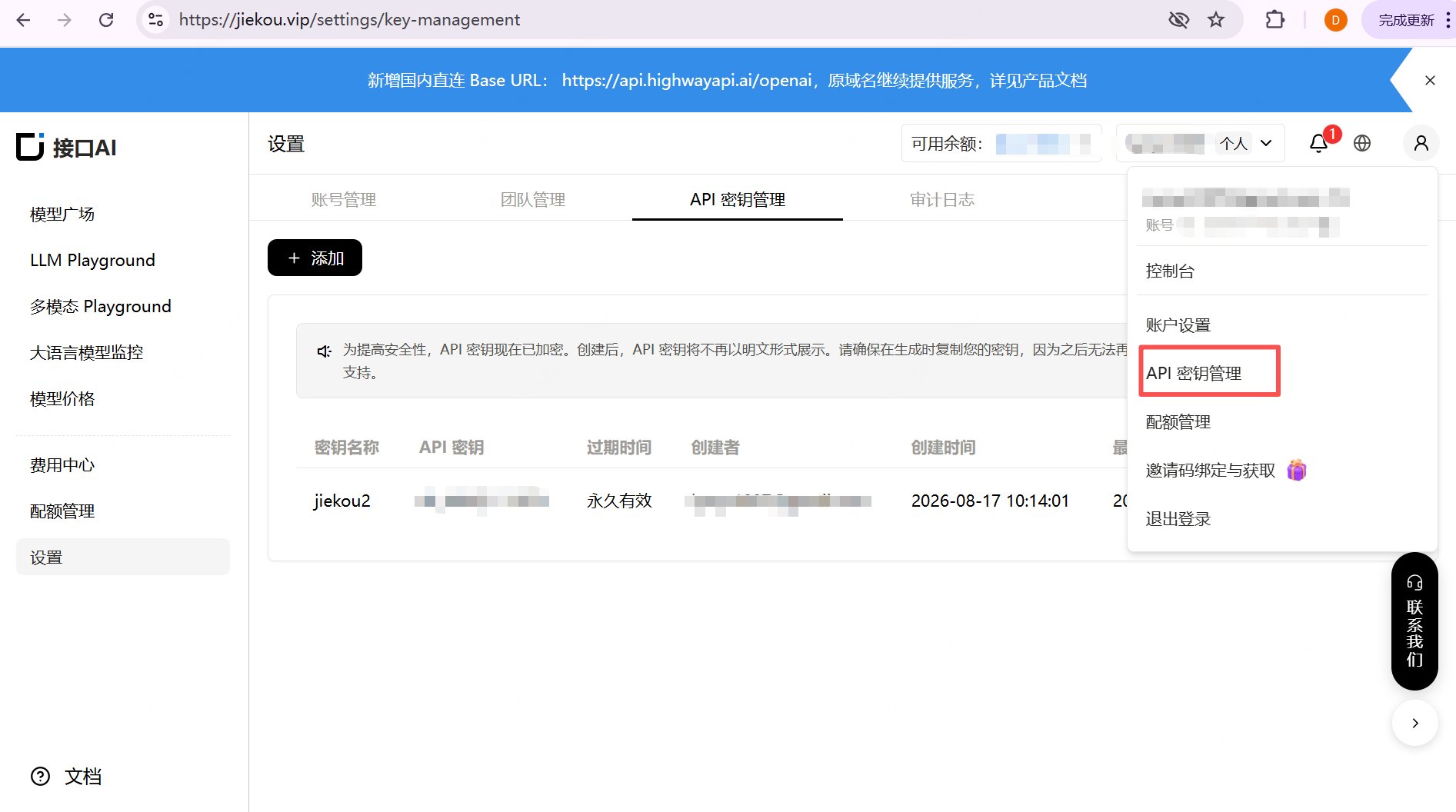
1. Sign in to [jiekou.vip](https://jiekou.vip), register, and open the management console. Click “My” in the upper-right corner and select “API Key Management”.
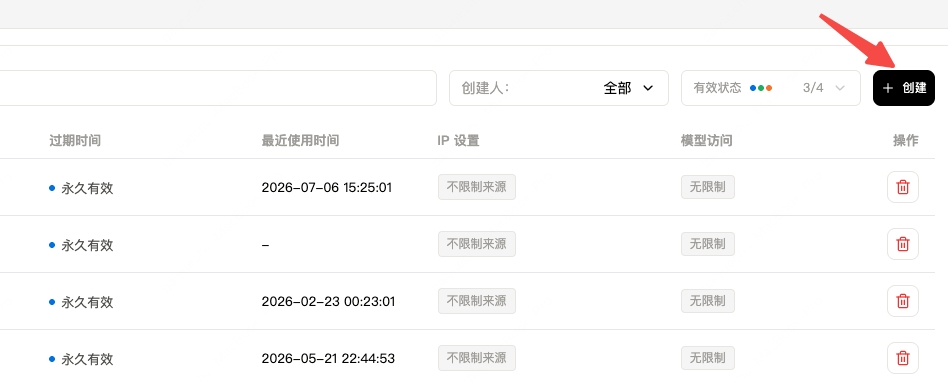
2. Click “Add” and enter a key name. Use a recognizable name such as `CCSwitch` so you can distinguish keys for different purposes in the console.
3. Copy and record the generated key. The console cannot display it again, so store it securely for the next step.
 ### 2. Add a Provider in CC Switch
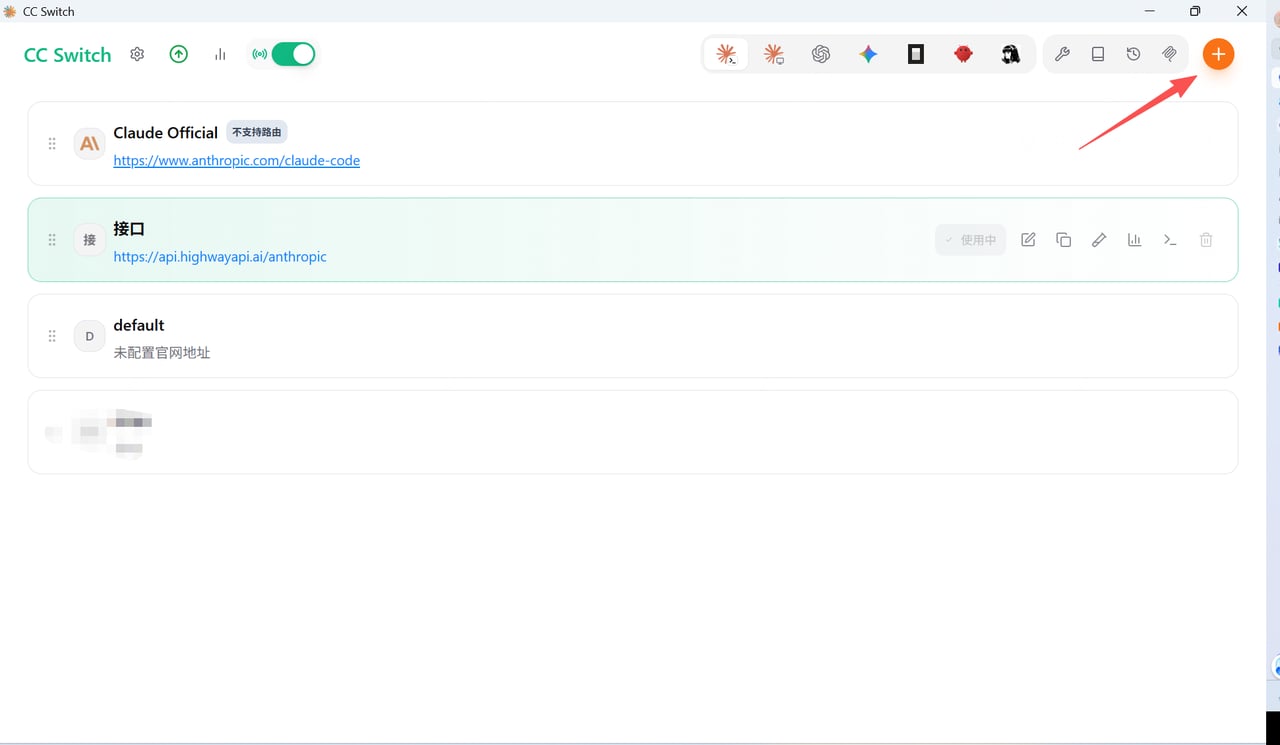
1. Open CC Switch, select **Claude Code** on the left, and click “Add Provider” in the upper-right corner.
2. Select “Custom Configuration” from the preset list and enter a provider name such as “Interface AI”.
3. Enter the Base URL:
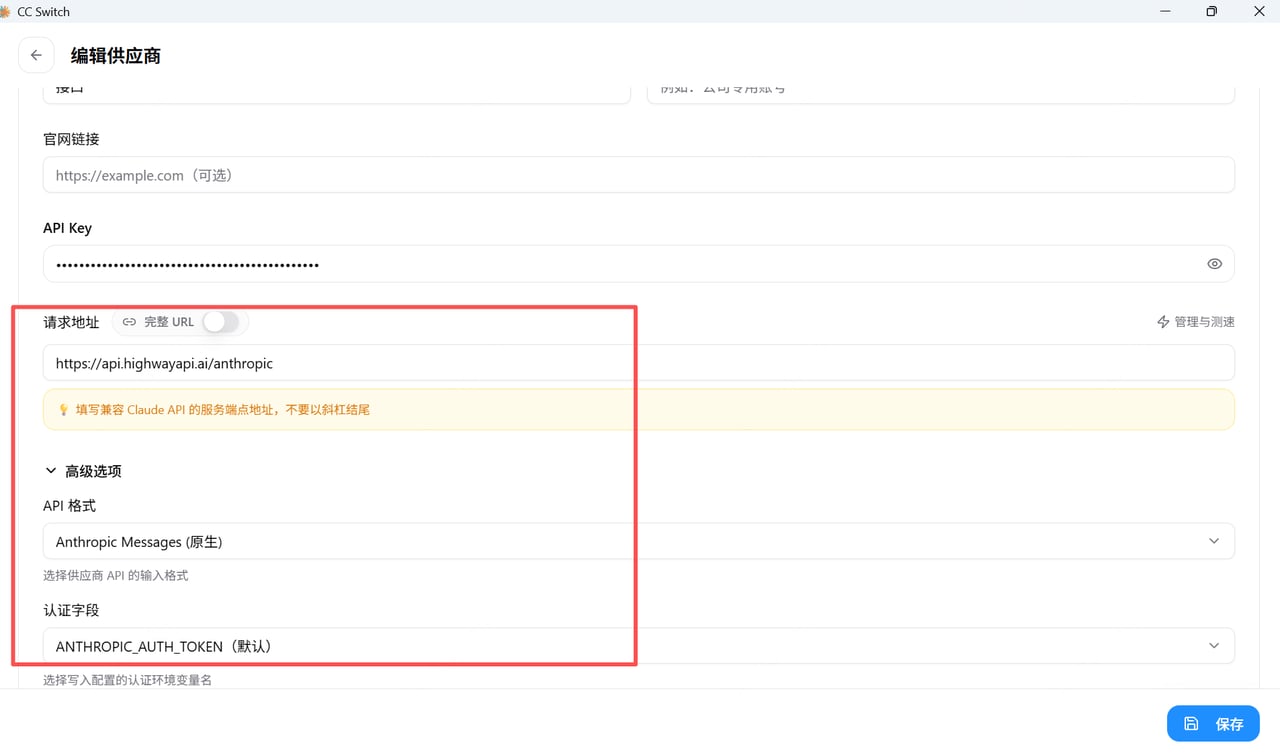
* Anthropic models: `https://api.highway.ai/anthropic`
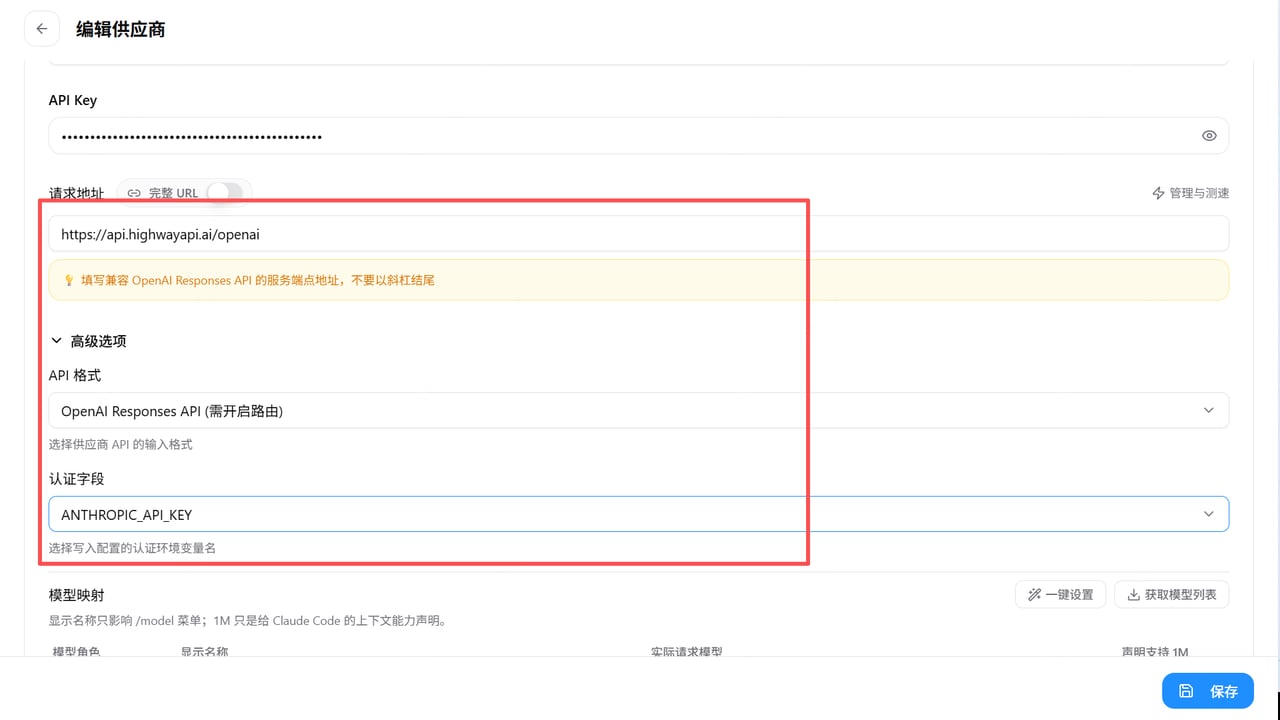
* OpenAI models: `https://api.highway.ai/openai`
4. Enter the key copied in the previous step, retrieve the model list, and select the model you want to use.
5. Save the provider, select it, and click “Enable”. The active provider will then appear in the system tray.
### 2. Add a Provider in CC Switch
1. Open CC Switch, select **Claude Code** on the left, and click “Add Provider” in the upper-right corner.
2. Select “Custom Configuration” from the preset list and enter a provider name such as “Interface AI”.
3. Enter the Base URL:
* Anthropic models: `https://api.highway.ai/anthropic`
* OpenAI models: `https://api.highway.ai/openai`
4. Enter the key copied in the previous step, retrieve the model list, and select the model you want to use.
5. Save the provider, select it, and click “Enable”. The active provider will then appear in the system tray.
 **Anthropic model configuration:**
 **OpenAI model configuration:**
 ### 3. Verify the Configuration
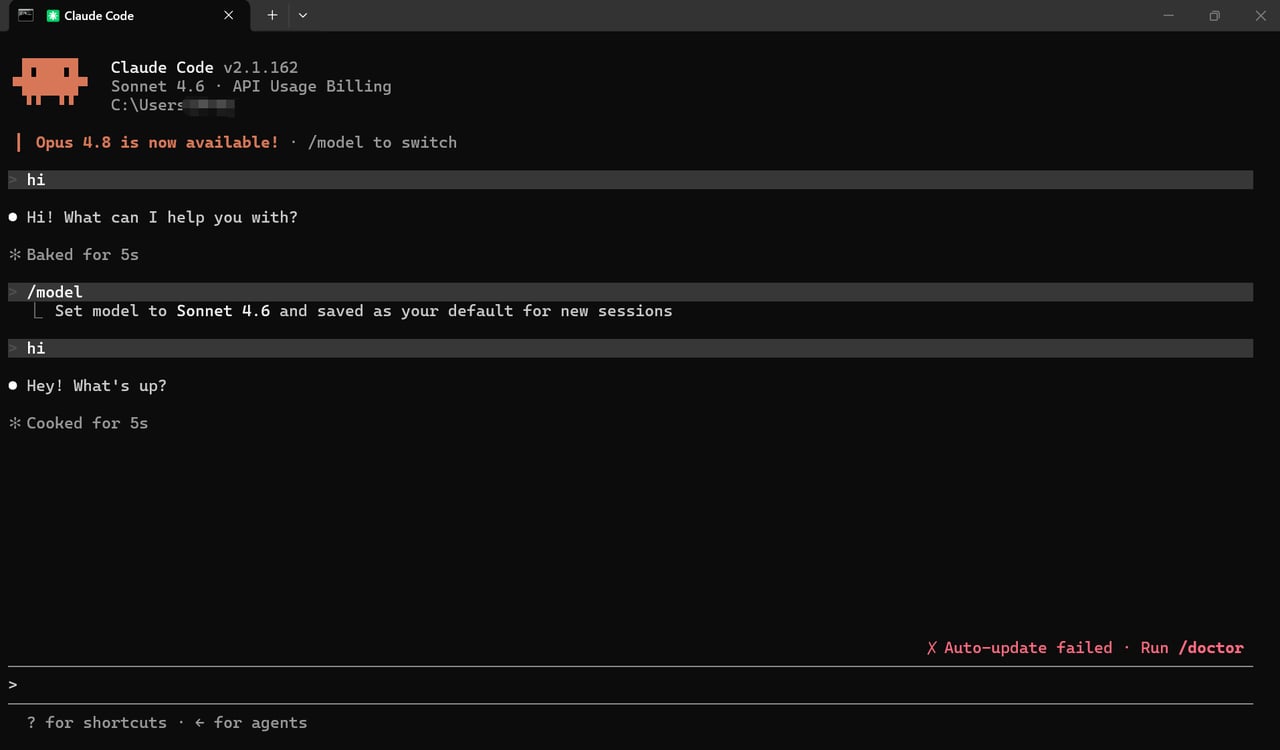
Open a terminal and run `claude`. If the conversation starts normally, the integration is working. After switching providers in Claude Code, you can start a new session directly without restarting the application.
If an error occurs, check the following:
* **404**: Check whether the path at the end of the endpoint is missing or duplicated.
* **401 or 403**: Return to the Interface AI console and confirm that the API key is active.
### 3. Verify the Configuration
Open a terminal and run `claude`. If the conversation starts normally, the integration is working. After switching providers in Claude Code, you can start a new session directly without restarting the application.
If an error occurs, check the following:
* **404**: Check whether the path at the end of the endpoint is missing or duplicated.
* **401 or 403**: Return to the Interface AI console and confirm that the API key is active.