> ## Documentation Index
> Fetch the complete documentation index at: https://docs.jiekou.ai/llms.txt
> Use this file to discover all available pages before exploring further.
# LangBot
LangBot is an open-source large language model (LLM)-native instant messaging bot platform designed to provide an out-of-the-box IM bot development experience. It includes multiple LLM application capabilities such as Agent, RAG, and MCP, supports mainstream global instant messaging platforms including Feishu, DingTalk, QQ, WeCom, Discord, and Slack, and provides rich API interfaces for custom development.
Powered by the model API services provided by JieKou.AI, LangBot can integrate with mainstream domestic and international models such as Claude-sonnet-4-5, Gpt-5, Gpt-4o, and Gemini-2.5-pro. Users can choose models as needed to fit the calling requirements of different scenarios.
# JieKou.AI × LangBot Configuration Guide
## 1. Get an API key
Visit [JieKou.AI](https://jiekou.ai/), then register and log in.
Enter the invitation code 【YGHNZ0】 to receive a \$2 registration bonus.
### **(1) Get an API key**
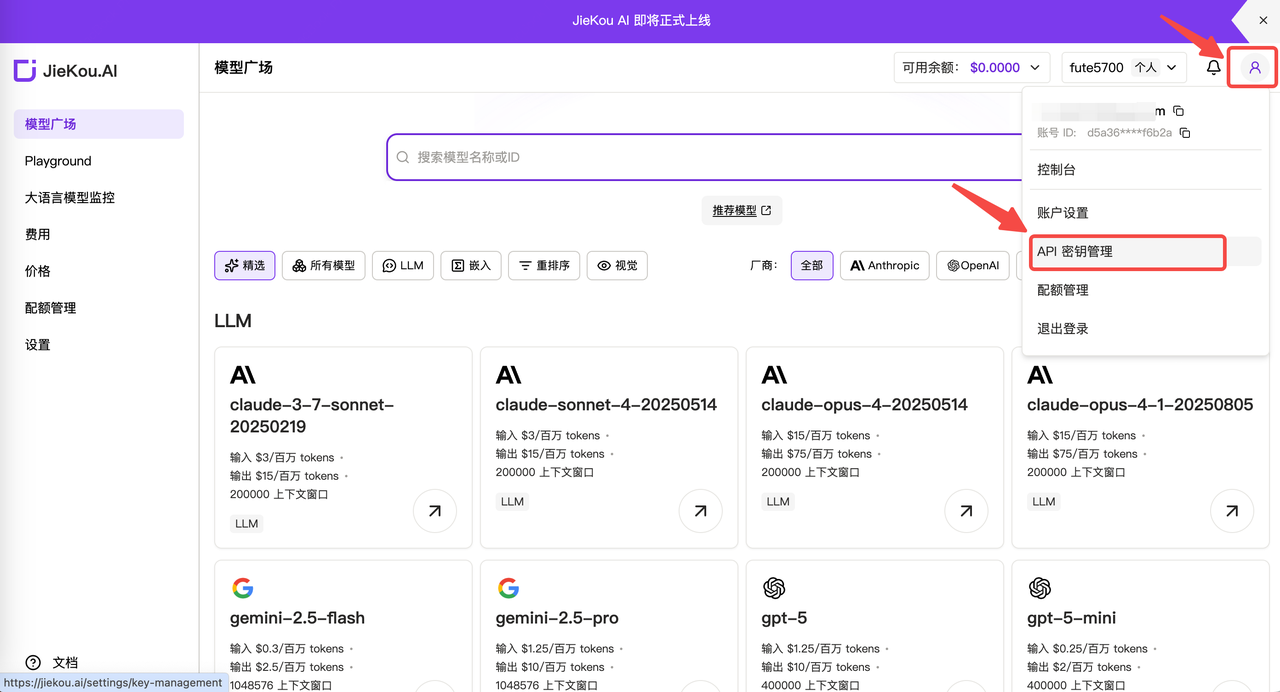
Open the 【API key】 management page, click the add button, enter a custom key name, and generate an API key.
 ### **(2) Generate and save the API key**
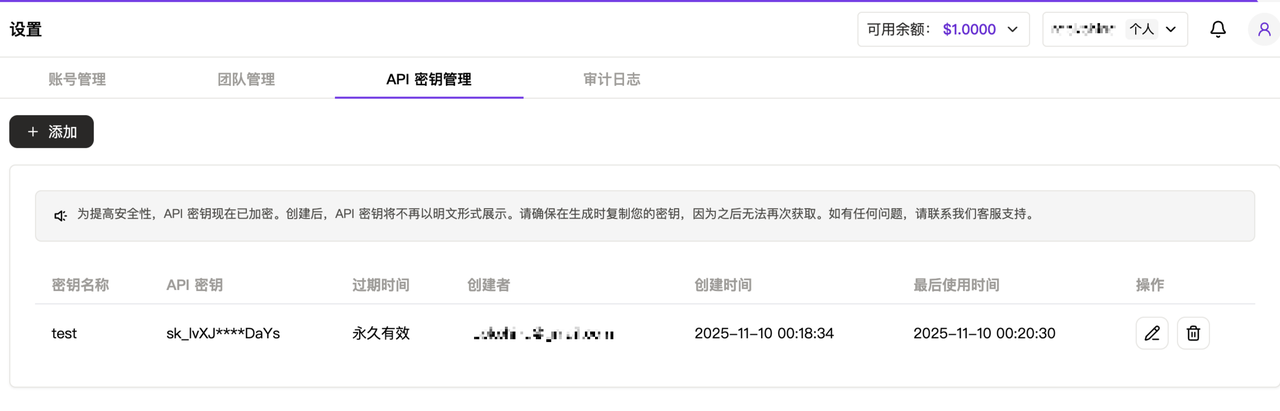
**!!Note:** Keys are stored encrypted on the server and cannot be viewed again after creation. Please keep your key safe. If it is lost, you need to delete it in the console and create a new one.
### **(2) Generate and save the API key**
**!!Note:** Keys are stored encrypted on the server and cannot be viewed again after creation. Please keep your key safe. If it is lost, you need to delete it in the console and create a new one.
 ### **(3) Get the 【Model ID】**
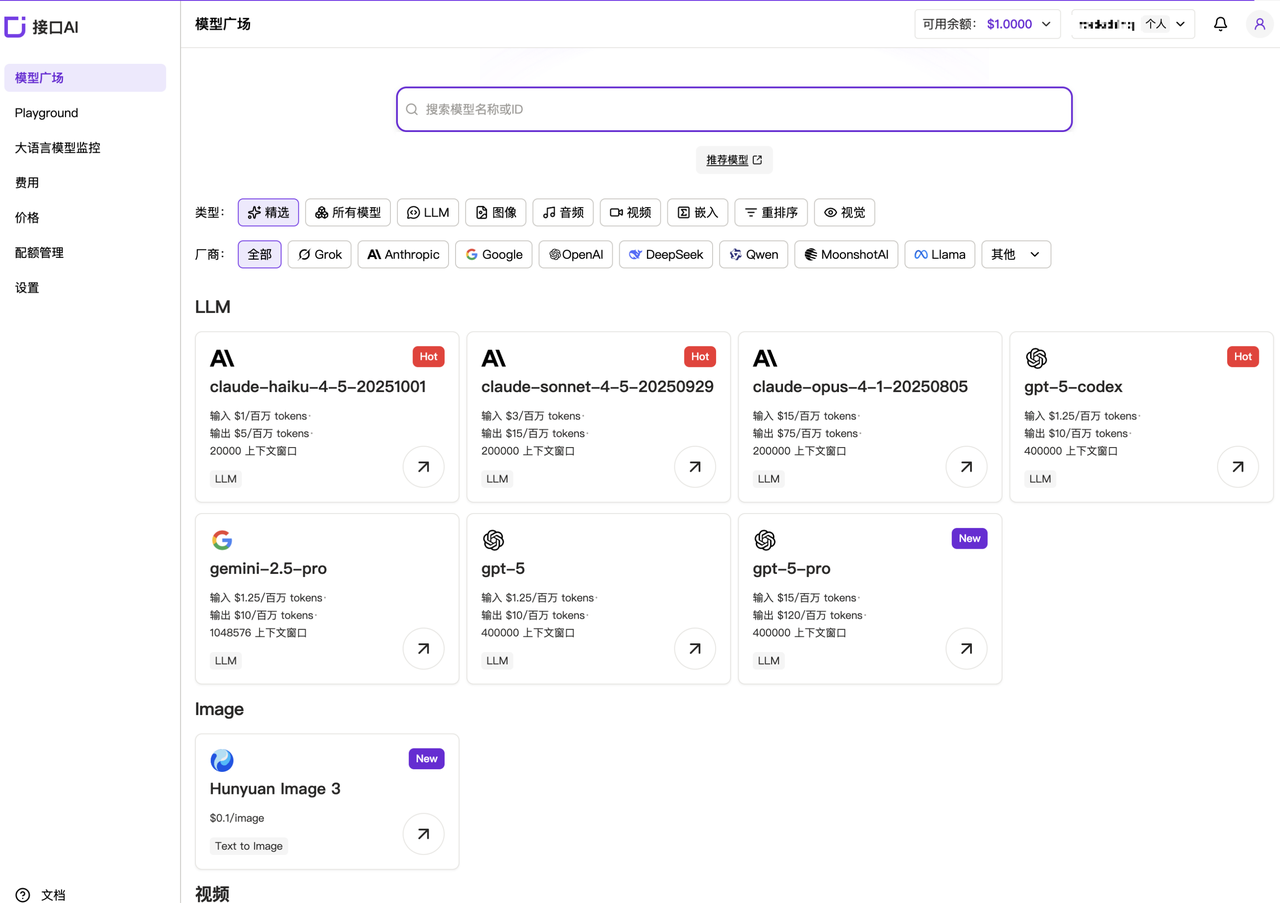
**Recommended model IDs:**
* Claude-sonnet-4-5
* Gpt-5
* Gpt-4o
* Gemini-2.5-pro
For other model IDs, maximum context lengths, and pricing, refer to the [Model Square](https://jiekou.ai/models-console/library).
### **(3) Get the 【Model ID】**
**Recommended model IDs:**
* Claude-sonnet-4-5
* Gpt-5
* Gpt-4o
* Gemini-2.5-pro
For other model IDs, maximum context lengths, and pricing, refer to the [Model Square](https://jiekou.ai/models-console/library).
 ## 2. Deploy and configure LangBot
With Docker, you can conveniently deploy LangBot on Windows, Mac, and Linux.
Before deployment, make sure Git, Docker, and Docker Compose are installed.
Project address: *[https://github.com/RockChinQ/LangBot](https://github.com/RockChinQ/LangBot)*
### **(1) Deploy LangBot with Docker**
Clone this project with Git:
```
git clone https://github.com/langbot-app/LangBot
cd LangBot/docker
```
Start the container:
```
docker compose up
```
* If your host is located in mainland China, you can change `https://github.com/langbot-app/LangBot` in the command above to `https://gitcode.com/RockChinQ/LangBot` to use a domestic mirror source.
* If your host is located in mainland China, you can consider changing the image name in the `docker-compose.yaml` file to `docker.langbot.app/langbot-public/rockchin/langbot:latest` to use the image source we provide.
* It is recommended to configure a Docker container proxy to ensure smooth network access while LangBot is running.
### **(2) Create the configuration file**
On first startup, a prompt for creating a configuration file will be output. Continue by configuring the file as instructed.
The container maps port 5300 for WebUI use. You can visit [http://127.0.0.1:5300](http://127.0.0.1:5300) to view the WebUI.
It also maps ports 2280-2290 for reverse connections from messaging platform adapters that use the OneBot protocol.
### **(3) Configure the conversation model**
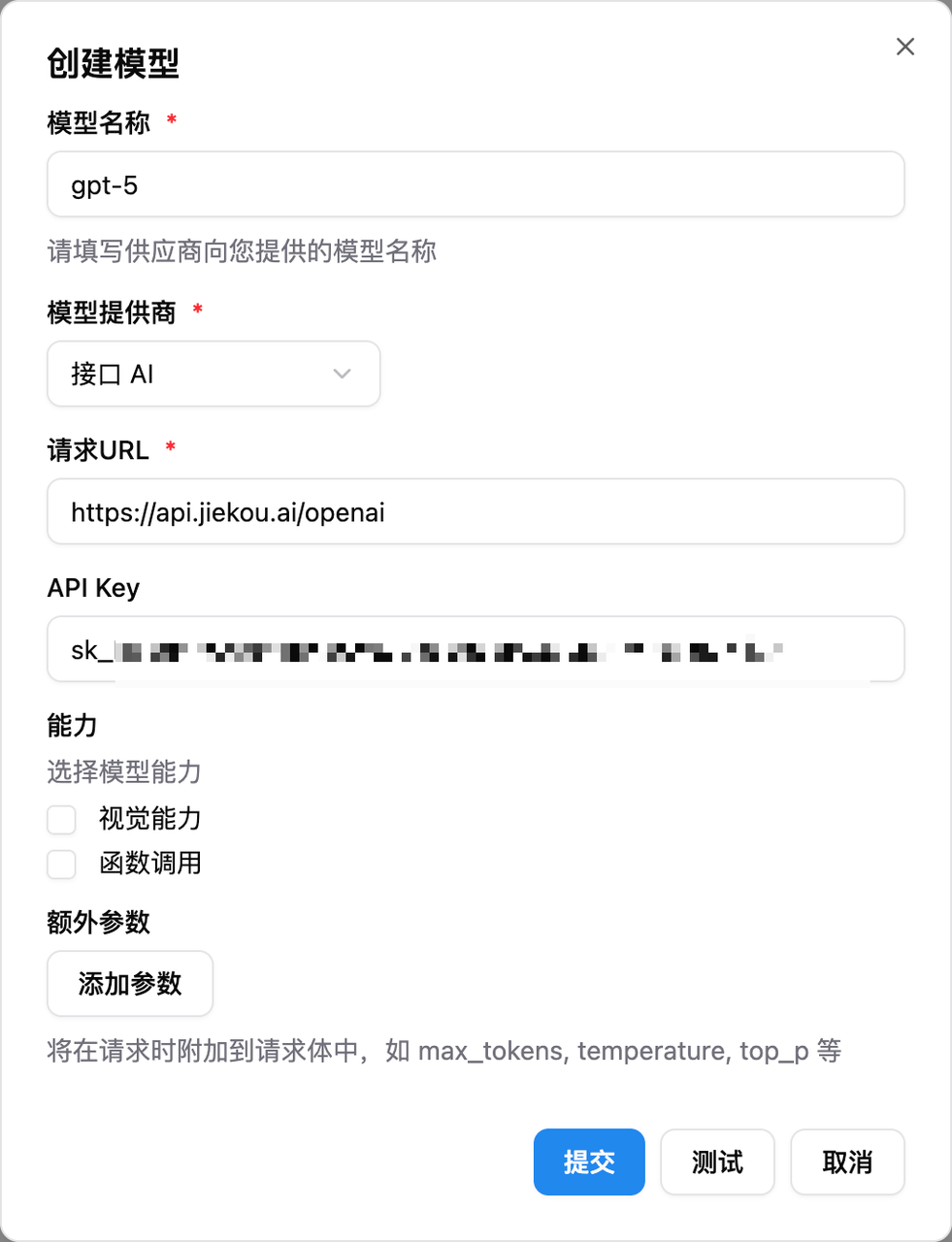
Open LangBot, click model configuration, and select **Interface AI** as the model provider.
Configure the model using the following information.
* Model name: the required model name copied from the JieKou.AI official website
* Model provider: Interface AI
* Request URL: *[https://api.highwayapi.ai/openai](https://api.highwayapi.ai/openai)*
* API Key: the key saved from the JieKou.AI official website
## 2. Deploy and configure LangBot
With Docker, you can conveniently deploy LangBot on Windows, Mac, and Linux.
Before deployment, make sure Git, Docker, and Docker Compose are installed.
Project address: *[https://github.com/RockChinQ/LangBot](https://github.com/RockChinQ/LangBot)*
### **(1) Deploy LangBot with Docker**
Clone this project with Git:
```
git clone https://github.com/langbot-app/LangBot
cd LangBot/docker
```
Start the container:
```
docker compose up
```
* If your host is located in mainland China, you can change `https://github.com/langbot-app/LangBot` in the command above to `https://gitcode.com/RockChinQ/LangBot` to use a domestic mirror source.
* If your host is located in mainland China, you can consider changing the image name in the `docker-compose.yaml` file to `docker.langbot.app/langbot-public/rockchin/langbot:latest` to use the image source we provide.
* It is recommended to configure a Docker container proxy to ensure smooth network access while LangBot is running.
### **(2) Create the configuration file**
On first startup, a prompt for creating a configuration file will be output. Continue by configuring the file as instructed.
The container maps port 5300 for WebUI use. You can visit [http://127.0.0.1:5300](http://127.0.0.1:5300) to view the WebUI.
It also maps ports 2280-2290 for reverse connections from messaging platform adapters that use the OneBot protocol.
### **(3) Configure the conversation model**
Open LangBot, click model configuration, and select **Interface AI** as the model provider.
Configure the model using the following information.
* Model name: the required model name copied from the JieKou.AI official website
* Model provider: Interface AI
* Request URL: *[https://api.highwayapi.ai/openai](https://api.highwayapi.ai/openai)*
* API Key: the key saved from the JieKou.AI official website
 ## **3. Connect a platform**
LangBot supports connecting chatbots to platforms such as QQ, WeChat Official Accounts, and Feishu. Using DingTalk as an example, the LangBot integration guide is as follows.
### **(1) Create a bot**
Go to the DingTalk developer console, log in, and enter your organization.
Address: *[https://open-dev.dingtalk.com/](https://open-dev.dingtalk.com/)*
Click 【Application Development】 at the top, select 【Create Application】, fill in the bot's basic information, and save it.
## **3. Connect a platform**
LangBot supports connecting chatbots to platforms such as QQ, WeChat Official Accounts, and Feishu. Using DingTalk as an example, the LangBot integration guide is as follows.
### **(1) Create a bot**
Go to the DingTalk developer console, log in, and enter your organization.
Address: *[https://open-dev.dingtalk.com/](https://open-dev.dingtalk.com/)*
Click 【Application Development】 at the top, select 【Create Application】, fill in the bot's basic information, and save it.
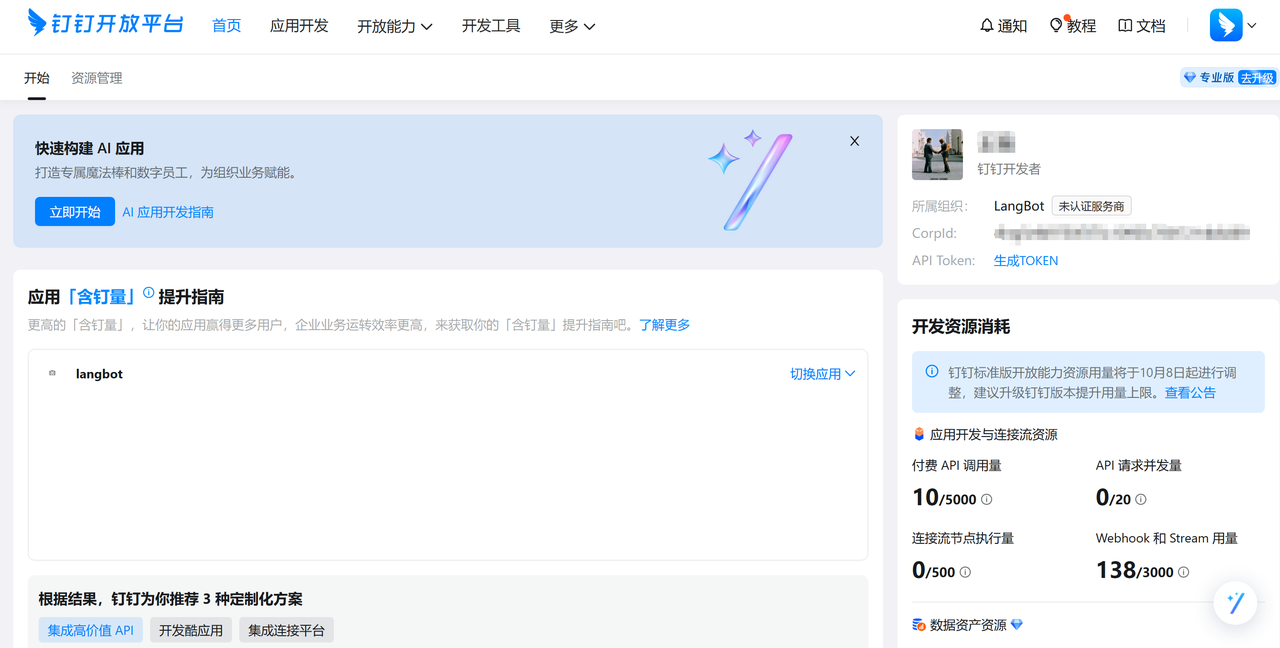 Enter the bot's backend. For example, if we have a bot named langbot2, its management page looks like this:
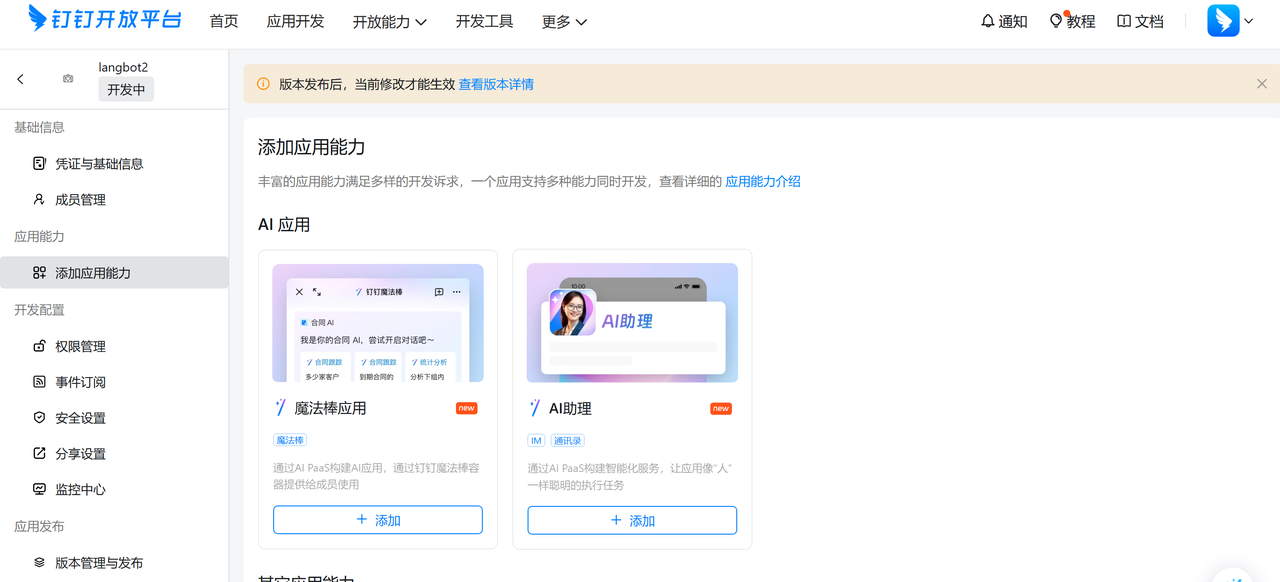 ### **(2) Configure the bot**
Select 【Add Application Capability】 to add bot capabilities to the application.
Click the 【Bot】 tab on the left, fill in the bot configuration information, complete basic settings such as name, description, and message name, and click publish after configuration is complete.
### **(2) Configure the bot**
Select 【Add Application Capability】 to add bot capabilities to the application.
Click the 【Bot】 tab on the left, fill in the bot configuration information, complete basic settings such as name, description, and message name, and click publish after configuration is complete.
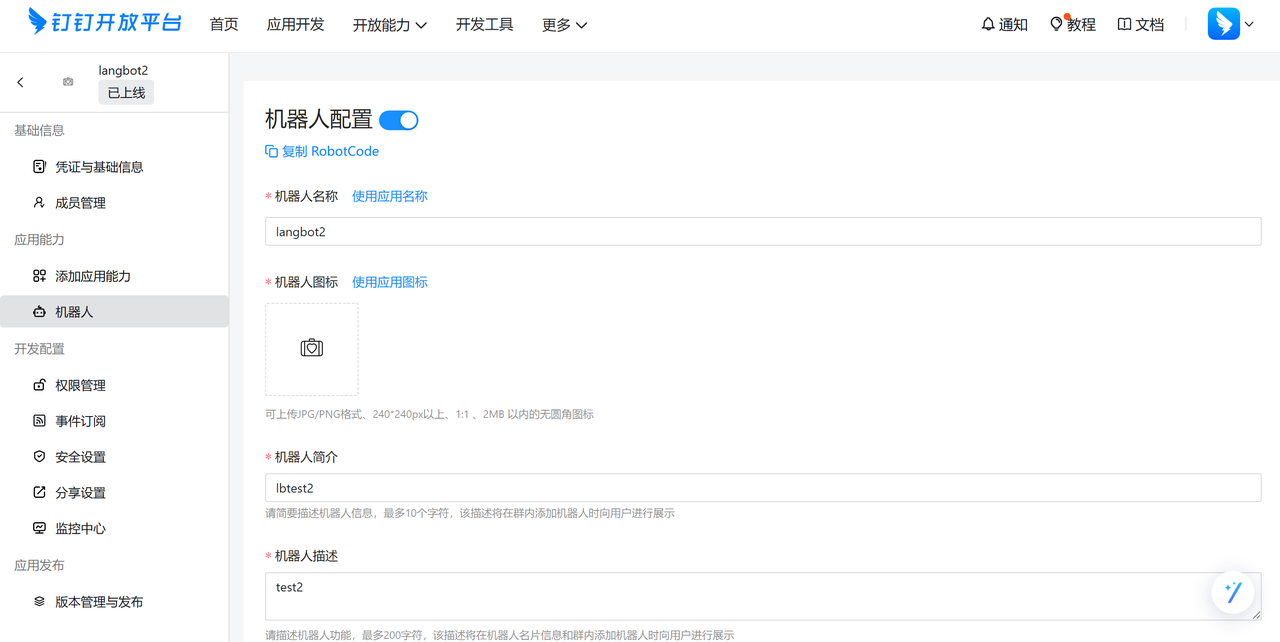 After publishing successfully, click 【Version Management and Publishing】 at the bottom left, and configure the application version number and version description.
If this is your first time creating a bot, the right side will be empty. You need to click 【Create New Version】, set the information there, then set the 【Application Visibility Scope】, and click save.
For 【Event Subscription】, select 【Stream Mode】. There is no need to register a public network callback address.
After publishing successfully, click 【Version Management and Publishing】 at the bottom left, and configure the application version number and version description.
If this is your first time creating a bot, the right side will be empty. You need to click 【Create New Version】, set the information there, then set the 【Application Visibility Scope】, and click save.
For 【Event Subscription】, select 【Stream Mode】. There is no need to register a public network callback address.
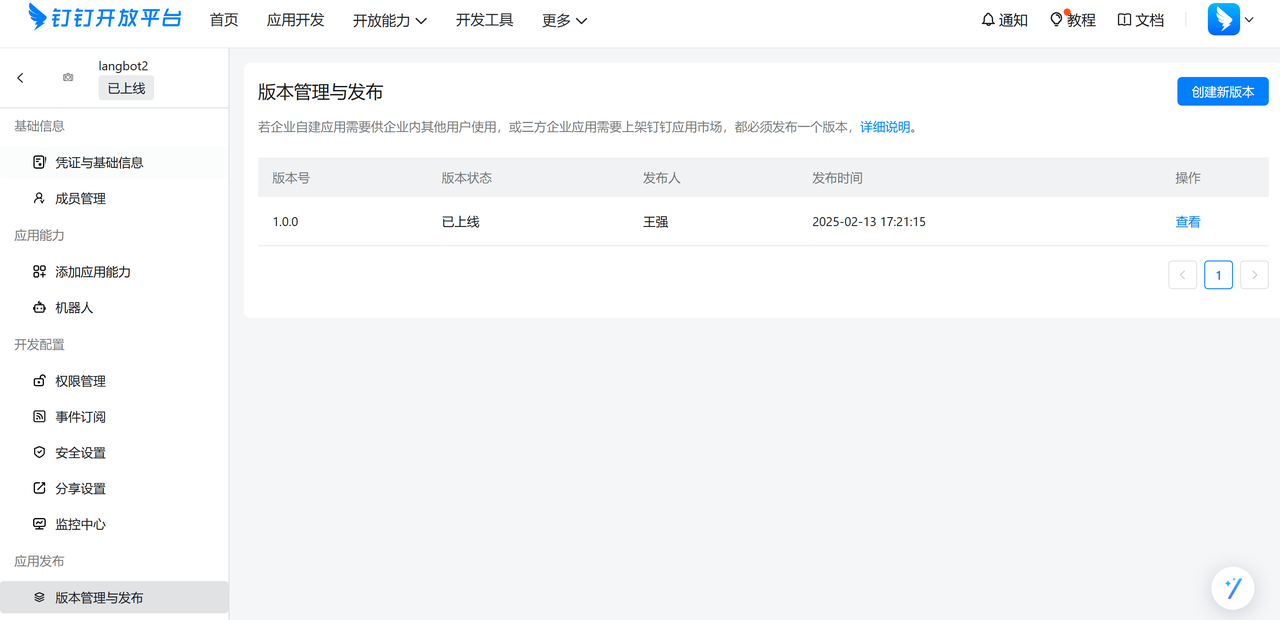 Click 【Credentials and Basic Information】, record the Client ID and Client Secret, then click Bot on the left and record the RobotCode and bot name.
After recording the above configuration items, fill them into the LangBot bot configuration form. Click the [Card Platform](https://open-dev.dingtalk.com/fe/card?spm=ding_open_doc.document.0.0.33cf2281L0fXsV) template list, copy the corresponding bound template id, and enter it into the card template id field.
Click 【Credentials and Basic Information】, record the Client ID and Client Secret, then click Bot on the left and record the RobotCode and bot name.
After recording the above configuration items, fill them into the LangBot bot configuration form. Click the [Card Platform](https://open-dev.dingtalk.com/fe/card?spm=ding_open_doc.document.0.0.33cf2281L0fXsV) template list, copy the corresponding bound template id, and enter it into the card template id field.
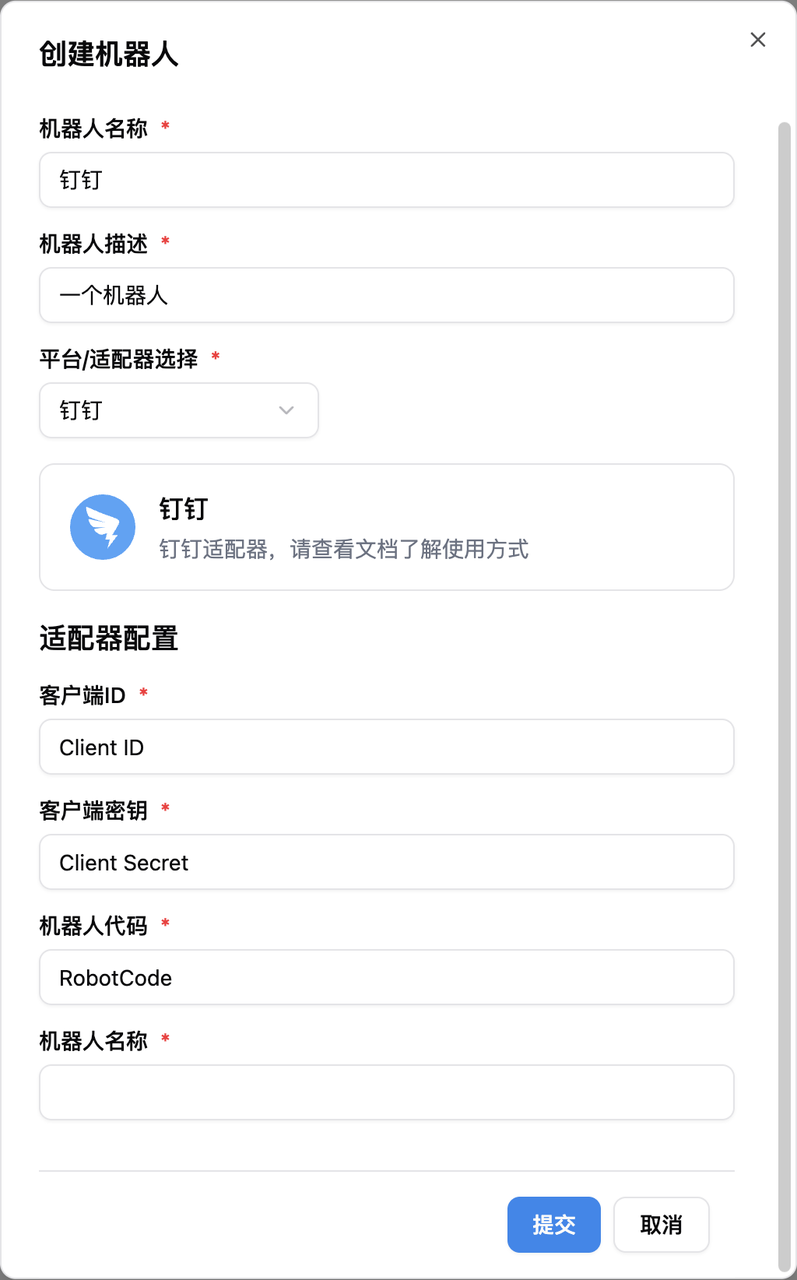 Start LangBot, edit the bot, bind a pipeline (there will initially be a ChatPipeline pipeline), and select DingTalk as the platform.
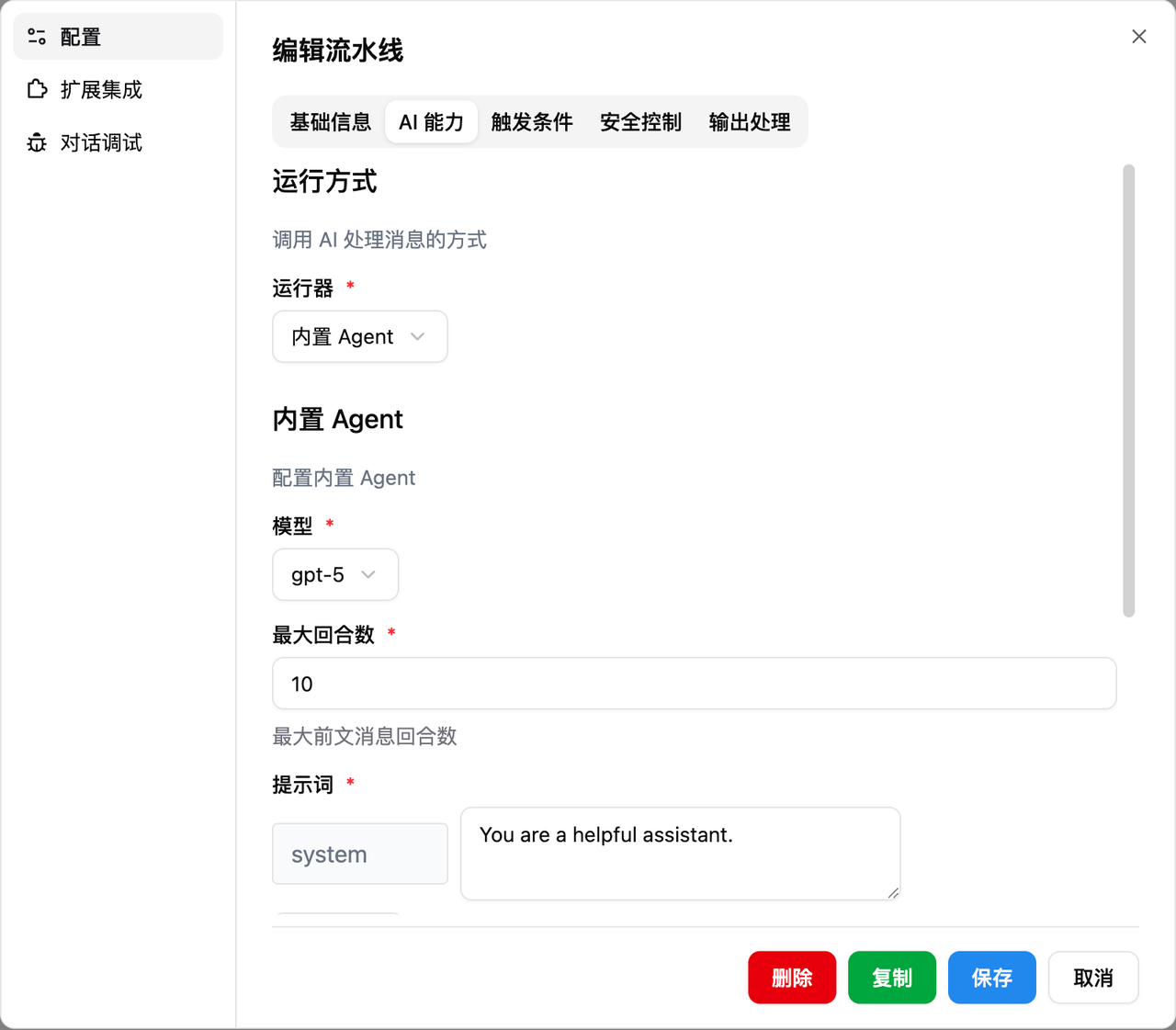
Edit the pipeline. In the AI capability configuration, select the built-in Agent and choose the required model you previously bound.
Start LangBot, edit the bot, bind a pipeline (there will initially be a ChatPipeline pipeline), and select DingTalk as the platform.
Edit the pipeline. In the AI capability configuration, select the built-in Agent and choose the required model you previously bound.
 ### **(3) Add the bot**
Search for the bot name you just configured in DingTalk, then click the bot to chat with it.
### **(3) Add the bot**
Search for the bot name you just configured in DingTalk, then click the bot to chat with it.
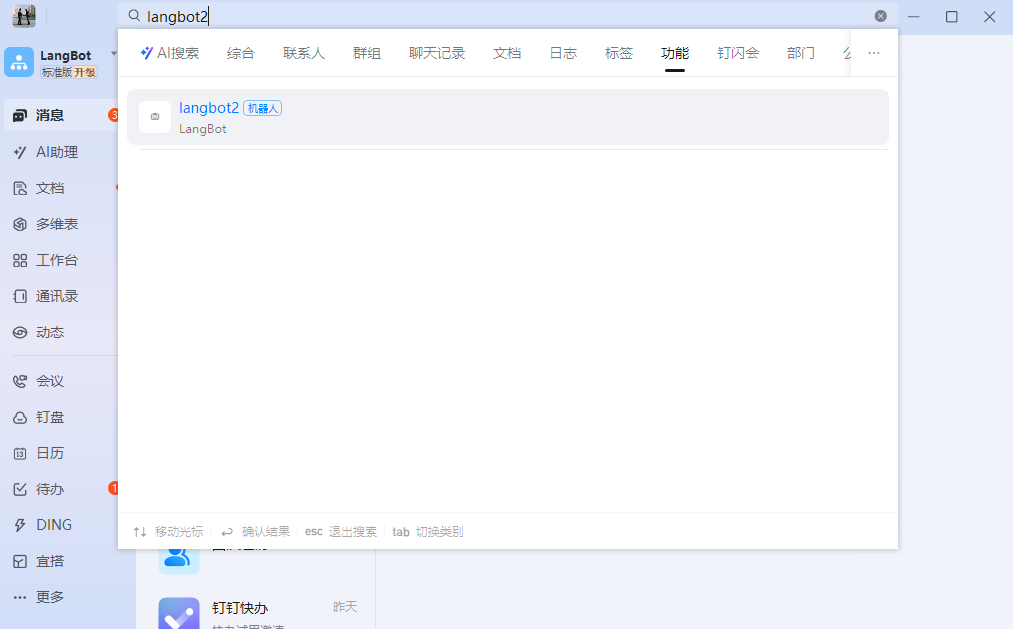 If you want to add the bot to a group, click 【Group Management】 in the DingTalk group, select 【Add Bot】, and then search for the bot name to use it in the group chat.