> ## Documentation Index
> Fetch the complete documentation index at: https://docs.jiekou.ai/llms.txt
> Use this file to discover all available pages before exploring further.
# OpenCode
OpenCode is an open-source AI coding agent for developers, focused on a terminal-native experience: through a TUI/CLI, you can discuss requirements, generate code, refactor, explain, debug, and complete other workflows directly in the command line. It emphasizes being model-agnostic and can connect to model services such as Claude, GPT, and Gemini, as well as local or OpenAI-compatible endpoints, making it easy to balance cost, performance, and privacy. OpenCode also provides an extensible plugin/tool mechanism and configuration system, enabling capabilities such as project context and command execution to be integrated into automated workflows. It is well suited for heavy terminal users and teams that want to customize AI coding workflows.
# Installation and Integration
## Installation
```bash theme={null}
curl -fsSL https://opencode.ai/install | bash
```
For other installation methods, see the OpenCode official website: [https://opencode.ai/docs/#install](https://opencode.ai/docs/#install)
## Start OpenCode
```bash theme={null}
cd /path/to/project # Enter the project path
opencode # Start OpenCode
```
## Connect to the JieKou API
* Global configuration: \~/.config/opencode/opencode.json
* Project configuration: opencode.json in the project root directory
(If opencode.json does not exist, you can create it manually.)
Configure as follows:
```JSON theme={null}
{
"$schema": "https://opencode.ai/config.json",
"provider": {
"myprovider": {
"npm": "@ai-sdk/openai-compatible",
"name": "JieKou",
"options": {
"baseURL": "https://api.highwayapi.ai/openai/v1"
},
"models": {
"claude-sonnet-4-5-20250929": {
"name": "claude-sonnet-4-5-20250929"
},
"gpt-5.2": {
"name": "gpt-5.2"
},
}
}
}
}
```
When configuring a third-party provider, make sure to choose the correct npm package:
| **npm package** | **API type** | **Use case** |
| ------------------------- | ------------------- | ---------------------------------- |
| @ai-sdk/openai-compatible | Chat Completion API | Most models such as GPT and Claude |
| @ai-sdk/openai | Response API | Codex series models |
**Note:** Codex models (such as gpt-5.1-codex) need to use @ai-sdk/openai (Response API). Other models should use @ai-sdk/openai-compatible (Chat Completion API).
## Configure the KEY
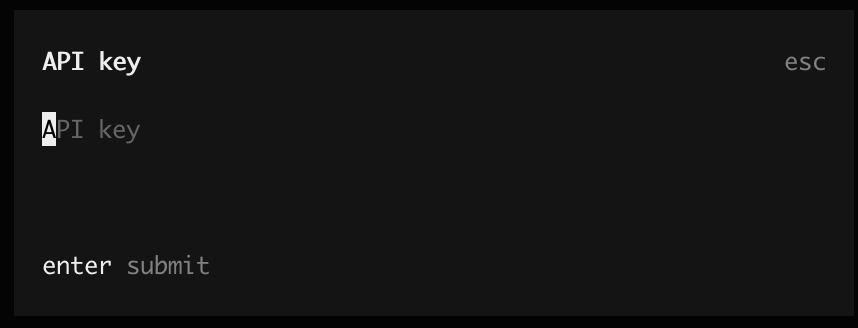
Enter opencode, use `/connect` to select a provider, then enter the API KEY and press Enter to confirm.
 ## Start Using
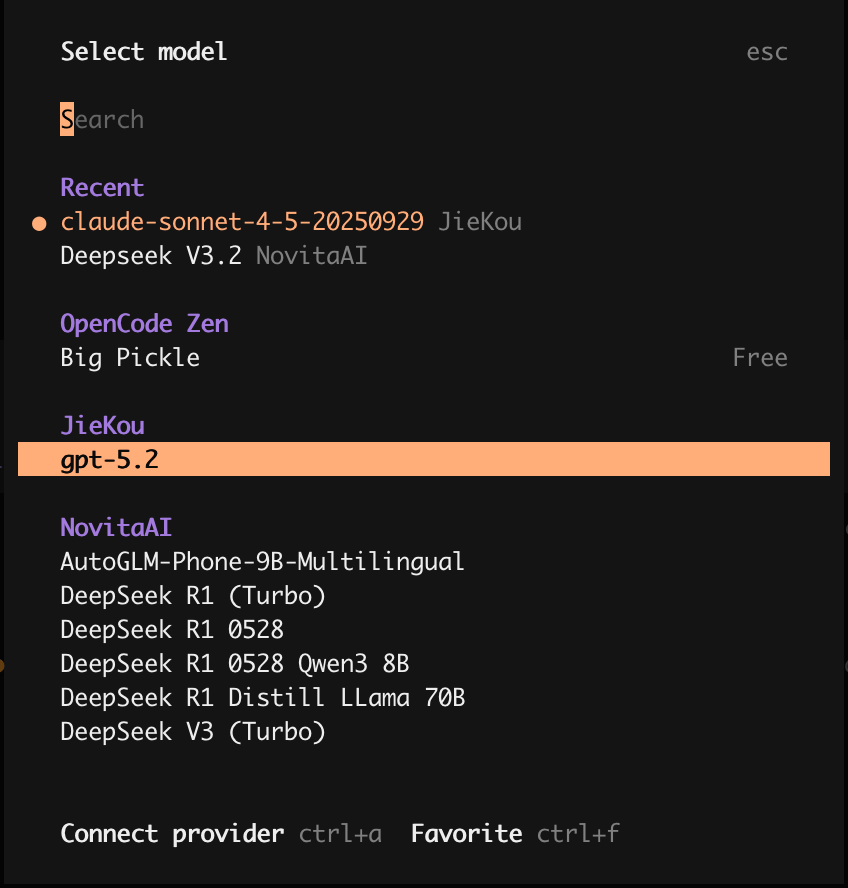
After connecting to the provider, you can use the `/models` command to select a model.
## Start Using
After connecting to the provider, you can use the `/models` command to select a model.
 # Other Usage
## Example: Local MCP Configuration (using a calculator MCP as an example)
1. Use python + MCP SDK to write the calculator mcp server code and save it to a local path.
```python theme={null}
import asyncio
import math
from mcp.server import Server
from mcp.server.stdio import stdio_server
from mcp.types import Tool, TextContent
# Create server instance
server = Server("calculator")
@server.list_tools()
async def list_tools() -> list[Tool]:
"""List available calculator tools."""
return [
Tool(
name="add",
description="Add two numbers",
inputSchema={
"type": "object",
"properties": {
"a": {"type": "number", "description": "First number"},
"b": {"type": "number", "description": "Second number"},
},
"required": ["a", "b"],
},
),
Tool(
name="subtract",
description="Subtract second number from first number",
inputSchema={
"type": "object",
"properties": {
"a": {"type": "number", "description": "First number"},
"b": {"type": "number", "description": "Second number to subtract"},
},
"required": ["a", "b"],
},
),
Tool(
name="multiply",
description="Multiply two numbers",
inputSchema={
"type": "object",
"properties": {
"a": {"type": "number", "description": "First number"},
"b": {"type": "number", "description": "Second number"},
},
"required": ["a", "b"],
},
),
Tool(
name="divide",
description="Divide first number by second number",
inputSchema={
"type": "object",
"properties": {
"a": {"type": "number", "description": "Dividend"},
"b": {"type": "number", "description": "Divisor"},
},
"required": ["a", "b"],
},
),
Tool(
name="power",
description="Raise a number to a power",
inputSchema={
"type": "object",
"properties": {
"base": {"type": "number", "description": "Base number"},
"exponent": {"type": "number", "description": "Exponent"},
},
"required": ["base", "exponent"],
},
),
Tool(
name="sqrt",
description="Calculate square root of a number",
inputSchema={
"type": "object",
"properties": {
"a": {"type": "number", "description": "Number to calculate square root of"},
},
"required": ["a"],
},
),
Tool(
name="modulo",
description="Calculate remainder of division",
inputSchema={
"type": "object",
"properties": {
"a": {"type": "number", "description": "Dividend"},
"b": {"type": "number", "description": "Divisor"},
},
"required": ["a", "b"],
},
),
]
@server.call_tool()
async def call_tool(name: str, arguments: dict) -> list[TextContent]:
"""Handle tool calls for calculator operations."""
try:
if name == "add":
result = arguments["a"] + arguments["b"]
elif name == "subtract":
result = arguments["a"] - arguments["b"]
elif name == "multiply":
result = arguments["a"] * arguments["b"]
elif name == "divide":
if arguments["b"] == 0:
return [TextContent(type="text", text="Error: Division by zero")]
result = arguments["a"] / arguments["b"]
elif name == "power":
result = math.pow(arguments["base"], arguments["exponent"])
elif name == "sqrt":
if arguments["a"] < 0:
return [TextContent(type="text", text="Error: Cannot calculate square root of negative number")]
result = math.sqrt(arguments["a"])
elif name == "modulo":
if arguments["b"] == 0:
return [TextContent(type="text", text="Error: Modulo by zero")]
result = arguments["a"] % arguments["b"]
else:
return [TextContent(type="text", text=f"Error: Unknown tool '{name}'")]
return [TextContent(type="text", text=str(result))]
except Exception as e:
return [TextContent(type="text", text=f"Error: {str(e)}")]
async def main():
"""Run the calculator MCP server."""
async with stdio_server() as (read_stream, write_stream):
await server.run(read_stream, write_stream, server.create_initialization_options())
if __name__ == "__main__":
asyncio.run(main())
```
2. Add the local mcp to opencode.json.
```json theme={null}
{
"mcp": {
"calc_mcp": {
"type": "local",
"command": ["python3", "{your_local_path}/calc_mcp.py"],
"enabled": true
}
}
}
```
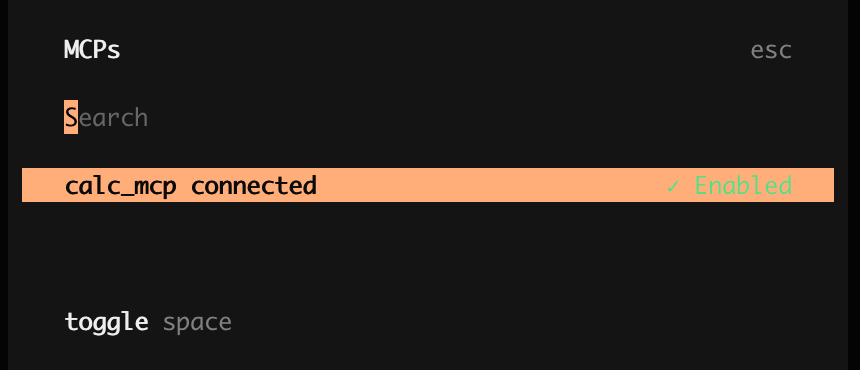
3. Use `/mcps` to view the mcp connection status. When it is Enabled, you can ask opencode to call it.
# Other Usage
## Example: Local MCP Configuration (using a calculator MCP as an example)
1. Use python + MCP SDK to write the calculator mcp server code and save it to a local path.
```python theme={null}
import asyncio
import math
from mcp.server import Server
from mcp.server.stdio import stdio_server
from mcp.types import Tool, TextContent
# Create server instance
server = Server("calculator")
@server.list_tools()
async def list_tools() -> list[Tool]:
"""List available calculator tools."""
return [
Tool(
name="add",
description="Add two numbers",
inputSchema={
"type": "object",
"properties": {
"a": {"type": "number", "description": "First number"},
"b": {"type": "number", "description": "Second number"},
},
"required": ["a", "b"],
},
),
Tool(
name="subtract",
description="Subtract second number from first number",
inputSchema={
"type": "object",
"properties": {
"a": {"type": "number", "description": "First number"},
"b": {"type": "number", "description": "Second number to subtract"},
},
"required": ["a", "b"],
},
),
Tool(
name="multiply",
description="Multiply two numbers",
inputSchema={
"type": "object",
"properties": {
"a": {"type": "number", "description": "First number"},
"b": {"type": "number", "description": "Second number"},
},
"required": ["a", "b"],
},
),
Tool(
name="divide",
description="Divide first number by second number",
inputSchema={
"type": "object",
"properties": {
"a": {"type": "number", "description": "Dividend"},
"b": {"type": "number", "description": "Divisor"},
},
"required": ["a", "b"],
},
),
Tool(
name="power",
description="Raise a number to a power",
inputSchema={
"type": "object",
"properties": {
"base": {"type": "number", "description": "Base number"},
"exponent": {"type": "number", "description": "Exponent"},
},
"required": ["base", "exponent"],
},
),
Tool(
name="sqrt",
description="Calculate square root of a number",
inputSchema={
"type": "object",
"properties": {
"a": {"type": "number", "description": "Number to calculate square root of"},
},
"required": ["a"],
},
),
Tool(
name="modulo",
description="Calculate remainder of division",
inputSchema={
"type": "object",
"properties": {
"a": {"type": "number", "description": "Dividend"},
"b": {"type": "number", "description": "Divisor"},
},
"required": ["a", "b"],
},
),
]
@server.call_tool()
async def call_tool(name: str, arguments: dict) -> list[TextContent]:
"""Handle tool calls for calculator operations."""
try:
if name == "add":
result = arguments["a"] + arguments["b"]
elif name == "subtract":
result = arguments["a"] - arguments["b"]
elif name == "multiply":
result = arguments["a"] * arguments["b"]
elif name == "divide":
if arguments["b"] == 0:
return [TextContent(type="text", text="Error: Division by zero")]
result = arguments["a"] / arguments["b"]
elif name == "power":
result = math.pow(arguments["base"], arguments["exponent"])
elif name == "sqrt":
if arguments["a"] < 0:
return [TextContent(type="text", text="Error: Cannot calculate square root of negative number")]
result = math.sqrt(arguments["a"])
elif name == "modulo":
if arguments["b"] == 0:
return [TextContent(type="text", text="Error: Modulo by zero")]
result = arguments["a"] % arguments["b"]
else:
return [TextContent(type="text", text=f"Error: Unknown tool '{name}'")]
return [TextContent(type="text", text=str(result))]
except Exception as e:
return [TextContent(type="text", text=f"Error: {str(e)}")]
async def main():
"""Run the calculator MCP server."""
async with stdio_server() as (read_stream, write_stream):
await server.run(read_stream, write_stream, server.create_initialization_options())
if __name__ == "__main__":
asyncio.run(main())
```
2. Add the local mcp to opencode.json.
```json theme={null}
{
"mcp": {
"calc_mcp": {
"type": "local",
"command": ["python3", "{your_local_path}/calc_mcp.py"],
"enabled": true
}
}
}
```
3. Use `/mcps` to view the mcp connection status. When it is Enabled, you can ask opencode to call it.