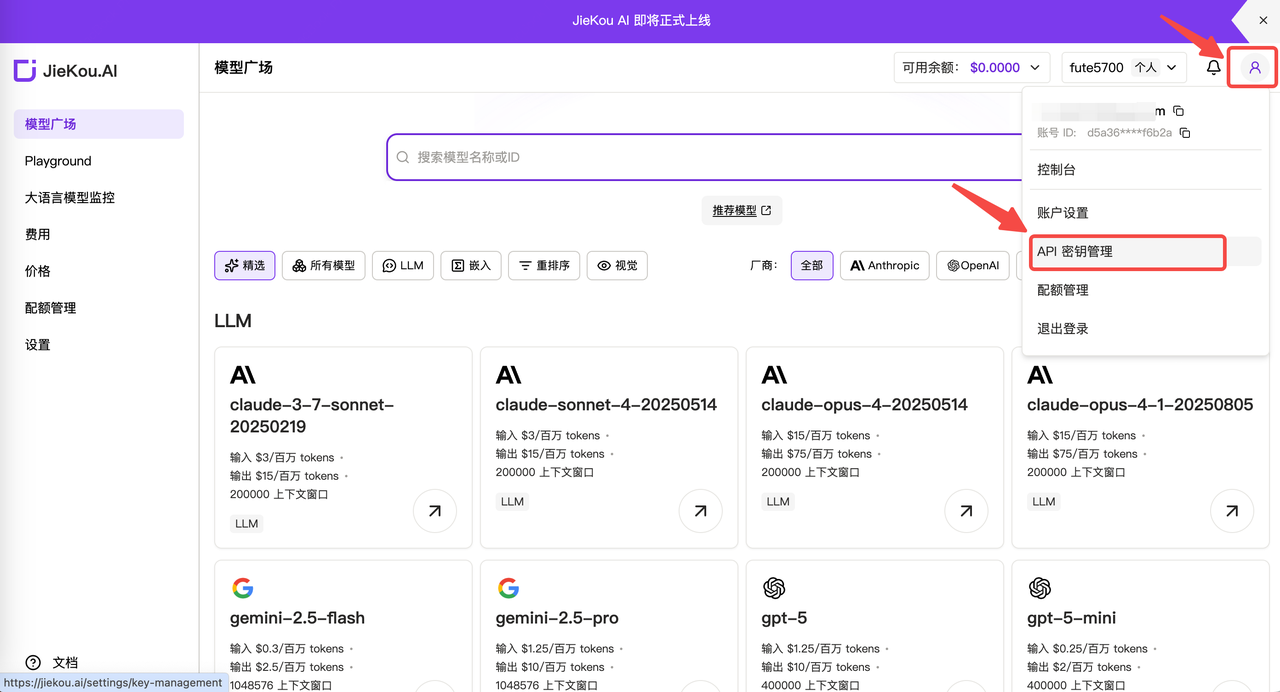
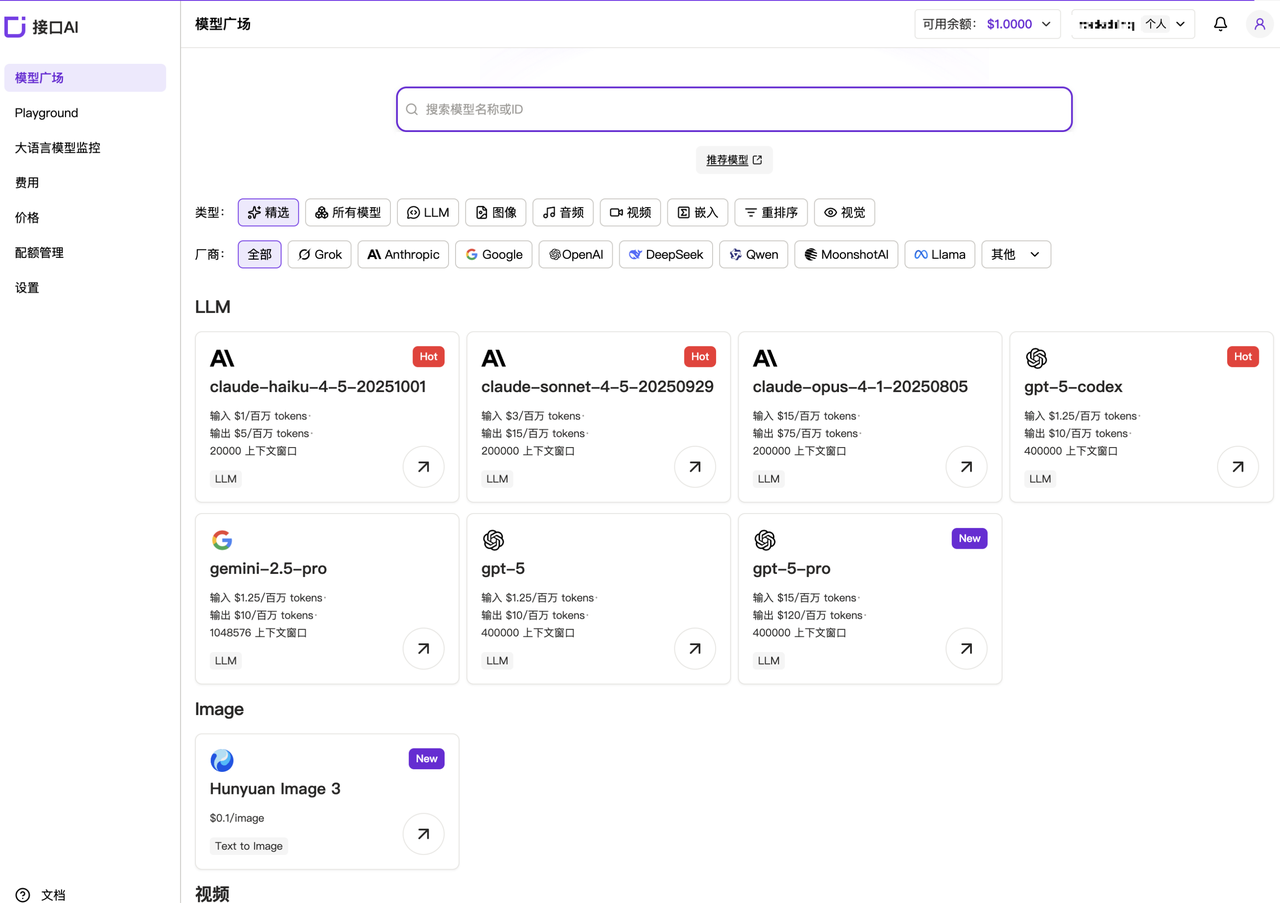
LangBot is an open-source large language model (LLM)-native instant messaging bot platform designed to provide an out-of-the-box IM bot development experience. It includes multiple LLM application capabilities such as Agent, RAG, and MCP, supports mainstream global instant messaging platforms including Feishu, DingTalk, QQ, WeCom, Discord, and Slack, and provides rich API interfaces for custom development.Powered by the model API services provided by JieKou.AI, LangBot can integrate with mainstream domestic and international models such as Claude-sonnet-4-5, Gpt-5, Gpt-4o, and Gemini-2.5-pro. Users can choose models as needed to fit the calling requirements of different scenarios.
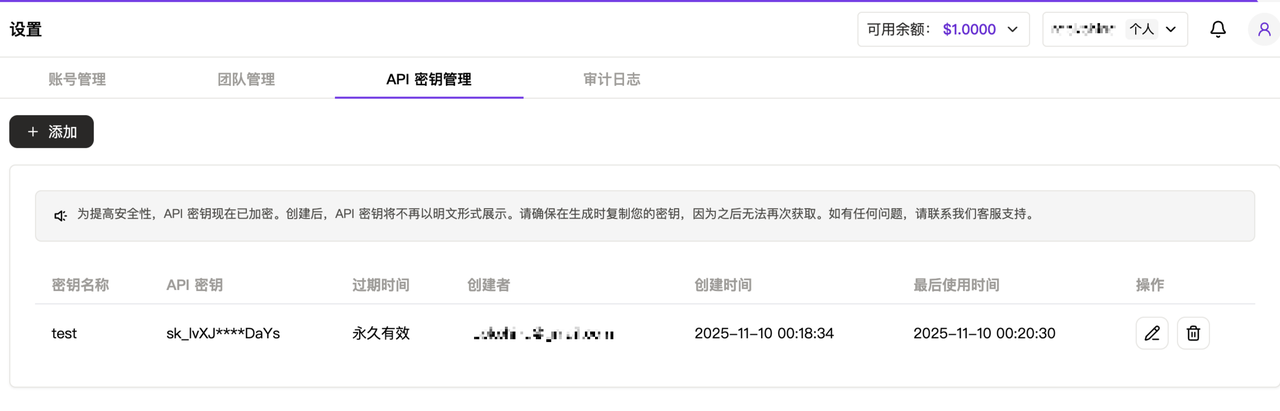
!!Note: Keys are stored encrypted on the server and cannot be viewed again after creation. Please keep your key safe. If it is lost, you need to delete it in the console and create a new one.
With Docker, you can conveniently deploy LangBot on Windows, Mac, and Linux.Before deployment, make sure Git, Docker, and Docker Compose are installed.Project address: https://github.com/RockChinQ/LangBot
If your host is located in mainland China, you can change https://github.com/langbot-app/LangBot in the command above to https://gitcode.com/RockChinQ/LangBot to use a domestic mirror source.
If your host is located in mainland China, you can consider changing the image name in the docker-compose.yaml file to docker.langbot.app/langbot-public/rockchin/langbot:latest to use the image source we provide.
It is recommended to configure a Docker container proxy to ensure smooth network access while LangBot is running.
On first startup, a prompt for creating a configuration file will be output. Continue by configuring the file as instructed.The container maps port 5300 for WebUI use. You can visit http://127.0.0.1:5300 to view the WebUI.It also maps ports 2280-2290 for reverse connections from messaging platform adapters that use the OneBot protocol.
LangBot supports connecting chatbots to platforms such as QQ, WeChat Official Accounts, and Feishu. Using DingTalk as an example, the LangBot integration guide is as follows.
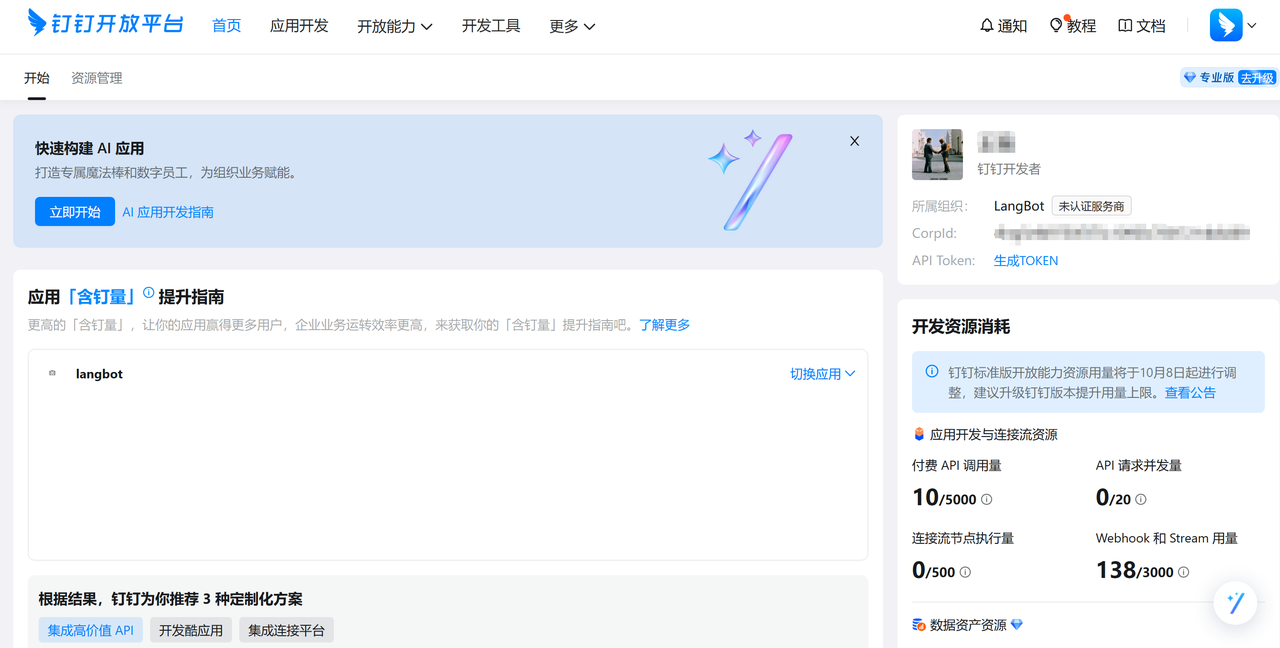
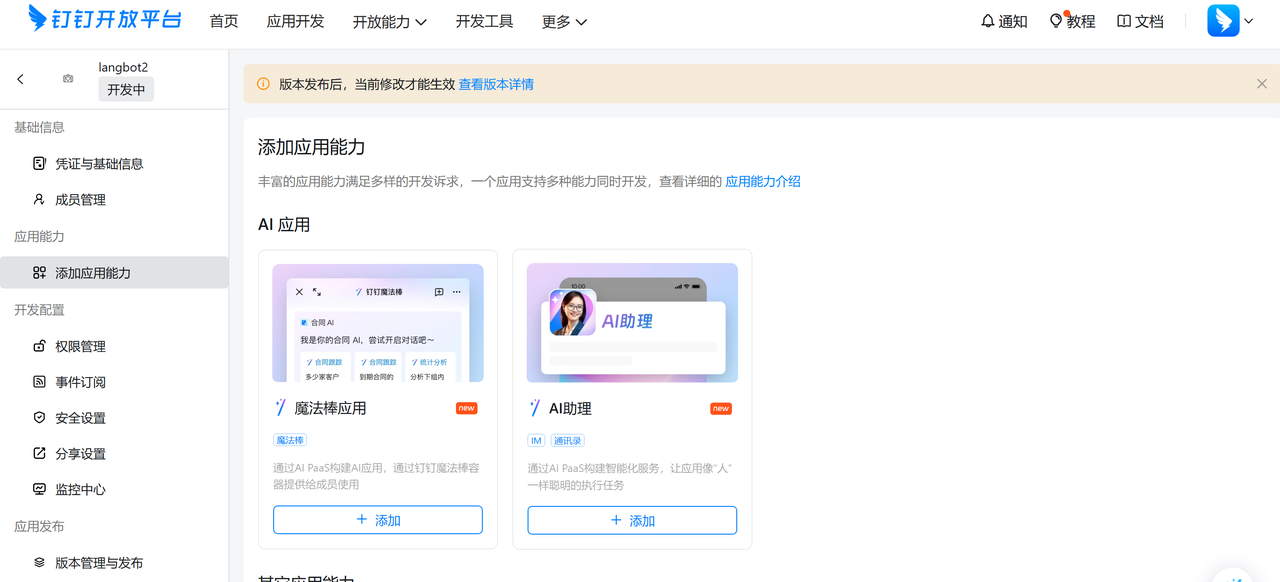
Go to the DingTalk developer console, log in, and enter your organization.Address: https://open-dev.dingtalk.com/Click 【Application Development】 at the top, select 【Create Application】, fill in the bot’s basic information, and save it.Enter the bot’s backend. For example, if we have a bot named langbot2, its management page looks like this:
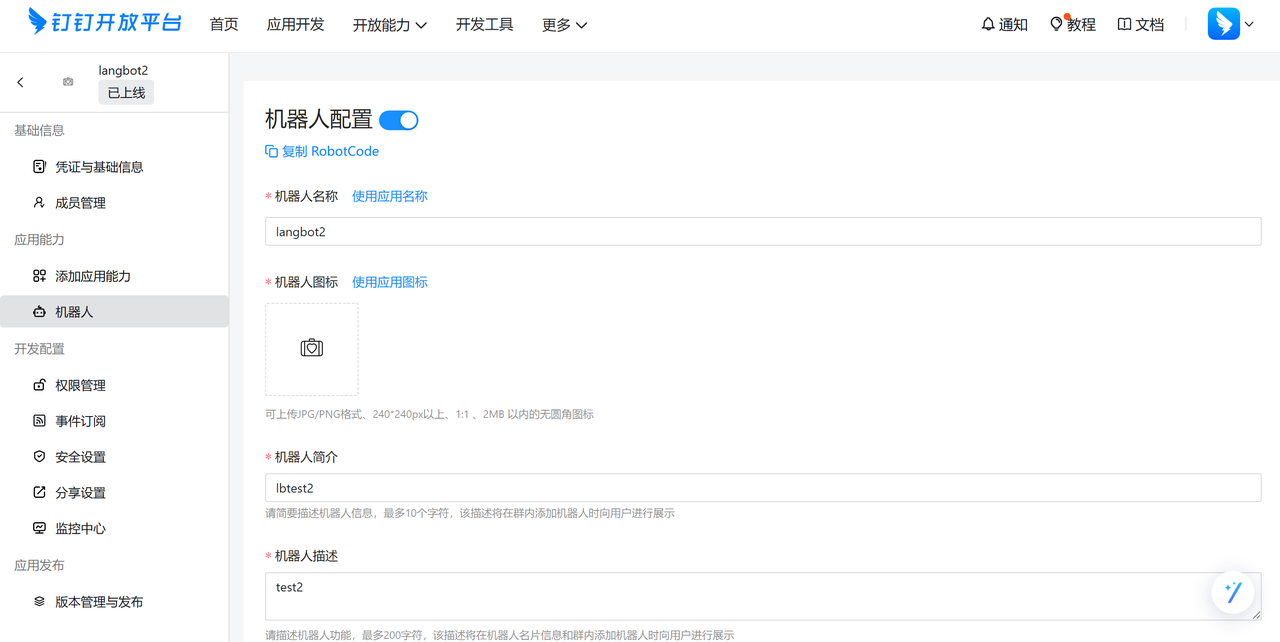
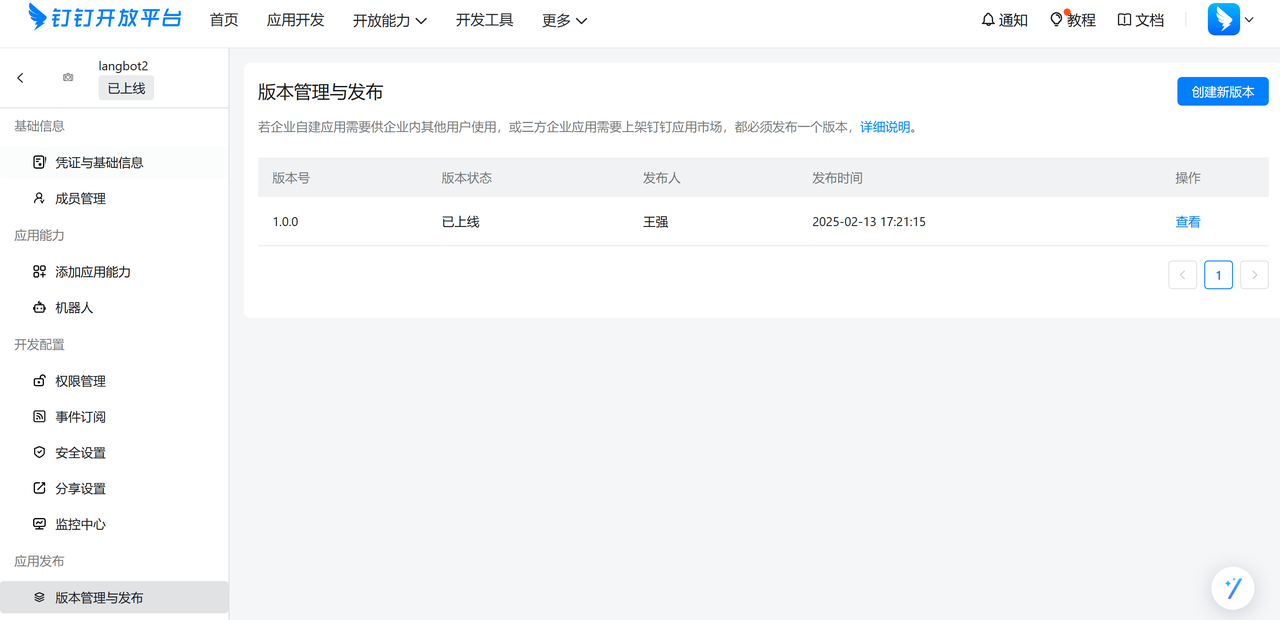
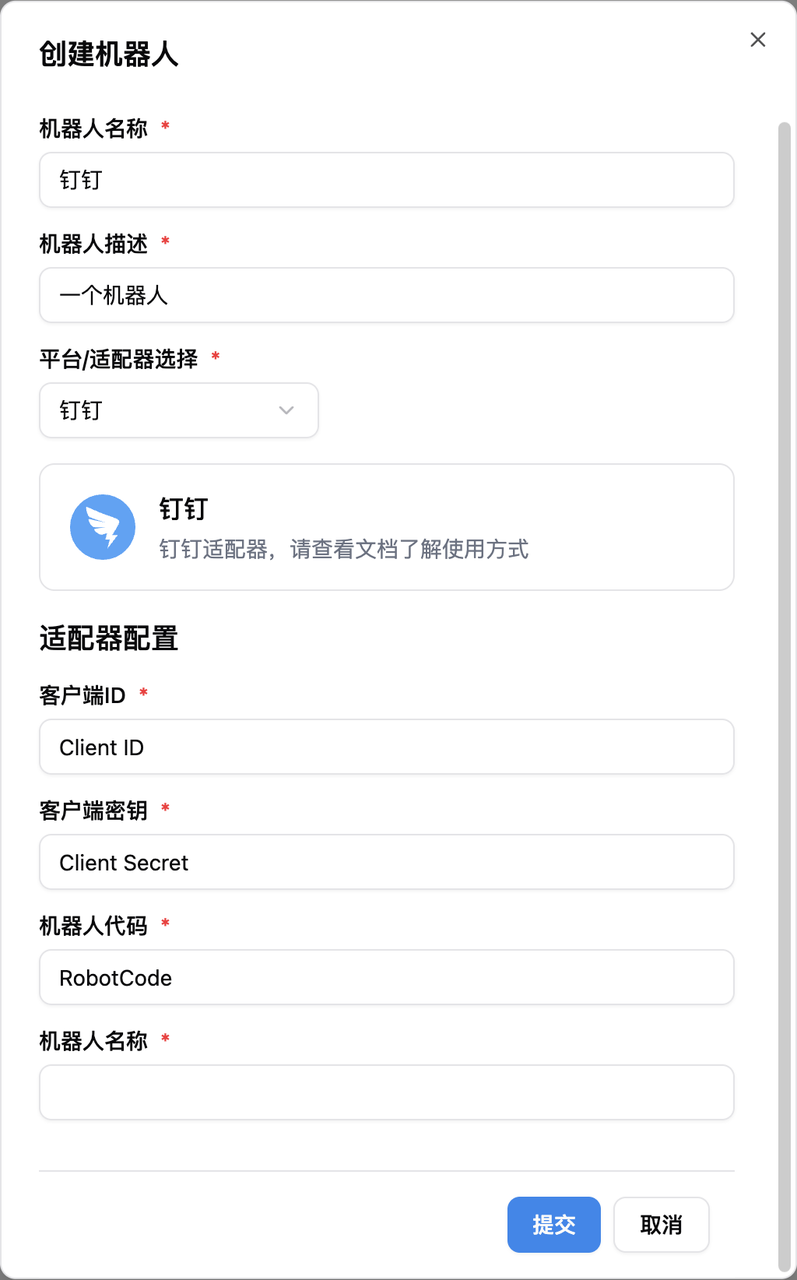
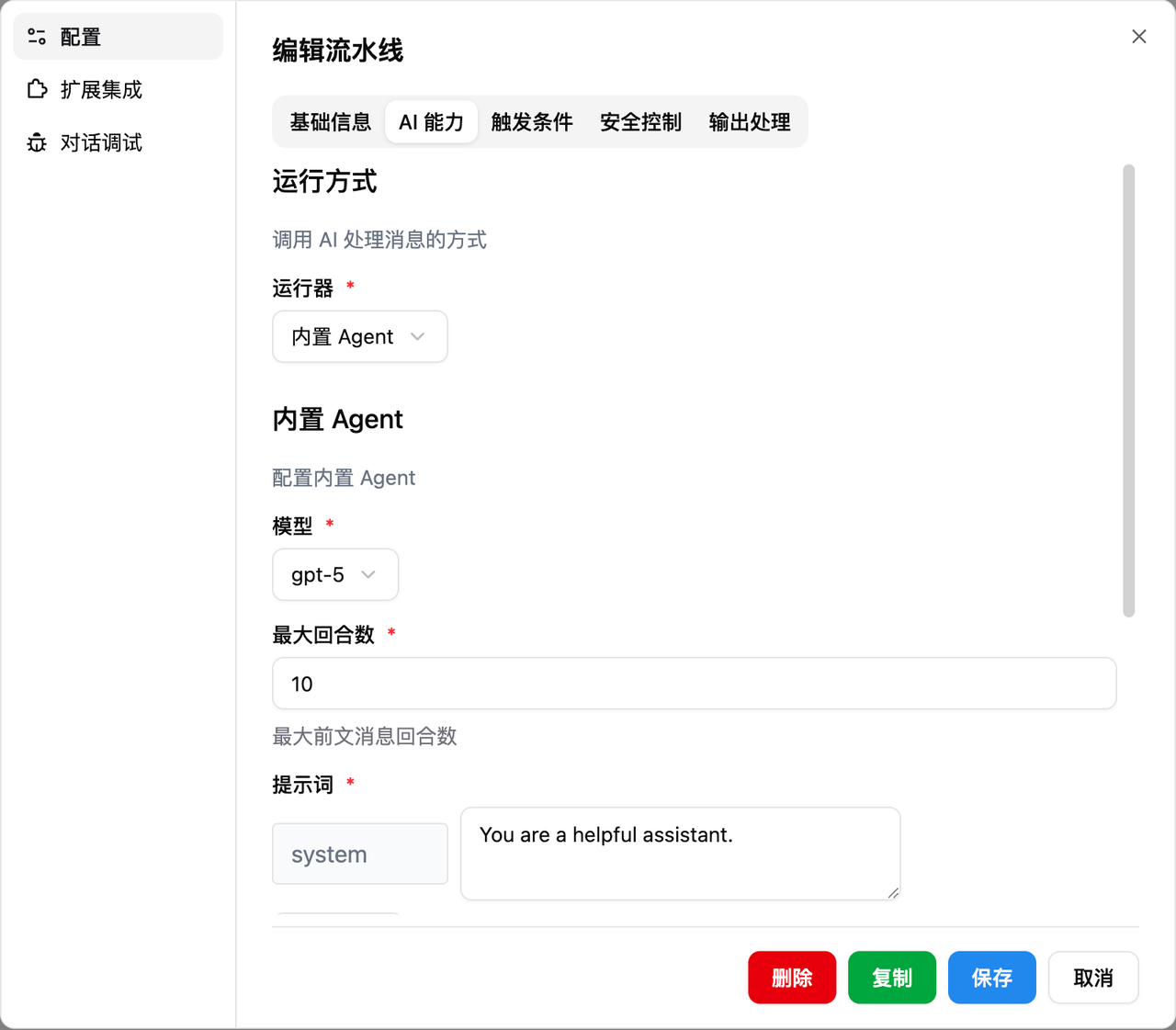
Select 【Add Application Capability】 to add bot capabilities to the application.Click the 【Bot】 tab on the left, fill in the bot configuration information, complete basic settings such as name, description, and message name, and click publish after configuration is complete.After publishing successfully, click 【Version Management and Publishing】 at the bottom left, and configure the application version number and version description.If this is your first time creating a bot, the right side will be empty. You need to click 【Create New Version】, set the information there, then set the 【Application Visibility Scope】, and click save.For 【Event Subscription】, select 【Stream Mode】. There is no need to register a public network callback address.Click 【Credentials and Basic Information】, record the Client ID and Client Secret, then click Bot on the left and record the RobotCode and bot name.After recording the above configuration items, fill them into the LangBot bot configuration form. Click the Card Platform template list, copy the corresponding bound template id, and enter it into the card template id field.Start LangBot, edit the bot, bind a pipeline (there will initially be a ChatPipeline pipeline), and select DingTalk as the platform.Edit the pipeline. In the AI capability configuration, select the built-in Agent and choose the required model you previously bound.
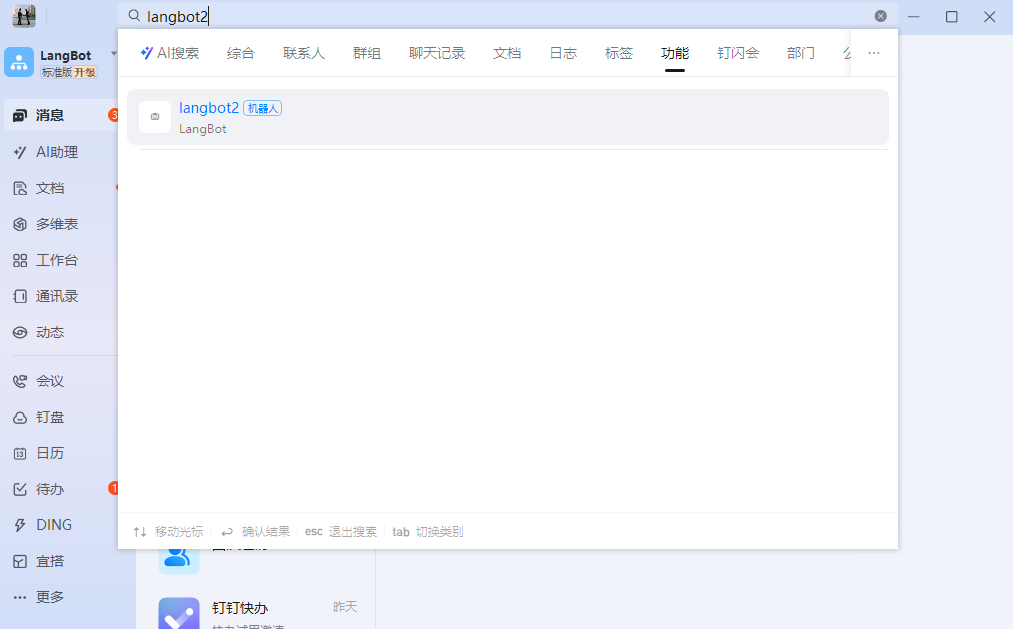
Search for the bot name you just configured in DingTalk, then click the bot to chat with it.If you want to add the bot to a group, click 【Group Management】 in the DingTalk group, select 【Add Bot】, and then search for the bot name to use it in the group chat.
Last modified on June 10, 2026
{"docsConfig":{"theme":"aspen","$schema":"https://mintlify.com/docs.json","name":"接口AI 文档中心","colors":{"primary":"#000000","light":"#0071E3","dark":"#0071E3"},"logo":{"light":"https://mintcdn.com/jiekou/Mf1wGBLqNABiRgF8/logo/light.svg?fit=max\u0026auto=format\u0026n=Mf1wGBLqNABiRgF8\u0026q=85\u0026s=81df34bfa762625ad3a4e18f59a81a0e","dark":"https://mintcdn.com/jiekou/Mf1wGBLqNABiRgF8/logo/dark.svg?fit=max\u0026auto=format\u0026n=Mf1wGBLqNABiRgF8\u0026q=85\u0026s=b81968885d04f4c09c4058bad9c364e1","href":"https://jiekou.vip"},"favicon":"https://mintcdn.com/jiekou/M__ek7klV-HYX16k/favicon.ico?fit=max\u0026auto=format\u0026n=M__ek7klV-HYX16k\u0026q=85\u0026s=7fb1bfe34418ab40c7c6025450bf40e0","navbar":{"links":[{"href":"https://jiekou.vip/models-console/library","label":"控制台"}],"primary":{"type":"button","label":"官网首页","href":"https://jiekou.vip"}},"seo":{"indexing":"all"},"contextual":{"options":["copy","view","chatgpt","claude","perplexity","mcp","cursor","vscode"],"display":"header"},"metadata":{"timestamp":true},"styling":{"latex":true},"navigation":{"languages":[{"language":"zh","default":true,"href":"docs/announcement/announcement"},{"language":"en","href":"en/docs/announcement/announcement"},{"language":"es","href":"es/docs/announcement/announcement"},{"language":"pt-BR","href":"pt/docs/announcement/announcement"},{"language":"fr","href":"fr/docs/announcement/announcement"},{"language":"de","href":"de/docs/announcement/announcement"},{"language":"ja","href":"ja/docs/announcement/announcement"},{"language":"ru","href":"ru/docs/announcement/announcement"}]}},"deployment":{"deploymentMetadataValue":{"subdomain":"jiekou","hasAudioNarration":false,"actualSubdomain":"jiekou","customDomains":["docs.jiekou.ai"],"gitSource":{"type":"github","owner":"jiekouai","repo":"jiekou-docs","deployBranch":"main","contentDirectory":"","isPrivate":true,"mountPath":"","label":""},"chroma":{"liveDeploymentHistoryId":"6ad8825c16faa66f78bb29dc","collectionId":"8b465a02-2589-4cc4-be0d-1fa99874934f","schemaVersion":"v3","latestBuiltDeploymentHistoryId":"6ad8825c16faa66f78bb29dc"},"entitlements":{},"buildId":"6ad8825c16faa66f78bb29dc","clientVersion":"0.0.3964","searchFilterCounts":[{"language":"de","tag":"Leitfaden für Modelldienste","count":24},{"language":"zh","tag":"模型服务用户指南","count":24},{"language":"en","tag":"Model Service Guide","count":24},{"language":"es","tag":"Guía del servicio de modelos","count":24},{"language":"fr","tag":"Guide du service de modèles","count":24},{"language":"ja","tag":"モデルサービスガイド","count":24},{"language":"pt-BR","tag":"Guia do serviço de modelos","count":24},{"language":"ru","tag":"Руководство по сервису моделей","count":24},{"language":"zh","tag":"模型服务 API 手册","count":22},{"language":"en","tag":"Model Service API Reference","count":22},{"language":"de","tag":"API-Referenz für Modelldienste","count":19},{"language":"es","tag":"Referencia de API del servicio de modelos","count":19},{"language":"fr","tag":"Référence API du service de modèles","count":19},{"language":"ja","tag":"モデルサービス API リファレンス","count":19},{"language":"pt-BR","tag":"Referência da API do serviço de modelos","count":19},{"language":"ru","tag":"Справочник API сервиса моделей","count":19},{"language":"zh","tag":"账号用户指南","count":16},{"language":"en","tag":"Account Guide","count":16},{"language":"de","tag":"Kontoleitfaden","count":14},{"language":"es","tag":"Guía de cuenta","count":14},{"language":"fr","tag":"Guide du compte","count":14},{"language":"ja","tag":"アカウントガイド","count":14},{"language":"pt-BR","tag":"Guia da conta","count":14},{"language":"ru","tag":"Руководство по аккаунту","count":14},{"language":"de","tag":"Einrichtung von Drittanbieter-Tools","count":11},{"language":"zh","tag":"第三方工具配置","count":11},{"language":"en","tag":"Third-party Tool Setup","count":11},{"language":"es","tag":"Configuración de herramientas de terceros","count":11},{"language":"fr","tag":"Configuration des outils tiers","count":11},{"language":"ja","tag":"サードパーティツール設定","count":11},{"language":"pt-BR","tag":"Configuração de ferramentas de terceiros","count":11},{"language":"ru","tag":"Настройка сторонних инструментов","count":11},{"language":"de","tag":"LLM API","count":9},{"language":"zh","tag":"大语言模型 API","count":9},{"language":"en","tag":"LLM API","count":9},{"language":"es","tag":"API de LLM","count":9},{"language":"fr","tag":"API LLM","count":9},{"language":"ja","tag":"LLM API","count":9},{"language":"pt-BR","tag":"API de LLM","count":9},{"language":"ru","tag":"API больших языковых моделей","count":9},{"language":"zh","tag":"账号管理","count":8},{"language":"en","tag":"Account Management","count":8},{"language":"de","tag":"FAQ","count":7},{"language":"zh","tag":"常见问题","count":7},{"language":"en","tag":"FAQ","count":7},{"language":"es","tag":"Preguntas frecuentes","count":7},{"language":"fr","tag":"FAQ","count":7},{"language":"ja","tag":"FAQ","count":7},{"language":"pt-BR","tag":"Perguntas frequentes","count":7},{"language":"ru","tag":"Часто задаваемые вопросы","count":7},{"language":"de","tag":"Große Sprachmodelle","count":6},{"language":"de","tag":"Kontoverwaltung","count":6},{"language":"zh","tag":"大语言","count":6},{"language":"en","tag":"Large Language Models","count":6},{"language":"es","tag":"Modelos de lenguaje","count":6},{"language":"es","tag":"Gestión de cuenta","count":6},{"language":"fr","tag":"Grands modèles de langage","count":6},{"language":"fr","tag":"Gestion du compte","count":6},{"language":"ja","tag":"大規模言語モデル","count":6},{"language":"ja","tag":"アカウント管理","count":6},{"language":"pt-BR","tag":"Modelos de linguagem","count":6},{"language":"pt-BR","tag":"Gerenciamento da conta","count":6},{"language":"ru","tag":"Большие языковые модели","count":6},{"language":"ru","tag":"Управление аккаунтом","count":6},{"language":"de","tag":"Bilder","count":5},{"language":"zh","tag":"图像","count":5},{"language":"en","tag":"Images","count":5},{"language":"es","tag":"Imágenes","count":5},{"language":"fr","tag":"Images","count":5},{"language":"ja","tag":"画像","count":5},{"language":"pt-BR","tag":"Imagens","count":5},{"language":"ru","tag":"Изображения","count":5},{"language":"de","tag":"API-Grundlagen","count":4},{"language":"zh","tag":"API 基础","count":4},{"language":"en","tag":"API Basics","count":4},{"language":"es","tag":"Conceptos básicos de API","count":4},{"language":"fr","tag":"Bases de l'API","count":4},{"language":"ja","tag":"API の基本","count":4},{"language":"pt-BR","tag":"Noções básicas da API","count":4},{"language":"ru","tag":"Основы API","count":4}]},"assistantConfig":{},"hasChatPermissions":false,"hasWebMcpPermissions":false,"toggles":[{"name":"kill-isr","enabled":true,"variant":{"name":"disabled","enabled":false,"feature_enabled":true},"impressionData":false},{"name":"agent-mintlify-slack","enabled":true,"variant":{"name":"disabled","enabled":false,"feature_enabled":true},"impressionData":false},{"name":"editor-v7-file-tree","enabled":true,"variant":{"name":"disabled","enabled":false,"feature_enabled":true},"impressionData":false},{"name":"agent-integrations-settings","enabled":true,"variant":{"name":"disabled","enabled":false,"feature_enabled":true},"impressionData":false},{"name":"automations-pr-grouping","enabled":true,"variant":{"name":"disabled","enabled":false,"feature_enabled":true},"impressionData":false},{"name":"custom-prefix","enabled":true,"variant":{"name":"disabled","enabled":false,"feature_enabled":true},"impressionData":false},{"name":"analytics-v7","enabled":true,"variant":{"name":"disabled","enabled":false,"feature_enabled":true},"impressionData":false},{"name":"user-flows-analytics","enabled":true,"variant":{"name":"disabled","enabled":false,"feature_enabled":true},"impressionData":false},{"name":"no-publish-flow","enabled":true,"variant":{"name":"disabled","enabled":false,"feature_enabled":true},"impressionData":false},{"name":"workos-onboarding","enabled":true,"variant":{"name":"disabled","enabled":false,"feature_enabled":true},"impressionData":false},{"name":"llms-txt-v2","enabled":true,"variant":{"name":"disabled","enabled":false,"feature_enabled":true},"impressionData":false},{"name":"pause-universal-search-reconcile","enabled":true,"variant":{"name":"disabled","enabled":false,"feature_enabled":true},"impressionData":false},{"name":"snapshot-serving-live","enabled":true,"variant":{"name":"disabled","enabled":false,"feature_enabled":true},"impressionData":false},{"name":"stripTemperatureMiddleware","enabled":true,"variant":{"name":"disabled","enabled":false,"feature_enabled":true},"impressionData":false},{"name":"per-site-search-delta","enabled":true,"variant":{"name":"disabled","enabled":false,"feature_enabled":true},"impressionData":false},{"name":"support-platform-pylon-zendesk","enabled":true,"variant":{"name":"disabled","enabled":false,"feature_enabled":true},"impressionData":false},{"name":"snapshot-serving","enabled":true,"variant":{"name":"disabled","enabled":false,"feature_enabled":true},"impressionData":false},{"name":"instant-rollback","enabled":true,"variant":{"name":"disabled","enabled":false,"feature_enabled":true},"impressionData":false},{"name":"granular-notifications-server","enabled":true,"variant":{"name":"disabled","enabled":false,"feature_enabled":true},"impressionData":false},{"name":"granular-notifications","enabled":true,"variant":{"name":"disabled","enabled":false,"feature_enabled":true},"impressionData":false},{"name":"editor-private-page-search","enabled":true,"variant":{"name":"disabled","enabled":false,"feature_enabled":true},"impressionData":false},{"name":"automations-fable","enabled":true,"variant":{"name":"disabled","enabled":false,"feature_enabled":true},"impressionData":false},{"name":"fixed-ai-action-pricing","enabled":true,"variant":{"name":"disabled","enabled":false,"feature_enabled":true},"impressionData":false},{"name":"automation-resolve-merge-conflict","enabled":true,"variant":{"name":"disabled","enabled":false,"feature_enabled":true},"impressionData":false},{"name":"scoped-publishing","enabled":true,"variant":{"name":"disabled","enabled":false,"feature_enabled":true},"impressionData":false},{"name":"mintql","enabled":true,"variant":{"name":"disabled","enabled":false,"feature_enabled":true},"impressionData":false},{"name":"page-level-analytics","enabled":true,"variant":{"name":"disabled","enabled":false,"feature_enabled":true},"impressionData":false},{"name":"editor-version-history-v2","enabled":true,"variant":{"name":"disabled","enabled":false,"feature_enabled":true},"impressionData":false},{"name":"editor-nav-generations","enabled":true,"variant":{"name":"disabled","enabled":false,"feature_enabled":true},"impressionData":false},{"name":"billing-page-v2","enabled":true,"variant":{"name":"disabled","enabled":false,"feature_enabled":true},"impressionData":false},{"name":"workspace-projects","enabled":true,"variant":{"name":"disabled","enabled":false,"feature_enabled":true},"impressionData":false},{"name":"assistant-v5","enabled":true,"variant":{"name":"disabled","enabled":false,"feature_enabled":true},"impressionData":false},{"name":"byok-sep-25","enabled":true,"variant":{"name":"disabled","enabled":false,"feature_enabled":true},"impressionData":false},{"name":"fork-pr-previews","enabled":true,"variant":{"name":"disabled","enabled":false,"feature_enabled":true},"impressionData":false},{"name":"revalidation-jwt","enabled":true,"variant":{"name":"disabled","enabled":false,"feature_enabled":true},"impressionData":false},{"name":"vite-origin","enabled":true,"variant":{"name":"disabled","enabled":false,"feature_enabled":true},"impressionData":false},{"name":"editor-agent-model-picker","enabled":true,"variant":{"name":"disabled","enabled":false,"feature_enabled":true},"impressionData":false},{"name":"billing-updated-9-15","enabled":true,"variant":{"name":"disabled","enabled":false,"feature_enabled":true},"impressionData":false},{"name":"hobby-abuse-scan","enabled":true,"variant":{"name":"disabled","enabled":false,"feature_enabled":true},"impressionData":false},{"name":"dashboard-inbox","enabled":true,"variant":{"name":"disabled","enabled":false,"feature_enabled":true},"impressionData":false}],"isAtlas":false,"googleFontsInlined":false},"customCss":[{"filePath":"global.css","content":"@keyframes unified-api-spin{0%{transform:rotate(0deg)}to{transform:rotate(360deg)}}[style*=\"#7c3aed\"],[style*=\"7c3aed\"],[style*=\"rgb(124, 58, 237)\"]{background-color:#f5f5f5!important;background:#f5f5f5!important}#navbar .nav-tabs-item[aria-current=location],#navbar .nav-tabs-item[data-active=true]{background-color:transparent!important;background:0 0!important}#sidebar [aria-selected=true],#sidebar [class*=active],#sidebar [data-active=true]{background-color:#f5f5f5!important}.table-container{overflow-x:scroll;box-shadow:3px 0 10px 0 rgba(25,85,140,.05)}.table-container table{margin-top:0}.table thead{background-color:#eef2f150}.table thead th{padding:8px 10px;text-align:left;white-space:nowrap}.table tbody td{padding:6px 10px}.table-big thead th{padding:12px 10px}.table-big tbody td{padding:10px}.table .list-col,.table .list-sub-col{position:relative;padding-left:31px;margin:0;text-align:left}.table .list-col::before{content:\"•\";position:absolute;left:18px;top:6px;color:#16b063b0}.table .list-sub-col{padding-left:46px}.table .list-sub-col::before{content:\"\";position:absolute;left:36px;top:15px;width:4px;height:4px;background-color:#16b06380}.table .list-grandson-col,.table .list-grandson-sub-col{position:relative;padding-left:60px;margin:0;text-align:left}.table .list-grandson-col::before,.table .list-grandson-sub-col::before{content:\"\";position:absolute;left:50px;top:15px;width:4px;height:4px;border-radius:100%;border:1px solid #16b06380}.table .list-grandson-sub-col{padding-left:66px}.table .list-grandson-sub-col::before{left:58px;top:16px;width:3px;height:3px;border:1px solid #16b06350}.table .type-desc{display:inline-block;margin-left:12px;color:#9e9c98b0}.table .type-desc-narrow{margin-left:4px}.table .delete{text-decoration:line-through}.table .deprecated,.table .new-field{display:inline-block;color:#f23030;margin-bottom:4px}.table .new-field{color:#22ad5c}.table .moved{margin-bottom:4px;color:#f27430}.table .inline-block,.table .moved{display:inline-block}.table .mt-1{margin-top:4px}.table .mt-2{margin-top:8px}.table .ml-0{margin-left:0}.model-id-item{padding:.125rem .5rem;color:#111827;font-size:.875em;font-weight:500;font-variant-ligatures:none;overflow-wrap:break-word;border-radius:var(--rounded-md, .375rem);background-color:rgb(var(--gray-100)/.5)}.param_text{font-size:14px}.param_frame{width:100%;padding:0 8px}.unified-api-container span[data-as=p]{display:block;margin-top:1.25em;margin-bottom:1.25em}.unified-api-inline-label{padding:2px 8px;border-radius:6px;background-color:#f1eff580;color:#111827;font-size:12px;font-family:var(--font-jetbrains-mono),ui-monospace,SFMono-Regular,Menlo,Monaco,Consolas,\"Liberation Mono\",\"Courier New\",monospace}.unified-api-selector-container{margin-bottom:16px}.unified-api-description{padding:6px 8px;font-size:15px;color:#4f4e4a;border-radius:6px;border-left:4px solid #fafafa;background-color:#fdfdfd}.unified-api-selector-label{display:block;margin-top:36px;margin-bottom:12px;font-size:15px;font-weight:500;color:#374151;line-height:1.25}.unified-api-selector-wrapper{position:relative;max-width:300px}.unified-api-selector-button{height:40px;width:100%;border-radius:6px;border:1px solid #d1d5db;background-color:#fff;padding:0 32px 0 12px;font-size:14px;color:#374151;outline:0;cursor:pointer;text-align:left;display:flex;align-items:center;justify-content:space-between;transition:border-color .2s ease-in-out,box-shadow .2s ease-in-out;box-shadow:0 1px 2px 0 rgba(0,0,0,.05);font-family:var(--font-jetbrains-mono),ui-monospace,SFMono-Regular,Menlo,Monaco,Consolas,\"Liberation Mono\",\"Courier New\",monospace}.unified-api-selector-button:hover{border-color:#9ca3af}.unified-api-selector-button:focus{border-color:#3b82f6;box-shadow:0 0 0 3px rgba(59,130,246,.1)}.unified-api-selector-arrow{transition:transform .2s ease-in-out}.unified-api-selector-arrow.open{transform:rotate(180deg)}.unified-api-selector-dropdown{position:absolute;top:100%;left:0;right:0;z-index:50;margin-top:4px;border-radius:6px;border:1px solid #d1d5db;background-color:#fff;box-shadow:0 10px 25px -3px rgba(0,0,0,.2),0 4px 10px -2px rgba(0,0,0,.15);max-height:275px;overflow:hidden}.unified-api-selector-dropdown::after{content:'';position:sticky;bottom:0;left:0;right:0;height:12px;background:linear-gradient(to top,#fff 0,rgba(255,255,255,.5) 50%,rgba(255,255,255,.3) 100%);z-index:10;pointer-events:none;display:block;margin-top:-12px}.unified-api-selector-option{padding:10px 12px;font-size:14px;color:#374151;cursor:pointer;background-color:#fff}.unified-api-selector-option:not(:last-child){margin-top:1px;margin-bottom:1px;border-bottom:1px solid #f5f5f5}.unified-api-selector-option.selected{background-color:#f3f4f6}.unified-api-selector-option:hover:not(.selected){background-color:#f8fafc}.dark .unified-api-selector-label{color:inherit}.dark .unified-api-search-container{background-color:#1f2937}.dark .unified-api-search-input,.dark .unified-api-selector-button{background-color:#1f2937;color:#e5e7eb}.dark .unified-api-selector-button{border:1px solid #4b5563;box-shadow:0 1px 2px 0 rgba(0,0,0,.3)}.dark .unified-api-selector-button:hover{border-color:#6b7280}.dark .unified-api-selector-button:focus{border-color:#3b82f6;box-shadow:0 0 0 3px rgba(59,130,246,.2)}.dark .unified-api-selector-dropdown{border:1px solid #4b5563;background-color:#1f2937;box-shadow:0 10px 25px -3px rgba(0,0,0,.4),0 4px 10px -2px rgba(0,0,0,.3)}.dark .unified-api-selector-dropdown::after{background:linear-gradient(to top,#1f2937 0,rgba(31,41,55,.5) 50%,rgba(31,41,55,.3) 100%)}.dark .unified-api-selector-option{color:#e5e7eb;background-color:#1f2937}.dark .unified-api-selector-option:not(:last-child){border-bottom:1px solid #374151}.dark .unified-api-selector-option.selected{background-color:#374151}.dark .unified-api-selector-option:hover:not(.selected){background-color:#2d3748}.dark .unified-api-description{padding:0;background-color:inherit;color:#e5e7eb;border-left:none}.unified-api-loading-container{display:flex;flex-direction:column;align-items:center;justify-content:center;padding:48px 24px;text-align:center}.unified-api-loading-spinner{width:32px;height:32px;border:3px solid #f3f4f6;border-top:3px solid #7c3aed;border-radius:50%;animation:unified-api-spin 1s linear infinite;margin-bottom:16px}.unified-api-loading-text{color:#6b7280;font-size:14px;margin:0}.unified-api-search-container{padding:8px 12px;border-bottom:1px solid #e5e7eb;background-color:#fefefe}.unified-api-search-input{width:100%;padding:8px 12px;border:1px solid #d1d5db;border-radius:4px;font-size:14px;background-color:#fff;color:#374151;outline:0;transition:border-color .2s ease}.unified-api-search-input:focus{border-color:#7c3aed;box-shadow:0 0 0 3px rgba(124,58,237,.1)}.unified-api-search-input::placeholder{color:#9ca3af}.unified-api-options-container{padding-bottom:12px;max-height:calc(275px - 48px);overflow-y:auto}.unified-api-no-results{padding:16px 12px;text-align:center;color:#6b7280;font-size:14px;font-style:italic}"}],"page":{"pagePath":"en/docs/integration/langbot","slug":"/en/docs/integration/langbot","pageMetadata":{"title":"LangBot","og:title":"JieKou.AI × LangBot Guide","description":null,"href":"/en/docs/integration/langbot"},"pageType":"default","mdx":{"mdxSource":{"compiledSource":"\"use strict\";const{Fragment:_Fragment,jsx:_jsx,jsxs:_jsxs}=arguments[0];const{useMDXComponents:_provideComponents}=arguments[0];function _createMdxContent(props){const _components={a:`a`,code:`code`,em:`em`,li:`li`,p:`p`,pre:`pre`,span:`span`,strong:`strong`,ul:`ul`,..._provideComponents(),...props.components},{CodeBlock,Heading,OptimizedImage}=_components;if(!CodeBlock)_missingMdxReference(`CodeBlock`,true);if(!Heading)_missingMdxReference(`Heading`,true);if(!OptimizedImage)_missingMdxReference(`OptimizedImage`,true);return _jsxs(_Fragment,{children:[_jsx(_components.p,{children:`LangBot is an open-source large language model (LLM)-native instant messaging bot platform designed to provide an out-of-the-box IM bot development experience. It includes multiple LLM application capabilities such as Agent, RAG, and MCP, supports mainstream global instant messaging platforms including Feishu, DingTalk, QQ, WeCom, Discord, and Slack, and provides rich API interfaces for custom development.`}),`\n`,_jsx(_components.p,{children:`Powered by the model API services provided by JieKou.AI, LangBot can integrate with mainstream domestic and international models such as Claude-sonnet-4-5, Gpt-5, Gpt-4o, and Gemini-2.5-pro. Users can choose models as needed to fit the calling requirements of different scenarios.`}),`\n`,_jsx(Heading,{level:`1`,id:`jiekou-ai-×-langbot-configuration-guide`,children:`JieKou.AI × LangBot Configuration Guide`}),`\n`,_jsx(Heading,{level:`2`,id:`1-get-an-api-key`,children:`1. Get an API key`}),`\n`,_jsxs(_components.p,{children:[`Visit `,_jsx(_components.a,{href:`https://jiekou.ai/`,children:`JieKou.AI`}),`, then register and log in.`]}),`\n`,_jsx(_components.p,{children:`Enter the invitation code 【YGHNZ0】 to receive a $2 registration bonus.`}),`\n`,_jsx(Heading,{level:`3`,id:`1-get-an-api-key-2`,children:_jsx(_components.strong,{children:`(1) Get an API key`})}),`\n`,_jsx(_components.p,{children:`Open the 【API key】 management page, click the add button, enter a custom key name, and generate an API key.`}),`\n`,_jsx(OptimizedImage,{src:`https://mintcdn.com/jiekou/VH6T3aYyodfbgXLh/images/apikey-management.png?fit=max\u0026auto=format\u0026n=VH6T3aYyodfbgXLh\u0026q=85\u0026s=9b9c1a2ad7bfd1d74e26b22ed5c401d5`,alt:``,\"data-og-width\":`1280`,width:`1280`,\"data-og-height\":`692`,height:`692`,\"data-path\":`images/apikey-management.png`,\"data-optimize\":`true`,\"data-opv\":`3`,srcset:`https://mintcdn.com/jiekou/VH6T3aYyodfbgXLh/images/apikey-management.png?w=280\u0026fit=max\u0026auto=format\u0026n=VH6T3aYyodfbgXLh\u0026q=85\u0026s=e6ef636bca35eebebb26b9cec1ea412c 280w, https://mintcdn.com/jiekou/VH6T3aYyodfbgXLh/images/apikey-management.png?w=560\u0026fit=max\u0026auto=format\u0026n=VH6T3aYyodfbgXLh\u0026q=85\u0026s=00a9cd99e065109692bba160818bd3ae 560w, https://mintcdn.com/jiekou/VH6T3aYyodfbgXLh/images/apikey-management.png?w=840\u0026fit=max\u0026auto=format\u0026n=VH6T3aYyodfbgXLh\u0026q=85\u0026s=dad7b6e947811b5588c0889d181d52b9 840w, https://mintcdn.com/jiekou/VH6T3aYyodfbgXLh/images/apikey-management.png?w=1100\u0026fit=max\u0026auto=format\u0026n=VH6T3aYyodfbgXLh\u0026q=85\u0026s=bc678512095c53ce5940e5788da2bf49 1100w, https://mintcdn.com/jiekou/VH6T3aYyodfbgXLh/images/apikey-management.png?w=1650\u0026fit=max\u0026auto=format\u0026n=VH6T3aYyodfbgXLh\u0026q=85\u0026s=cc9dedf1aa177916ec935163e765f120 1650w, https://mintcdn.com/jiekou/VH6T3aYyodfbgXLh/images/apikey-management.png?w=2500\u0026fit=max\u0026auto=format\u0026n=VH6T3aYyodfbgXLh\u0026q=85\u0026s=a3d256cd0c5c0130c46272d6171cfe3f 2500w`}),`\n`,_jsx(Heading,{level:`3`,id:`2-generate-and-save-the-api-key`,children:_jsx(_components.strong,{children:`(2) Generate and save the API key`})}),`\n`,_jsxs(_components.p,{children:[_jsx(_components.strong,{children:`!!Note:`}),` Keys are stored encrypted on the server and cannot be viewed again after creation. Please keep your key safe. If it is lost, you need to delete it in the console and create a new one.`]}),`\n`,_jsx(OptimizedImage,{src:`https://mintcdn.com/jiekou/OxdfhkzbMZ3sorJ1/images/apikey-list.png?fit=max\u0026auto=format\u0026n=OxdfhkzbMZ3sorJ1\u0026q=85\u0026s=6fe186a02a7c1d15b67fa8799599a1cd`,alt:``,\"data-og-width\":`1280`,width:`1280`,\"data-og-height\":`411`,height:`411`,\"data-path\":`images/apikey-list.png`,\"data-optimize\":`true`,\"data-opv\":`3`,srcset:`https://mintcdn.com/jiekou/OxdfhkzbMZ3sorJ1/images/apikey-list.png?w=280\u0026fit=max\u0026auto=format\u0026n=OxdfhkzbMZ3sorJ1\u0026q=85\u0026s=8bdfacb2bb91b13af67bed0b039365d2 280w, https://mintcdn.com/jiekou/OxdfhkzbMZ3sorJ1/images/apikey-list.png?w=560\u0026fit=max\u0026auto=format\u0026n=OxdfhkzbMZ3sorJ1\u0026q=85\u0026s=d512153188ba6b4c333b0caf3c8ae910 560w, https://mintcdn.com/jiekou/OxdfhkzbMZ3sorJ1/images/apikey-list.png?w=840\u0026fit=max\u0026auto=format\u0026n=OxdfhkzbMZ3sorJ1\u0026q=85\u0026s=c94e0ebdcc9d1b62d464cf6992d59827 840w, https://mintcdn.com/jiekou/OxdfhkzbMZ3sorJ1/images/apikey-list.png?w=1100\u0026fit=max\u0026auto=format\u0026n=OxdfhkzbMZ3sorJ1\u0026q=85\u0026s=60af4726f3a37f4291a7d1129bf92d30 1100w, https://mintcdn.com/jiekou/OxdfhkzbMZ3sorJ1/images/apikey-list.png?w=1650\u0026fit=max\u0026auto=format\u0026n=OxdfhkzbMZ3sorJ1\u0026q=85\u0026s=f82d3bc185f4002f2c6db21fc0f0c49b 1650w, https://mintcdn.com/jiekou/OxdfhkzbMZ3sorJ1/images/apikey-list.png?w=2500\u0026fit=max\u0026auto=format\u0026n=OxdfhkzbMZ3sorJ1\u0026q=85\u0026s=64b2836a6d94cbac1d03d72fd75fdd0f 2500w`}),`\n`,_jsx(Heading,{level:`3`,id:`3-get-the-【model-id】`,children:_jsx(_components.strong,{children:`(3) Get the 【Model ID】`})}),`\n`,_jsx(_components.p,{children:_jsx(_components.strong,{children:`Recommended model IDs:`})}),`\n`,_jsxs(_components.ul,{children:[`\n`,_jsx(_components.li,{children:`Claude-sonnet-4-5`}),`\n`,_jsx(_components.li,{children:`Gpt-5`}),`\n`,_jsx(_components.li,{children:`Gpt-4o`}),`\n`,_jsx(_components.li,{children:`Gemini-2.5-pro`}),`\n`]}),`\n`,_jsxs(_components.p,{children:[`For other model IDs, maximum context lengths, and pricing, refer to the `,_jsx(_components.a,{href:`https://jiekou.ai/models-console/library`,children:`Model Square`}),`.`]}),`\n`,_jsx(OptimizedImage,{src:`https://mintcdn.com/jiekou/OxdfhkzbMZ3sorJ1/images/model-square.png?fit=max\u0026auto=format\u0026n=OxdfhkzbMZ3sorJ1\u0026q=85\u0026s=779df074aecc6dbb48e4ee6747ee22f1`,alt:``,\"data-og-width\":`1280`,width:`1280`,\"data-og-height\":`903`,height:`903`,\"data-path\":`images/model-square.png`,\"data-optimize\":`true`,\"data-opv\":`3`,srcset:`https://mintcdn.com/jiekou/OxdfhkzbMZ3sorJ1/images/model-square.png?w=280\u0026fit=max\u0026auto=format\u0026n=OxdfhkzbMZ3sorJ1\u0026q=85\u0026s=399592a6d3a2b342088c8d1615c26811 280w, https://mintcdn.com/jiekou/OxdfhkzbMZ3sorJ1/images/model-square.png?w=560\u0026fit=max\u0026auto=format\u0026n=OxdfhkzbMZ3sorJ1\u0026q=85\u0026s=2824746c789592ffcef0162263bb7369 560w, https://mintcdn.com/jiekou/OxdfhkzbMZ3sorJ1/images/model-square.png?w=840\u0026fit=max\u0026auto=format\u0026n=OxdfhkzbMZ3sorJ1\u0026q=85\u0026s=951610cb942a3e887228fbd238acccd1 840w, https://mintcdn.com/jiekou/OxdfhkzbMZ3sorJ1/images/model-square.png?w=1100\u0026fit=max\u0026auto=format\u0026n=OxdfhkzbMZ3sorJ1\u0026q=85\u0026s=a6c4303907820da7dd33bd83363563a7 1100w, https://mintcdn.com/jiekou/OxdfhkzbMZ3sorJ1/images/model-square.png?w=1650\u0026fit=max\u0026auto=format\u0026n=OxdfhkzbMZ3sorJ1\u0026q=85\u0026s=8c28ebaaf9ba0c1963ab8695486907e7 1650w, https://mintcdn.com/jiekou/OxdfhkzbMZ3sorJ1/images/model-square.png?w=2500\u0026fit=max\u0026auto=format\u0026n=OxdfhkzbMZ3sorJ1\u0026q=85\u0026s=a84e4dae4b0b38812f558a76ef00727c 2500w`}),`\n`,_jsx(Heading,{level:`2`,id:`2-deploy-and-configure-langbot`,children:`2. Deploy and configure LangBot`}),`\n`,_jsx(_components.p,{children:`With Docker, you can conveniently deploy LangBot on Windows, Mac, and Linux.`}),`\n`,_jsx(_components.p,{children:`Before deployment, make sure Git, Docker, and Docker Compose are installed.`}),`\n`,_jsxs(_components.p,{children:[`Project address: `,_jsx(_components.em,{children:_jsx(_components.a,{href:`https://github.com/RockChinQ/LangBot`,children:`https://github.com/RockChinQ/LangBot`})})]}),`\n`,_jsx(Heading,{level:`3`,id:`1-deploy-langbot-with-docker`,children:_jsx(_components.strong,{children:`(1) Deploy LangBot with Docker`})}),`\n`,_jsx(_components.p,{children:`Clone this project with Git:`}),`\n`,_jsx(CodeBlock,{numberOfLines:`3`,language:`text`,children:_jsx(_components.pre,{className:`shiki shiki-themes github-light-default dark-plus`,style:{backgroundColor:`#ffffff`,\"--shiki-dark-bg\":`#0B0C0E`,color:`#1f2328`,\"--shiki-dark\":`#D4D4D4`},language:`text`,children:_jsxs(_components.code,{language:`text`,numberOfLines:`3`,children:[_jsx(_components.span,{className:`line`,children:_jsx(_components.span,{children:`git clone https://github.com/langbot-app/LangBot`})}),`\n`,_jsx(_components.span,{className:`line`,children:_jsx(_components.span,{children:`cd LangBot/docker`})}),`\n`,_jsx(_components.span,{className:`line`,children:_jsx(_components.span,{})})]})})}),`\n`,_jsx(_components.p,{children:`Start the container:`}),`\n`,_jsx(CodeBlock,{numberOfLines:`2`,language:`text`,children:_jsx(_components.pre,{className:`shiki shiki-themes github-light-default dark-plus`,style:{backgroundColor:`#ffffff`,\"--shiki-dark-bg\":`#0B0C0E`,color:`#1f2328`,\"--shiki-dark\":`#D4D4D4`},language:`text`,children:_jsxs(_components.code,{language:`text`,numberOfLines:`2`,children:[_jsx(_components.span,{className:`line`,children:_jsx(_components.span,{children:`docker compose up`})}),`\n`,_jsx(_components.span,{className:`line`,children:_jsx(_components.span,{})})]})})}),`\n`,_jsxs(_components.ul,{children:[`\n`,_jsxs(_components.li,{children:[`If your host is located in mainland China, you can change `,_jsx(_components.code,{children:`https://github.com/langbot-app/LangBot`}),` in the command above to `,_jsx(_components.code,{children:`https://gitcode.com/RockChinQ/LangBot`}),` to use a domestic mirror source.`]}),`\n`,_jsxs(_components.li,{children:[`If your host is located in mainland China, you can consider changing the image name in the `,_jsx(_components.code,{children:`docker-compose.yaml`}),` file to `,_jsx(_components.code,{children:`docker.langbot.app/langbot-public/rockchin/langbot:latest`}),` to use the image source we provide.`]}),`\n`,_jsx(_components.li,{children:`It is recommended to configure a Docker container proxy to ensure smooth network access while LangBot is running.`}),`\n`]}),`\n`,_jsx(Heading,{level:`3`,id:`2-create-the-configuration-file`,children:_jsx(_components.strong,{children:`(2) Create the configuration file`})}),`\n`,_jsx(_components.p,{children:`On first startup, a prompt for creating a configuration file will be output. Continue by configuring the file as instructed.`}),`\n`,_jsxs(_components.p,{children:[`The container maps port 5300 for WebUI use. You can visit `,_jsx(_components.a,{href:`http://127.0.0.1:5300`,children:`http://127.0.0.1:5300`}),` to view the WebUI.`]}),`\n`,_jsx(_components.p,{children:`It also maps ports 2280-2290 for reverse connections from messaging platform adapters that use the OneBot protocol.`}),`\n`,_jsx(Heading,{level:`3`,id:`3-configure-the-conversation-model`,children:_jsx(_components.strong,{children:`(3) Configure the conversation model`})}),`\n`,_jsxs(_components.p,{children:[`Open LangBot, click model configuration, and select `,_jsx(_components.strong,{children:`Interface AI`}),` as the model provider.`]}),`\n`,_jsx(_components.p,{children:`Configure the model using the following information.`}),`\n`,_jsxs(_components.ul,{children:[`\n`,_jsx(_components.li,{children:`Model name: the required model name copied from the JieKou.AI official website`}),`\n`,_jsx(_components.li,{children:`Model provider: Interface AI`}),`\n`,_jsxs(_components.li,{children:[`Request URL: `,_jsx(_components.em,{children:_jsx(_components.a,{href:`https://api.highwayapi.ai/openai`,children:`https://api.highwayapi.ai/openai`})})]}),`\n`,_jsx(_components.li,{children:`API Key: the key saved from the JieKou.AI official website`}),`\n`]}),`\n`,_jsx(OptimizedImage,{src:`https://mintcdn.com/jiekou/OxdfhkzbMZ3sorJ1/images/langbot-create-model.png?fit=max\u0026auto=format\u0026n=OxdfhkzbMZ3sorJ1\u0026q=85\u0026s=855efd9a4647cc42f8b62e9241b69acd`,alt:``,\"data-og-width\":`981`,width:`981`,\"data-og-height\":`1280`,height:`1280`,\"data-path\":`images/langbot-create-model.png`,\"data-optimize\":`true`,\"data-opv\":`3`,srcset:`https://mintcdn.com/jiekou/OxdfhkzbMZ3sorJ1/images/langbot-create-model.png?w=280\u0026fit=max\u0026auto=format\u0026n=OxdfhkzbMZ3sorJ1\u0026q=85\u0026s=5a4c6c637418551030015030b7fe3a1e 280w, https://mintcdn.com/jiekou/OxdfhkzbMZ3sorJ1/images/langbot-create-model.png?w=560\u0026fit=max\u0026auto=format\u0026n=OxdfhkzbMZ3sorJ1\u0026q=85\u0026s=30d6753b17fc696a361990f97ad24a69 560w, https://mintcdn.com/jiekou/OxdfhkzbMZ3sorJ1/images/langbot-create-model.png?w=840\u0026fit=max\u0026auto=format\u0026n=OxdfhkzbMZ3sorJ1\u0026q=85\u0026s=ce01e526ef3d94358a7bbed9c048ad7a 840w, https://mintcdn.com/jiekou/OxdfhkzbMZ3sorJ1/images/langbot-create-model.png?w=1100\u0026fit=max\u0026auto=format\u0026n=OxdfhkzbMZ3sorJ1\u0026q=85\u0026s=09306bb01110f8d2aa5a5b3db2130ea4 1100w, https://mintcdn.com/jiekou/OxdfhkzbMZ3sorJ1/images/langbot-create-model.png?w=1650\u0026fit=max\u0026auto=format\u0026n=OxdfhkzbMZ3sorJ1\u0026q=85\u0026s=3d0133246a9da8a362ba9a15a7ecbf1e 1650w, https://mintcdn.com/jiekou/OxdfhkzbMZ3sorJ1/images/langbot-create-model.png?w=2500\u0026fit=max\u0026auto=format\u0026n=OxdfhkzbMZ3sorJ1\u0026q=85\u0026s=876e0bbca3d63781cadd1e7a674d97c4 2500w`}),`\n`,_jsx(Heading,{level:`2`,id:`3-connect-a-platform`,children:_jsx(_components.strong,{children:`3. Connect a platform`})}),`\n`,_jsx(_components.p,{children:`LangBot supports connecting chatbots to platforms such as QQ, WeChat Official Accounts, and Feishu. Using DingTalk as an example, the LangBot integration guide is as follows.`}),`\n`,_jsx(Heading,{level:`3`,id:`1-create-a-bot`,children:_jsx(_components.strong,{children:`(1) Create a bot`})}),`\n`,_jsx(_components.p,{children:`Go to the DingTalk developer console, log in, and enter your organization.`}),`\n`,_jsxs(_components.p,{children:[`Address: `,_jsx(_components.em,{children:_jsx(_components.a,{href:`https://open-dev.dingtalk.com/`,children:`https://open-dev.dingtalk.com/`})})]}),`\n`,_jsx(_components.p,{children:`Click 【Application Development】 at the top, select 【Create Application】, fill in the bot’s basic information, and save it.`}),`\n`,_jsx(OptimizedImage,{src:`https://mintcdn.com/jiekou/OxdfhkzbMZ3sorJ1/images/langbot-dingding-1.png?fit=max\u0026auto=format\u0026n=OxdfhkzbMZ3sorJ1\u0026q=85\u0026s=92febfbbeb51f4c20045bdde33855518`,alt:``,\"data-og-width\":`1280`,width:`1280`,\"data-og-height\":`648`,height:`648`,\"data-path\":`images/langbot-dingding-1.png`,\"data-optimize\":`true`,\"data-opv\":`3`,srcset:`https://mintcdn.com/jiekou/OxdfhkzbMZ3sorJ1/images/langbot-dingding-1.png?w=280\u0026fit=max\u0026auto=format\u0026n=OxdfhkzbMZ3sorJ1\u0026q=85\u0026s=ef75626dd02f8664443850d893715ba1 280w, https://mintcdn.com/jiekou/OxdfhkzbMZ3sorJ1/images/langbot-dingding-1.png?w=560\u0026fit=max\u0026auto=format\u0026n=OxdfhkzbMZ3sorJ1\u0026q=85\u0026s=628ace526ae2d638564b12c39c5e2408 560w, https://mintcdn.com/jiekou/OxdfhkzbMZ3sorJ1/images/langbot-dingding-1.png?w=840\u0026fit=max\u0026auto=format\u0026n=OxdfhkzbMZ3sorJ1\u0026q=85\u0026s=2d6d2f84b91084ea61f0fde0e62eb3a4 840w, https://mintcdn.com/jiekou/OxdfhkzbMZ3sorJ1/images/langbot-dingding-1.png?w=1100\u0026fit=max\u0026auto=format\u0026n=OxdfhkzbMZ3sorJ1\u0026q=85\u0026s=557ac3ed1dcf1a1126d0a53f3bc2582e 1100w, https://mintcdn.com/jiekou/OxdfhkzbMZ3sorJ1/images/langbot-dingding-1.png?w=1650\u0026fit=max\u0026auto=format\u0026n=OxdfhkzbMZ3sorJ1\u0026q=85\u0026s=9bce86471c968b740fc3b6b3c99056e6 1650w, https://mintcdn.com/jiekou/OxdfhkzbMZ3sorJ1/images/langbot-dingding-1.png?w=2500\u0026fit=max\u0026auto=format\u0026n=OxdfhkzbMZ3sorJ1\u0026q=85\u0026s=c114d82b6de6ae4e1ccb0f94b7b9dbda 2500w`}),`\n`,_jsx(_components.p,{children:`Enter the bot’s backend. For example, if we have a bot named langbot2, its management page looks like this:`}),`\n`,_jsx(OptimizedImage,{src:`https://mintcdn.com/jiekou/OxdfhkzbMZ3sorJ1/images/langbot-dingding-2.png?fit=max\u0026auto=format\u0026n=OxdfhkzbMZ3sorJ1\u0026q=85\u0026s=95c961d7e8e81187ab69a07aecee8c46`,alt:``,\"data-og-width\":`1280`,width:`1280`,\"data-og-height\":`582`,height:`582`,\"data-path\":`images/langbot-dingding-2.png`,\"data-optimize\":`true`,\"data-opv\":`3`,srcset:`https://mintcdn.com/jiekou/OxdfhkzbMZ3sorJ1/images/langbot-dingding-2.png?w=280\u0026fit=max\u0026auto=format\u0026n=OxdfhkzbMZ3sorJ1\u0026q=85\u0026s=a043ccd7d170ad00af5a7923c7b4a462 280w, https://mintcdn.com/jiekou/OxdfhkzbMZ3sorJ1/images/langbot-dingding-2.png?w=560\u0026fit=max\u0026auto=format\u0026n=OxdfhkzbMZ3sorJ1\u0026q=85\u0026s=8224578f92f39f1cf0aea2e5db263610 560w, https://mintcdn.com/jiekou/OxdfhkzbMZ3sorJ1/images/langbot-dingding-2.png?w=840\u0026fit=max\u0026auto=format\u0026n=OxdfhkzbMZ3sorJ1\u0026q=85\u0026s=ead4217e0a75b595280c21024212931e 840w, https://mintcdn.com/jiekou/OxdfhkzbMZ3sorJ1/images/langbot-dingding-2.png?w=1100\u0026fit=max\u0026auto=format\u0026n=OxdfhkzbMZ3sorJ1\u0026q=85\u0026s=942bd1c97ac21630076cc70f668c5f5b 1100w, https://mintcdn.com/jiekou/OxdfhkzbMZ3sorJ1/images/langbot-dingding-2.png?w=1650\u0026fit=max\u0026auto=format\u0026n=OxdfhkzbMZ3sorJ1\u0026q=85\u0026s=aad579722cb7396b0d5b22b430082975 1650w, https://mintcdn.com/jiekou/OxdfhkzbMZ3sorJ1/images/langbot-dingding-2.png?w=2500\u0026fit=max\u0026auto=format\u0026n=OxdfhkzbMZ3sorJ1\u0026q=85\u0026s=0e671ca867fbc164851788664c894fb5 2500w`}),`\n`,_jsx(Heading,{level:`3`,id:`2-configure-the-bot`,children:_jsx(_components.strong,{children:`(2) Configure the bot`})}),`\n`,_jsx(_components.p,{children:`Select 【Add Application Capability】 to add bot capabilities to the application.`}),`\n`,_jsx(_components.p,{children:`Click the 【Bot】 tab on the left, fill in the bot configuration information, complete basic settings such as name, description, and message name, and click publish after configuration is complete.`}),`\n`,_jsx(OptimizedImage,{src:`https://mintcdn.com/jiekou/OxdfhkzbMZ3sorJ1/images/langbot-dingding-3.png?fit=max\u0026auto=format\u0026n=OxdfhkzbMZ3sorJ1\u0026q=85\u0026s=cfcd19931624e511ce0bd951da2639d6`,alt:``,\"data-og-width\":`1280`,width:`1280`,\"data-og-height\":`642`,height:`642`,\"data-path\":`images/langbot-dingding-3.png`,\"data-optimize\":`true`,\"data-opv\":`3`,srcset:`https://mintcdn.com/jiekou/OxdfhkzbMZ3sorJ1/images/langbot-dingding-3.png?w=280\u0026fit=max\u0026auto=format\u0026n=OxdfhkzbMZ3sorJ1\u0026q=85\u0026s=f725d063d28849141cb8e9c1c7e73d9c 280w, https://mintcdn.com/jiekou/OxdfhkzbMZ3sorJ1/images/langbot-dingding-3.png?w=560\u0026fit=max\u0026auto=format\u0026n=OxdfhkzbMZ3sorJ1\u0026q=85\u0026s=34bfd70eec33b407b1570d93b3755168 560w, https://mintcdn.com/jiekou/OxdfhkzbMZ3sorJ1/images/langbot-dingding-3.png?w=840\u0026fit=max\u0026auto=format\u0026n=OxdfhkzbMZ3sorJ1\u0026q=85\u0026s=48452b63871575e9ffb7d30b0da149f7 840w, https://mintcdn.com/jiekou/OxdfhkzbMZ3sorJ1/images/langbot-dingding-3.png?w=1100\u0026fit=max\u0026auto=format\u0026n=OxdfhkzbMZ3sorJ1\u0026q=85\u0026s=50d4b2cb70c7b829fc75bc32356cd58f 1100w, https://mintcdn.com/jiekou/OxdfhkzbMZ3sorJ1/images/langbot-dingding-3.png?w=1650\u0026fit=max\u0026auto=format\u0026n=OxdfhkzbMZ3sorJ1\u0026q=85\u0026s=1c9d46b9b2364816cb7b9b3f113e95a6 1650w, https://mintcdn.com/jiekou/OxdfhkzbMZ3sorJ1/images/langbot-dingding-3.png?w=2500\u0026fit=max\u0026auto=format\u0026n=OxdfhkzbMZ3sorJ1\u0026q=85\u0026s=4957334e1ce089ebca59103faebdf305 2500w`}),`\n`,_jsx(_components.p,{children:`After publishing successfully, click 【Version Management and Publishing】 at the bottom left, and configure the application version number and version description.`}),`\n`,_jsx(_components.p,{children:`If this is your first time creating a bot, the right side will be empty. You need to click 【Create New Version】, set the information there, then set the 【Application Visibility Scope】, and click save.`}),`\n`,_jsx(_components.p,{children:`For 【Event Subscription】, select 【Stream Mode】. There is no need to register a public network callback address.`}),`\n`,_jsx(OptimizedImage,{src:`https://mintcdn.com/jiekou/OxdfhkzbMZ3sorJ1/images/langbot-dingding-4.png?fit=max\u0026auto=format\u0026n=OxdfhkzbMZ3sorJ1\u0026q=85\u0026s=524ade696c50b26224bb30b616130ab2`,alt:``,\"data-og-width\":`1280`,width:`1280`,\"data-og-height\":`620`,height:`620`,\"data-path\":`images/langbot-dingding-4.png`,\"data-optimize\":`true`,\"data-opv\":`3`,srcset:`https://mintcdn.com/jiekou/OxdfhkzbMZ3sorJ1/images/langbot-dingding-4.png?w=280\u0026fit=max\u0026auto=format\u0026n=OxdfhkzbMZ3sorJ1\u0026q=85\u0026s=c5ff8878efbce063f28b6b9e7009a4fb 280w, https://mintcdn.com/jiekou/OxdfhkzbMZ3sorJ1/images/langbot-dingding-4.png?w=560\u0026fit=max\u0026auto=format\u0026n=OxdfhkzbMZ3sorJ1\u0026q=85\u0026s=9bd3eab7e49bb2367659d105a6e9280d 560w, https://mintcdn.com/jiekou/OxdfhkzbMZ3sorJ1/images/langbot-dingding-4.png?w=840\u0026fit=max\u0026auto=format\u0026n=OxdfhkzbMZ3sorJ1\u0026q=85\u0026s=e8079dc18480932913c900871248111a 840w, https://mintcdn.com/jiekou/OxdfhkzbMZ3sorJ1/images/langbot-dingding-4.png?w=1100\u0026fit=max\u0026auto=format\u0026n=OxdfhkzbMZ3sorJ1\u0026q=85\u0026s=d42aa14a33f8d1c793d0f52500fc2452 1100w, https://mintcdn.com/jiekou/OxdfhkzbMZ3sorJ1/images/langbot-dingding-4.png?w=1650\u0026fit=max\u0026auto=format\u0026n=OxdfhkzbMZ3sorJ1\u0026q=85\u0026s=6ef6bd463f0b4c48a9d7094bf826165f 1650w, https://mintcdn.com/jiekou/OxdfhkzbMZ3sorJ1/images/langbot-dingding-4.png?w=2500\u0026fit=max\u0026auto=format\u0026n=OxdfhkzbMZ3sorJ1\u0026q=85\u0026s=15d45318910fbe1385e983c6ee506048 2500w`}),`\n`,_jsx(_components.p,{children:`Click 【Credentials and Basic Information】, record the Client ID and Client Secret, then click Bot on the left and record the RobotCode and bot name.`}),`\n`,_jsxs(_components.p,{children:[`After recording the above configuration items, fill them into the LangBot bot configuration form. Click the `,_jsx(_components.a,{href:`https://open-dev.dingtalk.com/fe/card?spm=ding_open_doc.document.0.0.33cf2281L0fXsV`,children:`Card Platform`}),` template list, copy the corresponding bound template id, and enter it into the card template id field.`]}),`\n`,_jsx(OptimizedImage,{src:`https://mintcdn.com/jiekou/OxdfhkzbMZ3sorJ1/images/langbot-dingding-5.png?fit=max\u0026auto=format\u0026n=OxdfhkzbMZ3sorJ1\u0026q=85\u0026s=f85f781c4a25c2240442c670b53b0496`,alt:``,\"data-og-width\":`797`,width:`797`,\"data-og-height\":`1280`,height:`1280`,\"data-path\":`images/langbot-dingding-5.png`,\"data-optimize\":`true`,\"data-opv\":`3`,srcset:`https://mintcdn.com/jiekou/OxdfhkzbMZ3sorJ1/images/langbot-dingding-5.png?w=280\u0026fit=max\u0026auto=format\u0026n=OxdfhkzbMZ3sorJ1\u0026q=85\u0026s=8c4e94b9c506794a686944c0d6a74205 280w, https://mintcdn.com/jiekou/OxdfhkzbMZ3sorJ1/images/langbot-dingding-5.png?w=560\u0026fit=max\u0026auto=format\u0026n=OxdfhkzbMZ3sorJ1\u0026q=85\u0026s=8ddfd74b6114b62974836f071b5a7457 560w, https://mintcdn.com/jiekou/OxdfhkzbMZ3sorJ1/images/langbot-dingding-5.png?w=840\u0026fit=max\u0026auto=format\u0026n=OxdfhkzbMZ3sorJ1\u0026q=85\u0026s=f5d7ffaa756a0eea8075a35e3c8401e3 840w, https://mintcdn.com/jiekou/OxdfhkzbMZ3sorJ1/images/langbot-dingding-5.png?w=1100\u0026fit=max\u0026auto=format\u0026n=OxdfhkzbMZ3sorJ1\u0026q=85\u0026s=dc08c4e693e6b9b7f2893fce483c9be5 1100w, https://mintcdn.com/jiekou/OxdfhkzbMZ3sorJ1/images/langbot-dingding-5.png?w=1650\u0026fit=max\u0026auto=format\u0026n=OxdfhkzbMZ3sorJ1\u0026q=85\u0026s=e81769924d4c65fc088313729a2a4194 1650w, https://mintcdn.com/jiekou/OxdfhkzbMZ3sorJ1/images/langbot-dingding-5.png?w=2500\u0026fit=max\u0026auto=format\u0026n=OxdfhkzbMZ3sorJ1\u0026q=85\u0026s=10ef89a880ebe0f766e73fac80c1b282 2500w`}),`\n`,_jsx(_components.p,{children:`Start LangBot, edit the bot, bind a pipeline (there will initially be a ChatPipeline pipeline), and select DingTalk as the platform.`}),`\n`,_jsx(_components.p,{children:`Edit the pipeline. In the AI capability configuration, select the built-in Agent and choose the required model you previously bound.`}),`\n`,_jsx(OptimizedImage,{src:`https://mintcdn.com/jiekou/OxdfhkzbMZ3sorJ1/images/langbot-dingding-6.png?fit=max\u0026auto=format\u0026n=OxdfhkzbMZ3sorJ1\u0026q=85\u0026s=f7a671f81a03cc2607887c638e59ee0f`,alt:``,\"data-og-width\":`1280`,width:`1280`,\"data-og-height\":`1121`,height:`1121`,\"data-path\":`images/langbot-dingding-6.png`,\"data-optimize\":`true`,\"data-opv\":`3`,srcset:`https://mintcdn.com/jiekou/OxdfhkzbMZ3sorJ1/images/langbot-dingding-6.png?w=280\u0026fit=max\u0026auto=format\u0026n=OxdfhkzbMZ3sorJ1\u0026q=85\u0026s=a332fb27a619c030f0a866f1b8571fbe 280w, https://mintcdn.com/jiekou/OxdfhkzbMZ3sorJ1/images/langbot-dingding-6.png?w=560\u0026fit=max\u0026auto=format\u0026n=OxdfhkzbMZ3sorJ1\u0026q=85\u0026s=55cdb4a37dda1f4a322dcd600ec33c2c 560w, https://mintcdn.com/jiekou/OxdfhkzbMZ3sorJ1/images/langbot-dingding-6.png?w=840\u0026fit=max\u0026auto=format\u0026n=OxdfhkzbMZ3sorJ1\u0026q=85\u0026s=26c779344465818f1266a8cc9a39054d 840w, https://mintcdn.com/jiekou/OxdfhkzbMZ3sorJ1/images/langbot-dingding-6.png?w=1100\u0026fit=max\u0026auto=format\u0026n=OxdfhkzbMZ3sorJ1\u0026q=85\u0026s=061454af7ceec28ebe37721f3f54c5bb 1100w, https://mintcdn.com/jiekou/OxdfhkzbMZ3sorJ1/images/langbot-dingding-6.png?w=1650\u0026fit=max\u0026auto=format\u0026n=OxdfhkzbMZ3sorJ1\u0026q=85\u0026s=5ba8c0e9236f3689bbd07c77f377dab3 1650w, https://mintcdn.com/jiekou/OxdfhkzbMZ3sorJ1/images/langbot-dingding-6.png?w=2500\u0026fit=max\u0026auto=format\u0026n=OxdfhkzbMZ3sorJ1\u0026q=85\u0026s=6c7a0565f9db59f962d5e407de3affed 2500w`}),`\n`,_jsx(Heading,{level:`3`,id:`3-add-the-bot`,children:_jsx(_components.strong,{children:`(3) Add the bot`})}),`\n`,_jsx(_components.p,{children:`Search for the bot name you just configured in DingTalk, then click the bot to chat with it.`}),`\n`,_jsx(OptimizedImage,{src:`https://mintcdn.com/jiekou/OxdfhkzbMZ3sorJ1/images/langbot-dingding-7.png?fit=max\u0026auto=format\u0026n=OxdfhkzbMZ3sorJ1\u0026q=85\u0026s=736ba0695c9838e1a242bf81ba0e5e0b`,alt:``,\"data-og-width\":`1013`,width:`1013`,\"data-og-height\":`629`,height:`629`,\"data-path\":`images/langbot-dingding-7.png`,\"data-optimize\":`true`,\"data-opv\":`3`,srcset:`https://mintcdn.com/jiekou/OxdfhkzbMZ3sorJ1/images/langbot-dingding-7.png?w=280\u0026fit=max\u0026auto=format\u0026n=OxdfhkzbMZ3sorJ1\u0026q=85\u0026s=929eb84c81686b00b3a750a4be28acf5 280w, https://mintcdn.com/jiekou/OxdfhkzbMZ3sorJ1/images/langbot-dingding-7.png?w=560\u0026fit=max\u0026auto=format\u0026n=OxdfhkzbMZ3sorJ1\u0026q=85\u0026s=b75ec9be51914e78b08202b2f1eb8dca 560w, https://mintcdn.com/jiekou/OxdfhkzbMZ3sorJ1/images/langbot-dingding-7.png?w=840\u0026fit=max\u0026auto=format\u0026n=OxdfhkzbMZ3sorJ1\u0026q=85\u0026s=29ac9f3d3a495dd3f97c942c0289f052 840w, https://mintcdn.com/jiekou/OxdfhkzbMZ3sorJ1/images/langbot-dingding-7.png?w=1100\u0026fit=max\u0026auto=format\u0026n=OxdfhkzbMZ3sorJ1\u0026q=85\u0026s=8d1c133300db4965a9ab2bae295a2558 1100w, https://mintcdn.com/jiekou/OxdfhkzbMZ3sorJ1/images/langbot-dingding-7.png?w=1650\u0026fit=max\u0026auto=format\u0026n=OxdfhkzbMZ3sorJ1\u0026q=85\u0026s=fcc4d8873d796544cb94a72a65f42668 1650w, https://mintcdn.com/jiekou/OxdfhkzbMZ3sorJ1/images/langbot-dingding-7.png?w=2500\u0026fit=max\u0026auto=format\u0026n=OxdfhkzbMZ3sorJ1\u0026q=85\u0026s=083af51bab66a9f7031d6d07d2ab50ab 2500w`}),`\n`,_jsx(_components.p,{children:`If you want to add the bot to a group, click 【Group Management】 in the DingTalk group, select 【Add Bot】, and then search for the bot name to use it in the group chat.`})]})}function MDXContent(props={}){const{wrapper:MDXLayout}={..._provideComponents(),...props.components};return MDXLayout?_jsx(MDXLayout,{...props,children:_jsx(_createMdxContent,{...props})}):_createMdxContent(props)}return{default:MDXContent};function _missingMdxReference(id,component){throw new Error(`Expected `+(component?`component`:`object`)+\" `\"+id+\"` to be defined: you likely forgot to import, pass, or provide it.\")}","frontmatter":{},"scope":{"config":{},"pageMetadata":{"title":"LangBot","og:title":"JieKou.AI × LangBot Guide","description":null,"href":"/en/docs/integration/langbot"}}},"mdxSourceWithNoJs":null},"mdxExtracts":{"tableOfContents":[{"title":"JieKou.AI × LangBot Configuration Guide","slug":"jiekou-ai-×-langbot-configuration-guide","depth":1,"children":[]},{"title":"1. Get an API key","slug":"1-get-an-api-key","depth":2,"children":[{"title":"(1) Get an API key","slug":"1-get-an-api-key-2","depth":3,"children":[]},{"title":"(2) Generate and save the API key","slug":"2-generate-and-save-the-api-key","depth":3,"children":[]},{"title":"(3) Get the 【Model ID】","slug":"3-get-the-【model-id】","depth":3,"children":[]}]},{"title":"2. Deploy and configure LangBot","slug":"2-deploy-and-configure-langbot","depth":2,"children":[{"title":"(1) Deploy LangBot with Docker","slug":"1-deploy-langbot-with-docker","depth":3,"children":[]},{"title":"(2) Create the configuration file","slug":"2-create-the-configuration-file","depth":3,"children":[]},{"title":"(3) Configure the conversation model","slug":"3-configure-the-conversation-model","depth":3,"children":[]}]},{"title":"3. Connect a platform","slug":"3-connect-a-platform","depth":2,"children":[{"title":"(1) Create a bot","slug":"1-create-a-bot","depth":3,"children":[]},{"title":"(2) Configure the bot","slug":"2-configure-the-bot","depth":3,"children":[]},{"title":"(3) Add the bot","slug":"3-add-the-bot","depth":3,"children":[]}]}],"codeExamples":{}},"jsLinks":["/_mintlify/custom/jiekou/66d6c24ef801984b/scripts/remoteData.js","/_mintlify/custom/jiekou/8ae569e8e123640c/scripts/gen-web-info/config.js","/_mintlify/custom/jiekou/2b947a82b530b471/scripts/gen-web-info/index.js"],"subdomain":"jiekou","siteName":"接口AI 文档中心","title":"JieKou.AI × LangBot Guide","navMaps":{"firstHrefInVersion":{},"firstHrefInLanguage":{"zh":{"href":"/docs/integration/langbot","matchLevel":1},"en":{"href":"/en/docs/integration/langbot","matchLevel":0},"es":{"href":"/es/docs/integration/langbot","matchLevel":1},"pt-BR":{"href":"/pt/docs/integration/langbot","matchLevel":1},"fr":{"href":"/fr/docs/integration/langbot","matchLevel":1},"de":{"href":"/de/docs/integration/langbot","matchLevel":1},"ja":{"href":"/ja/docs/integration/langbot","matchLevel":1},"ru":{"href":"/ru/docs/integration/langbot","matchLevel":1}}},"lastModified":"2026-10-21T09:14:25.918Z","gitLastModified":"2026-06-10T09:54:00.000Z","originalFileLocation":"en/docs/integration/langbot.mdx","locale":"en"},"headHtml":"\u003cscript data-mint-head>(function(){var d=document.documentElement,p=null;if(!p){try{p=localStorage.getItem(\"isDarkMode\")}catch(e){}if(p==='true')p='dark';else if(p==='false')p='light';if(p!=='light'\u0026\u0026p!=='dark'\u0026\u0026p!=='system')p=\"system\"}var r=p==='system'?(matchMedia(\"(prefers-color-scheme: dark)\").matches?'dark':'light'):p;d.classList.remove(r==='dark'?'light':'dark');d.classList.add(r);d.setAttribute(\"data-theme-preference\",p)})();\u003c/script>\u003cmeta data-mint-head name=\"application-name\" content=\"接口AI 文档中心\">\u003cmeta data-mint-head name=\"generator\" content=\"Mintlify\">\u003clink data-mint-head rel=\"icon\" type=\"image/png\" sizes=\"192x192\" href=\"/mintlify-assets/_mintlify/favicons/jiekou/oOvNr3EXOz4PkTkF/_generated/favicon/android-chrome-192x192.png\" media=\"(prefers-color-scheme: light)\">\u003clink data-mint-head rel=\"apple-touch-icon\" type=\"image/png\" sizes=\"180x180\" href=\"/mintlify-assets/_mintlify/favicons/jiekou/oOvNr3EXOz4PkTkF/_generated/favicon/apple-touch-icon.png\">\u003clink data-mint-head rel=\"icon\" type=\"image/png\" sizes=\"16x16\" href=\"/mintlify-assets/_mintlify/favicons/jiekou/oOvNr3EXOz4PkTkF/_generated/favicon/favicon-16x16.png\" media=\"(prefers-color-scheme: light)\">\u003clink data-mint-head rel=\"icon\" type=\"image/png\" sizes=\"32x32\" href=\"/mintlify-assets/_mintlify/favicons/jiekou/oOvNr3EXOz4PkTkF/_generated/favicon/favicon-32x32.png\" media=\"(prefers-color-scheme: light)\">\u003clink data-mint-head rel=\"shortcut icon\" type=\"image/x-icon\" href=\"/mintlify-assets/_mintlify/favicons/jiekou/oOvNr3EXOz4PkTkF/_generated/favicon/favicon.ico\" media=\"(prefers-color-scheme: light)\">\u003clink data-mint-head rel=\"icon\" type=\"image/png\" sizes=\"192x192\" href=\"/mintlify-assets/_mintlify/favicons/jiekou/oOvNr3EXOz4PkTkF/_generated/favicon-dark/android-chrome-192x192.png\" media=\"(prefers-color-scheme: dark)\">\u003clink data-mint-head rel=\"icon\" type=\"image/png\" sizes=\"16x16\" href=\"/mintlify-assets/_mintlify/favicons/jiekou/oOvNr3EXOz4PkTkF/_generated/favicon-dark/favicon-16x16.png\" media=\"(prefers-color-scheme: dark)\">\u003clink data-mint-head rel=\"icon\" type=\"image/png\" sizes=\"32x32\" href=\"/mintlify-assets/_mintlify/favicons/jiekou/oOvNr3EXOz4PkTkF/_generated/favicon-dark/favicon-32x32.png\" media=\"(prefers-color-scheme: dark)\">\u003clink data-mint-head rel=\"shortcut icon\" type=\"image/x-icon\" href=\"/mintlify-assets/_mintlify/favicons/jiekou/oOvNr3EXOz4PkTkF/_generated/favicon-dark/favicon.ico\" media=\"(prefers-color-scheme: dark)\">\u003cmeta data-mint-head property=\"og:title\" content=\"JieKou.AI × LangBot Guide\">\u003cmeta data-mint-head property=\"og:site_name\" content=\"接口AI 文档中心\">\u003cmeta data-mint-head property=\"og:url\" content=\"https://docs.jiekou.ai/en/docs/integration/langbot\">\u003cmeta data-mint-head property=\"og:type\" content=\"website\">\u003cmeta data-mint-head property=\"og:image\" content=\"https://jiekou.mintlify.app/_mintlify/api/og/v2?division=Third-party+Tool+Setup\u0026amp;title=LangBot\u0026amp;theme=23791efa182c1f70f1efca08\u0026amp;signature=063e30afa225df96c4b0099e43d73f31dcd490dfad7d305ffc46125c40b7edaf\">\u003cmeta data-mint-head property=\"og:image:width\" content=\"1200\">\u003cmeta data-mint-head property=\"og:image:height\" content=\"630\">\u003cmeta data-mint-head name=\"twitter:card\" content=\"summary_large_image\">\u003cmeta data-mint-head name=\"twitter:title\" content=\"JieKou.AI × LangBot Guide\">\u003cmeta data-mint-head name=\"twitter:image\" content=\"https://jiekou.mintlify.app/_mintlify/api/og/v2?division=Third-party+Tool+Setup\u0026amp;title=LangBot\u0026amp;theme=23791efa182c1f70f1efca08\u0026amp;signature=063e30afa225df96c4b0099e43d73f31dcd490dfad7d305ffc46125c40b7edaf\">\u003cmeta data-mint-head name=\"twitter:image:width\" content=\"1200\">\u003cmeta data-mint-head name=\"twitter:image:height\" content=\"630\">\u003cmeta data-mint-head name=\"msapplication-config\" content=\"/mintlify-assets/_mintlify/favicons/jiekou/oOvNr3EXOz4PkTkF/_generated/favicon/browserconfig.xml\">\u003cmeta data-mint-head name=\"apple-mobile-web-app-title\" content=\"接口AI 文档中心\">\u003cmeta data-mint-head name=\"msapplication-TileColor\" content=\"#000000\">\u003clink data-mint-head rel=\"canonical\" href=\"https://docs.jiekou.ai/en/docs/integration/langbot\">\u003clink data-mint-head rel=\"alternate\" type=\"application/xml\" href=\"/sitemap.xml\">\u003clink data-mint-head rel=\"alternate\" type=\"text/markdown\" href=\"/en/docs/integration/langbot.md\">\u003clink data-mint-head rel=\"alternate\" hreflang=\"en\" href=\"https://docs.jiekou.ai/en/docs/integration/langbot\">\u003clink data-mint-head rel=\"alternate\" hreflang=\"zh\" href=\"https://docs.jiekou.ai/docs/integration/langbot\">\u003clink data-mint-head rel=\"alternate\" hreflang=\"es\" href=\"https://docs.jiekou.ai/es/docs/integration/langbot\">\u003clink data-mint-head rel=\"alternate\" hreflang=\"pt-BR\" href=\"https://docs.jiekou.ai/pt/docs/integration/langbot\">\u003clink data-mint-head rel=\"alternate\" hreflang=\"fr\" href=\"https://docs.jiekou.ai/fr/docs/integration/langbot\">\u003clink data-mint-head rel=\"alternate\" hreflang=\"de\" href=\"https://docs.jiekou.ai/de/docs/integration/langbot\">\u003clink data-mint-head rel=\"alternate\" hreflang=\"ja\" href=\"https://docs.jiekou.ai/ja/docs/integration/langbot\">\u003clink data-mint-head rel=\"alternate\" hreflang=\"ru\" href=\"https://docs.jiekou.ai/ru/docs/integration/langbot\">\u003clink data-mint-head rel=\"alternate\" hreflang=\"x-default\" href=\"https://docs.jiekou.ai/docs/integration/langbot\">\u003cscript data-mint-head type=\"application/ld+json\">{\"@context\":\"https://schema.org\",\"@graph\":[{\"@type\":\"Organization\",\"@id\":\"https://docs.jiekou.ai/#organization\",\"name\":\"接口AI 文档中心\",\"url\":\"https://docs.jiekou.ai\",\"logo\":{\"@type\":\"ImageObject\",\"url\":\"https://mintcdn.com/jiekou/Mf1wGBLqNABiRgF8/logo/light.svg?fit=max\u0026auto=format\u0026n=Mf1wGBLqNABiRgF8\u0026q=85\u0026s=81df34bfa762625ad3a4e18f59a81a0e\"}},{\"@type\":\"WebSite\",\"@id\":\"https://docs.jiekou.ai#website\",\"name\":\"接口AI 文档中心\",\"url\":\"https://docs.jiekou.ai\",\"publisher\":{\"@id\":\"https://docs.jiekou.ai/#organization\"}},{\"@type\":\"WebPage\",\"@id\":\"https://docs.jiekou.ai/en/docs/integration/langbot#webpage\",\"url\":\"https://docs.jiekou.ai/en/docs/integration/langbot\",\"name\":\"LangBot\",\"dateModified\":\"2026-06-10T09:54:00.000Z\",\"isPartOf\":{\"@id\":\"https://docs.jiekou.ai#website\"},\"breadcrumb\":{\"@id\":\"https://docs.jiekou.ai/en/docs/integration/langbot#breadcrumb\"}},{\"@type\":\"BreadcrumbList\",\"@id\":\"https://docs.jiekou.ai/en/docs/integration/langbot#breadcrumb\",\"itemListElement\":[{\"@type\":\"ListItem\",\"position\":1,\"name\":\"Third-party Tool Setup\",\"item\":\"https://docs.jiekou.ai/en/docs/integration/cc-switch\"},{\"@type\":\"ListItem\",\"position\":2,\"name\":\"LangBot\",\"item\":\"https://docs.jiekou.ai/en/docs/integration/langbot\"}]},{\"@type\":[\"Article\",\"TechArticle\"],\"@id\":\"https://docs.jiekou.ai/en/docs/integration/langbot#article\",\"headline\":\"LangBot\",\"name\":\"LangBot\",\"url\":\"https://docs.jiekou.ai/en/docs/integration/langbot\",\"mainEntityOfPage\":{\"@id\":\"https://docs.jiekou.ai/en/docs/integration/langbot#webpage\"},\"dateModified\":\"2026-06-10T09:54:00.000Z\",\"publisher\":{\"@id\":\"https://docs.jiekou.ai/#organization\"},\"isPartOf\":{\"@id\":\"https://docs.jiekou.ai#website\"}}]}\u003c/script>\u003cscript data-mint-head type=\"application/ld+json\">{\"@context\":\"https://schema.org\",\"@type\":\"WebSite\",\"name\":\"接口AI 文档中心\",\"creator\":{\"@type\":\"Organization\",\"name\":\"Mintlify\",\"url\":\"https://mintlify.com\"}}\u003c/script>","siteName":"接口AI 文档中心","nav":{"global":null,"languages":[{"language":"zh","default":true,"pages":[{"title":"zh","href":"/docs/integration/langbot"}]},{"language":"en","tabs":[{"tab":"Product Announcements","pages":[{"title":"Product Announcements","href":"/en/docs/announcement/announcement"}]},{"tab":"Model Service Guide","groups":[{"group":"Getting Started","pages":[{"title":"Introduction","href":"/en/docs/model/overview"}]},{"group":"LLM API","pages":[{"title":"Large Language Models","href":"/en/docs/model/llm"},{"title":"Recommended Models","href":"/en/docs/model/llm-recommended"},{"title":"Vision-Language Models","href":"/en/docs/model/visual"},{"title":"Reasoning Models","href":"/en/docs/model/inference"},{"title":"Tool Calling (Function Calling)","sidebarTitle":"Function Calling","href":"/en/docs/model/llm-function-calling"},{"title":"Structured Outputs","sidebarTitle":"Structured Outputs","href":"/en/docs/model/llm-structured-outputs"},{"title":"Rate Limits","sidebarTitle":"Rate Limits","href":"/en/docs/model/llm-rate-limits"},{"title":"Large Language Model Monitoring","href":"/en/docs/model/llm-api-metrics"},{"title":"Compatible with Anthropic SDK","href":"/en/docs/model/llm-anthropic-compatibility"}]},{"group":"Model Providers","pages":[{"title":"Gemini","href":"/en/docs/providers/gemini"},{"title":"Anthropic","href":"/en/docs/providers/anthropic"}]},{"group":"Model Features","pages":[{"title":"Prompt caching","href":"/en/docs/feature/prompt-caching"}]},{"group":"Third-party Tool Setup","pages":[{"title":"CC Switch","href":"/en/docs/integration/cc-switch"},{"title":"Chatbox","href":"/en/docs/integration/chatbox"},{"title":"Claude Code","href":"/en/docs/integration/claudecode"},{"title":"OpenAI Codex CLI","href":"/en/docs/integration/codex"},{"title":"DeepChat","description":null,"href":"/en/docs/integration/deepchat"},{"title":"LangBot","href":"/en/docs/integration/langbot"},{"title":"RAGFlow","description":null,"href":"/en/docs/integration/ragflow"},{"title":"OpenManus","href":"/en/docs/integration/openmanus"},{"title":"DeepSearcher","href":"/en/docs/integration/deepsearcher"},{"title":"OpenCode","href":"/en/docs/integration/opencode"},{"title":"OpenClaw","href":"/en/docs/integration/openclaw"}]}]},{"tab":"Model Service API Reference","pages":[{"title":"Model Service API Reference","href":"/en/docs/models/reference-authentication"}]},{"tab":"Account Guide","pages":[{"title":"Account Guide","href":"/en/docs/support/quickstart"}]}]},{"language":"es","pages":[{"title":"es","href":"/es/docs/integration/langbot"}]},{"language":"pt-BR","pages":[{"title":"pt-BR","href":"/pt/docs/integration/langbot"}]},{"language":"fr","pages":[{"title":"fr","href":"/fr/docs/integration/langbot"}]},{"language":"de","pages":[{"title":"de","href":"/de/docs/integration/langbot"}]},{"language":"ja","pages":[{"title":"ja","href":"/ja/docs/integration/langbot"}]},{"language":"ru","pages":[{"title":"ru","href":"/ru/docs/integration/langbot"}]}]},"title":"JieKou.AI × LangBot Guide","buildId":"dpl_HcHmUS6i3UwswnTHJUEdcTtwfdTQ","deploymentId":"dpl_HcHmUS6i3UwswnTHJUEdcTtwfdTQ","dynamics":["a74be98ba7"],"chunks":["zoom-image-lightbox-CFBqa0On.js","lightbox-handle-r17bVUz3.js"]}