Hermes is an open-source, self-hosted autonomous Agent from Nous Research, officially positioned as “the Agent that grows with you.” Its most distinctive feature is the built-in learning loop: it automatically creates skills from the experience of completing tasks, improves itself through use, and recalls past sessions using full-text search plus LLM summaries, allowing it to remember projects and user preferences across sessions. It provides a full terminal TUI and also includes a built-in messaging gateway, so the same Agent can be connected to Telegram, Discord, Slack, WhatsApp, Signal, and email, all sharing the same memory.Hermes comes with a built-in cron scheduler that lets you set up unattended tasks such as daily reports and nightly backups in natural language, and it also supports dispatching isolated sub-Agents to work in parallel. The execution environment can be switched between local, Docker, SSH, Modal, Daytona, and Vercel Sandbox, so it can run on a cheap VPS or in the cloud. On the model side, it is not locked to any vendor, supporting Nous Portal, OpenRouter, OpenAI, and custom endpoints.Website: https://hermes-agent.nousresearch.com/GitHub: https://github.com/NousResearch/hermes-agent
Log in to the official website jiekou.ai to register.
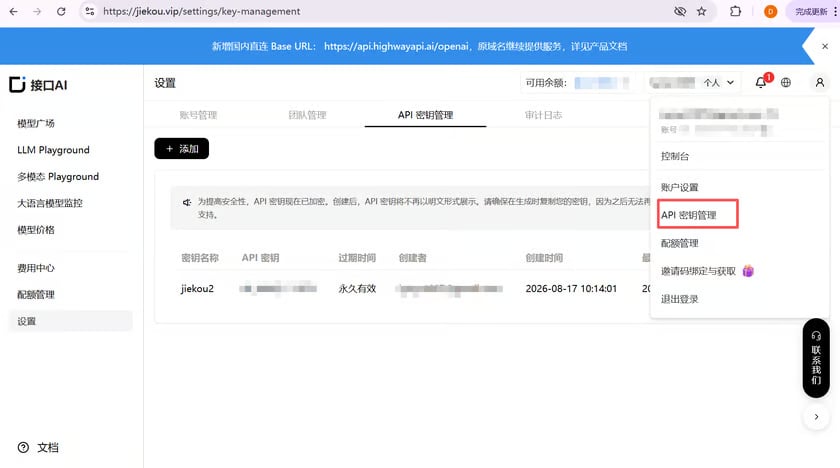
Go to the admin console, click “My” in the upper right corner, and select “API Key Management” from the dropdown list.
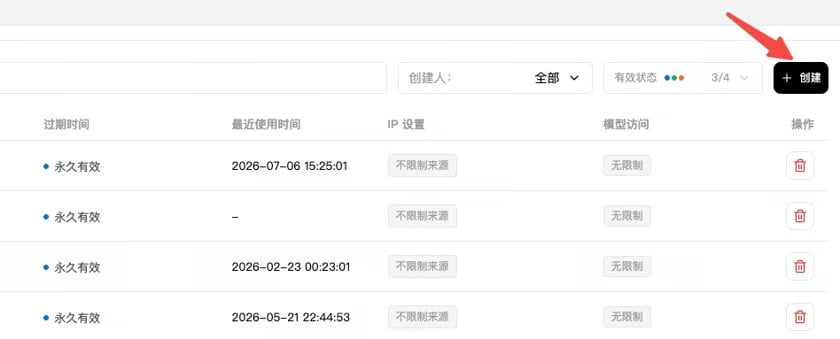
Click “Create” and enter a key name. It is recommended to use an easily recognizable name so you can later distinguish keys for different purposes in the console.
Click to copy and record the generated Key. It cannot be viewed again in the console, so please store it safely for future use.
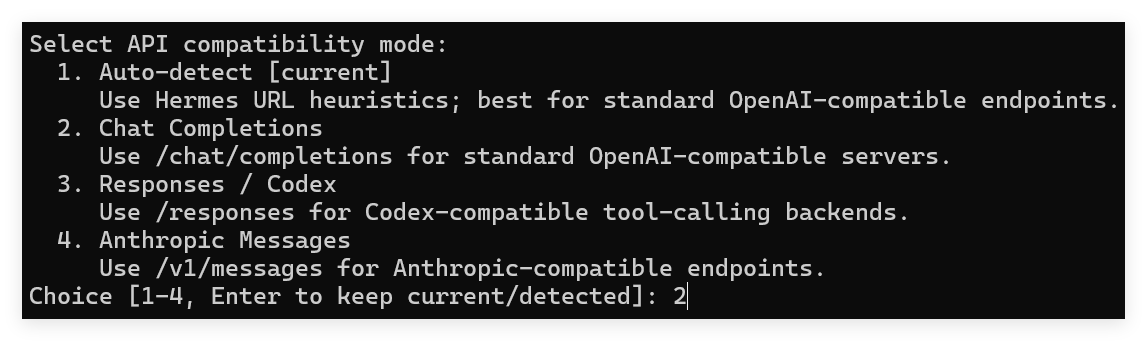
Select the API protocol supported by the model; after pressing Enter, the Interface AI model list will appear
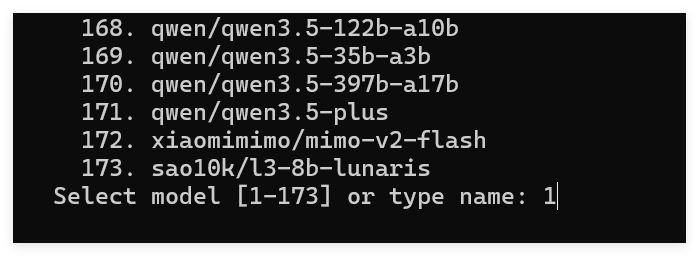
Select the model you want to call by entering its number
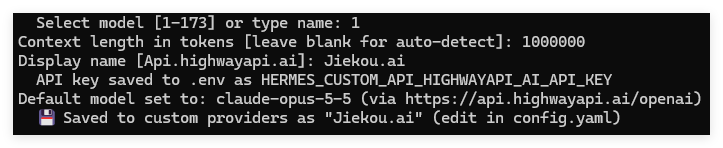
Enter the context length supported by the model, and name the provider
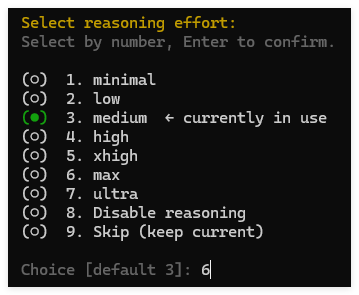
After selecting the reasoning depth, you can use the model services provided by Interface AI in Hermes
Last modified on November 5, 2026
{"docsConfig":{"theme":"aspen","$schema":"https://mintlify.com/docs.json","name":"JieKou AI Docs","description":"接口AI 开发者文档:大语言模型与图像、视频、音频等多模态模型 API 的接入、调用与计费说明。","colors":{"primary":"#000000","light":"#0071E3","dark":"#0071E3"},"logo":{"light":"https://mintcdn.com/jiekou/Mf1wGBLqNABiRgF8/logo/light.svg?fit=max\u0026auto=format\u0026n=Mf1wGBLqNABiRgF8\u0026q=85\u0026s=81df34bfa762625ad3a4e18f59a81a0e","dark":"https://mintcdn.com/jiekou/Mf1wGBLqNABiRgF8/logo/dark.svg?fit=max\u0026auto=format\u0026n=Mf1wGBLqNABiRgF8\u0026q=85\u0026s=b81968885d04f4c09c4058bad9c364e1","href":"https://jiekou.vip"},"favicon":"https://mintcdn.com/jiekou/M__ek7klV-HYX16k/favicon.ico?fit=max\u0026auto=format\u0026n=M__ek7klV-HYX16k\u0026q=85\u0026s=7fb1bfe34418ab40c7c6025450bf40e0","navbar":{"links":[{"href":"https://jiekou.vip/models-console/library","label":"控制台"}],"primary":{"type":"button","label":"官网首页","href":"https://jiekou.vip"}},"seo":{"metatags":{"og:site_name":"接口AI 文档中心","application-name":"接口AI 文档中心","apple-mobile-web-app-title":"接口AI 文档中心"},"organization":{"name":"接口AI","url":"https://jiekou.ai"},"indexing":"all"},"contextual":{"options":["copy","view","chatgpt","claude","perplexity","mcp","add-mcp","cursor","vscode"],"display":"header"},"metadata":{"timestamp":true},"markdown":{"instructions":["JieKou AI model APIs are OpenAI-compatible. Base URL for users in mainland China (direct, no VPN): https://api.highwayapi.ai/openai; elsewhere: https://api.jiekou.ai/openai. Anthropic-compatible base URL: https://api.highwayapi.ai/anthropic or https://api.jiekou.ai/anthropic.","Authenticate with `Authorization: Bearer \u003cAPI_KEY>`; with Anthropic SDKs or Claude Code, pass the same key as `ANTHROPIC_AUTH_TOKEN`. Users create keys at https://jiekou.ai/settings/key-management. Never print or hardcode a real key.","Get current model IDs from GET https://api.jiekou.ai/openai/v1/models instead of reusing model names from memory."]},"styling":{"latex":true},"navigation":{"languages":[{"language":"zh","default":true,"href":"docs/home"},{"language":"en","href":"en/docs/home"},{"language":"es","href":"es/docs/home"},{"language":"pt-BR","href":"pt/docs/home"},{"language":"fr","href":"fr/docs/home"},{"language":"de","href":"de/docs/home"},{"language":"ja","href":"ja/docs/home"},{"language":"ru","href":"ru/docs/home"}]}},"deployment":{"deploymentMetadataValue":{"subdomain":"jiekou","hasAudioNarration":false,"actualSubdomain":"jiekou","customDomains":["docs.jiekou.ai"],"gitSource":{"type":"github","owner":"jiekouai","repo":"jiekou-docs","deployBranch":"main","contentDirectory":"","isPrivate":true,"mountPath":"","label":""},"chroma":{"liveDeploymentHistoryId":"6aec4d31dd9d9f5b04d731dc","collectionId":"43f0ff20-5cf6-4ba4-85f4-be81fd3b9627","schemaVersion":"v3","latestBuiltDeploymentHistoryId":"6aec4d31dd9d9f5b04d731dc"},"entitlements":{},"buildId":"6aec4d31dd9d9f5b04d731dc","clientVersion":"0.0.4067","searchFilterCounts":[{"language":"de","tag":"Leitfaden für Modelldienste","count":35},{"language":"zh","tag":"模型服务用户指南","count":35},{"language":"en","tag":"Model Service Guide","count":35},{"language":"es","tag":"Guía del servicio de modelos","count":35},{"language":"fr","tag":"Guide du service de modèles","count":35},{"language":"ja","tag":"モデルサービスガイド","count":35},{"language":"pt-BR","tag":"Guia do serviço de modelos","count":35},{"language":"ru","tag":"Руководство по сервису моделей","count":35},{"language":"de","tag":"Einrichtung von Drittanbieter-Tools","count":22},{"language":"zh","tag":"第三方工具配置","count":22},{"language":"zh","tag":"模型服务 API 手册","count":22},{"language":"en","tag":"Third-party Tool Setup","count":22},{"language":"en","tag":"Model Service API Reference","count":22},{"language":"es","tag":"Configuración de herramientas de terceros","count":22},{"language":"fr","tag":"Configuration des outils tiers","count":22},{"language":"ja","tag":"サードパーティツール設定","count":22},{"language":"pt-BR","tag":"Configuração de ferramentas de terceiros","count":22},{"language":"ru","tag":"Настройка сторонних инструментов","count":22},{"language":"de","tag":"API-Referenz für Modelldienste","count":19},{"language":"es","tag":"Referencia de API del servicio de modelos","count":19},{"language":"fr","tag":"Référence API du service de modèles","count":19},{"language":"ja","tag":"モデルサービス API リファレンス","count":19},{"language":"pt-BR","tag":"Referência da API do serviço de modelos","count":19},{"language":"ru","tag":"Справочник API сервиса моделей","count":19},{"language":"zh","tag":"账号用户指南","count":16},{"language":"en","tag":"Account Guide","count":16},{"language":"de","tag":"Kontoleitfaden","count":14},{"language":"es","tag":"Guía de cuenta","count":14},{"language":"fr","tag":"Guide du compte","count":14},{"language":"ja","tag":"アカウントガイド","count":14},{"language":"pt-BR","tag":"Guia da conta","count":14},{"language":"ru","tag":"Руководство по аккаунту","count":14},{"language":"de","tag":"LLM API","count":9},{"language":"zh","tag":"大语言模型 API","count":9},{"language":"en","tag":"LLM API","count":9},{"language":"es","tag":"API de LLM","count":9},{"language":"fr","tag":"API LLM","count":9},{"language":"ja","tag":"LLM API","count":9},{"language":"pt-BR","tag":"API de LLM","count":9},{"language":"ru","tag":"API больших языковых моделей","count":9},{"language":"zh","tag":"账号管理","count":8},{"language":"en","tag":"Account Management","count":8},{"language":"de","tag":"FAQ","count":7},{"language":"zh","tag":"常见问题","count":7},{"language":"en","tag":"FAQ","count":7},{"language":"es","tag":"Preguntas frecuentes","count":7},{"language":"fr","tag":"FAQ","count":7},{"language":"ja","tag":"FAQ","count":7},{"language":"pt-BR","tag":"Perguntas frequentes","count":7},{"language":"ru","tag":"Часто задаваемые вопросы","count":7},{"language":"de","tag":"Große Sprachmodelle","count":6},{"language":"de","tag":"Kontoverwaltung","count":6},{"language":"zh","tag":"大语言","count":6},{"language":"en","tag":"Large Language Models","count":6},{"language":"es","tag":"Modelos de lenguaje","count":6},{"language":"es","tag":"Gestión de cuenta","count":6},{"language":"fr","tag":"Grands modèles de langage","count":6},{"language":"fr","tag":"Gestion du compte","count":6},{"language":"ja","tag":"大規模言語モデル","count":6},{"language":"ja","tag":"アカウント管理","count":6},{"language":"pt-BR","tag":"Modelos de linguagem","count":6},{"language":"pt-BR","tag":"Gerenciamento da conta","count":6},{"language":"ru","tag":"Большие языковые модели","count":6},{"language":"ru","tag":"Управление аккаунтом","count":6},{"language":"de","tag":"Bilder","count":5},{"language":"zh","tag":"图像","count":5},{"language":"en","tag":"Images","count":5},{"language":"es","tag":"Imágenes","count":5},{"language":"fr","tag":"Images","count":5},{"language":"ja","tag":"画像","count":5},{"language":"pt-BR","tag":"Imagens","count":5},{"language":"ru","tag":"Изображения","count":5},{"language":"de","tag":"API-Grundlagen","count":4},{"language":"zh","tag":"API 基础","count":4},{"language":"en","tag":"API Basics","count":4},{"language":"es","tag":"Conceptos básicos de API","count":4},{"language":"fr","tag":"Bases de l'API","count":4},{"language":"ja","tag":"API の基本","count":4},{"language":"pt-BR","tag":"Noções básicas da API","count":4},{"language":"ru","tag":"Основы API","count":4}]},"assistantConfig":{},"basePath":"","hasChatPermissions":false,"hasWebMcpPermissions":false,"toggles":[{"name":"kill-isr","enabled":true,"variant":{"name":"disabled","enabled":false,"feature_enabled":true},"impressionData":false},{"name":"agent-mintlify-slack","enabled":true,"variant":{"name":"disabled","enabled":false,"feature_enabled":true},"impressionData":false},{"name":"agent-integrations-settings","enabled":true,"variant":{"name":"disabled","enabled":false,"feature_enabled":true},"impressionData":false},{"name":"rbac-expansion","enabled":true,"variant":{"name":"disabled","enabled":false,"feature_enabled":true},"impressionData":false},{"name":"automations-pr-grouping","enabled":true,"variant":{"name":"disabled","enabled":false,"feature_enabled":true},"impressionData":false},{"name":"custom-prefix","enabled":true,"variant":{"name":"disabled","enabled":false,"feature_enabled":true},"impressionData":false},{"name":"analytics-v7","enabled":true,"variant":{"name":"disabled","enabled":false,"feature_enabled":true},"impressionData":false},{"name":"user-flows-analytics","enabled":true,"variant":{"name":"disabled","enabled":false,"feature_enabled":true},"impressionData":false},{"name":"no-publish-flow","enabled":true,"variant":{"name":"disabled","enabled":false,"feature_enabled":true},"impressionData":false},{"name":"workos-onboarding","enabled":true,"variant":{"name":"disabled","enabled":false,"feature_enabled":true},"impressionData":false},{"name":"llms-txt-v2","enabled":true,"variant":{"name":"disabled","enabled":false,"feature_enabled":true},"impressionData":false},{"name":"snapshot-serving-live","enabled":true,"variant":{"name":"disabled","enabled":false,"feature_enabled":true},"impressionData":false},{"name":"stripTemperatureMiddleware","enabled":true,"variant":{"name":"disabled","enabled":false,"feature_enabled":true},"impressionData":false},{"name":"support-platform-pylon-zendesk","enabled":true,"variant":{"name":"disabled","enabled":false,"feature_enabled":true},"impressionData":false},{"name":"snapshot-serving","enabled":true,"variant":{"name":"disabled","enabled":false,"feature_enabled":true},"impressionData":false},{"name":"instant-rollback","enabled":true,"variant":{"name":"disabled","enabled":false,"feature_enabled":true},"impressionData":false},{"name":"granular-notifications-server","enabled":true,"variant":{"name":"disabled","enabled":false,"feature_enabled":true},"impressionData":false},{"name":"granular-notifications","enabled":true,"variant":{"name":"disabled","enabled":false,"feature_enabled":true},"impressionData":false},{"name":"automations-fable","enabled":true,"variant":{"name":"disabled","enabled":false,"feature_enabled":true},"impressionData":false},{"name":"fixed-ai-action-pricing","enabled":true,"variant":{"name":"disabled","enabled":false,"feature_enabled":true},"impressionData":false},{"name":"automation-resolve-merge-conflict","enabled":true,"variant":{"name":"disabled","enabled":false,"feature_enabled":true},"impressionData":false},{"name":"scoped-publishing","enabled":true,"variant":{"name":"disabled","enabled":false,"feature_enabled":true},"impressionData":false},{"name":"mintql","enabled":true,"variant":{"name":"disabled","enabled":false,"feature_enabled":true},"impressionData":false},{"name":"page-level-analytics","enabled":true,"variant":{"name":"disabled","enabled":false,"feature_enabled":true},"impressionData":false},{"name":"editor-version-history-v2","enabled":true,"variant":{"name":"disabled","enabled":false,"feature_enabled":true},"impressionData":false},{"name":"billing-page-v2","enabled":true,"variant":{"name":"disabled","enabled":false,"feature_enabled":true},"impressionData":false},{"name":"full-page-search","enabled":true,"variant":{"name":"disabled","enabled":false,"feature_enabled":true},"impressionData":false},{"name":"workspace-projects","enabled":true,"variant":{"name":"disabled","enabled":false,"feature_enabled":true},"impressionData":false},{"name":"assistant-v5","enabled":true,"variant":{"name":"disabled","enabled":false,"feature_enabled":true},"impressionData":false},{"name":"fork-pr-previews","enabled":true,"variant":{"name":"disabled","enabled":false,"feature_enabled":true},"impressionData":false},{"name":"revalidation-jwt","enabled":true,"variant":{"name":"disabled","enabled":false,"feature_enabled":true},"impressionData":false},{"name":"vite-origin","enabled":true,"variant":{"name":"disabled","enabled":false,"feature_enabled":true},"impressionData":false},{"name":"workos-sso-scim","enabled":true,"variant":{"name":"disabled","enabled":false,"feature_enabled":true},"impressionData":false},{"name":"hobby-abuse-scan","enabled":true,"variant":{"name":"disabled","enabled":false,"feature_enabled":true},"impressionData":false},{"name":"dashboard-inbox","enabled":true,"variant":{"name":"disabled","enabled":false,"feature_enabled":true},"impressionData":false},{"name":"workos-signup","enabled":true,"variant":{"name":"disabled","enabled":false,"feature_enabled":true},"impressionData":false},{"name":"turbopuffer-dual-write","enabled":true,"variant":{"name":"disabled","enabled":false,"feature_enabled":true},"impressionData":false},{"name":"workos-enabled","enabled":true,"variant":{"name":"disabled","enabled":false,"feature_enabled":true},"impressionData":false},{"name":"approve-review-flow","enabled":true,"variant":{"name":"disabled","enabled":false,"feature_enabled":true},"impressionData":false},{"name":"sso-setup-deadline-banner","enabled":true,"variant":{"name":"disabled","enabled":false,"feature_enabled":true},"impressionData":false},{"name":"turbopuffer-serve","enabled":true,"variant":{"name":"disabled","enabled":false,"feature_enabled":true},"impressionData":false},{"name":"live-agents","enabled":true,"variant":{"name":"disabled","enabled":false,"feature_enabled":true},"impressionData":false}],"googleFontsInlined":false},"customCss":[{"filePath":"global.css","content":"*[style*=\"rgb(124, 58, 237)\"],*[style*=\"#7c3aed\"],*[style*=\"7c3aed\"]{background-color:#F5F5F5!important;background:#F5F5F5!important}#navbar .nav-tabs-item[data-active=\"true\"],#navbar .nav-tabs-item[aria-current=\"location\"]{background-color:transparent!important;background:transparent!important}#sidebar *[class*=\"active\"],#sidebar *[aria-selected=\"true\"],#sidebar *[data-active=\"true\"]{background-color:#F5F5F5!important}#sidebar button.bg-\\\\[var\\\\(--primary\\\\) \\\\],\n#sidebar a.bg-\\\\[var\\\\(--primary\\\\) \\\\]{background-color:#F5F5F5!important}.table-container{overflow-x:scroll;box-shadow:3px 0 10px 0 rgba(25, 85, 140, .05)}.table-container table{margin-top:0}.table thead{background-color:#eef2f150}.table thead th{padding:8px 10px;text-align:left;white-space:nowrap}.table tbody td{padding:6px 10px}.table-big thead th{padding:12px 10px}.table-big tbody td{padding:10px 10px}.table .list-col{position:relative;padding-left:31px;margin:0;text-align:left}.table .list-col::before{content:\"•\";position:absolute;left:18px;top:6px;color:#16b063b0}.table .list-sub-col{position:relative;padding-left:46px;margin:0;text-align:left}.table .list-sub-col::before{content:\"\";position:absolute;left:36px;top:15px;width:4px;height:4px;background-color:#16b06380}.table .list-grandson-col{position:relative;padding-left:60px;margin:0;text-align:left}.table .list-grandson-col::before{content:\"\";position:absolute;left:50px;top:15px;width:4px;height:4px;border-radius:100%;border:1px solid #16b06380}.table .list-grandson-sub-col{position:relative;padding-left:66px;margin:0;text-align:left}.table .list-grandson-sub-col::before{content:\"\";position:absolute;left:58px;top:16px;width:3px;height:3px;border-radius:100%;border:1px solid #16b06350}.table .type-desc{display:inline-block;margin-left:12px;color:#9e9c98b0}.table .type-desc-narrow{margin-left:4px}.table .delete{text-decoration:line-through}.table .deprecated{display:inline-block;color:#f23030;margin-bottom:4px}.table .new-field{display:inline-block;margin-bottom:4px;color:#22ad5c}.table .moved{display:inline-block;margin-bottom:4px;color:#f27430}.table .inline-block{display:inline-block}.table .mt-1{margin-top:4px}.table .mt-2{margin-top:8px}.table .ml-0{margin-left:0}.model-id-item{padding:.125rem .5rem;color:#111827;font-size:.875em;font-weight:500;font-variant-ligatures:none;overflow-wrap:break-word;border-radius:var(--rounded-md, .375rem);background-color:rgb(var(--gray-100) / .5)}.param_text{font-size:14px}.param_frame{width:100%;padding:0 8px}.unified-api-container span[data-as=p]{display:block;margin-top:1.25em;margin-bottom:1.25em}.unified-api-inline-label{padding:2px 8px;border-radius:6px;background-color:#F1EFF580;color:#111827;font-size:12px;font-family:var(--font-jetbrains-mono), ui-monospace, SFMono-Regular, Menlo, Monaco, Consolas, \"Liberation Mono\", \"Courier New\", monospace}.unified-api-selector-container{margin-bottom:16px}.unified-api-description{padding:6px 8px;font-size:15px;color:#4f4e4a;border-radius:6px;border-left:4px solid #fafafa;background-color:#fdfdfd}.unified-api-selector-label{display:block;margin-top:36px;margin-bottom:12px;font-size:15px;font-weight:500;color:#374151;line-height:1.25}.unified-api-selector-wrapper{position:relative;max-width:300px}.unified-api-selector-button{height:40px;width:100%;border-radius:6px;border:1px solid #d1d5db;background-color:#ffffff;padding:0 32px 0 12px;font-size:14px;color:#374151;outline:none;cursor:pointer;text-align:left;display:flex;align-items:center;justify-content:space-between;transition:border-color 0.2s ease-in-out, box-shadow 0.2s ease-in-out;box-shadow:0 1px 2px 0 rgba(0, 0, 0, 0.05);font-family:var(--font-jetbrains-mono), ui-monospace, SFMono-Regular, Menlo, Monaco, Consolas, \"Liberation Mono\", \"Courier New\", monospace}.unified-api-selector-button:hover{border-color:#9ca3af}.unified-api-selector-button:focus{border-color:#3b82f6;box-shadow:0 0 0 3px rgba(59, 130, 246, 0.1)}.unified-api-selector-arrow{transition:transform 0.2s ease-in-out}.unified-api-selector-arrow.open{transform:rotate(180deg)}.unified-api-selector-dropdown{position:absolute;top:100%;left:0;right:0;z-index:50;margin-top:4px;border-radius:6px;border:1px solid #d1d5db;background-color:#ffffff;box-shadow:0 10px 25px -3px rgba(0, 0, 0, 0.2), 0 4px 10px -2px rgba(0, 0, 0, 0.15);max-height:275px;overflow:hidden}.unified-api-selector-dropdown::after{content:'';position:sticky;bottom:0;left:0;right:0;height:12px;background:linear-gradient(to top, rgba(255, 255, 255, 1) 0%, rgba(255, 255, 255, 0.5) 50%, rgba(255, 255, 255, 0.3) 100%);z-index:10;pointer-events:none;display:block;margin-top:-12px}.unified-api-selector-option{padding:10px 12px;font-size:14px;color:#374151;cursor:pointer;background-color:#ffffff}.unified-api-selector-option:not(:last-child){margin-top:1px;margin-bottom:1px;border-bottom:1px solid #f5f5f5}.unified-api-selector-option.selected{background-color:#f3f4f6}.unified-api-selector-option:hover:not(.selected){background-color:#f8fafc}.dark .unified-api-selector-label{color:inherit}.dark .unified-api-search-container{background-color:#1f2937}.dark .unified-api-search-input{background-color:#1f2937;color:#e5e7eb}.dark .unified-api-selector-button{border:1px solid #4b5563;background-color:#1f2937;color:#e5e7eb;box-shadow:0 1px 2px 0 rgba(0, 0, 0, 0.3)}.dark .unified-api-selector-button:hover{border-color:#6b7280}.dark .unified-api-selector-button:focus{border-color:#3b82f6;box-shadow:0 0 0 3px rgba(59, 130, 246, 0.2)}.dark .unified-api-selector-dropdown{border:1px solid #4b5563;background-color:#1f2937;box-shadow:0 10px 25px -3px rgba(0, 0, 0, 0.4), 0 4px 10px -2px rgba(0, 0, 0, 0.3)}.dark .unified-api-selector-dropdown::after{background:linear-gradient(to top, rgba(31, 41, 55, 1) 0%, rgba(31, 41, 55, 0.5) 50%, rgba(31, 41, 55, 0.3) 100%)}.dark .unified-api-selector-option{color:#e5e7eb;background-color:#1f2937}.dark .unified-api-selector-option:not(:last-child){border-bottom:1px solid #374151}.dark .unified-api-selector-option.selected{background-color:#374151}.dark .unified-api-selector-option:hover:not(.selected){background-color:#2d3748}.dark .unified-api-description{padding:0;background-color:inherit;color:#e5e7eb;border-left:none}.unified-api-loading-container{display:flex;flex-direction:column;align-items:center;justify-content:center;padding:48px 24px;text-align:center}.unified-api-loading-spinner{width:32px;height:32px;border:3px solid #f3f4f6;border-top:3px solid #7c3aed;border-radius:50%;animation:unified-api-spin 1s linear infinite;margin-bottom:16px}.unified-api-loading-text{color:#6b7280;font-size:14px;margin:0}@keyframes unified-api-spin{0%{transform:rotate(0deg)}100%{transform:rotate(360deg)}}.unified-api-search-container{padding:8px 12px;border-bottom:1px solid #e5e7eb;background-color:#fefefe}.unified-api-search-input{width:100%;padding:8px 12px;border:1px solid #d1d5db;border-radius:4px;font-size:14px;background-color:#ffffff;color:#374151;outline:none;transition:border-color 0.2s ease}.unified-api-search-input:focus{border-color:#7c3aed;box-shadow:0 0 0 3px rgba(124, 58, 237, 0.1)}.unified-api-search-input::placeholder{color:#9ca3af}.unified-api-options-container{padding-bottom:12px;max-height:calc(275px - 48px);overflow-y:auto}.unified-api-no-results{padding:16px 12px;text-align:center;color:#6b7280;font-size:14px;font-style:italic}:root{--nv-toc-band-color: var(--primary)}.dark{--nv-toc-band-color: var(--primary-light)}html[data-nv-toc-band] #table-of-contents [data-layout-item=\"toc-item-link\"],html[data-nv-toc-band] #table-of-contents [data-layout-item=\"toc-item\"]{border-left-color:transparent}:root{--nv-toc-band-from: 30%;--nv-toc-band-to: 0%;--nv-toc-band-fade: 100%}html[data-nv-toc-band] #table-of-contents[data-look=\"default\"] [data-layout-item=\"toc-item\"][data-active]>[data-layout-item=\"toc-item-link\"]:not([data-nv-in-view]){color:rgb(var(--gray-600))}html[data-nv-toc-band] #table-of-contents[data-look=\"default\"] [data-layout-item=\"toc-item\"] [data-layout-item=\"toc-item\"][data-active]>[data-layout-item=\"toc-item-link\"]:not([data-nv-in-view]){color:rgb(var(--gray-500))}html.dark[data-nv-toc-band] #table-of-contents[data-look=\"default\"] [data-layout-item=\"toc-item\"][data-active]>[data-layout-item=\"toc-item-link\"]:not([data-nv-in-view]),html.dark[data-nv-toc-band] #table-of-contents[data-look=\"default\"] [data-layout-item=\"toc-item\"] [data-layout-item=\"toc-item\"][data-active]>[data-layout-item=\"toc-item-link\"]:not([data-nv-in-view]){color:rgb(var(--gray-400))}html[data-nv-toc-band] #table-of-contents[data-look=\"default\"] [data-layout-item=\"toc-item\"][data-active]>[data-layout-item=\"toc-item-link\"]:not([data-nv-in-view]){text-shadow:none}html[data-nv-toc-band] #table-of-contents[data-look=\"default\"] [data-layout-item=\"toc-item\"][data-active]>[data-layout-item=\"toc-item-link\"]:not([data-nv-in-view]):hover,html[data-nv-toc-band] #table-of-contents[data-look=\"default\"] [data-layout-item=\"toc-item\"] [data-layout-item=\"toc-item\"][data-active]>[data-layout-item=\"toc-item-link\"]:not([data-nv-in-view]):hover{color:rgb(var(--gray-900))}html.dark[data-nv-toc-band] #table-of-contents[data-look=\"default\"] [data-layout-item=\"toc-item\"][data-active]>[data-layout-item=\"toc-item-link\"]:not([data-nv-in-view]):hover,html.dark[data-nv-toc-band] #table-of-contents[data-look=\"default\"] [data-layout-item=\"toc-item\"] [data-layout-item=\"toc-item\"][data-active]>[data-layout-item=\"toc-item-link\"]:not([data-nv-in-view]):hover{color:rgb(var(--gray-300))}#table-of-contents [data-layout-item=\"toc-item-link\"][data-nv-in-view]{color:rgb(var(--gray-900))}.dark #table-of-contents [data-layout-item=\"toc-item-link\"][data-nv-in-view]{color:rgb(var(--gray-100))}#table-of-contents nav{position:relative;isolation:isolate}.nv-toc-band{position:absolute;inset:0;z-index:-1;pointer-events:none;background:linear-gradient(to right, rgb(var(--nv-toc-band-color) / 0.3), transparent);clip-path:inset(0 0 100% round 8px)}.nv-toc-band[data-ready]{transition:clip-path 300ms ease-out}@supports (background: linear-gradient(in oklab, red, blue)) and (color: color-mix(in oklab, red, blue)){.nv-toc-band{background:linear-gradient(\n to right in oklab,\n color-mix(in oklab, rgb(var(--nv-toc-band-color)) var(--nv-toc-band-from), transparent),\n color-mix(in oklab, rgb(var(--nv-toc-band-color)) var(--nv-toc-band-to), transparent)\n var(--nv-toc-band-fade)\n )}}@media (prefers-reduced-motion: reduce){.nv-toc-band[data-ready]{transition:none}}#content-container:has(#content[data-page-href$=\"/docs/home\"]){max-width:72rem}"}],"page":{"pagePath":"en/docs/integration/hermes","slug":"/en/docs/integration/hermes","pageMetadata":{"title":"Hermes","og:title":"Interface AI × Hermes","description":null,"href":"/en/docs/integration/hermes"},"pageType":"default","mdx":{"mdxSource":{"compiledSource":"\"use strict\";const{Fragment:_Fragment,jsx:_jsx,jsxs:_jsxs}=arguments[0];const{useMDXComponents:_provideComponents}=arguments[0];function _createMdxContent(props){const _components={a:`a`,code:`code`,li:`li`,ol:`ol`,p:`p`,pre:`pre`,span:`span`,ul:`ul`,..._provideComponents(),...props.components},{CodeBlock,Heading,OptimizedImage}=_components;if(!CodeBlock)_missingMdxReference(`CodeBlock`,true);if(!Heading)_missingMdxReference(`Heading`,true);if(!OptimizedImage)_missingMdxReference(`OptimizedImage`,true);return _jsxs(_Fragment,{children:[_jsx(Heading,{level:`2`,id:`what-is-hermes`,children:`What is Hermes?`}),`\n`,_jsx(_components.p,{children:`Hermes is an open-source, self-hosted autonomous Agent from Nous Research, officially positioned as “the Agent that grows with you.” Its most distinctive feature is the built-in learning loop: it automatically creates skills from the experience of completing tasks, improves itself through use, and recalls past sessions using full-text search plus LLM summaries, allowing it to remember projects and user preferences across sessions. It provides a full terminal TUI and also includes a built-in messaging gateway, so the same Agent can be connected to Telegram, Discord, Slack, WhatsApp, Signal, and email, all sharing the same memory.`}),`\n`,_jsx(_components.p,{children:`Hermes comes with a built-in cron scheduler that lets you set up unattended tasks such as daily reports and nightly backups in natural language, and it also supports dispatching isolated sub-Agents to work in parallel. The execution environment can be switched between local, Docker, SSH, Modal, Daytona, and Vercel Sandbox, so it can run on a cheap VPS or in the cloud. On the model side, it is not locked to any vendor, supporting Nous Portal, OpenRouter, OpenAI, and custom endpoints.`}),`\n`,_jsxs(_components.p,{children:[`Website: `,_jsx(_components.a,{href:`https://hermes-agent.nousresearch.com/`,children:`https://hermes-agent.nousresearch.com/`})]}),`\n`,_jsxs(_components.p,{children:[`GitHub: `,_jsx(_components.a,{href:`https://github.com/NousResearch/hermes-agent`,children:`https://github.com/NousResearch/hermes-agent`})]}),`\n`,_jsx(Heading,{level:`2`,id:`how-to-connect-interface-ai-to-hermes`,children:`How to connect Interface AI to Hermes?`}),`\n`,_jsx(Heading,{level:`3`,id:`get-an-api-key`,children:`Get an API Key`}),`\n`,_jsxs(_components.ol,{children:[`\n`,_jsxs(_components.li,{children:[`\n`,_jsx(_components.p,{children:`Log in to the official website jiekou.ai to register.`}),`\n`]}),`\n`,_jsxs(_components.li,{children:[`\n`,_jsx(_components.p,{children:`Go to the admin console, click “My” in the upper right corner, and select “API Key Management” from the dropdown list.`}),`\n`,_jsx(OptimizedImage,{src:`https://mintcdn.com/jiekou/f-T_E3hNj8sGYUsR/images/hermes-01.png?fit=max\u0026auto=format\u0026n=f-T_E3hNj8sGYUsR\u0026q=85\u0026s=8a3154aa6619c1d39a93c6030bfa024a`,alt:``,\"data-og-width\":`840`,width:`840`,\"data-og-height\":`468`,height:`468`,\"data-path\":`images/hermes-01.png`,\"data-optimize\":`true`,\"data-opv\":`3`,srcset:`https://mintcdn.com/jiekou/f-T_E3hNj8sGYUsR/images/hermes-01.png?w=280\u0026fit=max\u0026auto=format\u0026n=f-T_E3hNj8sGYUsR\u0026q=85\u0026s=cbdf4dca8601f23c32b02a177c295d5c 280w, https://mintcdn.com/jiekou/f-T_E3hNj8sGYUsR/images/hermes-01.png?w=560\u0026fit=max\u0026auto=format\u0026n=f-T_E3hNj8sGYUsR\u0026q=85\u0026s=bb303dd444f189dd3bbd0c1f7568b383 560w, https://mintcdn.com/jiekou/f-T_E3hNj8sGYUsR/images/hermes-01.png?w=840\u0026fit=max\u0026auto=format\u0026n=f-T_E3hNj8sGYUsR\u0026q=85\u0026s=d25ecc449f51e668bf02f2fca5bda8d8 840w, https://mintcdn.com/jiekou/f-T_E3hNj8sGYUsR/images/hermes-01.png?w=1100\u0026fit=max\u0026auto=format\u0026n=f-T_E3hNj8sGYUsR\u0026q=85\u0026s=093ba74e9b76e0790a7d5669467464af 1100w, https://mintcdn.com/jiekou/f-T_E3hNj8sGYUsR/images/hermes-01.png?w=1650\u0026fit=max\u0026auto=format\u0026n=f-T_E3hNj8sGYUsR\u0026q=85\u0026s=cd64f347f6dc9debb11512f0a86f1373 1650w, https://mintcdn.com/jiekou/f-T_E3hNj8sGYUsR/images/hermes-01.png?w=2500\u0026fit=max\u0026auto=format\u0026n=f-T_E3hNj8sGYUsR\u0026q=85\u0026s=9eadb9ed6b5622fef8bf4c19856598d9 2500w`}),`\n`]}),`\n`,_jsxs(_components.li,{children:[`\n`,_jsx(_components.p,{children:`Click “Create” and enter a key name. It is recommended to use an easily recognizable name so you can later distinguish keys for different purposes in the console.`}),`\n`,_jsx(OptimizedImage,{src:`https://mintcdn.com/jiekou/f-T_E3hNj8sGYUsR/images/hermes-02.png?fit=max\u0026auto=format\u0026n=f-T_E3hNj8sGYUsR\u0026q=85\u0026s=f7fb594f8b82ba45d41ed98e72d1ee46`,alt:``,\"data-og-width\":`840`,width:`840`,\"data-og-height\":`339`,height:`339`,\"data-path\":`images/hermes-02.png`,\"data-optimize\":`true`,\"data-opv\":`3`,srcset:`https://mintcdn.com/jiekou/f-T_E3hNj8sGYUsR/images/hermes-02.png?w=280\u0026fit=max\u0026auto=format\u0026n=f-T_E3hNj8sGYUsR\u0026q=85\u0026s=a5110bea8d2b9881be8aad0abb12f909 280w, https://mintcdn.com/jiekou/f-T_E3hNj8sGYUsR/images/hermes-02.png?w=560\u0026fit=max\u0026auto=format\u0026n=f-T_E3hNj8sGYUsR\u0026q=85\u0026s=e60984206849f79873734a7f658c64aa 560w, https://mintcdn.com/jiekou/f-T_E3hNj8sGYUsR/images/hermes-02.png?w=840\u0026fit=max\u0026auto=format\u0026n=f-T_E3hNj8sGYUsR\u0026q=85\u0026s=b9c307c35e614926d53eed89b7e0ea36 840w, https://mintcdn.com/jiekou/f-T_E3hNj8sGYUsR/images/hermes-02.png?w=1100\u0026fit=max\u0026auto=format\u0026n=f-T_E3hNj8sGYUsR\u0026q=85\u0026s=be24c901b6d3eb08614bf23227ed5481 1100w, https://mintcdn.com/jiekou/f-T_E3hNj8sGYUsR/images/hermes-02.png?w=1650\u0026fit=max\u0026auto=format\u0026n=f-T_E3hNj8sGYUsR\u0026q=85\u0026s=32774ea2cf98c9f89572a5062ffe8f9b 1650w, https://mintcdn.com/jiekou/f-T_E3hNj8sGYUsR/images/hermes-02.png?w=2500\u0026fit=max\u0026auto=format\u0026n=f-T_E3hNj8sGYUsR\u0026q=85\u0026s=bbf80034a9aaf4bedb1095a834947021 2500w`}),`\n`]}),`\n`,_jsxs(_components.li,{children:[`\n`,_jsx(_components.p,{children:`Click to copy and record the generated Key. It cannot be viewed again in the console, so please store it safely for future use.`}),`\n`]}),`\n`]}),`\n`,_jsx(Heading,{level:`3`,id:`connect-interface-ai-to-hermes`,children:`Connect Interface AI to Hermes`}),`\n`,_jsxs(_components.ol,{children:[`\n`,_jsx(_components.li,{children:`After installing Hermes, open a terminal and run:`}),`\n`]}),`\n`,_jsx(CodeBlock,{filename:``,numberOfLines:`1`,language:`shellscript`,children:_jsx(_components.pre,{className:`shiki shiki-themes github-light-default dark-plus`,style:{backgroundColor:`#ffffff`,\"--shiki-dark-bg\":`#0B0C0E`,color:`#1f2328`,\"--shiki-dark\":`#D4D4D4`},language:`shellscript`,children:_jsxs(_components.code,{language:`shellscript`,numberOfLines:`1`,children:[_jsxs(_components.span,{className:`line`,children:[_jsx(_components.span,{style:{color:`#953800`,\"--shiki-dark\":`#DCDCAA`},children:`hermes`}),_jsx(_components.span,{style:{color:`#0A3069`,\"--shiki-dark\":`#CE9178`},children:` model`})]}),`\n`]})})}),`\n`,_jsxs(_components.ol,{start:`2`,children:[`\n`,_jsxs(_components.li,{children:[`\n`,_jsx(_components.p,{children:`In the options that appear, select “Custom Endpoint”`}),`\n`,_jsx(OptimizedImage,{src:`https://mintcdn.com/jiekou/eY20tqhq6niA3Adp/images/hermes-03.png?fit=max\u0026auto=format\u0026n=eY20tqhq6niA3Adp\u0026q=85\u0026s=f1e4392bf1cff0c0e401bcef99d6263a`,alt:``,\"data-og-width\":`1996`,width:`1996`,\"data-og-height\":`1204`,height:`1204`,\"data-path\":`images/hermes-03.png`,\"data-optimize\":`true`,\"data-opv\":`3`,srcset:`https://mintcdn.com/jiekou/eY20tqhq6niA3Adp/images/hermes-03.png?w=280\u0026fit=max\u0026auto=format\u0026n=eY20tqhq6niA3Adp\u0026q=85\u0026s=9f9b013a75a3ece6dead5c8731582105 280w, https://mintcdn.com/jiekou/eY20tqhq6niA3Adp/images/hermes-03.png?w=560\u0026fit=max\u0026auto=format\u0026n=eY20tqhq6niA3Adp\u0026q=85\u0026s=a964bd455856e8888847c28d1d5e095c 560w, https://mintcdn.com/jiekou/eY20tqhq6niA3Adp/images/hermes-03.png?w=840\u0026fit=max\u0026auto=format\u0026n=eY20tqhq6niA3Adp\u0026q=85\u0026s=25e703ed57866111f6f2f98161010738 840w, https://mintcdn.com/jiekou/eY20tqhq6niA3Adp/images/hermes-03.png?w=1100\u0026fit=max\u0026auto=format\u0026n=eY20tqhq6niA3Adp\u0026q=85\u0026s=f759574c0c90e52e4e5314c2630585ad 1100w, https://mintcdn.com/jiekou/eY20tqhq6niA3Adp/images/hermes-03.png?w=1650\u0026fit=max\u0026auto=format\u0026n=eY20tqhq6niA3Adp\u0026q=85\u0026s=00d87a978406fc319956ce515ea2adc8 1650w, https://mintcdn.com/jiekou/eY20tqhq6niA3Adp/images/hermes-03.png?w=2500\u0026fit=max\u0026auto=format\u0026n=eY20tqhq6niA3Adp\u0026q=85\u0026s=5eb74a952fe3830b93895f25534ab25c 2500w`}),`\n`]}),`\n`,_jsxs(_components.li,{children:[`\n`,_jsx(_components.p,{children:`Enter the Interface AI URL`}),`\n`]}),`\n`]}),`\n`,_jsxs(_components.ul,{children:[`\n`,_jsxs(_components.li,{children:[`Direct connection URL (China): `,_jsx(_components.a,{href:`https://api.highwayapi.ai/openai`,children:`https://api.highwayapi.ai/openai`})]}),`\n`,_jsxs(_components.li,{children:[`International URL: `,_jsx(_components.a,{href:`https://api.jiekou.ai/openai`,children:`https://api.jiekou.ai/openai`}),`\n`,_jsx(OptimizedImage,{src:`https://mintcdn.com/jiekou/eY20tqhq6niA3Adp/images/hermes-04.png?fit=max\u0026auto=format\u0026n=eY20tqhq6niA3Adp\u0026q=85\u0026s=f6a880e2b699736fb9f18ce662bb96e4`,alt:``,\"data-og-width\":`1204`,width:`1204`,\"data-og-height\":`238`,height:`238`,\"data-path\":`images/hermes-04.png`,\"data-optimize\":`true`,\"data-opv\":`3`,srcset:`https://mintcdn.com/jiekou/eY20tqhq6niA3Adp/images/hermes-04.png?w=280\u0026fit=max\u0026auto=format\u0026n=eY20tqhq6niA3Adp\u0026q=85\u0026s=188e6ccce409e1caff69b89af8b0ba66 280w, https://mintcdn.com/jiekou/eY20tqhq6niA3Adp/images/hermes-04.png?w=560\u0026fit=max\u0026auto=format\u0026n=eY20tqhq6niA3Adp\u0026q=85\u0026s=47f0b42177b96c4170244950740e97b8 560w, https://mintcdn.com/jiekou/eY20tqhq6niA3Adp/images/hermes-04.png?w=840\u0026fit=max\u0026auto=format\u0026n=eY20tqhq6niA3Adp\u0026q=85\u0026s=044d41d4d1d7117b7724954500e3263e 840w, https://mintcdn.com/jiekou/eY20tqhq6niA3Adp/images/hermes-04.png?w=1100\u0026fit=max\u0026auto=format\u0026n=eY20tqhq6niA3Adp\u0026q=85\u0026s=a1bcea1e6f85c8052da0dd9a5fc2dbc6 1100w, https://mintcdn.com/jiekou/eY20tqhq6niA3Adp/images/hermes-04.png?w=1650\u0026fit=max\u0026auto=format\u0026n=eY20tqhq6niA3Adp\u0026q=85\u0026s=6fcd7f43037987812f0b9069bcafca11 1650w, https://mintcdn.com/jiekou/eY20tqhq6niA3Adp/images/hermes-04.png?w=2500\u0026fit=max\u0026auto=format\u0026n=eY20tqhq6niA3Adp\u0026q=85\u0026s=9448383bee90cd6c5e9b774d89a12f48 2500w`}),`\n`]}),`\n`]}),`\n`,_jsxs(_components.ol,{start:`4`,children:[`\n`,_jsxs(_components.li,{children:[`\n`,_jsx(_components.p,{children:`Enter the Key you just copied`}),`\n`,_jsx(OptimizedImage,{src:`https://mintcdn.com/jiekou/eY20tqhq6niA3Adp/images/hermes-05.png?fit=max\u0026auto=format\u0026n=eY20tqhq6niA3Adp\u0026q=85\u0026s=37d7a63dc5a9724fe585a10af4adab6f`,alt:``,\"data-og-width\":`1185`,width:`1185`,\"data-og-height\":`121`,height:`121`,\"data-path\":`images/hermes-05.png`,\"data-optimize\":`true`,\"data-opv\":`3`,srcset:`https://mintcdn.com/jiekou/eY20tqhq6niA3Adp/images/hermes-05.png?w=280\u0026fit=max\u0026auto=format\u0026n=eY20tqhq6niA3Adp\u0026q=85\u0026s=ee3da2c7a67c51ebf82b7701ddebc505 280w, https://mintcdn.com/jiekou/eY20tqhq6niA3Adp/images/hermes-05.png?w=560\u0026fit=max\u0026auto=format\u0026n=eY20tqhq6niA3Adp\u0026q=85\u0026s=88add6c74f2121b2c4e8013bd6b15a2f 560w, https://mintcdn.com/jiekou/eY20tqhq6niA3Adp/images/hermes-05.png?w=840\u0026fit=max\u0026auto=format\u0026n=eY20tqhq6niA3Adp\u0026q=85\u0026s=9687cbd925ee9fde90eac155d278ba99 840w, https://mintcdn.com/jiekou/eY20tqhq6niA3Adp/images/hermes-05.png?w=1100\u0026fit=max\u0026auto=format\u0026n=eY20tqhq6niA3Adp\u0026q=85\u0026s=a0acf5d36466c97fef3869245649fc96 1100w, https://mintcdn.com/jiekou/eY20tqhq6niA3Adp/images/hermes-05.png?w=1650\u0026fit=max\u0026auto=format\u0026n=eY20tqhq6niA3Adp\u0026q=85\u0026s=602f2a1f1fc521d1ecc6f8b5f7e43d8e 1650w, https://mintcdn.com/jiekou/eY20tqhq6niA3Adp/images/hermes-05.png?w=2500\u0026fit=max\u0026auto=format\u0026n=eY20tqhq6niA3Adp\u0026q=85\u0026s=d89cf0131e663293a8364752f2dd12a4 2500w`}),`\n`]}),`\n`,_jsxs(_components.li,{children:[`\n`,_jsx(_components.p,{children:`Select the API protocol supported by the model; after pressing Enter, the Interface AI model list will appear`}),`\n`,_jsx(OptimizedImage,{src:`https://mintcdn.com/jiekou/eY20tqhq6niA3Adp/images/hermes-06.png?fit=max\u0026auto=format\u0026n=eY20tqhq6niA3Adp\u0026q=85\u0026s=671730a15a2751ad2fbf86a093778e64`,alt:``,\"data-og-width\":`1147`,width:`1147`,\"data-og-height\":`341`,height:`341`,\"data-path\":`images/hermes-06.png`,\"data-optimize\":`true`,\"data-opv\":`3`,srcset:`https://mintcdn.com/jiekou/eY20tqhq6niA3Adp/images/hermes-06.png?w=280\u0026fit=max\u0026auto=format\u0026n=eY20tqhq6niA3Adp\u0026q=85\u0026s=10e6615da5e824b41a9fddf5724c7a6a 280w, https://mintcdn.com/jiekou/eY20tqhq6niA3Adp/images/hermes-06.png?w=560\u0026fit=max\u0026auto=format\u0026n=eY20tqhq6niA3Adp\u0026q=85\u0026s=12139ccf49599565761d86e8632cc5ff 560w, https://mintcdn.com/jiekou/eY20tqhq6niA3Adp/images/hermes-06.png?w=840\u0026fit=max\u0026auto=format\u0026n=eY20tqhq6niA3Adp\u0026q=85\u0026s=bbb4bb38173f5a73521a56faed5cecb6 840w, https://mintcdn.com/jiekou/eY20tqhq6niA3Adp/images/hermes-06.png?w=1100\u0026fit=max\u0026auto=format\u0026n=eY20tqhq6niA3Adp\u0026q=85\u0026s=9a8814d346640f89e4ed71948e8a2752 1100w, https://mintcdn.com/jiekou/eY20tqhq6niA3Adp/images/hermes-06.png?w=1650\u0026fit=max\u0026auto=format\u0026n=eY20tqhq6niA3Adp\u0026q=85\u0026s=6b17c7ceb5f27cfcbc0d11625abc2e8e 1650w, https://mintcdn.com/jiekou/eY20tqhq6niA3Adp/images/hermes-06.png?w=2500\u0026fit=max\u0026auto=format\u0026n=eY20tqhq6niA3Adp\u0026q=85\u0026s=1211bd71822dfa9c7b6fb84afe9d9d6b 2500w`}),`\n`]}),`\n`,_jsxs(_components.li,{children:[`\n`,_jsx(_components.p,{children:`Select the model you want to call by entering its number`}),`\n`,_jsx(OptimizedImage,{src:`https://mintcdn.com/jiekou/eY20tqhq6niA3Adp/images/hermes-07.png?fit=max\u0026auto=format\u0026n=eY20tqhq6niA3Adp\u0026q=85\u0026s=117a7d38d4652a124b54a5656608d262`,alt:``,\"data-og-width\":`699`,width:`699`,\"data-og-height\":`256`,height:`256`,\"data-path\":`images/hermes-07.png`,\"data-optimize\":`true`,\"data-opv\":`3`,srcset:`https://mintcdn.com/jiekou/eY20tqhq6niA3Adp/images/hermes-07.png?w=280\u0026fit=max\u0026auto=format\u0026n=eY20tqhq6niA3Adp\u0026q=85\u0026s=9dc3f696904d53a4c51528d191dca563 280w, https://mintcdn.com/jiekou/eY20tqhq6niA3Adp/images/hermes-07.png?w=560\u0026fit=max\u0026auto=format\u0026n=eY20tqhq6niA3Adp\u0026q=85\u0026s=6db73a48b59b527bb3eb78c61ec744f4 560w, https://mintcdn.com/jiekou/eY20tqhq6niA3Adp/images/hermes-07.png?w=840\u0026fit=max\u0026auto=format\u0026n=eY20tqhq6niA3Adp\u0026q=85\u0026s=d29eb9f93702e29f0a0a77998179b9a4 840w, https://mintcdn.com/jiekou/eY20tqhq6niA3Adp/images/hermes-07.png?w=1100\u0026fit=max\u0026auto=format\u0026n=eY20tqhq6niA3Adp\u0026q=85\u0026s=31bab0855dbeea1cc51f9aec84186f71 1100w, https://mintcdn.com/jiekou/eY20tqhq6niA3Adp/images/hermes-07.png?w=1650\u0026fit=max\u0026auto=format\u0026n=eY20tqhq6niA3Adp\u0026q=85\u0026s=80c2000772ae1ee317b1cae2d10a512f 1650w, https://mintcdn.com/jiekou/eY20tqhq6niA3Adp/images/hermes-07.png?w=2500\u0026fit=max\u0026auto=format\u0026n=eY20tqhq6niA3Adp\u0026q=85\u0026s=1405103516615bd9891aa13f9297ec54 2500w`}),`\n`]}),`\n`,_jsxs(_components.li,{children:[`\n`,_jsx(_components.p,{children:`Enter the context length supported by the model, and name the provider`}),`\n`,_jsx(OptimizedImage,{src:`https://mintcdn.com/jiekou/eY20tqhq6niA3Adp/images/hermes-08.png?fit=max\u0026auto=format\u0026n=eY20tqhq6niA3Adp\u0026q=85\u0026s=447ac8de93505242ab1872ddc4861afb`,alt:``,\"data-og-width\":`723`,width:`723`,\"data-og-height\":`148`,height:`148`,\"data-path\":`images/hermes-08.png`,\"data-optimize\":`true`,\"data-opv\":`3`,srcset:`https://mintcdn.com/jiekou/eY20tqhq6niA3Adp/images/hermes-08.png?w=280\u0026fit=max\u0026auto=format\u0026n=eY20tqhq6niA3Adp\u0026q=85\u0026s=76e7f0e325f05b4fde4af56349cb958d 280w, https://mintcdn.com/jiekou/eY20tqhq6niA3Adp/images/hermes-08.png?w=560\u0026fit=max\u0026auto=format\u0026n=eY20tqhq6niA3Adp\u0026q=85\u0026s=0ae0ef1318daac1c39d3898c138fd1a6 560w, https://mintcdn.com/jiekou/eY20tqhq6niA3Adp/images/hermes-08.png?w=840\u0026fit=max\u0026auto=format\u0026n=eY20tqhq6niA3Adp\u0026q=85\u0026s=87663260d16413fc5debcab2cc9da0fc 840w, https://mintcdn.com/jiekou/eY20tqhq6niA3Adp/images/hermes-08.png?w=1100\u0026fit=max\u0026auto=format\u0026n=eY20tqhq6niA3Adp\u0026q=85\u0026s=7e75f123a8d33e80d1b21d6e0572d466 1100w, https://mintcdn.com/jiekou/eY20tqhq6niA3Adp/images/hermes-08.png?w=1650\u0026fit=max\u0026auto=format\u0026n=eY20tqhq6niA3Adp\u0026q=85\u0026s=e9768ea0a5d86b169571fb028631e3cb 1650w, https://mintcdn.com/jiekou/eY20tqhq6niA3Adp/images/hermes-08.png?w=2500\u0026fit=max\u0026auto=format\u0026n=eY20tqhq6niA3Adp\u0026q=85\u0026s=2edcc5d525a945a0a1d63d35edb4437b 2500w`}),`\n`]}),`\n`,_jsxs(_components.li,{children:[`\n`,_jsx(_components.p,{children:`After selecting the reasoning depth, you can use the model services provided by Interface AI in Hermes`}),`\n`,_jsx(OptimizedImage,{src:`https://mintcdn.com/jiekou/eY20tqhq6niA3Adp/images/hermes-09.png?fit=max\u0026auto=format\u0026n=eY20tqhq6niA3Adp\u0026q=85\u0026s=c09ec649706684bd87893682174df934`,alt:``,\"data-og-width\":`359`,width:`359`,\"data-og-height\":`295`,height:`295`,\"data-path\":`images/hermes-09.png`,\"data-optimize\":`true`,\"data-opv\":`3`,srcset:`https://mintcdn.com/jiekou/eY20tqhq6niA3Adp/images/hermes-09.png?w=280\u0026fit=max\u0026auto=format\u0026n=eY20tqhq6niA3Adp\u0026q=85\u0026s=99f3796ddea8fac41123774e82087481 280w, https://mintcdn.com/jiekou/eY20tqhq6niA3Adp/images/hermes-09.png?w=560\u0026fit=max\u0026auto=format\u0026n=eY20tqhq6niA3Adp\u0026q=85\u0026s=70e30429b89e4f64091991b91d9cf8af 560w, https://mintcdn.com/jiekou/eY20tqhq6niA3Adp/images/hermes-09.png?w=840\u0026fit=max\u0026auto=format\u0026n=eY20tqhq6niA3Adp\u0026q=85\u0026s=bbf25836e4caf21066d5783e71604b91 840w, https://mintcdn.com/jiekou/eY20tqhq6niA3Adp/images/hermes-09.png?w=1100\u0026fit=max\u0026auto=format\u0026n=eY20tqhq6niA3Adp\u0026q=85\u0026s=389fb24a121b5526982bb0996e79b017 1100w, https://mintcdn.com/jiekou/eY20tqhq6niA3Adp/images/hermes-09.png?w=1650\u0026fit=max\u0026auto=format\u0026n=eY20tqhq6niA3Adp\u0026q=85\u0026s=55c014afcf3f9bcc04903d91b5c972a5 1650w, https://mintcdn.com/jiekou/eY20tqhq6niA3Adp/images/hermes-09.png?w=2500\u0026fit=max\u0026auto=format\u0026n=eY20tqhq6niA3Adp\u0026q=85\u0026s=2a9c66f7ec694f8908e68ec3d3e7042a 2500w`}),`\n`]}),`\n`]})]})}function MDXContent(props={}){const{wrapper:MDXLayout}={..._provideComponents(),...props.components};return MDXLayout?_jsx(MDXLayout,{...props,children:_jsx(_createMdxContent,{...props})}):_createMdxContent(props)}return{default:MDXContent};function _missingMdxReference(id,component){throw new Error(`Expected `+(component?`component`:`object`)+\" `\"+id+\"` to be defined: you likely forgot to import, pass, or provide it.\")}","frontmatter":{},"scope":{"config":{},"pageMetadata":{"title":"Hermes","og:title":"Interface AI × Hermes","description":null,"href":"/en/docs/integration/hermes"}}},"mdxSourceWithNoJs":null},"mdxExtracts":{"tableOfContents":[{"title":"What is Hermes?","slug":"what-is-hermes","depth":2,"children":[]},{"title":"How to connect Interface AI to Hermes?","slug":"how-to-connect-interface-ai-to-hermes","depth":2,"children":[{"title":"Get an API Key","slug":"get-an-api-key","depth":3,"children":[]},{"title":"Connect Interface AI to Hermes","slug":"connect-interface-ai-to-hermes","depth":3,"children":[]}]}],"codeExamples":{}},"jsLinks":["/_mintlify/custom/jiekou/66d6c24ef801984b/scripts/remoteData.js","/_mintlify/custom/jiekou/8ae569e8e123640c/scripts/gen-web-info/config.js","/_mintlify/custom/jiekou/2b947a82b530b471/scripts/gen-web-info/index.js","/_mintlify/custom/jiekou/1b96e903eb2e285d/toc-band.js"],"subdomain":"jiekou","siteName":"JieKou AI Docs","title":"Interface AI × Hermes","navMaps":{"firstHrefInVersion":{},"firstHrefInLanguage":{"zh":{"href":"/docs/integration/hermes","matchLevel":1},"en":{"href":"/en/docs/integration/hermes","matchLevel":0},"es":{"href":"/es/docs/integration/hermes","matchLevel":1},"pt-BR":{"href":"/pt/docs/integration/hermes","matchLevel":1},"fr":{"href":"/fr/docs/integration/hermes","matchLevel":1},"de":{"href":"/de/docs/integration/hermes","matchLevel":1},"ja":{"href":"/ja/docs/integration/hermes","matchLevel":1},"ru":{"href":"/ru/docs/integration/hermes","matchLevel":1}}},"lastModified":"2026-11-05T09:04:57.654Z","gitLastModified":"2026-11-05T08:03:46.000Z","originalFileLocation":"en/docs/integration/hermes.mdx","locale":"en"},"headHtml":"\u003cscript data-mint-head>(function(){var d=document.documentElement,p=null;if(!p){try{p=localStorage.getItem(\"isDarkMode\")}catch(e){}if(p==='true')p='dark';else if(p==='false')p='light';if(p!=='light'\u0026\u0026p!=='dark'\u0026\u0026p!=='system')p=\"system\"}var r=p==='system'?(matchMedia(\"(prefers-color-scheme: dark)\").matches?'dark':'light'):p;d.classList.remove(r==='dark'?'light':'dark');d.classList.add(r);d.setAttribute(\"data-theme-preference\",p)})();\u003c/script>\u003cmeta data-mint-head name=\"application-name\" content=\"JieKou AI Docs\">\u003cmeta data-mint-head name=\"generator\" content=\"Mintlify\">\u003clink data-mint-head rel=\"icon\" type=\"image/png\" sizes=\"192x192\" href=\"/mintlify-assets/_mintlify/favicons/jiekou/oOvNr3EXOz4PkTkF/_generated/favicon/android-chrome-192x192.png\" media=\"(prefers-color-scheme: light)\">\u003clink data-mint-head rel=\"apple-touch-icon\" type=\"image/png\" sizes=\"180x180\" href=\"/mintlify-assets/_mintlify/favicons/jiekou/oOvNr3EXOz4PkTkF/_generated/favicon/apple-touch-icon.png\">\u003clink data-mint-head rel=\"icon\" type=\"image/png\" sizes=\"16x16\" href=\"/mintlify-assets/_mintlify/favicons/jiekou/oOvNr3EXOz4PkTkF/_generated/favicon/favicon-16x16.png\" media=\"(prefers-color-scheme: light)\">\u003clink data-mint-head rel=\"icon\" type=\"image/png\" sizes=\"32x32\" href=\"/mintlify-assets/_mintlify/favicons/jiekou/oOvNr3EXOz4PkTkF/_generated/favicon/favicon-32x32.png\" media=\"(prefers-color-scheme: light)\">\u003clink data-mint-head rel=\"shortcut icon\" type=\"image/x-icon\" href=\"/mintlify-assets/_mintlify/favicons/jiekou/oOvNr3EXOz4PkTkF/_generated/favicon/favicon.ico\" media=\"(prefers-color-scheme: light)\">\u003clink data-mint-head rel=\"icon\" type=\"image/png\" sizes=\"192x192\" href=\"/mintlify-assets/_mintlify/favicons/jiekou/oOvNr3EXOz4PkTkF/_generated/favicon-dark/android-chrome-192x192.png\" media=\"(prefers-color-scheme: dark)\">\u003clink data-mint-head rel=\"icon\" type=\"image/png\" sizes=\"16x16\" href=\"/mintlify-assets/_mintlify/favicons/jiekou/oOvNr3EXOz4PkTkF/_generated/favicon-dark/favicon-16x16.png\" media=\"(prefers-color-scheme: dark)\">\u003clink data-mint-head rel=\"icon\" type=\"image/png\" sizes=\"32x32\" href=\"/mintlify-assets/_mintlify/favicons/jiekou/oOvNr3EXOz4PkTkF/_generated/favicon-dark/favicon-32x32.png\" media=\"(prefers-color-scheme: dark)\">\u003clink data-mint-head rel=\"shortcut icon\" type=\"image/x-icon\" href=\"/mintlify-assets/_mintlify/favicons/jiekou/oOvNr3EXOz4PkTkF/_generated/favicon-dark/favicon.ico\" media=\"(prefers-color-scheme: dark)\">\u003cmeta data-mint-head property=\"og:title\" content=\"Interface AI × Hermes\">\u003cmeta data-mint-head property=\"og:site_name\" content=\"接口AI 文档中心\">\u003cmeta data-mint-head property=\"og:url\" content=\"https://docs.jiekou.ai/en/docs/integration/hermes\">\u003cmeta data-mint-head property=\"og:type\" content=\"website\">\u003cmeta data-mint-head property=\"og:image\" content=\"https://jiekou.mintlify.app/_mintlify/api/og/v2?division=Third-party+Tool+Setup\u0026amp;title=Hermes\u0026amp;theme=23791efa182c1f70f1efca08\u0026amp;signature=0280b7ab132fb11bec0da690706b6f8a86cc9bdb1b1317bab440a9bd023b0e9d\">\u003cmeta data-mint-head property=\"og:image:width\" content=\"1200\">\u003cmeta data-mint-head property=\"og:image:height\" content=\"630\">\u003cmeta data-mint-head name=\"twitter:card\" content=\"summary_large_image\">\u003cmeta data-mint-head name=\"twitter:title\" content=\"Interface AI × Hermes\">\u003cmeta data-mint-head name=\"twitter:image\" content=\"https://jiekou.mintlify.app/_mintlify/api/og/v2?division=Third-party+Tool+Setup\u0026amp;title=Hermes\u0026amp;theme=23791efa182c1f70f1efca08\u0026amp;signature=0280b7ab132fb11bec0da690706b6f8a86cc9bdb1b1317bab440a9bd023b0e9d\">\u003cmeta data-mint-head name=\"twitter:image:width\" content=\"1200\">\u003cmeta data-mint-head name=\"twitter:image:height\" content=\"630\">\u003cmeta data-mint-head name=\"msapplication-config\" content=\"/mintlify-assets/_mintlify/favicons/jiekou/oOvNr3EXOz4PkTkF/_generated/favicon/browserconfig.xml\">\u003cmeta data-mint-head name=\"apple-mobile-web-app-title\" content=\"接口AI 文档中心\">\u003cmeta data-mint-head name=\"msapplication-TileColor\" content=\"#000000\">\u003cmeta data-mint-head name=\"application-name\" content=\"接口AI 文档中心\">\u003clink data-mint-head rel=\"canonical\" href=\"https://docs.jiekou.ai/en/docs/integration/hermes\">\u003clink data-mint-head rel=\"alternate\" type=\"application/xml\" href=\"/sitemap.xml\">\u003clink data-mint-head rel=\"alternate\" type=\"text/markdown\" href=\"/en/docs/integration/hermes.md\">\u003clink data-mint-head rel=\"alternate\" hreflang=\"en\" href=\"https://docs.jiekou.ai/en/docs/integration/hermes\">\u003clink data-mint-head rel=\"alternate\" hreflang=\"zh\" href=\"https://docs.jiekou.ai/docs/integration/hermes\">\u003clink data-mint-head rel=\"alternate\" hreflang=\"es\" href=\"https://docs.jiekou.ai/es/docs/integration/hermes\">\u003clink data-mint-head rel=\"alternate\" hreflang=\"pt-BR\" href=\"https://docs.jiekou.ai/pt/docs/integration/hermes\">\u003clink data-mint-head rel=\"alternate\" hreflang=\"fr\" href=\"https://docs.jiekou.ai/fr/docs/integration/hermes\">\u003clink data-mint-head rel=\"alternate\" hreflang=\"de\" href=\"https://docs.jiekou.ai/de/docs/integration/hermes\">\u003clink data-mint-head rel=\"alternate\" hreflang=\"ja\" href=\"https://docs.jiekou.ai/ja/docs/integration/hermes\">\u003clink data-mint-head rel=\"alternate\" hreflang=\"ru\" href=\"https://docs.jiekou.ai/ru/docs/integration/hermes\">\u003clink data-mint-head rel=\"alternate\" hreflang=\"x-default\" href=\"https://docs.jiekou.ai/docs/integration/hermes\">\u003cscript data-mint-head type=\"application/ld+json\">{\"@context\":\"https://schema.org\",\"@graph\":[{\"@type\":\"Organization\",\"@id\":\"https://jiekou.ai/#organization\",\"name\":\"接口AI\",\"url\":\"https://jiekou.ai\",\"logo\":{\"@type\":\"ImageObject\",\"url\":\"https://mintcdn.com/jiekou/Mf1wGBLqNABiRgF8/logo/light.svg?fit=max\u0026auto=format\u0026n=Mf1wGBLqNABiRgF8\u0026q=85\u0026s=81df34bfa762625ad3a4e18f59a81a0e\"}},{\"@type\":\"WebSite\",\"@id\":\"https://docs.jiekou.ai#website\",\"name\":\"JieKou AI Docs\",\"url\":\"https://docs.jiekou.ai\",\"publisher\":{\"@id\":\"https://jiekou.ai/#organization\"}},{\"@type\":\"WebPage\",\"@id\":\"https://docs.jiekou.ai/en/docs/integration/hermes#webpage\",\"url\":\"https://docs.jiekou.ai/en/docs/integration/hermes\",\"name\":\"Hermes\",\"dateModified\":\"2026-11-05T08:03:46.000Z\",\"isPartOf\":{\"@id\":\"https://docs.jiekou.ai#website\"},\"breadcrumb\":{\"@id\":\"https://docs.jiekou.ai/en/docs/integration/hermes#breadcrumb\"}},{\"@type\":\"BreadcrumbList\",\"@id\":\"https://docs.jiekou.ai/en/docs/integration/hermes#breadcrumb\",\"itemListElement\":[{\"@type\":\"ListItem\",\"position\":1,\"name\":\"Third-party Tool Setup\",\"item\":\"https://docs.jiekou.ai/en/docs/integration/workbuddy\"},{\"@type\":\"ListItem\",\"position\":2,\"name\":\"Hermes\",\"item\":\"https://docs.jiekou.ai/en/docs/integration/hermes\"}]},{\"@type\":[\"Article\",\"TechArticle\"],\"@id\":\"https://docs.jiekou.ai/en/docs/integration/hermes#article\",\"headline\":\"Hermes\",\"name\":\"Hermes\",\"url\":\"https://docs.jiekou.ai/en/docs/integration/hermes\",\"mainEntityOfPage\":{\"@id\":\"https://docs.jiekou.ai/en/docs/integration/hermes#webpage\"},\"dateModified\":\"2026-11-05T08:03:46.000Z\",\"publisher\":{\"@id\":\"https://jiekou.ai/#organization\"},\"isPartOf\":{\"@id\":\"https://docs.jiekou.ai#website\"}}]}\u003c/script>\u003cscript data-mint-head type=\"application/ld+json\">{\"@context\":\"https://schema.org\",\"@type\":\"WebSite\",\"name\":\"JieKou AI Docs\",\"creator\":{\"@type\":\"Organization\",\"name\":\"Mintlify\",\"url\":\"https://mintlify.com\"}}\u003c/script>","siteName":"JieKou AI Docs","nav":{"global":null,"languages":[{"language":"zh","default":true,"pages":[{"title":"zh","href":"/docs/integration/hermes"}]},{"language":"en","tabs":[{"tab":"Home","pages":[{"title":"Home","href":"/en/docs/home"}]},{"tab":"Product Announcements","pages":[{"title":"Product Announcements","href":"/en/docs/announcement/announcement"}]},{"tab":"Model Service Guide","groups":[{"group":"Getting Started","boost":2,"pages":[{"title":"Introduction","href":"/en/docs/model/overview"}]},{"group":"LLM API","pages":[{"title":"Large Language Models","href":"/en/docs/model/llm"},{"title":"Recommended Models","href":"/en/docs/model/llm-recommended"},{"title":"Vision-Language Models","href":"/en/docs/model/visual"},{"title":"Reasoning Models","href":"/en/docs/model/inference"},{"title":"Tool Calling (Function Calling)","sidebarTitle":"Function Calling","href":"/en/docs/model/llm-function-calling"},{"title":"Structured Outputs","sidebarTitle":"Structured Outputs","href":"/en/docs/model/llm-structured-outputs"},{"title":"Rate Limits","sidebarTitle":"Rate Limits","href":"/en/docs/model/llm-rate-limits"},{"title":"Large Language Model Monitoring","href":"/en/docs/model/llm-api-metrics"},{"title":"Compatible with Anthropic SDK","href":"/en/docs/model/llm-anthropic-compatibility"}]},{"group":"Model Providers","pages":[{"title":"Gemini","href":"/en/docs/providers/gemini"},{"title":"Anthropic","href":"/en/docs/providers/anthropic"}]},{"group":"Model Features","pages":[{"title":"Prompt caching","href":"/en/docs/feature/prompt-caching"}]},{"group":"Third-party Tool Setup","pages":[{"title":"Workbuddy","href":"/en/docs/integration/workbuddy"},{"title":"DeepSeek Harness","href":"/en/docs/integration/deepseek-harness"},{"title":"Magpie","href":"/en/docs/integration/magpie"},{"title":"Zcode","href":"/en/docs/integration/zcode"},{"title":"Kimi Code","href":"/en/docs/integration/kimi-code"},{"title":"Qoder","href":"/en/docs/integration/qoder"},{"title":"MiniMax Code","href":"/en/docs/integration/minimax-code"},{"title":"Pi","description":null,"href":"/en/docs/integration/pi"},{"title":"Hermes","href":"/en/docs/integration/hermes"},{"title":"Cline","description":null,"href":"/en/docs/integration/cline"},{"title":"TRAE","href":"/en/docs/integration/trae"},{"title":"CC Switch","href":"/en/docs/integration/cc-switch"},{"title":"Chatbox","href":"/en/docs/integration/chatbox"},{"title":"Claude Code","href":"/en/docs/integration/claudecode"},{"title":"OpenAI Codex CLI","href":"/en/docs/integration/codex"},{"title":"DeepChat","href":"/en/docs/integration/deepchat"},{"title":"LangBot","href":"/en/docs/integration/langbot"},{"title":"RAGFlow","href":"/en/docs/integration/ragflow"},{"title":"OpenManus","href":"/en/docs/integration/openmanus"},{"title":"DeepSearcher","href":"/en/docs/integration/deepsearcher"},{"title":"OpenCode","href":"/en/docs/integration/opencode"},{"title":"OpenClaw","href":"/en/docs/integration/openclaw"}]}]},{"tab":"Model Service API Reference","pages":[{"title":"Model Service API Reference","href":"/en/docs/models/reference-authentication"}]},{"tab":"Account Guide","pages":[{"title":"Account Guide","href":"/en/docs/support/quickstart"}]}]},{"language":"es","pages":[{"title":"es","href":"/es/docs/integration/hermes"}]},{"language":"pt-BR","pages":[{"title":"pt-BR","href":"/pt/docs/integration/hermes"}]},{"language":"fr","pages":[{"title":"fr","href":"/fr/docs/integration/hermes"}]},{"language":"de","pages":[{"title":"de","href":"/de/docs/integration/hermes"}]},{"language":"ja","pages":[{"title":"ja","href":"/ja/docs/integration/hermes"}]},{"language":"ru","pages":[{"title":"ru","href":"/ru/docs/integration/hermes"}]}]},"basePath":"","title":"Interface AI × Hermes","buildId":"dpl_9VVk5y1P8k1ATeJguVngy9Q3cmbD","deploymentId":"dpl_9VVk5y1P8k1ATeJguVngy9Q3cmbD","dynamics":["a74be98ba7"],"chunks":["zoom-image-lightbox-CvtNkYOX.js","lightbox-handle-r17bVUz3.js"]}