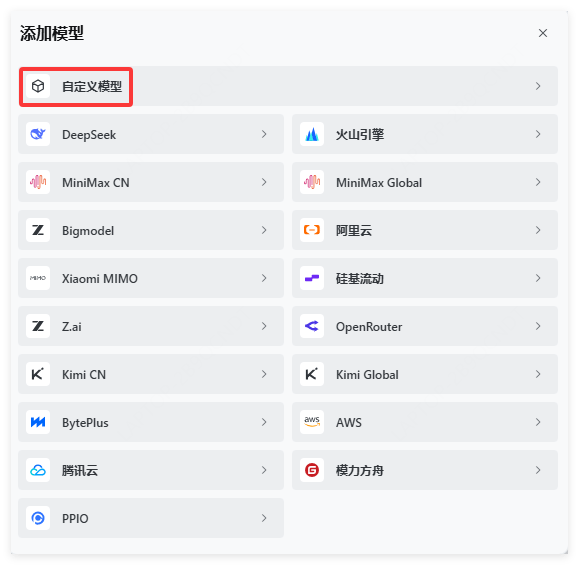
TRAE (The Real AI Engineer) is an AI-native development platform launched by ByteDance. The international version went live in January 2025, followed by the China version in March of the same year. It offers two working paradigms: IDE mode retains the full editor, terminal, debugging, and Git workflows, making it suitable for in-depth coding and precise debugging; Agent mode is AI-driven, autonomously handling the entire workflow from requirement understanding, code generation, and testing to result preview, and can orchestrate multiple agents working in parallel across projects within the same workspace.The product is available as a desktop IDE, web app, and mobile app, as well as plugins for VS Code, JetBrains, and Android Studio, plus a terminal CLI. The platform comes with built-in Agent agents, CUE code completion, codebase indexing, # context references, Rules, Memories, and Skills, and extends its capabilities through MCP, custom agents, and Hooks. It also supports Figma-to-code conversion, browser and computer operations, cloud tasks, and scheduled tasks.Official website: https://www.trae.ai/GitHub: https://github.com/bytedance/trae-agent
Log in to the official website jiekou.ai to register.
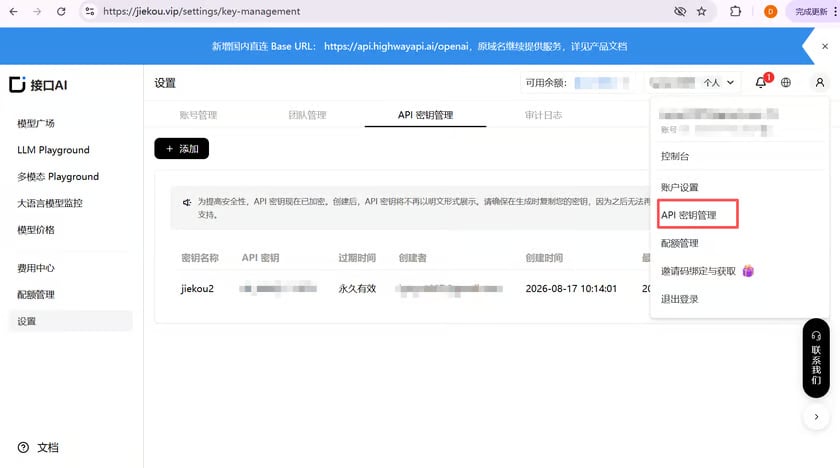
Go to the admin console, click “My” in the upper right corner, and select “API Key Management” from the dropdown list.
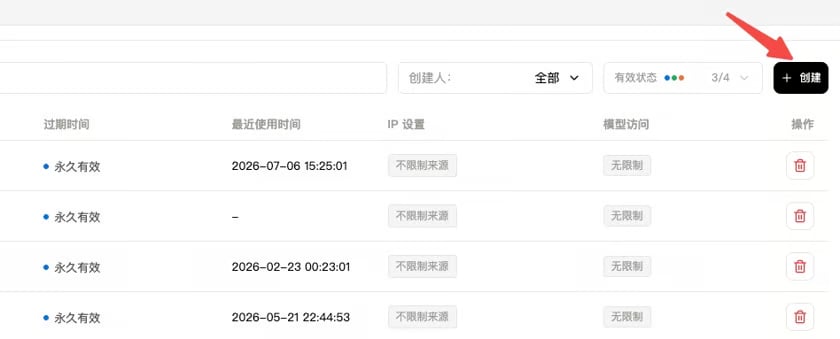
Click “Create” and enter a key name. It is recommended to use a recognizable name so you can easily distinguish keys for different purposes in the console later.
Click to copy and record the generated Key. It cannot be viewed again in the console, so please keep it safe for future use.
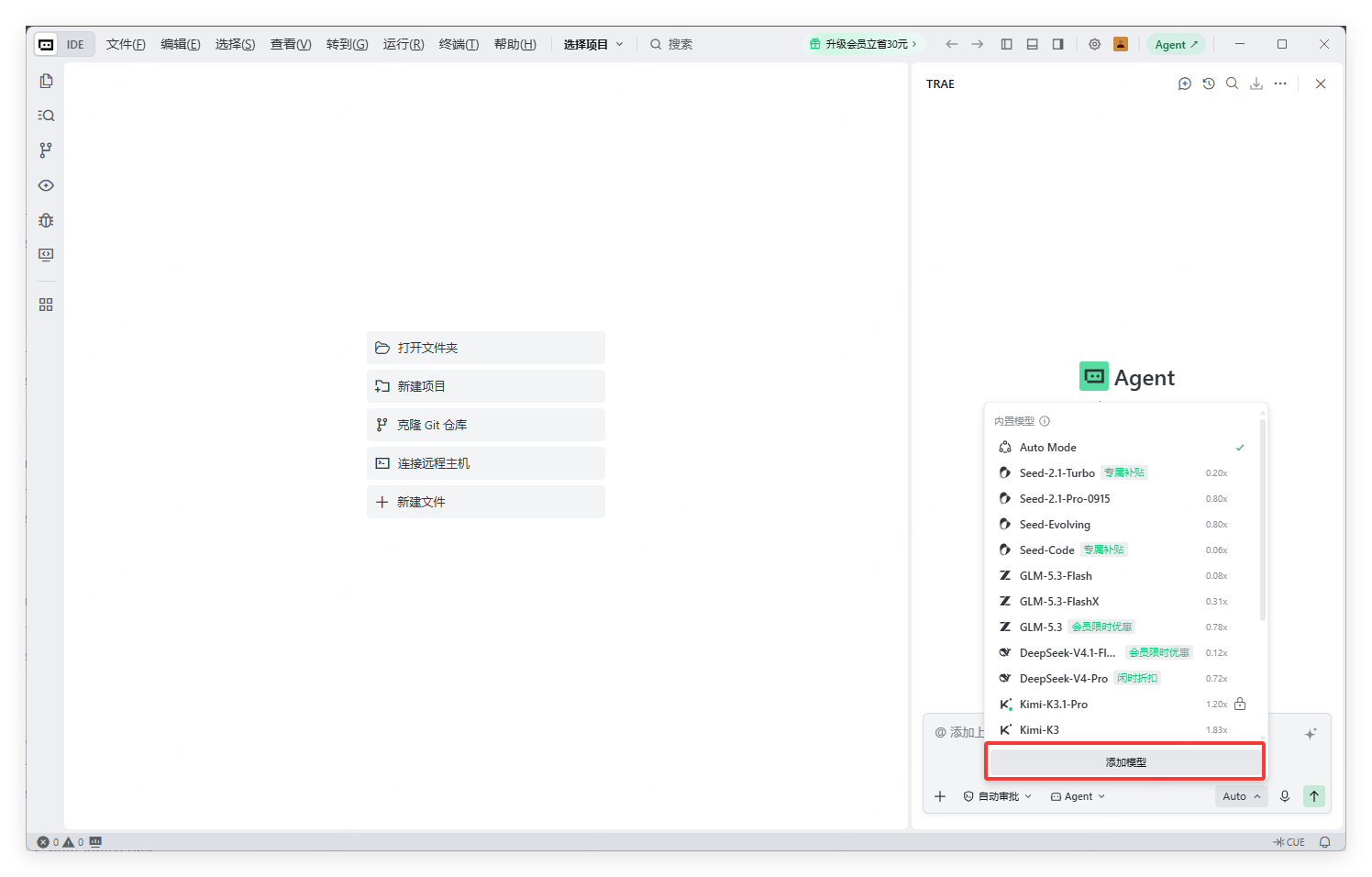
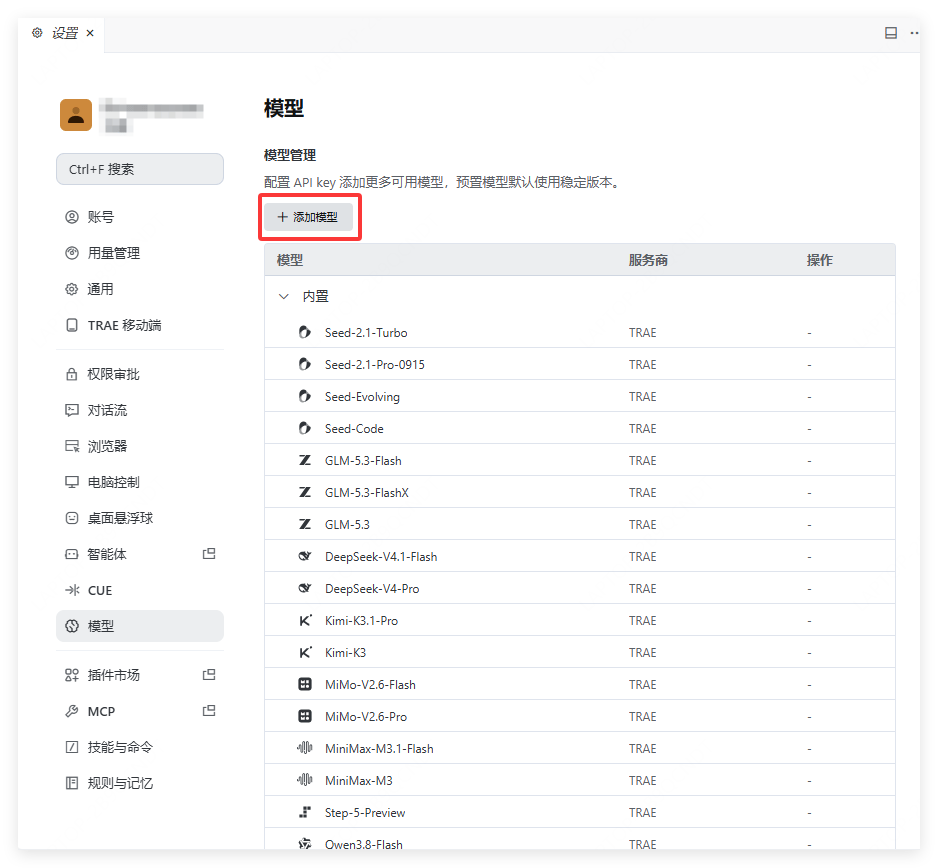
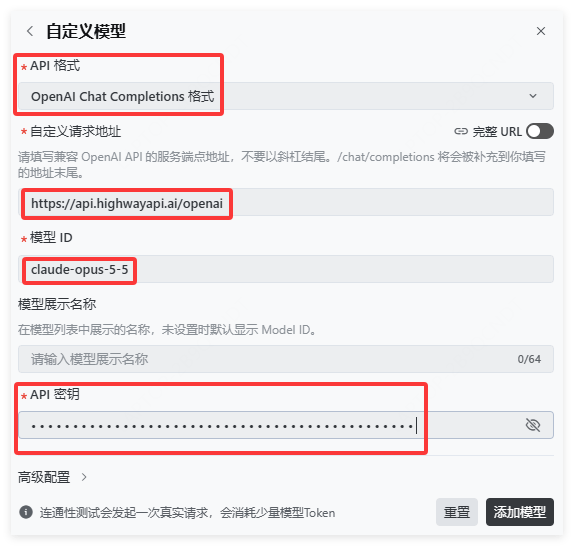
Click “Add Model” to test model connectivity (testing consumes a small amount of quota). If the following prompt appears, the connection is successful.
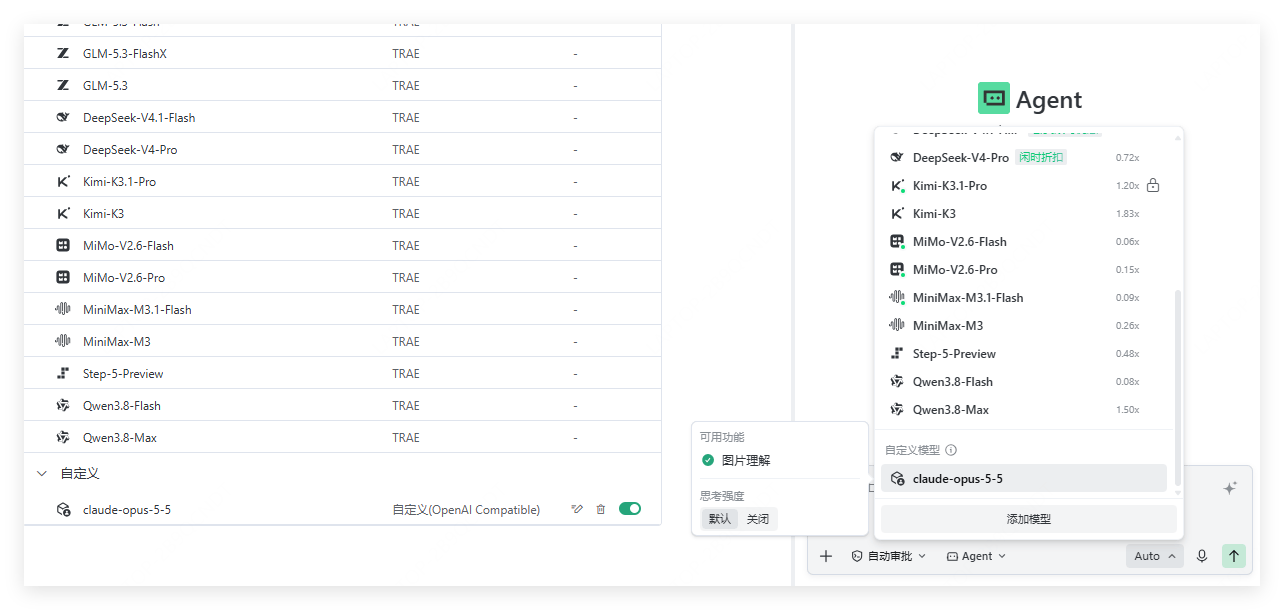
You can select the model services provided by Interface AI in the conversation to make calls
Last modified on November 5, 2026
{"docsConfig":{"theme":"aspen","$schema":"https://mintlify.com/docs.json","name":"JieKou AI Docs","description":"接口AI 开发者文档:大语言模型与图像、视频、音频等多模态模型 API 的接入、调用与计费说明。","colors":{"primary":"#000000","light":"#0071E3","dark":"#0071E3"},"logo":{"light":"https://mintcdn.com/jiekou/Mf1wGBLqNABiRgF8/logo/light.svg?fit=max\u0026auto=format\u0026n=Mf1wGBLqNABiRgF8\u0026q=85\u0026s=81df34bfa762625ad3a4e18f59a81a0e","dark":"https://mintcdn.com/jiekou/Mf1wGBLqNABiRgF8/logo/dark.svg?fit=max\u0026auto=format\u0026n=Mf1wGBLqNABiRgF8\u0026q=85\u0026s=b81968885d04f4c09c4058bad9c364e1","href":"https://jiekou.vip"},"favicon":"https://mintcdn.com/jiekou/M__ek7klV-HYX16k/favicon.ico?fit=max\u0026auto=format\u0026n=M__ek7klV-HYX16k\u0026q=85\u0026s=7fb1bfe34418ab40c7c6025450bf40e0","navbar":{"links":[{"href":"https://jiekou.vip/models-console/library","label":"控制台"}],"primary":{"type":"button","label":"官网首页","href":"https://jiekou.vip"}},"seo":{"metatags":{"og:site_name":"接口AI 文档中心","application-name":"接口AI 文档中心","apple-mobile-web-app-title":"接口AI 文档中心"},"organization":{"name":"接口AI","url":"https://jiekou.ai"},"indexing":"all"},"contextual":{"options":["copy","view","chatgpt","claude","perplexity","mcp","add-mcp","cursor","vscode"],"display":"header"},"metadata":{"timestamp":true},"markdown":{"instructions":["JieKou AI model APIs are OpenAI-compatible. Base URL for users in mainland China (direct, no VPN): https://api.highwayapi.ai/openai; elsewhere: https://api.jiekou.ai/openai. Anthropic-compatible base URL: https://api.highwayapi.ai/anthropic or https://api.jiekou.ai/anthropic.","Authenticate with `Authorization: Bearer \u003cAPI_KEY>`; with Anthropic SDKs or Claude Code, pass the same key as `ANTHROPIC_AUTH_TOKEN`. Users create keys at https://jiekou.ai/settings/key-management. Never print or hardcode a real key.","Get current model IDs from GET https://api.jiekou.ai/openai/v1/models instead of reusing model names from memory."]},"styling":{"latex":true},"navigation":{"languages":[{"language":"zh","default":true,"href":"docs/home"},{"language":"en","href":"en/docs/home"},{"language":"es","href":"es/docs/home"},{"language":"pt-BR","href":"pt/docs/home"},{"language":"fr","href":"fr/docs/home"},{"language":"de","href":"de/docs/home"},{"language":"ja","href":"ja/docs/home"},{"language":"ru","href":"ru/docs/home"}]}},"deployment":{"deploymentMetadataValue":{"subdomain":"jiekou","hasAudioNarration":false,"actualSubdomain":"jiekou","customDomains":["docs.jiekou.ai"],"gitSource":{"type":"github","owner":"jiekouai","repo":"jiekou-docs","deployBranch":"main","contentDirectory":"","isPrivate":true,"mountPath":"","label":""},"chroma":{"liveDeploymentHistoryId":"6aec4d31dd9d9f5b04d731dc","collectionId":"43f0ff20-5cf6-4ba4-85f4-be81fd3b9627","schemaVersion":"v3","latestBuiltDeploymentHistoryId":"6aec4d31dd9d9f5b04d731dc"},"entitlements":{},"buildId":"6aec4d31dd9d9f5b04d731dc","clientVersion":"0.0.4067","searchFilterCounts":[{"language":"de","tag":"Leitfaden für Modelldienste","count":35},{"language":"zh","tag":"模型服务用户指南","count":35},{"language":"en","tag":"Model Service Guide","count":35},{"language":"es","tag":"Guía del servicio de modelos","count":35},{"language":"fr","tag":"Guide du service de modèles","count":35},{"language":"ja","tag":"モデルサービスガイド","count":35},{"language":"pt-BR","tag":"Guia do serviço de modelos","count":35},{"language":"ru","tag":"Руководство по сервису моделей","count":35},{"language":"de","tag":"Einrichtung von Drittanbieter-Tools","count":22},{"language":"zh","tag":"第三方工具配置","count":22},{"language":"zh","tag":"模型服务 API 手册","count":22},{"language":"en","tag":"Third-party Tool Setup","count":22},{"language":"en","tag":"Model Service API Reference","count":22},{"language":"es","tag":"Configuración de herramientas de terceros","count":22},{"language":"fr","tag":"Configuration des outils tiers","count":22},{"language":"ja","tag":"サードパーティツール設定","count":22},{"language":"pt-BR","tag":"Configuração de ferramentas de terceiros","count":22},{"language":"ru","tag":"Настройка сторонних инструментов","count":22},{"language":"de","tag":"API-Referenz für Modelldienste","count":19},{"language":"es","tag":"Referencia de API del servicio de modelos","count":19},{"language":"fr","tag":"Référence API du service de modèles","count":19},{"language":"ja","tag":"モデルサービス API リファレンス","count":19},{"language":"pt-BR","tag":"Referência da API do serviço de modelos","count":19},{"language":"ru","tag":"Справочник API сервиса моделей","count":19},{"language":"zh","tag":"账号用户指南","count":16},{"language":"en","tag":"Account Guide","count":16},{"language":"de","tag":"Kontoleitfaden","count":14},{"language":"es","tag":"Guía de cuenta","count":14},{"language":"fr","tag":"Guide du compte","count":14},{"language":"ja","tag":"アカウントガイド","count":14},{"language":"pt-BR","tag":"Guia da conta","count":14},{"language":"ru","tag":"Руководство по аккаунту","count":14},{"language":"de","tag":"LLM API","count":9},{"language":"zh","tag":"大语言模型 API","count":9},{"language":"en","tag":"LLM API","count":9},{"language":"es","tag":"API de LLM","count":9},{"language":"fr","tag":"API LLM","count":9},{"language":"ja","tag":"LLM API","count":9},{"language":"pt-BR","tag":"API de LLM","count":9},{"language":"ru","tag":"API больших языковых моделей","count":9},{"language":"zh","tag":"账号管理","count":8},{"language":"en","tag":"Account Management","count":8},{"language":"de","tag":"FAQ","count":7},{"language":"zh","tag":"常见问题","count":7},{"language":"en","tag":"FAQ","count":7},{"language":"es","tag":"Preguntas frecuentes","count":7},{"language":"fr","tag":"FAQ","count":7},{"language":"ja","tag":"FAQ","count":7},{"language":"pt-BR","tag":"Perguntas frequentes","count":7},{"language":"ru","tag":"Часто задаваемые вопросы","count":7},{"language":"de","tag":"Große Sprachmodelle","count":6},{"language":"de","tag":"Kontoverwaltung","count":6},{"language":"zh","tag":"大语言","count":6},{"language":"en","tag":"Large Language Models","count":6},{"language":"es","tag":"Modelos de lenguaje","count":6},{"language":"es","tag":"Gestión de cuenta","count":6},{"language":"fr","tag":"Grands modèles de langage","count":6},{"language":"fr","tag":"Gestion du compte","count":6},{"language":"ja","tag":"大規模言語モデル","count":6},{"language":"ja","tag":"アカウント管理","count":6},{"language":"pt-BR","tag":"Modelos de linguagem","count":6},{"language":"pt-BR","tag":"Gerenciamento da conta","count":6},{"language":"ru","tag":"Большие языковые модели","count":6},{"language":"ru","tag":"Управление аккаунтом","count":6},{"language":"de","tag":"Bilder","count":5},{"language":"zh","tag":"图像","count":5},{"language":"en","tag":"Images","count":5},{"language":"es","tag":"Imágenes","count":5},{"language":"fr","tag":"Images","count":5},{"language":"ja","tag":"画像","count":5},{"language":"pt-BR","tag":"Imagens","count":5},{"language":"ru","tag":"Изображения","count":5},{"language":"de","tag":"API-Grundlagen","count":4},{"language":"zh","tag":"API 基础","count":4},{"language":"en","tag":"API Basics","count":4},{"language":"es","tag":"Conceptos básicos de API","count":4},{"language":"fr","tag":"Bases de l'API","count":4},{"language":"ja","tag":"API の基本","count":4},{"language":"pt-BR","tag":"Noções básicas da API","count":4},{"language":"ru","tag":"Основы API","count":4}]},"assistantConfig":{},"basePath":"","hasChatPermissions":false,"hasWebMcpPermissions":false,"toggles":[{"name":"kill-isr","enabled":true,"variant":{"name":"disabled","enabled":false,"feature_enabled":true},"impressionData":false},{"name":"agent-mintlify-slack","enabled":true,"variant":{"name":"disabled","enabled":false,"feature_enabled":true},"impressionData":false},{"name":"agent-integrations-settings","enabled":true,"variant":{"name":"disabled","enabled":false,"feature_enabled":true},"impressionData":false},{"name":"rbac-expansion","enabled":true,"variant":{"name":"disabled","enabled":false,"feature_enabled":true},"impressionData":false},{"name":"automations-pr-grouping","enabled":true,"variant":{"name":"disabled","enabled":false,"feature_enabled":true},"impressionData":false},{"name":"custom-prefix","enabled":true,"variant":{"name":"disabled","enabled":false,"feature_enabled":true},"impressionData":false},{"name":"analytics-v7","enabled":true,"variant":{"name":"disabled","enabled":false,"feature_enabled":true},"impressionData":false},{"name":"user-flows-analytics","enabled":true,"variant":{"name":"disabled","enabled":false,"feature_enabled":true},"impressionData":false},{"name":"no-publish-flow","enabled":true,"variant":{"name":"disabled","enabled":false,"feature_enabled":true},"impressionData":false},{"name":"workos-onboarding","enabled":true,"variant":{"name":"disabled","enabled":false,"feature_enabled":true},"impressionData":false},{"name":"llms-txt-v2","enabled":true,"variant":{"name":"disabled","enabled":false,"feature_enabled":true},"impressionData":false},{"name":"snapshot-serving-live","enabled":true,"variant":{"name":"disabled","enabled":false,"feature_enabled":true},"impressionData":false},{"name":"stripTemperatureMiddleware","enabled":true,"variant":{"name":"disabled","enabled":false,"feature_enabled":true},"impressionData":false},{"name":"support-platform-pylon-zendesk","enabled":true,"variant":{"name":"disabled","enabled":false,"feature_enabled":true},"impressionData":false},{"name":"snapshot-serving","enabled":true,"variant":{"name":"disabled","enabled":false,"feature_enabled":true},"impressionData":false},{"name":"instant-rollback","enabled":true,"variant":{"name":"disabled","enabled":false,"feature_enabled":true},"impressionData":false},{"name":"granular-notifications-server","enabled":true,"variant":{"name":"disabled","enabled":false,"feature_enabled":true},"impressionData":false},{"name":"granular-notifications","enabled":true,"variant":{"name":"disabled","enabled":false,"feature_enabled":true},"impressionData":false},{"name":"automations-fable","enabled":true,"variant":{"name":"disabled","enabled":false,"feature_enabled":true},"impressionData":false},{"name":"fixed-ai-action-pricing","enabled":true,"variant":{"name":"disabled","enabled":false,"feature_enabled":true},"impressionData":false},{"name":"automation-resolve-merge-conflict","enabled":true,"variant":{"name":"disabled","enabled":false,"feature_enabled":true},"impressionData":false},{"name":"scoped-publishing","enabled":true,"variant":{"name":"disabled","enabled":false,"feature_enabled":true},"impressionData":false},{"name":"mintql","enabled":true,"variant":{"name":"disabled","enabled":false,"feature_enabled":true},"impressionData":false},{"name":"page-level-analytics","enabled":true,"variant":{"name":"disabled","enabled":false,"feature_enabled":true},"impressionData":false},{"name":"editor-version-history-v2","enabled":true,"variant":{"name":"disabled","enabled":false,"feature_enabled":true},"impressionData":false},{"name":"billing-page-v2","enabled":true,"variant":{"name":"disabled","enabled":false,"feature_enabled":true},"impressionData":false},{"name":"full-page-search","enabled":true,"variant":{"name":"disabled","enabled":false,"feature_enabled":true},"impressionData":false},{"name":"workspace-projects","enabled":true,"variant":{"name":"disabled","enabled":false,"feature_enabled":true},"impressionData":false},{"name":"assistant-v5","enabled":true,"variant":{"name":"disabled","enabled":false,"feature_enabled":true},"impressionData":false},{"name":"fork-pr-previews","enabled":true,"variant":{"name":"disabled","enabled":false,"feature_enabled":true},"impressionData":false},{"name":"revalidation-jwt","enabled":true,"variant":{"name":"disabled","enabled":false,"feature_enabled":true},"impressionData":false},{"name":"vite-origin","enabled":true,"variant":{"name":"disabled","enabled":false,"feature_enabled":true},"impressionData":false},{"name":"workos-sso-scim","enabled":true,"variant":{"name":"disabled","enabled":false,"feature_enabled":true},"impressionData":false},{"name":"hobby-abuse-scan","enabled":true,"variant":{"name":"disabled","enabled":false,"feature_enabled":true},"impressionData":false},{"name":"dashboard-inbox","enabled":true,"variant":{"name":"disabled","enabled":false,"feature_enabled":true},"impressionData":false},{"name":"workos-signup","enabled":true,"variant":{"name":"disabled","enabled":false,"feature_enabled":true},"impressionData":false},{"name":"turbopuffer-dual-write","enabled":true,"variant":{"name":"disabled","enabled":false,"feature_enabled":true},"impressionData":false},{"name":"workos-enabled","enabled":true,"variant":{"name":"disabled","enabled":false,"feature_enabled":true},"impressionData":false},{"name":"approve-review-flow","enabled":true,"variant":{"name":"disabled","enabled":false,"feature_enabled":true},"impressionData":false},{"name":"sso-setup-deadline-banner","enabled":true,"variant":{"name":"disabled","enabled":false,"feature_enabled":true},"impressionData":false},{"name":"turbopuffer-serve","enabled":true,"variant":{"name":"disabled","enabled":false,"feature_enabled":true},"impressionData":false},{"name":"live-agents","enabled":true,"variant":{"name":"disabled","enabled":false,"feature_enabled":true},"impressionData":false}],"googleFontsInlined":false},"customCss":[{"filePath":"global.css","content":"*[style*=\"rgb(124, 58, 237)\"],*[style*=\"#7c3aed\"],*[style*=\"7c3aed\"]{background-color:#F5F5F5!important;background:#F5F5F5!important}#navbar .nav-tabs-item[data-active=\"true\"],#navbar .nav-tabs-item[aria-current=\"location\"]{background-color:transparent!important;background:transparent!important}#sidebar *[class*=\"active\"],#sidebar *[aria-selected=\"true\"],#sidebar *[data-active=\"true\"]{background-color:#F5F5F5!important}#sidebar button.bg-\\\\[var\\\\(--primary\\\\) \\\\],\n#sidebar a.bg-\\\\[var\\\\(--primary\\\\) \\\\]{background-color:#F5F5F5!important}.table-container{overflow-x:scroll;box-shadow:3px 0 10px 0 rgba(25, 85, 140, .05)}.table-container table{margin-top:0}.table thead{background-color:#eef2f150}.table thead th{padding:8px 10px;text-align:left;white-space:nowrap}.table tbody td{padding:6px 10px}.table-big thead th{padding:12px 10px}.table-big tbody td{padding:10px 10px}.table .list-col{position:relative;padding-left:31px;margin:0;text-align:left}.table .list-col::before{content:\"•\";position:absolute;left:18px;top:6px;color:#16b063b0}.table .list-sub-col{position:relative;padding-left:46px;margin:0;text-align:left}.table .list-sub-col::before{content:\"\";position:absolute;left:36px;top:15px;width:4px;height:4px;background-color:#16b06380}.table .list-grandson-col{position:relative;padding-left:60px;margin:0;text-align:left}.table .list-grandson-col::before{content:\"\";position:absolute;left:50px;top:15px;width:4px;height:4px;border-radius:100%;border:1px solid #16b06380}.table .list-grandson-sub-col{position:relative;padding-left:66px;margin:0;text-align:left}.table .list-grandson-sub-col::before{content:\"\";position:absolute;left:58px;top:16px;width:3px;height:3px;border-radius:100%;border:1px solid #16b06350}.table .type-desc{display:inline-block;margin-left:12px;color:#9e9c98b0}.table .type-desc-narrow{margin-left:4px}.table .delete{text-decoration:line-through}.table .deprecated{display:inline-block;color:#f23030;margin-bottom:4px}.table .new-field{display:inline-block;margin-bottom:4px;color:#22ad5c}.table .moved{display:inline-block;margin-bottom:4px;color:#f27430}.table .inline-block{display:inline-block}.table .mt-1{margin-top:4px}.table .mt-2{margin-top:8px}.table .ml-0{margin-left:0}.model-id-item{padding:.125rem .5rem;color:#111827;font-size:.875em;font-weight:500;font-variant-ligatures:none;overflow-wrap:break-word;border-radius:var(--rounded-md, .375rem);background-color:rgb(var(--gray-100) / .5)}.param_text{font-size:14px}.param_frame{width:100%;padding:0 8px}.unified-api-container span[data-as=p]{display:block;margin-top:1.25em;margin-bottom:1.25em}.unified-api-inline-label{padding:2px 8px;border-radius:6px;background-color:#F1EFF580;color:#111827;font-size:12px;font-family:var(--font-jetbrains-mono), ui-monospace, SFMono-Regular, Menlo, Monaco, Consolas, \"Liberation Mono\", \"Courier New\", monospace}.unified-api-selector-container{margin-bottom:16px}.unified-api-description{padding:6px 8px;font-size:15px;color:#4f4e4a;border-radius:6px;border-left:4px solid #fafafa;background-color:#fdfdfd}.unified-api-selector-label{display:block;margin-top:36px;margin-bottom:12px;font-size:15px;font-weight:500;color:#374151;line-height:1.25}.unified-api-selector-wrapper{position:relative;max-width:300px}.unified-api-selector-button{height:40px;width:100%;border-radius:6px;border:1px solid #d1d5db;background-color:#ffffff;padding:0 32px 0 12px;font-size:14px;color:#374151;outline:none;cursor:pointer;text-align:left;display:flex;align-items:center;justify-content:space-between;transition:border-color 0.2s ease-in-out, box-shadow 0.2s ease-in-out;box-shadow:0 1px 2px 0 rgba(0, 0, 0, 0.05);font-family:var(--font-jetbrains-mono), ui-monospace, SFMono-Regular, Menlo, Monaco, Consolas, \"Liberation Mono\", \"Courier New\", monospace}.unified-api-selector-button:hover{border-color:#9ca3af}.unified-api-selector-button:focus{border-color:#3b82f6;box-shadow:0 0 0 3px rgba(59, 130, 246, 0.1)}.unified-api-selector-arrow{transition:transform 0.2s ease-in-out}.unified-api-selector-arrow.open{transform:rotate(180deg)}.unified-api-selector-dropdown{position:absolute;top:100%;left:0;right:0;z-index:50;margin-top:4px;border-radius:6px;border:1px solid #d1d5db;background-color:#ffffff;box-shadow:0 10px 25px -3px rgba(0, 0, 0, 0.2), 0 4px 10px -2px rgba(0, 0, 0, 0.15);max-height:275px;overflow:hidden}.unified-api-selector-dropdown::after{content:'';position:sticky;bottom:0;left:0;right:0;height:12px;background:linear-gradient(to top, rgba(255, 255, 255, 1) 0%, rgba(255, 255, 255, 0.5) 50%, rgba(255, 255, 255, 0.3) 100%);z-index:10;pointer-events:none;display:block;margin-top:-12px}.unified-api-selector-option{padding:10px 12px;font-size:14px;color:#374151;cursor:pointer;background-color:#ffffff}.unified-api-selector-option:not(:last-child){margin-top:1px;margin-bottom:1px;border-bottom:1px solid #f5f5f5}.unified-api-selector-option.selected{background-color:#f3f4f6}.unified-api-selector-option:hover:not(.selected){background-color:#f8fafc}.dark .unified-api-selector-label{color:inherit}.dark .unified-api-search-container{background-color:#1f2937}.dark .unified-api-search-input{background-color:#1f2937;color:#e5e7eb}.dark .unified-api-selector-button{border:1px solid #4b5563;background-color:#1f2937;color:#e5e7eb;box-shadow:0 1px 2px 0 rgba(0, 0, 0, 0.3)}.dark .unified-api-selector-button:hover{border-color:#6b7280}.dark .unified-api-selector-button:focus{border-color:#3b82f6;box-shadow:0 0 0 3px rgba(59, 130, 246, 0.2)}.dark .unified-api-selector-dropdown{border:1px solid #4b5563;background-color:#1f2937;box-shadow:0 10px 25px -3px rgba(0, 0, 0, 0.4), 0 4px 10px -2px rgba(0, 0, 0, 0.3)}.dark .unified-api-selector-dropdown::after{background:linear-gradient(to top, rgba(31, 41, 55, 1) 0%, rgba(31, 41, 55, 0.5) 50%, rgba(31, 41, 55, 0.3) 100%)}.dark .unified-api-selector-option{color:#e5e7eb;background-color:#1f2937}.dark .unified-api-selector-option:not(:last-child){border-bottom:1px solid #374151}.dark .unified-api-selector-option.selected{background-color:#374151}.dark .unified-api-selector-option:hover:not(.selected){background-color:#2d3748}.dark .unified-api-description{padding:0;background-color:inherit;color:#e5e7eb;border-left:none}.unified-api-loading-container{display:flex;flex-direction:column;align-items:center;justify-content:center;padding:48px 24px;text-align:center}.unified-api-loading-spinner{width:32px;height:32px;border:3px solid #f3f4f6;border-top:3px solid #7c3aed;border-radius:50%;animation:unified-api-spin 1s linear infinite;margin-bottom:16px}.unified-api-loading-text{color:#6b7280;font-size:14px;margin:0}@keyframes unified-api-spin{0%{transform:rotate(0deg)}100%{transform:rotate(360deg)}}.unified-api-search-container{padding:8px 12px;border-bottom:1px solid #e5e7eb;background-color:#fefefe}.unified-api-search-input{width:100%;padding:8px 12px;border:1px solid #d1d5db;border-radius:4px;font-size:14px;background-color:#ffffff;color:#374151;outline:none;transition:border-color 0.2s ease}.unified-api-search-input:focus{border-color:#7c3aed;box-shadow:0 0 0 3px rgba(124, 58, 237, 0.1)}.unified-api-search-input::placeholder{color:#9ca3af}.unified-api-options-container{padding-bottom:12px;max-height:calc(275px - 48px);overflow-y:auto}.unified-api-no-results{padding:16px 12px;text-align:center;color:#6b7280;font-size:14px;font-style:italic}:root{--nv-toc-band-color: var(--primary)}.dark{--nv-toc-band-color: var(--primary-light)}html[data-nv-toc-band] #table-of-contents [data-layout-item=\"toc-item-link\"],html[data-nv-toc-band] #table-of-contents [data-layout-item=\"toc-item\"]{border-left-color:transparent}:root{--nv-toc-band-from: 30%;--nv-toc-band-to: 0%;--nv-toc-band-fade: 100%}html[data-nv-toc-band] #table-of-contents[data-look=\"default\"] [data-layout-item=\"toc-item\"][data-active]>[data-layout-item=\"toc-item-link\"]:not([data-nv-in-view]){color:rgb(var(--gray-600))}html[data-nv-toc-band] #table-of-contents[data-look=\"default\"] [data-layout-item=\"toc-item\"] [data-layout-item=\"toc-item\"][data-active]>[data-layout-item=\"toc-item-link\"]:not([data-nv-in-view]){color:rgb(var(--gray-500))}html.dark[data-nv-toc-band] #table-of-contents[data-look=\"default\"] [data-layout-item=\"toc-item\"][data-active]>[data-layout-item=\"toc-item-link\"]:not([data-nv-in-view]),html.dark[data-nv-toc-band] #table-of-contents[data-look=\"default\"] [data-layout-item=\"toc-item\"] [data-layout-item=\"toc-item\"][data-active]>[data-layout-item=\"toc-item-link\"]:not([data-nv-in-view]){color:rgb(var(--gray-400))}html[data-nv-toc-band] #table-of-contents[data-look=\"default\"] [data-layout-item=\"toc-item\"][data-active]>[data-layout-item=\"toc-item-link\"]:not([data-nv-in-view]){text-shadow:none}html[data-nv-toc-band] #table-of-contents[data-look=\"default\"] [data-layout-item=\"toc-item\"][data-active]>[data-layout-item=\"toc-item-link\"]:not([data-nv-in-view]):hover,html[data-nv-toc-band] #table-of-contents[data-look=\"default\"] [data-layout-item=\"toc-item\"] [data-layout-item=\"toc-item\"][data-active]>[data-layout-item=\"toc-item-link\"]:not([data-nv-in-view]):hover{color:rgb(var(--gray-900))}html.dark[data-nv-toc-band] #table-of-contents[data-look=\"default\"] [data-layout-item=\"toc-item\"][data-active]>[data-layout-item=\"toc-item-link\"]:not([data-nv-in-view]):hover,html.dark[data-nv-toc-band] #table-of-contents[data-look=\"default\"] [data-layout-item=\"toc-item\"] [data-layout-item=\"toc-item\"][data-active]>[data-layout-item=\"toc-item-link\"]:not([data-nv-in-view]):hover{color:rgb(var(--gray-300))}#table-of-contents [data-layout-item=\"toc-item-link\"][data-nv-in-view]{color:rgb(var(--gray-900))}.dark #table-of-contents [data-layout-item=\"toc-item-link\"][data-nv-in-view]{color:rgb(var(--gray-100))}#table-of-contents nav{position:relative;isolation:isolate}.nv-toc-band{position:absolute;inset:0;z-index:-1;pointer-events:none;background:linear-gradient(to right, rgb(var(--nv-toc-band-color) / 0.3), transparent);clip-path:inset(0 0 100% round 8px)}.nv-toc-band[data-ready]{transition:clip-path 300ms ease-out}@supports (background: linear-gradient(in oklab, red, blue)) and (color: color-mix(in oklab, red, blue)){.nv-toc-band{background:linear-gradient(\n to right in oklab,\n color-mix(in oklab, rgb(var(--nv-toc-band-color)) var(--nv-toc-band-from), transparent),\n color-mix(in oklab, rgb(var(--nv-toc-band-color)) var(--nv-toc-band-to), transparent)\n var(--nv-toc-band-fade)\n )}}@media (prefers-reduced-motion: reduce){.nv-toc-band[data-ready]{transition:none}}#content-container:has(#content[data-page-href$=\"/docs/home\"]){max-width:72rem}"}],"page":{"pagePath":"en/docs/integration/trae","slug":"/en/docs/integration/trae","pageMetadata":{"title":"TRAE","og:title":"Interface AI × TRAE","description":null,"href":"/en/docs/integration/trae"},"pageType":"default","mdx":{"mdxSource":{"compiledSource":"\"use strict\";const{Fragment:_Fragment,jsx:_jsx,jsxs:_jsxs}=arguments[0];const{useMDXComponents:_provideComponents}=arguments[0];function _createMdxContent(props){const _components={a:`a`,code:`code`,li:`li`,ol:`ol`,p:`p`,ul:`ul`,..._provideComponents(),...props.components},{Heading,OptimizedImage}=_components;if(!Heading)_missingMdxReference(`Heading`,true);if(!OptimizedImage)_missingMdxReference(`OptimizedImage`,true);return _jsxs(_Fragment,{children:[_jsx(Heading,{level:`2`,id:`what-is-trae`,children:`What is TRAE?`}),`\n`,_jsx(_components.p,{children:`TRAE (The Real AI Engineer) is an AI-native development platform launched by ByteDance. The international version went live in January 2025, followed by the China version in March of the same year. It offers two working paradigms: IDE mode retains the full editor, terminal, debugging, and Git workflows, making it suitable for in-depth coding and precise debugging; Agent mode is AI-driven, autonomously handling the entire workflow from requirement understanding, code generation, and testing to result preview, and can orchestrate multiple agents working in parallel across projects within the same workspace.`}),`\n`,_jsxs(_components.p,{children:[`The product is available as a desktop IDE, web app, and mobile app, as well as plugins for VS Code, JetBrains, and Android Studio, plus a terminal CLI. The platform comes with built-in Agent agents, CUE code completion, codebase indexing, `,_jsx(_components.code,{children:`#`}),` context references, Rules, Memories, and Skills, and extends its capabilities through MCP, custom agents, and Hooks. It also supports Figma-to-code conversion, browser and computer operations, cloud tasks, and scheduled tasks.`]}),`\n`,_jsxs(_components.p,{children:[`Official website: `,_jsx(_components.a,{href:`https://www.trae.ai/`,children:`https://www.trae.ai/`})]}),`\n`,_jsxs(_components.p,{children:[`GitHub: `,_jsx(_components.a,{href:`https://github.com/bytedance/trae-agent`,children:`https://github.com/bytedance/trae-agent`})]}),`\n`,_jsx(Heading,{level:`2`,id:`how-to-integrate-interface-ai-into-trae`,children:`How to Integrate Interface AI into TRAE?`}),`\n`,_jsx(Heading,{level:`3`,id:`get-an-api-key`,children:`Get an API Key`}),`\n`,_jsxs(_components.ol,{children:[`\n`,_jsxs(_components.li,{children:[`\n`,_jsx(_components.p,{children:`Log in to the official website jiekou.ai to register.`}),`\n`]}),`\n`,_jsxs(_components.li,{children:[`\n`,_jsx(_components.p,{children:`Go to the admin console, click “My” in the upper right corner, and select “API Key Management” from the dropdown list.`}),`\n`,_jsx(OptimizedImage,{src:`https://mintcdn.com/jiekou/woskTYHkYOH0CRpH/images/trae-01.png?fit=max\u0026auto=format\u0026n=woskTYHkYOH0CRpH\u0026q=85\u0026s=7b119737d94e5faec2a13b8d7b35da52`,alt:``,\"data-og-width\":`840`,width:`840`,\"data-og-height\":`468`,height:`468`,\"data-path\":`images/trae-01.png`,\"data-optimize\":`true`,\"data-opv\":`3`,srcset:`https://mintcdn.com/jiekou/woskTYHkYOH0CRpH/images/trae-01.png?w=280\u0026fit=max\u0026auto=format\u0026n=woskTYHkYOH0CRpH\u0026q=85\u0026s=9110548c8e8c1539c3ecbf2e1df47a09 280w, https://mintcdn.com/jiekou/woskTYHkYOH0CRpH/images/trae-01.png?w=560\u0026fit=max\u0026auto=format\u0026n=woskTYHkYOH0CRpH\u0026q=85\u0026s=d83cbce2062704e0b3e56a019c89cb01 560w, https://mintcdn.com/jiekou/woskTYHkYOH0CRpH/images/trae-01.png?w=840\u0026fit=max\u0026auto=format\u0026n=woskTYHkYOH0CRpH\u0026q=85\u0026s=bcd0c5a610564fcb18a9056b043cf348 840w, https://mintcdn.com/jiekou/woskTYHkYOH0CRpH/images/trae-01.png?w=1100\u0026fit=max\u0026auto=format\u0026n=woskTYHkYOH0CRpH\u0026q=85\u0026s=95dc6dd15725a411e1e58f117b727418 1100w, https://mintcdn.com/jiekou/woskTYHkYOH0CRpH/images/trae-01.png?w=1650\u0026fit=max\u0026auto=format\u0026n=woskTYHkYOH0CRpH\u0026q=85\u0026s=acc3962cf65d741c99b9b1fe7a71103c 1650w, https://mintcdn.com/jiekou/woskTYHkYOH0CRpH/images/trae-01.png?w=2500\u0026fit=max\u0026auto=format\u0026n=woskTYHkYOH0CRpH\u0026q=85\u0026s=0f114065d89248b8d0d646a7f78b4432 2500w`}),`\n`]}),`\n`,_jsxs(_components.li,{children:[`\n`,_jsx(_components.p,{children:`Click “Create” and enter a key name. It is recommended to use a recognizable name so you can easily distinguish keys for different purposes in the console later.`}),`\n`,_jsx(OptimizedImage,{src:`https://mintcdn.com/jiekou/woskTYHkYOH0CRpH/images/trae-02.png?fit=max\u0026auto=format\u0026n=woskTYHkYOH0CRpH\u0026q=85\u0026s=a99d7ae552889861534b03509baaed57`,alt:``,\"data-og-width\":`840`,width:`840`,\"data-og-height\":`339`,height:`339`,\"data-path\":`images/trae-02.png`,\"data-optimize\":`true`,\"data-opv\":`3`,srcset:`https://mintcdn.com/jiekou/woskTYHkYOH0CRpH/images/trae-02.png?w=280\u0026fit=max\u0026auto=format\u0026n=woskTYHkYOH0CRpH\u0026q=85\u0026s=035098b68327a33115c2bf1241dd0394 280w, https://mintcdn.com/jiekou/woskTYHkYOH0CRpH/images/trae-02.png?w=560\u0026fit=max\u0026auto=format\u0026n=woskTYHkYOH0CRpH\u0026q=85\u0026s=4d6a7cf74d7e45ba3b2180295eee940c 560w, https://mintcdn.com/jiekou/woskTYHkYOH0CRpH/images/trae-02.png?w=840\u0026fit=max\u0026auto=format\u0026n=woskTYHkYOH0CRpH\u0026q=85\u0026s=0940cb9ec7a9e58f5394238f231884f1 840w, https://mintcdn.com/jiekou/woskTYHkYOH0CRpH/images/trae-02.png?w=1100\u0026fit=max\u0026auto=format\u0026n=woskTYHkYOH0CRpH\u0026q=85\u0026s=64bd9b31db4acb1d1ac02eb7e587ddfb 1100w, https://mintcdn.com/jiekou/woskTYHkYOH0CRpH/images/trae-02.png?w=1650\u0026fit=max\u0026auto=format\u0026n=woskTYHkYOH0CRpH\u0026q=85\u0026s=c36ad009d1a8ad6b85bf3363026ccb15 1650w, https://mintcdn.com/jiekou/woskTYHkYOH0CRpH/images/trae-02.png?w=2500\u0026fit=max\u0026auto=format\u0026n=woskTYHkYOH0CRpH\u0026q=85\u0026s=aec2d311bc8805cd84c750137f36ea72 2500w`}),`\n`]}),`\n`,_jsxs(_components.li,{children:[`\n`,_jsx(_components.p,{children:`Click to copy and record the generated Key. It cannot be viewed again in the console, so please keep it safe for future use.`}),`\n`]}),`\n`]}),`\n`,_jsx(Heading,{level:`3`,id:`integrate-interface-ai-into-trae`,children:`Integrate Interface AI into TRAE`}),`\n`,_jsxs(_components.ol,{children:[`\n`,_jsxs(_components.li,{children:[`Find the model selection list at the bottom of the dialog box on the right side of TRAE, and click “Add Model”`,`\n`,_jsx(OptimizedImage,{src:`https://mintcdn.com/jiekou/TQxWIVZT1BEyadAo/images/trae-03.png?fit=max\u0026auto=format\u0026n=TQxWIVZT1BEyadAo\u0026q=85\u0026s=37524398fee16ecad188354df355af22`,alt:``,\"data-og-width\":`1496`,width:`1496`,\"data-og-height\":`956`,height:`956`,\"data-path\":`images/trae-03.png`,\"data-optimize\":`true`,\"data-opv\":`3`,srcset:`https://mintcdn.com/jiekou/TQxWIVZT1BEyadAo/images/trae-03.png?w=280\u0026fit=max\u0026auto=format\u0026n=TQxWIVZT1BEyadAo\u0026q=85\u0026s=53c889295e1ed2f83e8982e21076b0aa 280w, https://mintcdn.com/jiekou/TQxWIVZT1BEyadAo/images/trae-03.png?w=560\u0026fit=max\u0026auto=format\u0026n=TQxWIVZT1BEyadAo\u0026q=85\u0026s=eb35c25622c66d0c43c380796eb0047f 560w, https://mintcdn.com/jiekou/TQxWIVZT1BEyadAo/images/trae-03.png?w=840\u0026fit=max\u0026auto=format\u0026n=TQxWIVZT1BEyadAo\u0026q=85\u0026s=ecc4d918f5b5e5df0c731f124776dcb4 840w, https://mintcdn.com/jiekou/TQxWIVZT1BEyadAo/images/trae-03.png?w=1100\u0026fit=max\u0026auto=format\u0026n=TQxWIVZT1BEyadAo\u0026q=85\u0026s=5a232befe09937321fe313a14c1b4519 1100w, https://mintcdn.com/jiekou/TQxWIVZT1BEyadAo/images/trae-03.png?w=1650\u0026fit=max\u0026auto=format\u0026n=TQxWIVZT1BEyadAo\u0026q=85\u0026s=3ebd28430d92d193a7a32a213a6d8a14 1650w, https://mintcdn.com/jiekou/TQxWIVZT1BEyadAo/images/trae-03.png?w=2500\u0026fit=max\u0026auto=format\u0026n=TQxWIVZT1BEyadAo\u0026q=85\u0026s=2e4041141f9b56660fb09304830c0102 2500w`}),`\n`]}),`\n`]}),`\n`,_jsx(OptimizedImage,{src:`https://mintcdn.com/jiekou/TQxWIVZT1BEyadAo/images/trae-04.png?fit=max\u0026auto=format\u0026n=TQxWIVZT1BEyadAo\u0026q=85\u0026s=c81b8a8668a6d0347bfb138a75bdde5d`,alt:``,\"data-og-width\":`938`,width:`938`,\"data-og-height\":`868`,height:`868`,\"data-path\":`images/trae-04.png`,\"data-optimize\":`true`,\"data-opv\":`3`,srcset:`https://mintcdn.com/jiekou/TQxWIVZT1BEyadAo/images/trae-04.png?w=280\u0026fit=max\u0026auto=format\u0026n=TQxWIVZT1BEyadAo\u0026q=85\u0026s=35e73cdef55109c02a33968789cad2c0 280w, https://mintcdn.com/jiekou/TQxWIVZT1BEyadAo/images/trae-04.png?w=560\u0026fit=max\u0026auto=format\u0026n=TQxWIVZT1BEyadAo\u0026q=85\u0026s=1475119a243c991c6cb3e1434955bafb 560w, https://mintcdn.com/jiekou/TQxWIVZT1BEyadAo/images/trae-04.png?w=840\u0026fit=max\u0026auto=format\u0026n=TQxWIVZT1BEyadAo\u0026q=85\u0026s=4b6e390ae2620713518b8b98701f8f13 840w, https://mintcdn.com/jiekou/TQxWIVZT1BEyadAo/images/trae-04.png?w=1100\u0026fit=max\u0026auto=format\u0026n=TQxWIVZT1BEyadAo\u0026q=85\u0026s=aab84da146565fd121724949df7dafde 1100w, https://mintcdn.com/jiekou/TQxWIVZT1BEyadAo/images/trae-04.png?w=1650\u0026fit=max\u0026auto=format\u0026n=TQxWIVZT1BEyadAo\u0026q=85\u0026s=7c8f0b9d149df835159495b028a3cd55 1650w, https://mintcdn.com/jiekou/TQxWIVZT1BEyadAo/images/trae-04.png?w=2500\u0026fit=max\u0026auto=format\u0026n=TQxWIVZT1BEyadAo\u0026q=85\u0026s=58685f6a0423c017b1674d34b899af08 2500w`}),`\n`,_jsxs(_components.ol,{start:`2`,children:[`\n`,_jsxs(_components.li,{children:[`\n`,_jsx(_components.p,{children:`Click “Custom Model”`}),`\n`,_jsx(OptimizedImage,{src:`https://mintcdn.com/jiekou/TQxWIVZT1BEyadAo/images/trae-05.png?fit=max\u0026auto=format\u0026n=TQxWIVZT1BEyadAo\u0026q=85\u0026s=baea8b9ec5686e902160562af5af04cf`,alt:``,\"data-og-width\":`579`,width:`579`,\"data-og-height\":`565`,height:`565`,\"data-path\":`images/trae-05.png`,\"data-optimize\":`true`,\"data-opv\":`3`,srcset:`https://mintcdn.com/jiekou/TQxWIVZT1BEyadAo/images/trae-05.png?w=280\u0026fit=max\u0026auto=format\u0026n=TQxWIVZT1BEyadAo\u0026q=85\u0026s=48bcdbb436fe924c48164e9a33924d0f 280w, https://mintcdn.com/jiekou/TQxWIVZT1BEyadAo/images/trae-05.png?w=560\u0026fit=max\u0026auto=format\u0026n=TQxWIVZT1BEyadAo\u0026q=85\u0026s=06d6e6609889eb40379be2b348030ca6 560w, https://mintcdn.com/jiekou/TQxWIVZT1BEyadAo/images/trae-05.png?w=840\u0026fit=max\u0026auto=format\u0026n=TQxWIVZT1BEyadAo\u0026q=85\u0026s=5ca27e4512aa6b66740848993e4f4e52 840w, https://mintcdn.com/jiekou/TQxWIVZT1BEyadAo/images/trae-05.png?w=1100\u0026fit=max\u0026auto=format\u0026n=TQxWIVZT1BEyadAo\u0026q=85\u0026s=b48a6e30c62b6fba212815f61552ccd9 1100w, https://mintcdn.com/jiekou/TQxWIVZT1BEyadAo/images/trae-05.png?w=1650\u0026fit=max\u0026auto=format\u0026n=TQxWIVZT1BEyadAo\u0026q=85\u0026s=1d74f056d9d9eda0bf71bd7e6f21158d 1650w, https://mintcdn.com/jiekou/TQxWIVZT1BEyadAo/images/trae-05.png?w=2500\u0026fit=max\u0026auto=format\u0026n=TQxWIVZT1BEyadAo\u0026q=85\u0026s=f177aa3107630d4f81d20f897cb02b27 2500w`}),`\n`]}),`\n`,_jsxs(_components.li,{children:[`\n`,_jsx(_components.p,{children:`Paste the API Key you just copied, enter the URL, fill in the model ID as needed, and select the API format supported by the model`}),`\n`]}),`\n`]}),`\n`,_jsxs(_components.ul,{children:[`\n`,_jsxs(_components.li,{children:[`Domestic direct-connect URL: `,_jsx(_components.a,{href:`https://api.highwayapi.ai/openai`,children:`https://api.highwayapi.ai/openai`})]}),`\n`,_jsxs(_components.li,{children:[`International URL: `,_jsx(_components.a,{href:`https://api.jiekou.ai/openai`,children:`https://api.jiekou.ai/openai`}),`\n`,_jsx(OptimizedImage,{src:`https://mintcdn.com/jiekou/TQxWIVZT1BEyadAo/images/trae-06.png?fit=max\u0026auto=format\u0026n=TQxWIVZT1BEyadAo\u0026q=85\u0026s=8d62c5ca6c115689fb92956a1efb85e8`,alt:``,\"data-og-width\":`574`,width:`574`,\"data-og-height\":`546`,height:`546`,\"data-path\":`images/trae-06.png`,\"data-optimize\":`true`,\"data-opv\":`3`,srcset:`https://mintcdn.com/jiekou/TQxWIVZT1BEyadAo/images/trae-06.png?w=280\u0026fit=max\u0026auto=format\u0026n=TQxWIVZT1BEyadAo\u0026q=85\u0026s=cc1e6bb8fb1ff6d6e3d10bb27e6a84d6 280w, https://mintcdn.com/jiekou/TQxWIVZT1BEyadAo/images/trae-06.png?w=560\u0026fit=max\u0026auto=format\u0026n=TQxWIVZT1BEyadAo\u0026q=85\u0026s=1d30133f044e0856fa9d89a032c01a89 560w, https://mintcdn.com/jiekou/TQxWIVZT1BEyadAo/images/trae-06.png?w=840\u0026fit=max\u0026auto=format\u0026n=TQxWIVZT1BEyadAo\u0026q=85\u0026s=92693c5dd5d737b2c29bf6b1bb02c60d 840w, https://mintcdn.com/jiekou/TQxWIVZT1BEyadAo/images/trae-06.png?w=1100\u0026fit=max\u0026auto=format\u0026n=TQxWIVZT1BEyadAo\u0026q=85\u0026s=0341533097a0b45b505dd896eca70155 1100w, https://mintcdn.com/jiekou/TQxWIVZT1BEyadAo/images/trae-06.png?w=1650\u0026fit=max\u0026auto=format\u0026n=TQxWIVZT1BEyadAo\u0026q=85\u0026s=59f7a2ba5945a25d859c95ef12235a8e 1650w, https://mintcdn.com/jiekou/TQxWIVZT1BEyadAo/images/trae-06.png?w=2500\u0026fit=max\u0026auto=format\u0026n=TQxWIVZT1BEyadAo\u0026q=85\u0026s=3fd1336fdfd8f8885eab8473b20d9a2f 2500w`}),`\n`]}),`\n`]}),`\n`,_jsxs(_components.ol,{start:`4`,children:[`\n`,_jsxs(_components.li,{children:[`\n`,_jsx(_components.p,{children:`Click “Add Model” to test model connectivity (testing consumes a small amount of quota). If the following prompt appears, the connection is successful.`}),`\n`,_jsx(OptimizedImage,{src:`https://mintcdn.com/jiekou/TQxWIVZT1BEyadAo/images/trae-07.png?fit=max\u0026auto=format\u0026n=TQxWIVZT1BEyadAo\u0026q=85\u0026s=1c2be6984b6a360288ae1c481da5bf5b`,alt:``,\"data-og-width\":`211`,width:`211`,\"data-og-height\":`66`,height:`66`,\"data-path\":`images/trae-07.png`,\"data-optimize\":`true`,\"data-opv\":`3`,srcset:`https://mintcdn.com/jiekou/TQxWIVZT1BEyadAo/images/trae-07.png?w=280\u0026fit=max\u0026auto=format\u0026n=TQxWIVZT1BEyadAo\u0026q=85\u0026s=d6d48dd7a4719a6dfe9b9a000f73eba7 280w, https://mintcdn.com/jiekou/TQxWIVZT1BEyadAo/images/trae-07.png?w=560\u0026fit=max\u0026auto=format\u0026n=TQxWIVZT1BEyadAo\u0026q=85\u0026s=224940b5324f296400fd3661e570a29a 560w, https://mintcdn.com/jiekou/TQxWIVZT1BEyadAo/images/trae-07.png?w=840\u0026fit=max\u0026auto=format\u0026n=TQxWIVZT1BEyadAo\u0026q=85\u0026s=a80f332f7db3ca6fd7c79824f9a41749 840w, https://mintcdn.com/jiekou/TQxWIVZT1BEyadAo/images/trae-07.png?w=1100\u0026fit=max\u0026auto=format\u0026n=TQxWIVZT1BEyadAo\u0026q=85\u0026s=c05628d1495605f0ac325479c9b681f7 1100w, https://mintcdn.com/jiekou/TQxWIVZT1BEyadAo/images/trae-07.png?w=1650\u0026fit=max\u0026auto=format\u0026n=TQxWIVZT1BEyadAo\u0026q=85\u0026s=9e4f441e1f7aece0e340c771bde457ab 1650w, https://mintcdn.com/jiekou/TQxWIVZT1BEyadAo/images/trae-07.png?w=2500\u0026fit=max\u0026auto=format\u0026n=TQxWIVZT1BEyadAo\u0026q=85\u0026s=59960e2b2a95b6fb09249535965f713c 2500w`}),`\n`]}),`\n`,_jsxs(_components.li,{children:[`\n`,_jsx(_components.p,{children:`You can select the model services provided by Interface AI in the conversation to make calls`}),`\n`,_jsx(OptimizedImage,{src:`https://mintcdn.com/jiekou/TQxWIVZT1BEyadAo/images/trae-08.png?fit=max\u0026auto=format\u0026n=TQxWIVZT1BEyadAo\u0026q=85\u0026s=33aab1d17c50e06440dc41569e36ba81`,alt:``,\"data-og-width\":`1284`,width:`1284`,\"data-og-height\":`610`,height:`610`,\"data-path\":`images/trae-08.png`,\"data-optimize\":`true`,\"data-opv\":`3`,srcset:`https://mintcdn.com/jiekou/TQxWIVZT1BEyadAo/images/trae-08.png?w=280\u0026fit=max\u0026auto=format\u0026n=TQxWIVZT1BEyadAo\u0026q=85\u0026s=1a12b1e79887cefae36490f2c96efe8d 280w, https://mintcdn.com/jiekou/TQxWIVZT1BEyadAo/images/trae-08.png?w=560\u0026fit=max\u0026auto=format\u0026n=TQxWIVZT1BEyadAo\u0026q=85\u0026s=b8724e81bb5c45c3f420c3bf28a47fe1 560w, https://mintcdn.com/jiekou/TQxWIVZT1BEyadAo/images/trae-08.png?w=840\u0026fit=max\u0026auto=format\u0026n=TQxWIVZT1BEyadAo\u0026q=85\u0026s=7bfc244a121ea0a80dacb09b31701f84 840w, https://mintcdn.com/jiekou/TQxWIVZT1BEyadAo/images/trae-08.png?w=1100\u0026fit=max\u0026auto=format\u0026n=TQxWIVZT1BEyadAo\u0026q=85\u0026s=5c29c8ef98d701a86e3f34ee5cf113d7 1100w, https://mintcdn.com/jiekou/TQxWIVZT1BEyadAo/images/trae-08.png?w=1650\u0026fit=max\u0026auto=format\u0026n=TQxWIVZT1BEyadAo\u0026q=85\u0026s=7001518be7a0279d0763f8f6cd78b4d0 1650w, https://mintcdn.com/jiekou/TQxWIVZT1BEyadAo/images/trae-08.png?w=2500\u0026fit=max\u0026auto=format\u0026n=TQxWIVZT1BEyadAo\u0026q=85\u0026s=a1480803e320ecd6ac8eae6878f68c06 2500w`}),`\n`]}),`\n`]})]})}function MDXContent(props={}){const{wrapper:MDXLayout}={..._provideComponents(),...props.components};return MDXLayout?_jsx(MDXLayout,{...props,children:_jsx(_createMdxContent,{...props})}):_createMdxContent(props)}return{default:MDXContent};function _missingMdxReference(id,component){throw new Error(`Expected `+(component?`component`:`object`)+\" `\"+id+\"` to be defined: you likely forgot to import, pass, or provide it.\")}","frontmatter":{},"scope":{"config":{},"pageMetadata":{"title":"TRAE","og:title":"Interface AI × TRAE","description":null,"href":"/en/docs/integration/trae"}}},"mdxSourceWithNoJs":null},"mdxExtracts":{"tableOfContents":[{"title":"What is TRAE?","slug":"what-is-trae","depth":2,"children":[]},{"title":"How to Integrate Interface AI into TRAE?","slug":"how-to-integrate-interface-ai-into-trae","depth":2,"children":[{"title":"Get an API Key","slug":"get-an-api-key","depth":3,"children":[]},{"title":"Integrate Interface AI into TRAE","slug":"integrate-interface-ai-into-trae","depth":3,"children":[]}]}],"codeExamples":{}},"jsLinks":["/_mintlify/custom/jiekou/66d6c24ef801984b/scripts/remoteData.js","/_mintlify/custom/jiekou/8ae569e8e123640c/scripts/gen-web-info/config.js","/_mintlify/custom/jiekou/2b947a82b530b471/scripts/gen-web-info/index.js","/_mintlify/custom/jiekou/1b96e903eb2e285d/toc-band.js"],"subdomain":"jiekou","siteName":"JieKou AI Docs","title":"Interface AI × TRAE","navMaps":{"firstHrefInVersion":{},"firstHrefInLanguage":{"zh":{"href":"/docs/integration/trae","matchLevel":1},"en":{"href":"/en/docs/integration/trae","matchLevel":0},"es":{"href":"/es/docs/integration/trae","matchLevel":1},"pt-BR":{"href":"/pt/docs/integration/trae","matchLevel":1},"fr":{"href":"/fr/docs/integration/trae","matchLevel":1},"de":{"href":"/de/docs/integration/trae","matchLevel":1},"ja":{"href":"/ja/docs/integration/trae","matchLevel":1},"ru":{"href":"/ru/docs/integration/trae","matchLevel":1}}},"lastModified":"2026-11-05T09:04:57.685Z","gitLastModified":"2026-11-05T08:03:46.000Z","originalFileLocation":"en/docs/integration/trae.mdx","locale":"en"},"headHtml":"\u003cscript data-mint-head>(function(){var d=document.documentElement,p=null;if(!p){try{p=localStorage.getItem(\"isDarkMode\")}catch(e){}if(p==='true')p='dark';else if(p==='false')p='light';if(p!=='light'\u0026\u0026p!=='dark'\u0026\u0026p!=='system')p=\"system\"}var r=p==='system'?(matchMedia(\"(prefers-color-scheme: dark)\").matches?'dark':'light'):p;d.classList.remove(r==='dark'?'light':'dark');d.classList.add(r);d.setAttribute(\"data-theme-preference\",p)})();\u003c/script>\u003cmeta data-mint-head name=\"application-name\" content=\"JieKou AI Docs\">\u003cmeta data-mint-head name=\"generator\" content=\"Mintlify\">\u003clink data-mint-head rel=\"icon\" type=\"image/png\" sizes=\"192x192\" href=\"/mintlify-assets/_mintlify/favicons/jiekou/oOvNr3EXOz4PkTkF/_generated/favicon/android-chrome-192x192.png\" media=\"(prefers-color-scheme: light)\">\u003clink data-mint-head rel=\"apple-touch-icon\" type=\"image/png\" sizes=\"180x180\" href=\"/mintlify-assets/_mintlify/favicons/jiekou/oOvNr3EXOz4PkTkF/_generated/favicon/apple-touch-icon.png\">\u003clink data-mint-head rel=\"icon\" type=\"image/png\" sizes=\"16x16\" href=\"/mintlify-assets/_mintlify/favicons/jiekou/oOvNr3EXOz4PkTkF/_generated/favicon/favicon-16x16.png\" media=\"(prefers-color-scheme: light)\">\u003clink data-mint-head rel=\"icon\" type=\"image/png\" sizes=\"32x32\" href=\"/mintlify-assets/_mintlify/favicons/jiekou/oOvNr3EXOz4PkTkF/_generated/favicon/favicon-32x32.png\" media=\"(prefers-color-scheme: light)\">\u003clink data-mint-head rel=\"shortcut icon\" type=\"image/x-icon\" href=\"/mintlify-assets/_mintlify/favicons/jiekou/oOvNr3EXOz4PkTkF/_generated/favicon/favicon.ico\" media=\"(prefers-color-scheme: light)\">\u003clink data-mint-head rel=\"icon\" type=\"image/png\" sizes=\"192x192\" href=\"/mintlify-assets/_mintlify/favicons/jiekou/oOvNr3EXOz4PkTkF/_generated/favicon-dark/android-chrome-192x192.png\" media=\"(prefers-color-scheme: dark)\">\u003clink data-mint-head rel=\"icon\" type=\"image/png\" sizes=\"16x16\" href=\"/mintlify-assets/_mintlify/favicons/jiekou/oOvNr3EXOz4PkTkF/_generated/favicon-dark/favicon-16x16.png\" media=\"(prefers-color-scheme: dark)\">\u003clink data-mint-head rel=\"icon\" type=\"image/png\" sizes=\"32x32\" href=\"/mintlify-assets/_mintlify/favicons/jiekou/oOvNr3EXOz4PkTkF/_generated/favicon-dark/favicon-32x32.png\" media=\"(prefers-color-scheme: dark)\">\u003clink data-mint-head rel=\"shortcut icon\" type=\"image/x-icon\" href=\"/mintlify-assets/_mintlify/favicons/jiekou/oOvNr3EXOz4PkTkF/_generated/favicon-dark/favicon.ico\" media=\"(prefers-color-scheme: dark)\">\u003cmeta data-mint-head property=\"og:title\" content=\"Interface AI × TRAE\">\u003cmeta data-mint-head property=\"og:site_name\" content=\"接口AI 文档中心\">\u003cmeta data-mint-head property=\"og:url\" content=\"https://docs.jiekou.ai/en/docs/integration/trae\">\u003cmeta data-mint-head property=\"og:type\" content=\"website\">\u003cmeta data-mint-head property=\"og:image\" content=\"https://jiekou.mintlify.app/_mintlify/api/og/v2?division=Third-party+Tool+Setup\u0026amp;title=TRAE\u0026amp;theme=23791efa182c1f70f1efca08\u0026amp;signature=9c2c775c0d67cca0d8706ab531386dfd93ff0e2f3202b817fab9e5fcb8c884cf\">\u003cmeta data-mint-head property=\"og:image:width\" content=\"1200\">\u003cmeta data-mint-head property=\"og:image:height\" content=\"630\">\u003cmeta data-mint-head name=\"twitter:card\" content=\"summary_large_image\">\u003cmeta data-mint-head name=\"twitter:title\" content=\"Interface AI × TRAE\">\u003cmeta data-mint-head name=\"twitter:image\" content=\"https://jiekou.mintlify.app/_mintlify/api/og/v2?division=Third-party+Tool+Setup\u0026amp;title=TRAE\u0026amp;theme=23791efa182c1f70f1efca08\u0026amp;signature=9c2c775c0d67cca0d8706ab531386dfd93ff0e2f3202b817fab9e5fcb8c884cf\">\u003cmeta data-mint-head name=\"twitter:image:width\" content=\"1200\">\u003cmeta data-mint-head name=\"twitter:image:height\" content=\"630\">\u003cmeta data-mint-head name=\"msapplication-config\" content=\"/mintlify-assets/_mintlify/favicons/jiekou/oOvNr3EXOz4PkTkF/_generated/favicon/browserconfig.xml\">\u003cmeta data-mint-head name=\"apple-mobile-web-app-title\" content=\"接口AI 文档中心\">\u003cmeta data-mint-head name=\"msapplication-TileColor\" content=\"#000000\">\u003cmeta data-mint-head name=\"application-name\" content=\"接口AI 文档中心\">\u003clink data-mint-head rel=\"canonical\" href=\"https://docs.jiekou.ai/en/docs/integration/trae\">\u003clink data-mint-head rel=\"alternate\" type=\"application/xml\" href=\"/sitemap.xml\">\u003clink data-mint-head rel=\"alternate\" type=\"text/markdown\" href=\"/en/docs/integration/trae.md\">\u003clink data-mint-head rel=\"alternate\" hreflang=\"en\" href=\"https://docs.jiekou.ai/en/docs/integration/trae\">\u003clink data-mint-head rel=\"alternate\" hreflang=\"zh\" href=\"https://docs.jiekou.ai/docs/integration/trae\">\u003clink data-mint-head rel=\"alternate\" hreflang=\"es\" href=\"https://docs.jiekou.ai/es/docs/integration/trae\">\u003clink data-mint-head rel=\"alternate\" hreflang=\"pt-BR\" href=\"https://docs.jiekou.ai/pt/docs/integration/trae\">\u003clink data-mint-head rel=\"alternate\" hreflang=\"fr\" href=\"https://docs.jiekou.ai/fr/docs/integration/trae\">\u003clink data-mint-head rel=\"alternate\" hreflang=\"de\" href=\"https://docs.jiekou.ai/de/docs/integration/trae\">\u003clink data-mint-head rel=\"alternate\" hreflang=\"ja\" href=\"https://docs.jiekou.ai/ja/docs/integration/trae\">\u003clink data-mint-head rel=\"alternate\" hreflang=\"ru\" href=\"https://docs.jiekou.ai/ru/docs/integration/trae\">\u003clink data-mint-head rel=\"alternate\" hreflang=\"x-default\" href=\"https://docs.jiekou.ai/docs/integration/trae\">\u003cscript data-mint-head type=\"application/ld+json\">{\"@context\":\"https://schema.org\",\"@graph\":[{\"@type\":\"Organization\",\"@id\":\"https://jiekou.ai/#organization\",\"name\":\"接口AI\",\"url\":\"https://jiekou.ai\",\"logo\":{\"@type\":\"ImageObject\",\"url\":\"https://mintcdn.com/jiekou/Mf1wGBLqNABiRgF8/logo/light.svg?fit=max\u0026auto=format\u0026n=Mf1wGBLqNABiRgF8\u0026q=85\u0026s=81df34bfa762625ad3a4e18f59a81a0e\"}},{\"@type\":\"WebSite\",\"@id\":\"https://docs.jiekou.ai#website\",\"name\":\"JieKou AI Docs\",\"url\":\"https://docs.jiekou.ai\",\"publisher\":{\"@id\":\"https://jiekou.ai/#organization\"}},{\"@type\":\"WebPage\",\"@id\":\"https://docs.jiekou.ai/en/docs/integration/trae#webpage\",\"url\":\"https://docs.jiekou.ai/en/docs/integration/trae\",\"name\":\"TRAE\",\"dateModified\":\"2026-11-05T08:03:46.000Z\",\"isPartOf\":{\"@id\":\"https://docs.jiekou.ai#website\"},\"breadcrumb\":{\"@id\":\"https://docs.jiekou.ai/en/docs/integration/trae#breadcrumb\"}},{\"@type\":\"BreadcrumbList\",\"@id\":\"https://docs.jiekou.ai/en/docs/integration/trae#breadcrumb\",\"itemListElement\":[{\"@type\":\"ListItem\",\"position\":1,\"name\":\"Third-party Tool Setup\",\"item\":\"https://docs.jiekou.ai/en/docs/integration/workbuddy\"},{\"@type\":\"ListItem\",\"position\":2,\"name\":\"TRAE\",\"item\":\"https://docs.jiekou.ai/en/docs/integration/trae\"}]},{\"@type\":[\"Article\",\"TechArticle\"],\"@id\":\"https://docs.jiekou.ai/en/docs/integration/trae#article\",\"headline\":\"TRAE\",\"name\":\"TRAE\",\"url\":\"https://docs.jiekou.ai/en/docs/integration/trae\",\"mainEntityOfPage\":{\"@id\":\"https://docs.jiekou.ai/en/docs/integration/trae#webpage\"},\"dateModified\":\"2026-11-05T08:03:46.000Z\",\"publisher\":{\"@id\":\"https://jiekou.ai/#organization\"},\"isPartOf\":{\"@id\":\"https://docs.jiekou.ai#website\"}}]}\u003c/script>\u003cscript data-mint-head type=\"application/ld+json\">{\"@context\":\"https://schema.org\",\"@type\":\"WebSite\",\"name\":\"JieKou AI Docs\",\"creator\":{\"@type\":\"Organization\",\"name\":\"Mintlify\",\"url\":\"https://mintlify.com\"}}\u003c/script>","siteName":"JieKou AI Docs","nav":{"global":null,"languages":[{"language":"zh","default":true,"pages":[{"title":"zh","href":"/docs/integration/trae"}]},{"language":"en","tabs":[{"tab":"Home","pages":[{"title":"Home","href":"/en/docs/home"}]},{"tab":"Product Announcements","pages":[{"title":"Product Announcements","href":"/en/docs/announcement/announcement"}]},{"tab":"Model Service Guide","groups":[{"group":"Getting Started","boost":2,"pages":[{"title":"Introduction","href":"/en/docs/model/overview"}]},{"group":"LLM API","pages":[{"title":"Large Language Models","href":"/en/docs/model/llm"},{"title":"Recommended Models","href":"/en/docs/model/llm-recommended"},{"title":"Vision-Language Models","href":"/en/docs/model/visual"},{"title":"Reasoning Models","href":"/en/docs/model/inference"},{"title":"Tool Calling (Function Calling)","sidebarTitle":"Function Calling","href":"/en/docs/model/llm-function-calling"},{"title":"Structured Outputs","sidebarTitle":"Structured Outputs","href":"/en/docs/model/llm-structured-outputs"},{"title":"Rate Limits","sidebarTitle":"Rate Limits","href":"/en/docs/model/llm-rate-limits"},{"title":"Large Language Model Monitoring","href":"/en/docs/model/llm-api-metrics"},{"title":"Compatible with Anthropic SDK","href":"/en/docs/model/llm-anthropic-compatibility"}]},{"group":"Model Providers","pages":[{"title":"Gemini","href":"/en/docs/providers/gemini"},{"title":"Anthropic","href":"/en/docs/providers/anthropic"}]},{"group":"Model Features","pages":[{"title":"Prompt caching","href":"/en/docs/feature/prompt-caching"}]},{"group":"Third-party Tool Setup","pages":[{"title":"Workbuddy","href":"/en/docs/integration/workbuddy"},{"title":"DeepSeek Harness","href":"/en/docs/integration/deepseek-harness"},{"title":"Magpie","href":"/en/docs/integration/magpie"},{"title":"Zcode","href":"/en/docs/integration/zcode"},{"title":"Kimi Code","href":"/en/docs/integration/kimi-code"},{"title":"Qoder","href":"/en/docs/integration/qoder"},{"title":"MiniMax Code","href":"/en/docs/integration/minimax-code"},{"title":"Pi","href":"/en/docs/integration/pi"},{"title":"Hermes","href":"/en/docs/integration/hermes"},{"title":"Cline","description":null,"href":"/en/docs/integration/cline"},{"title":"TRAE","href":"/en/docs/integration/trae"},{"title":"CC Switch","description":null,"href":"/en/docs/integration/cc-switch"},{"title":"Chatbox","href":"/en/docs/integration/chatbox"},{"title":"Claude Code","href":"/en/docs/integration/claudecode"},{"title":"OpenAI Codex CLI","href":"/en/docs/integration/codex"},{"title":"DeepChat","href":"/en/docs/integration/deepchat"},{"title":"LangBot","href":"/en/docs/integration/langbot"},{"title":"RAGFlow","href":"/en/docs/integration/ragflow"},{"title":"OpenManus","href":"/en/docs/integration/openmanus"},{"title":"DeepSearcher","href":"/en/docs/integration/deepsearcher"},{"title":"OpenCode","href":"/en/docs/integration/opencode"},{"title":"OpenClaw","href":"/en/docs/integration/openclaw"}]}]},{"tab":"Model Service API Reference","pages":[{"title":"Model Service API Reference","href":"/en/docs/models/reference-authentication"}]},{"tab":"Account Guide","pages":[{"title":"Account Guide","href":"/en/docs/support/quickstart"}]}]},{"language":"es","pages":[{"title":"es","href":"/es/docs/integration/trae"}]},{"language":"pt-BR","pages":[{"title":"pt-BR","href":"/pt/docs/integration/trae"}]},{"language":"fr","pages":[{"title":"fr","href":"/fr/docs/integration/trae"}]},{"language":"de","pages":[{"title":"de","href":"/de/docs/integration/trae"}]},{"language":"ja","pages":[{"title":"ja","href":"/ja/docs/integration/trae"}]},{"language":"ru","pages":[{"title":"ru","href":"/ru/docs/integration/trae"}]}]},"basePath":"","title":"Interface AI × TRAE","buildId":"dpl_9VVk5y1P8k1ATeJguVngy9Q3cmbD","deploymentId":"dpl_9VVk5y1P8k1ATeJguVngy9Q3cmbD","dynamics":["a74be98ba7"],"chunks":["zoom-image-lightbox-CvtNkYOX.js","lightbox-handle-r17bVUz3.js"]}