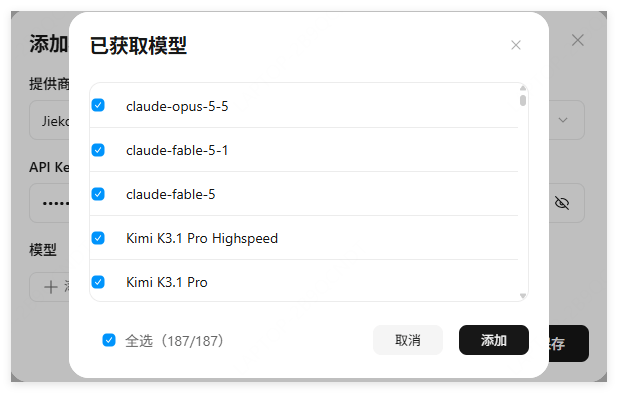
MiniMax Code is an AI Agent workbench launched by MiniMax, positioned as a “local Agent application anchored in programming.” It integrates chat, project workspace, files, terminal, built-in browser, Skills, memory, and scheduled tasks within a single environment. Once the user provides a goal, the Agent automatically plans, executes, and delivers results.It offers two modes: Coding and Work. Coding mode retains projects, terminal, and code context, while Work mode hides technical details and is designed for research, documents, PPTs, data organization, and web building. The desktop version supports remote control from your phone, cloud-device collaboration, and multimodal generation. Its CLI (mcode) is open-sourced under the MIT license, providing an interactive TUI, headless mode, and ACP editor integration, with support for Plan mode, sub-Agents, session resumption, and rollback. By default, it uses MiniMax’s model service, and it also supports bringing your own API Key or compatible endpoints.Website: https://agent.minimax.io/GitHub: https://github.com/MiniMax-AI/minimax-codeWith the API service provided by Interface AI, you can call cutting-edge large models from around the world in MiniMax Code, seamlessly integrating with your workflow in MiniMax Code.
Log in to the official website jiekou.ai to register.
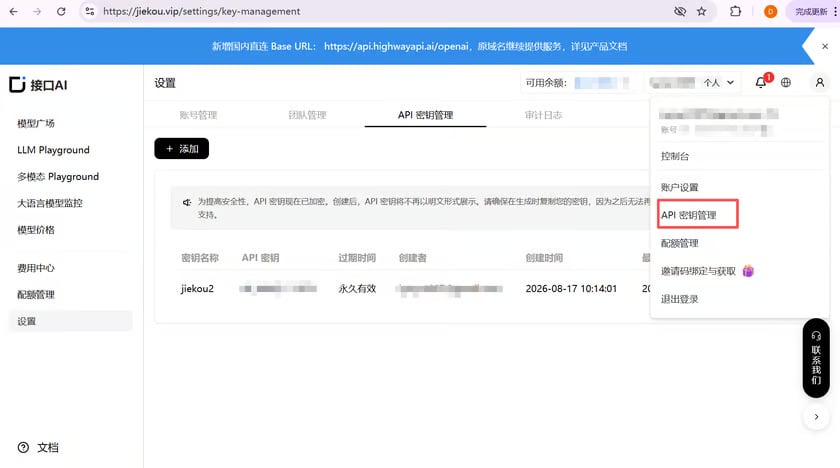
Go to the admin console, click “My Account” in the upper right corner, and select “API Key Management” from the dropdown list.
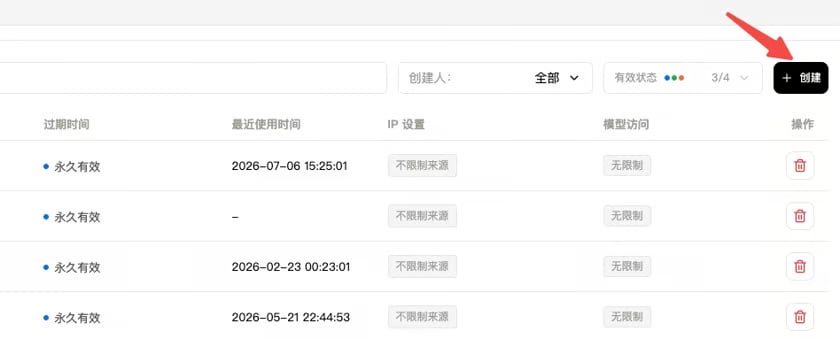
Click “Create” and enter a key name. It is recommended to use an easily recognizable name so you can distinguish keys for different purposes later in the console.
Click to copy and record the generated Key. It cannot be viewed again in the console, so please keep it safe for future use.
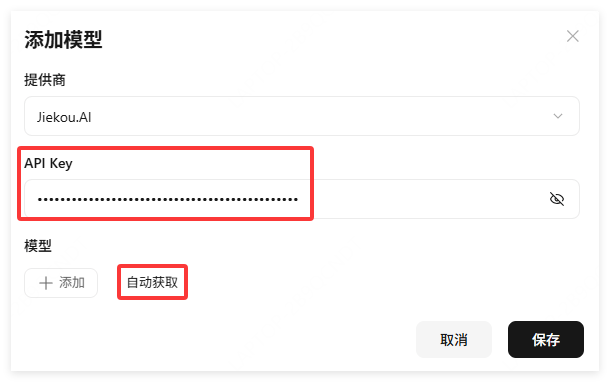
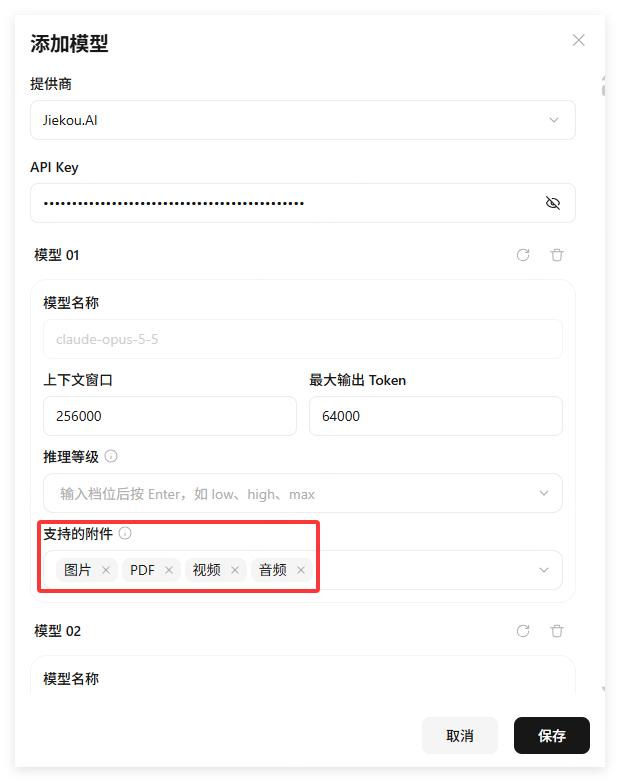
Select the input modalities supported by the model. If left blank, all modalities are supported by default. Click Save.
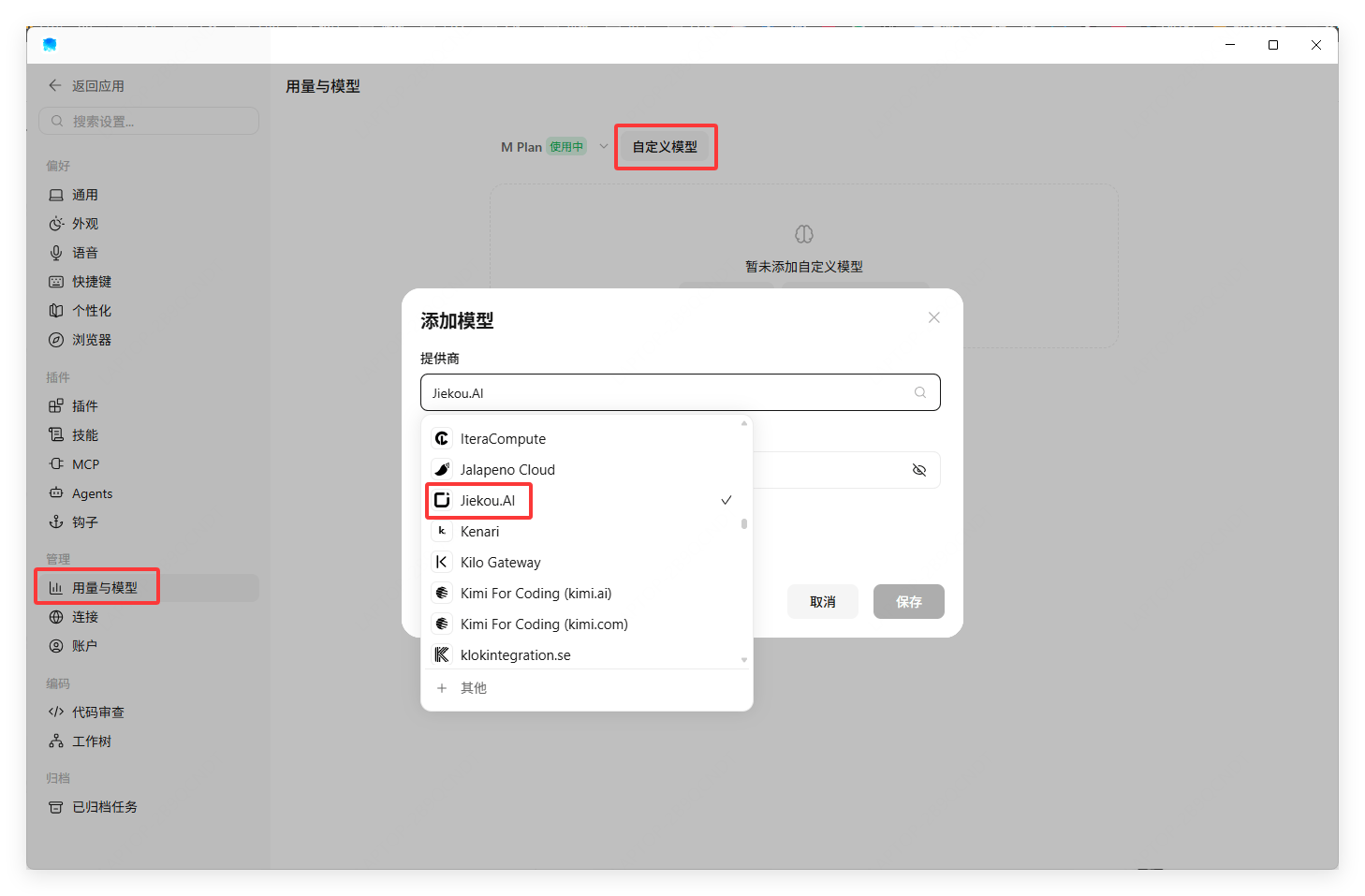
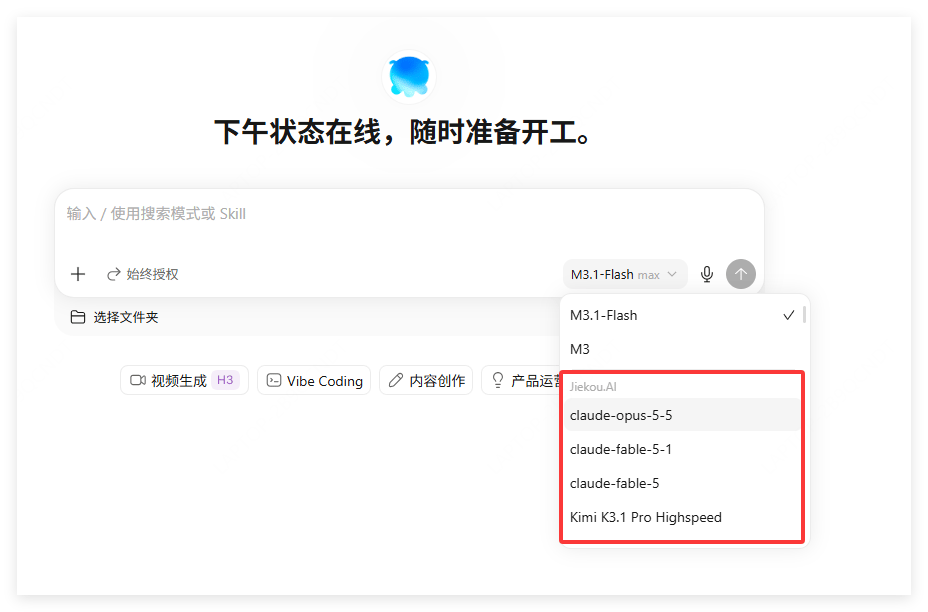
Find the Jiekou.AI model list in the conversation to call the model services provided by Interface AI.
Last modified on November 5, 2026
{"docsConfig":{"theme":"aspen","$schema":"https://mintlify.com/docs.json","name":"JieKou AI Docs","description":"接口AI 开发者文档:大语言模型与图像、视频、音频等多模态模型 API 的接入、调用与计费说明。","colors":{"primary":"#000000","light":"#0071E3","dark":"#0071E3"},"logo":{"light":"https://mintcdn.com/jiekou/Mf1wGBLqNABiRgF8/logo/light.svg?fit=max\u0026auto=format\u0026n=Mf1wGBLqNABiRgF8\u0026q=85\u0026s=81df34bfa762625ad3a4e18f59a81a0e","dark":"https://mintcdn.com/jiekou/Mf1wGBLqNABiRgF8/logo/dark.svg?fit=max\u0026auto=format\u0026n=Mf1wGBLqNABiRgF8\u0026q=85\u0026s=b81968885d04f4c09c4058bad9c364e1","href":"https://jiekou.vip"},"favicon":"https://mintcdn.com/jiekou/M__ek7klV-HYX16k/favicon.ico?fit=max\u0026auto=format\u0026n=M__ek7klV-HYX16k\u0026q=85\u0026s=7fb1bfe34418ab40c7c6025450bf40e0","navbar":{"links":[{"href":"https://jiekou.vip/models-console/library","label":"控制台"}],"primary":{"type":"button","label":"官网首页","href":"https://jiekou.vip"}},"seo":{"metatags":{"og:site_name":"接口AI 文档中心","application-name":"接口AI 文档中心","apple-mobile-web-app-title":"接口AI 文档中心"},"organization":{"name":"接口AI","url":"https://jiekou.ai"},"indexing":"all"},"contextual":{"options":["copy","view","chatgpt","claude","perplexity","mcp","add-mcp","cursor","vscode"],"display":"header"},"metadata":{"timestamp":true},"markdown":{"instructions":["JieKou AI model APIs are OpenAI-compatible. Base URL for users in mainland China (direct, no VPN): https://api.highwayapi.ai/openai; elsewhere: https://api.jiekou.ai/openai. Anthropic-compatible base URL: https://api.highwayapi.ai/anthropic or https://api.jiekou.ai/anthropic.","Authenticate with `Authorization: Bearer \u003cAPI_KEY>`; with Anthropic SDKs or Claude Code, pass the same key as `ANTHROPIC_AUTH_TOKEN`. Users create keys at https://jiekou.ai/settings/key-management. Never print or hardcode a real key.","Get current model IDs from GET https://api.jiekou.ai/openai/v1/models instead of reusing model names from memory."]},"styling":{"latex":true},"navigation":{"languages":[{"language":"zh","default":true,"href":"docs/home"},{"language":"en","href":"en/docs/home"},{"language":"es","href":"es/docs/home"},{"language":"pt-BR","href":"pt/docs/home"},{"language":"fr","href":"fr/docs/home"},{"language":"de","href":"de/docs/home"},{"language":"ja","href":"ja/docs/home"},{"language":"ru","href":"ru/docs/home"}]}},"deployment":{"deploymentMetadataValue":{"subdomain":"jiekou","hasAudioNarration":false,"actualSubdomain":"jiekou","customDomains":["docs.jiekou.ai"],"gitSource":{"type":"github","owner":"jiekouai","repo":"jiekou-docs","deployBranch":"main","contentDirectory":"","isPrivate":true,"mountPath":"","label":""},"chroma":{"liveDeploymentHistoryId":"6aec4d31dd9d9f5b04d731dc","collectionId":"43f0ff20-5cf6-4ba4-85f4-be81fd3b9627","schemaVersion":"v3","latestBuiltDeploymentHistoryId":"6aec4d31dd9d9f5b04d731dc"},"entitlements":{},"buildId":"6aec4d31dd9d9f5b04d731dc","clientVersion":"0.0.4067","searchFilterCounts":[{"language":"de","tag":"Leitfaden für Modelldienste","count":35},{"language":"zh","tag":"模型服务用户指南","count":35},{"language":"en","tag":"Model Service Guide","count":35},{"language":"es","tag":"Guía del servicio de modelos","count":35},{"language":"fr","tag":"Guide du service de modèles","count":35},{"language":"ja","tag":"モデルサービスガイド","count":35},{"language":"pt-BR","tag":"Guia do serviço de modelos","count":35},{"language":"ru","tag":"Руководство по сервису моделей","count":35},{"language":"de","tag":"Einrichtung von Drittanbieter-Tools","count":22},{"language":"zh","tag":"第三方工具配置","count":22},{"language":"zh","tag":"模型服务 API 手册","count":22},{"language":"en","tag":"Third-party Tool Setup","count":22},{"language":"en","tag":"Model Service API Reference","count":22},{"language":"es","tag":"Configuración de herramientas de terceros","count":22},{"language":"fr","tag":"Configuration des outils tiers","count":22},{"language":"ja","tag":"サードパーティツール設定","count":22},{"language":"pt-BR","tag":"Configuração de ferramentas de terceiros","count":22},{"language":"ru","tag":"Настройка сторонних инструментов","count":22},{"language":"de","tag":"API-Referenz für Modelldienste","count":19},{"language":"es","tag":"Referencia de API del servicio de modelos","count":19},{"language":"fr","tag":"Référence API du service de modèles","count":19},{"language":"ja","tag":"モデルサービス API リファレンス","count":19},{"language":"pt-BR","tag":"Referência da API do serviço de modelos","count":19},{"language":"ru","tag":"Справочник API сервиса моделей","count":19},{"language":"zh","tag":"账号用户指南","count":16},{"language":"en","tag":"Account Guide","count":16},{"language":"de","tag":"Kontoleitfaden","count":14},{"language":"es","tag":"Guía de cuenta","count":14},{"language":"fr","tag":"Guide du compte","count":14},{"language":"ja","tag":"アカウントガイド","count":14},{"language":"pt-BR","tag":"Guia da conta","count":14},{"language":"ru","tag":"Руководство по аккаунту","count":14},{"language":"de","tag":"LLM API","count":9},{"language":"zh","tag":"大语言模型 API","count":9},{"language":"en","tag":"LLM API","count":9},{"language":"es","tag":"API de LLM","count":9},{"language":"fr","tag":"API LLM","count":9},{"language":"ja","tag":"LLM API","count":9},{"language":"pt-BR","tag":"API de LLM","count":9},{"language":"ru","tag":"API больших языковых моделей","count":9},{"language":"zh","tag":"账号管理","count":8},{"language":"en","tag":"Account Management","count":8},{"language":"de","tag":"FAQ","count":7},{"language":"zh","tag":"常见问题","count":7},{"language":"en","tag":"FAQ","count":7},{"language":"es","tag":"Preguntas frecuentes","count":7},{"language":"fr","tag":"FAQ","count":7},{"language":"ja","tag":"FAQ","count":7},{"language":"pt-BR","tag":"Perguntas frequentes","count":7},{"language":"ru","tag":"Часто задаваемые вопросы","count":7},{"language":"de","tag":"Große Sprachmodelle","count":6},{"language":"de","tag":"Kontoverwaltung","count":6},{"language":"zh","tag":"大语言","count":6},{"language":"en","tag":"Large Language Models","count":6},{"language":"es","tag":"Modelos de lenguaje","count":6},{"language":"es","tag":"Gestión de cuenta","count":6},{"language":"fr","tag":"Grands modèles de langage","count":6},{"language":"fr","tag":"Gestion du compte","count":6},{"language":"ja","tag":"大規模言語モデル","count":6},{"language":"ja","tag":"アカウント管理","count":6},{"language":"pt-BR","tag":"Modelos de linguagem","count":6},{"language":"pt-BR","tag":"Gerenciamento da conta","count":6},{"language":"ru","tag":"Большие языковые модели","count":6},{"language":"ru","tag":"Управление аккаунтом","count":6},{"language":"de","tag":"Bilder","count":5},{"language":"zh","tag":"图像","count":5},{"language":"en","tag":"Images","count":5},{"language":"es","tag":"Imágenes","count":5},{"language":"fr","tag":"Images","count":5},{"language":"ja","tag":"画像","count":5},{"language":"pt-BR","tag":"Imagens","count":5},{"language":"ru","tag":"Изображения","count":5},{"language":"de","tag":"API-Grundlagen","count":4},{"language":"zh","tag":"API 基础","count":4},{"language":"en","tag":"API Basics","count":4},{"language":"es","tag":"Conceptos básicos de API","count":4},{"language":"fr","tag":"Bases de l'API","count":4},{"language":"ja","tag":"API の基本","count":4},{"language":"pt-BR","tag":"Noções básicas da API","count":4},{"language":"ru","tag":"Основы API","count":4}]},"assistantConfig":{},"basePath":"","hasChatPermissions":false,"hasWebMcpPermissions":false,"toggles":[{"name":"kill-isr","enabled":true,"variant":{"name":"disabled","enabled":false,"feature_enabled":true},"impressionData":false},{"name":"agent-mintlify-slack","enabled":true,"variant":{"name":"disabled","enabled":false,"feature_enabled":true},"impressionData":false},{"name":"agent-integrations-settings","enabled":true,"variant":{"name":"disabled","enabled":false,"feature_enabled":true},"impressionData":false},{"name":"rbac-expansion","enabled":true,"variant":{"name":"disabled","enabled":false,"feature_enabled":true},"impressionData":false},{"name":"automations-pr-grouping","enabled":true,"variant":{"name":"disabled","enabled":false,"feature_enabled":true},"impressionData":false},{"name":"custom-prefix","enabled":true,"variant":{"name":"disabled","enabled":false,"feature_enabled":true},"impressionData":false},{"name":"analytics-v7","enabled":true,"variant":{"name":"disabled","enabled":false,"feature_enabled":true},"impressionData":false},{"name":"user-flows-analytics","enabled":true,"variant":{"name":"disabled","enabled":false,"feature_enabled":true},"impressionData":false},{"name":"no-publish-flow","enabled":true,"variant":{"name":"disabled","enabled":false,"feature_enabled":true},"impressionData":false},{"name":"workos-onboarding","enabled":true,"variant":{"name":"disabled","enabled":false,"feature_enabled":true},"impressionData":false},{"name":"llms-txt-v2","enabled":true,"variant":{"name":"disabled","enabled":false,"feature_enabled":true},"impressionData":false},{"name":"snapshot-serving-live","enabled":true,"variant":{"name":"disabled","enabled":false,"feature_enabled":true},"impressionData":false},{"name":"stripTemperatureMiddleware","enabled":true,"variant":{"name":"disabled","enabled":false,"feature_enabled":true},"impressionData":false},{"name":"support-platform-pylon-zendesk","enabled":true,"variant":{"name":"disabled","enabled":false,"feature_enabled":true},"impressionData":false},{"name":"snapshot-serving","enabled":true,"variant":{"name":"disabled","enabled":false,"feature_enabled":true},"impressionData":false},{"name":"instant-rollback","enabled":true,"variant":{"name":"disabled","enabled":false,"feature_enabled":true},"impressionData":false},{"name":"granular-notifications-server","enabled":true,"variant":{"name":"disabled","enabled":false,"feature_enabled":true},"impressionData":false},{"name":"granular-notifications","enabled":true,"variant":{"name":"disabled","enabled":false,"feature_enabled":true},"impressionData":false},{"name":"automations-fable","enabled":true,"variant":{"name":"disabled","enabled":false,"feature_enabled":true},"impressionData":false},{"name":"fixed-ai-action-pricing","enabled":true,"variant":{"name":"disabled","enabled":false,"feature_enabled":true},"impressionData":false},{"name":"automation-resolve-merge-conflict","enabled":true,"variant":{"name":"disabled","enabled":false,"feature_enabled":true},"impressionData":false},{"name":"scoped-publishing","enabled":true,"variant":{"name":"disabled","enabled":false,"feature_enabled":true},"impressionData":false},{"name":"mintql","enabled":true,"variant":{"name":"disabled","enabled":false,"feature_enabled":true},"impressionData":false},{"name":"page-level-analytics","enabled":true,"variant":{"name":"disabled","enabled":false,"feature_enabled":true},"impressionData":false},{"name":"editor-version-history-v2","enabled":true,"variant":{"name":"disabled","enabled":false,"feature_enabled":true},"impressionData":false},{"name":"billing-page-v2","enabled":true,"variant":{"name":"disabled","enabled":false,"feature_enabled":true},"impressionData":false},{"name":"full-page-search","enabled":true,"variant":{"name":"disabled","enabled":false,"feature_enabled":true},"impressionData":false},{"name":"workspace-projects","enabled":true,"variant":{"name":"disabled","enabled":false,"feature_enabled":true},"impressionData":false},{"name":"assistant-v5","enabled":true,"variant":{"name":"disabled","enabled":false,"feature_enabled":true},"impressionData":false},{"name":"fork-pr-previews","enabled":true,"variant":{"name":"disabled","enabled":false,"feature_enabled":true},"impressionData":false},{"name":"revalidation-jwt","enabled":true,"variant":{"name":"disabled","enabled":false,"feature_enabled":true},"impressionData":false},{"name":"vite-origin","enabled":true,"variant":{"name":"disabled","enabled":false,"feature_enabled":true},"impressionData":false},{"name":"workos-sso-scim","enabled":true,"variant":{"name":"disabled","enabled":false,"feature_enabled":true},"impressionData":false},{"name":"hobby-abuse-scan","enabled":true,"variant":{"name":"disabled","enabled":false,"feature_enabled":true},"impressionData":false},{"name":"dashboard-inbox","enabled":true,"variant":{"name":"disabled","enabled":false,"feature_enabled":true},"impressionData":false},{"name":"workos-signup","enabled":true,"variant":{"name":"disabled","enabled":false,"feature_enabled":true},"impressionData":false},{"name":"turbopuffer-dual-write","enabled":true,"variant":{"name":"disabled","enabled":false,"feature_enabled":true},"impressionData":false},{"name":"workos-enabled","enabled":true,"variant":{"name":"disabled","enabled":false,"feature_enabled":true},"impressionData":false},{"name":"approve-review-flow","enabled":true,"variant":{"name":"disabled","enabled":false,"feature_enabled":true},"impressionData":false},{"name":"sso-setup-deadline-banner","enabled":true,"variant":{"name":"disabled","enabled":false,"feature_enabled":true},"impressionData":false},{"name":"turbopuffer-serve","enabled":true,"variant":{"name":"disabled","enabled":false,"feature_enabled":true},"impressionData":false},{"name":"live-agents","enabled":true,"variant":{"name":"disabled","enabled":false,"feature_enabled":true},"impressionData":false}],"googleFontsInlined":false},"customCss":[{"filePath":"global.css","content":"*[style*=\"rgb(124, 58, 237)\"],*[style*=\"#7c3aed\"],*[style*=\"7c3aed\"]{background-color:#F5F5F5!important;background:#F5F5F5!important}#navbar .nav-tabs-item[data-active=\"true\"],#navbar .nav-tabs-item[aria-current=\"location\"]{background-color:transparent!important;background:transparent!important}#sidebar *[class*=\"active\"],#sidebar *[aria-selected=\"true\"],#sidebar *[data-active=\"true\"]{background-color:#F5F5F5!important}#sidebar button.bg-\\\\[var\\\\(--primary\\\\) \\\\],\n#sidebar a.bg-\\\\[var\\\\(--primary\\\\) \\\\]{background-color:#F5F5F5!important}.table-container{overflow-x:scroll;box-shadow:3px 0 10px 0 rgba(25, 85, 140, .05)}.table-container table{margin-top:0}.table thead{background-color:#eef2f150}.table thead th{padding:8px 10px;text-align:left;white-space:nowrap}.table tbody td{padding:6px 10px}.table-big thead th{padding:12px 10px}.table-big tbody td{padding:10px 10px}.table .list-col{position:relative;padding-left:31px;margin:0;text-align:left}.table .list-col::before{content:\"•\";position:absolute;left:18px;top:6px;color:#16b063b0}.table .list-sub-col{position:relative;padding-left:46px;margin:0;text-align:left}.table .list-sub-col::before{content:\"\";position:absolute;left:36px;top:15px;width:4px;height:4px;background-color:#16b06380}.table .list-grandson-col{position:relative;padding-left:60px;margin:0;text-align:left}.table .list-grandson-col::before{content:\"\";position:absolute;left:50px;top:15px;width:4px;height:4px;border-radius:100%;border:1px solid #16b06380}.table .list-grandson-sub-col{position:relative;padding-left:66px;margin:0;text-align:left}.table .list-grandson-sub-col::before{content:\"\";position:absolute;left:58px;top:16px;width:3px;height:3px;border-radius:100%;border:1px solid #16b06350}.table .type-desc{display:inline-block;margin-left:12px;color:#9e9c98b0}.table .type-desc-narrow{margin-left:4px}.table .delete{text-decoration:line-through}.table .deprecated{display:inline-block;color:#f23030;margin-bottom:4px}.table .new-field{display:inline-block;margin-bottom:4px;color:#22ad5c}.table .moved{display:inline-block;margin-bottom:4px;color:#f27430}.table .inline-block{display:inline-block}.table .mt-1{margin-top:4px}.table .mt-2{margin-top:8px}.table .ml-0{margin-left:0}.model-id-item{padding:.125rem .5rem;color:#111827;font-size:.875em;font-weight:500;font-variant-ligatures:none;overflow-wrap:break-word;border-radius:var(--rounded-md, .375rem);background-color:rgb(var(--gray-100) / .5)}.param_text{font-size:14px}.param_frame{width:100%;padding:0 8px}.unified-api-container span[data-as=p]{display:block;margin-top:1.25em;margin-bottom:1.25em}.unified-api-inline-label{padding:2px 8px;border-radius:6px;background-color:#F1EFF580;color:#111827;font-size:12px;font-family:var(--font-jetbrains-mono), ui-monospace, SFMono-Regular, Menlo, Monaco, Consolas, \"Liberation Mono\", \"Courier New\", monospace}.unified-api-selector-container{margin-bottom:16px}.unified-api-description{padding:6px 8px;font-size:15px;color:#4f4e4a;border-radius:6px;border-left:4px solid #fafafa;background-color:#fdfdfd}.unified-api-selector-label{display:block;margin-top:36px;margin-bottom:12px;font-size:15px;font-weight:500;color:#374151;line-height:1.25}.unified-api-selector-wrapper{position:relative;max-width:300px}.unified-api-selector-button{height:40px;width:100%;border-radius:6px;border:1px solid #d1d5db;background-color:#ffffff;padding:0 32px 0 12px;font-size:14px;color:#374151;outline:none;cursor:pointer;text-align:left;display:flex;align-items:center;justify-content:space-between;transition:border-color 0.2s ease-in-out, box-shadow 0.2s ease-in-out;box-shadow:0 1px 2px 0 rgba(0, 0, 0, 0.05);font-family:var(--font-jetbrains-mono), ui-monospace, SFMono-Regular, Menlo, Monaco, Consolas, \"Liberation Mono\", \"Courier New\", monospace}.unified-api-selector-button:hover{border-color:#9ca3af}.unified-api-selector-button:focus{border-color:#3b82f6;box-shadow:0 0 0 3px rgba(59, 130, 246, 0.1)}.unified-api-selector-arrow{transition:transform 0.2s ease-in-out}.unified-api-selector-arrow.open{transform:rotate(180deg)}.unified-api-selector-dropdown{position:absolute;top:100%;left:0;right:0;z-index:50;margin-top:4px;border-radius:6px;border:1px solid #d1d5db;background-color:#ffffff;box-shadow:0 10px 25px -3px rgba(0, 0, 0, 0.2), 0 4px 10px -2px rgba(0, 0, 0, 0.15);max-height:275px;overflow:hidden}.unified-api-selector-dropdown::after{content:'';position:sticky;bottom:0;left:0;right:0;height:12px;background:linear-gradient(to top, rgba(255, 255, 255, 1) 0%, rgba(255, 255, 255, 0.5) 50%, rgba(255, 255, 255, 0.3) 100%);z-index:10;pointer-events:none;display:block;margin-top:-12px}.unified-api-selector-option{padding:10px 12px;font-size:14px;color:#374151;cursor:pointer;background-color:#ffffff}.unified-api-selector-option:not(:last-child){margin-top:1px;margin-bottom:1px;border-bottom:1px solid #f5f5f5}.unified-api-selector-option.selected{background-color:#f3f4f6}.unified-api-selector-option:hover:not(.selected){background-color:#f8fafc}.dark .unified-api-selector-label{color:inherit}.dark .unified-api-search-container{background-color:#1f2937}.dark .unified-api-search-input{background-color:#1f2937;color:#e5e7eb}.dark .unified-api-selector-button{border:1px solid #4b5563;background-color:#1f2937;color:#e5e7eb;box-shadow:0 1px 2px 0 rgba(0, 0, 0, 0.3)}.dark .unified-api-selector-button:hover{border-color:#6b7280}.dark .unified-api-selector-button:focus{border-color:#3b82f6;box-shadow:0 0 0 3px rgba(59, 130, 246, 0.2)}.dark .unified-api-selector-dropdown{border:1px solid #4b5563;background-color:#1f2937;box-shadow:0 10px 25px -3px rgba(0, 0, 0, 0.4), 0 4px 10px -2px rgba(0, 0, 0, 0.3)}.dark .unified-api-selector-dropdown::after{background:linear-gradient(to top, rgba(31, 41, 55, 1) 0%, rgba(31, 41, 55, 0.5) 50%, rgba(31, 41, 55, 0.3) 100%)}.dark .unified-api-selector-option{color:#e5e7eb;background-color:#1f2937}.dark .unified-api-selector-option:not(:last-child){border-bottom:1px solid #374151}.dark .unified-api-selector-option.selected{background-color:#374151}.dark .unified-api-selector-option:hover:not(.selected){background-color:#2d3748}.dark .unified-api-description{padding:0;background-color:inherit;color:#e5e7eb;border-left:none}.unified-api-loading-container{display:flex;flex-direction:column;align-items:center;justify-content:center;padding:48px 24px;text-align:center}.unified-api-loading-spinner{width:32px;height:32px;border:3px solid #f3f4f6;border-top:3px solid #7c3aed;border-radius:50%;animation:unified-api-spin 1s linear infinite;margin-bottom:16px}.unified-api-loading-text{color:#6b7280;font-size:14px;margin:0}@keyframes unified-api-spin{0%{transform:rotate(0deg)}100%{transform:rotate(360deg)}}.unified-api-search-container{padding:8px 12px;border-bottom:1px solid #e5e7eb;background-color:#fefefe}.unified-api-search-input{width:100%;padding:8px 12px;border:1px solid #d1d5db;border-radius:4px;font-size:14px;background-color:#ffffff;color:#374151;outline:none;transition:border-color 0.2s ease}.unified-api-search-input:focus{border-color:#7c3aed;box-shadow:0 0 0 3px rgba(124, 58, 237, 0.1)}.unified-api-search-input::placeholder{color:#9ca3af}.unified-api-options-container{padding-bottom:12px;max-height:calc(275px - 48px);overflow-y:auto}.unified-api-no-results{padding:16px 12px;text-align:center;color:#6b7280;font-size:14px;font-style:italic}:root{--nv-toc-band-color: var(--primary)}.dark{--nv-toc-band-color: var(--primary-light)}html[data-nv-toc-band] #table-of-contents [data-layout-item=\"toc-item-link\"],html[data-nv-toc-band] #table-of-contents [data-layout-item=\"toc-item\"]{border-left-color:transparent}:root{--nv-toc-band-from: 30%;--nv-toc-band-to: 0%;--nv-toc-band-fade: 100%}html[data-nv-toc-band] #table-of-contents[data-look=\"default\"] [data-layout-item=\"toc-item\"][data-active]>[data-layout-item=\"toc-item-link\"]:not([data-nv-in-view]){color:rgb(var(--gray-600))}html[data-nv-toc-band] #table-of-contents[data-look=\"default\"] [data-layout-item=\"toc-item\"] [data-layout-item=\"toc-item\"][data-active]>[data-layout-item=\"toc-item-link\"]:not([data-nv-in-view]){color:rgb(var(--gray-500))}html.dark[data-nv-toc-band] #table-of-contents[data-look=\"default\"] [data-layout-item=\"toc-item\"][data-active]>[data-layout-item=\"toc-item-link\"]:not([data-nv-in-view]),html.dark[data-nv-toc-band] #table-of-contents[data-look=\"default\"] [data-layout-item=\"toc-item\"] [data-layout-item=\"toc-item\"][data-active]>[data-layout-item=\"toc-item-link\"]:not([data-nv-in-view]){color:rgb(var(--gray-400))}html[data-nv-toc-band] #table-of-contents[data-look=\"default\"] [data-layout-item=\"toc-item\"][data-active]>[data-layout-item=\"toc-item-link\"]:not([data-nv-in-view]){text-shadow:none}html[data-nv-toc-band] #table-of-contents[data-look=\"default\"] [data-layout-item=\"toc-item\"][data-active]>[data-layout-item=\"toc-item-link\"]:not([data-nv-in-view]):hover,html[data-nv-toc-band] #table-of-contents[data-look=\"default\"] [data-layout-item=\"toc-item\"] [data-layout-item=\"toc-item\"][data-active]>[data-layout-item=\"toc-item-link\"]:not([data-nv-in-view]):hover{color:rgb(var(--gray-900))}html.dark[data-nv-toc-band] #table-of-contents[data-look=\"default\"] [data-layout-item=\"toc-item\"][data-active]>[data-layout-item=\"toc-item-link\"]:not([data-nv-in-view]):hover,html.dark[data-nv-toc-band] #table-of-contents[data-look=\"default\"] [data-layout-item=\"toc-item\"] [data-layout-item=\"toc-item\"][data-active]>[data-layout-item=\"toc-item-link\"]:not([data-nv-in-view]):hover{color:rgb(var(--gray-300))}#table-of-contents [data-layout-item=\"toc-item-link\"][data-nv-in-view]{color:rgb(var(--gray-900))}.dark #table-of-contents [data-layout-item=\"toc-item-link\"][data-nv-in-view]{color:rgb(var(--gray-100))}#table-of-contents nav{position:relative;isolation:isolate}.nv-toc-band{position:absolute;inset:0;z-index:-1;pointer-events:none;background:linear-gradient(to right, rgb(var(--nv-toc-band-color) / 0.3), transparent);clip-path:inset(0 0 100% round 8px)}.nv-toc-band[data-ready]{transition:clip-path 300ms ease-out}@supports (background: linear-gradient(in oklab, red, blue)) and (color: color-mix(in oklab, red, blue)){.nv-toc-band{background:linear-gradient(\n to right in oklab,\n color-mix(in oklab, rgb(var(--nv-toc-band-color)) var(--nv-toc-band-from), transparent),\n color-mix(in oklab, rgb(var(--nv-toc-band-color)) var(--nv-toc-band-to), transparent)\n var(--nv-toc-band-fade)\n )}}@media (prefers-reduced-motion: reduce){.nv-toc-band[data-ready]{transition:none}}#content-container:has(#content[data-page-href$=\"/docs/home\"]){max-width:72rem}"}],"page":{"pagePath":"en/docs/integration/minimax-code","slug":"/en/docs/integration/minimax-code","pageMetadata":{"title":"MiniMax Code","og:title":"Interface AI × MiniMax Code","description":null,"href":"/en/docs/integration/minimax-code"},"pageType":"default","mdx":{"mdxSource":{"compiledSource":"\"use strict\";const{Fragment:_Fragment,jsx:_jsx,jsxs:_jsxs}=arguments[0];const{useMDXComponents:_provideComponents}=arguments[0];function _createMdxContent(props){const _components={a:`a`,code:`code`,li:`li`,ol:`ol`,p:`p`,ul:`ul`,..._provideComponents(),...props.components},{Heading,OptimizedImage}=_components;if(!Heading)_missingMdxReference(`Heading`,true);if(!OptimizedImage)_missingMdxReference(`OptimizedImage`,true);return _jsxs(_Fragment,{children:[_jsx(Heading,{level:`2`,id:`what-is-minimax-code`,children:`What is MiniMax Code?`}),`\n`,_jsx(_components.p,{children:`MiniMax Code is an AI Agent workbench launched by MiniMax, positioned as a “local Agent application anchored in programming.” It integrates chat, project workspace, files, terminal, built-in browser, Skills, memory, and scheduled tasks within a single environment. Once the user provides a goal, the Agent automatically plans, executes, and delivers results.`}),`\n`,_jsxs(_components.p,{children:[`It offers two modes: Coding and Work. Coding mode retains projects, terminal, and code context, while Work mode hides technical details and is designed for research, documents, PPTs, data organization, and web building. The desktop version supports remote control from your phone, cloud-device collaboration, and multimodal generation. Its CLI (`,_jsx(_components.code,{children:`mcode`}),`) is open-sourced under the MIT license, providing an interactive TUI, headless mode, and ACP editor integration, with support for Plan mode, sub-Agents, session resumption, and rollback. By default, it uses MiniMax’s model service, and it also supports bringing your own API Key or compatible endpoints.`]}),`\n`,_jsxs(_components.p,{children:[`Website: `,_jsx(_components.a,{href:`https://agent.minimax.io/`,children:`https://agent.minimax.io/`})]}),`\n`,_jsxs(_components.p,{children:[`GitHub: `,_jsx(_components.a,{href:`https://github.com/MiniMax-AI/minimax-code`,children:`https://github.com/MiniMax-AI/minimax-code`})]}),`\n`,_jsx(_components.p,{children:`With the API service provided by Interface AI, you can call cutting-edge large models from around the world in MiniMax Code, seamlessly integrating with your workflow in MiniMax Code.`}),`\n`,_jsx(Heading,{level:`2`,id:`how-to-connect-interface-ai-to-minimax-code`,children:`How to connect Interface AI to MiniMax Code?`}),`\n`,_jsx(Heading,{level:`3`,id:`get-an-api-key`,children:`Get an API Key`}),`\n`,_jsxs(_components.ol,{children:[`\n`,_jsxs(_components.li,{children:[`\n`,_jsx(_components.p,{children:`Log in to the official website jiekou.ai to register.`}),`\n`]}),`\n`,_jsxs(_components.li,{children:[`\n`,_jsx(_components.p,{children:`Go to the admin console, click “My Account” in the upper right corner, and select “API Key Management” from the dropdown list.`}),`\n`,_jsx(OptimizedImage,{src:`https://mintcdn.com/jiekou/f-T_E3hNj8sGYUsR/images/minimax-code-01.png?fit=max\u0026auto=format\u0026n=f-T_E3hNj8sGYUsR\u0026q=85\u0026s=4f771d2e05df70e6af1e8b2d34d5e8a1`,alt:``,\"data-og-width\":`840`,width:`840`,\"data-og-height\":`468`,height:`468`,\"data-path\":`images/minimax-code-01.png`,\"data-optimize\":`true`,\"data-opv\":`3`,srcset:`https://mintcdn.com/jiekou/f-T_E3hNj8sGYUsR/images/minimax-code-01.png?w=280\u0026fit=max\u0026auto=format\u0026n=f-T_E3hNj8sGYUsR\u0026q=85\u0026s=8dab8cbb43b77ba689b7dd26cd045a33 280w, https://mintcdn.com/jiekou/f-T_E3hNj8sGYUsR/images/minimax-code-01.png?w=560\u0026fit=max\u0026auto=format\u0026n=f-T_E3hNj8sGYUsR\u0026q=85\u0026s=78e9e6aaf144dcc09d8517568cf1963d 560w, https://mintcdn.com/jiekou/f-T_E3hNj8sGYUsR/images/minimax-code-01.png?w=840\u0026fit=max\u0026auto=format\u0026n=f-T_E3hNj8sGYUsR\u0026q=85\u0026s=d021dee4e83a8d2c0dbfb62f777f2e76 840w, https://mintcdn.com/jiekou/f-T_E3hNj8sGYUsR/images/minimax-code-01.png?w=1100\u0026fit=max\u0026auto=format\u0026n=f-T_E3hNj8sGYUsR\u0026q=85\u0026s=579bad7dcb2aed94cba5cc3b4d683067 1100w, https://mintcdn.com/jiekou/f-T_E3hNj8sGYUsR/images/minimax-code-01.png?w=1650\u0026fit=max\u0026auto=format\u0026n=f-T_E3hNj8sGYUsR\u0026q=85\u0026s=2026111386b92d14cb49748fc777e6a6 1650w, https://mintcdn.com/jiekou/f-T_E3hNj8sGYUsR/images/minimax-code-01.png?w=2500\u0026fit=max\u0026auto=format\u0026n=f-T_E3hNj8sGYUsR\u0026q=85\u0026s=32620aad16dc463057129bd090cc6383 2500w`}),`\n`]}),`\n`,_jsxs(_components.li,{children:[`\n`,_jsx(_components.p,{children:`Click “Create” and enter a key name. It is recommended to use an easily recognizable name so you can distinguish keys for different purposes later in the console.`}),`\n`,_jsx(OptimizedImage,{src:`https://mintcdn.com/jiekou/f-T_E3hNj8sGYUsR/images/minimax-code-02.png?fit=max\u0026auto=format\u0026n=f-T_E3hNj8sGYUsR\u0026q=85\u0026s=b9ea343eb180386927b044c533861efe`,alt:``,\"data-og-width\":`840`,width:`840`,\"data-og-height\":`339`,height:`339`,\"data-path\":`images/minimax-code-02.png`,\"data-optimize\":`true`,\"data-opv\":`3`,srcset:`https://mintcdn.com/jiekou/f-T_E3hNj8sGYUsR/images/minimax-code-02.png?w=280\u0026fit=max\u0026auto=format\u0026n=f-T_E3hNj8sGYUsR\u0026q=85\u0026s=83423442d25d2999be0b0627ce9c1c0b 280w, https://mintcdn.com/jiekou/f-T_E3hNj8sGYUsR/images/minimax-code-02.png?w=560\u0026fit=max\u0026auto=format\u0026n=f-T_E3hNj8sGYUsR\u0026q=85\u0026s=660861b3504337e91287ecf73399dcf6 560w, https://mintcdn.com/jiekou/f-T_E3hNj8sGYUsR/images/minimax-code-02.png?w=840\u0026fit=max\u0026auto=format\u0026n=f-T_E3hNj8sGYUsR\u0026q=85\u0026s=025579429b18273e267531ffb8245df3 840w, https://mintcdn.com/jiekou/f-T_E3hNj8sGYUsR/images/minimax-code-02.png?w=1100\u0026fit=max\u0026auto=format\u0026n=f-T_E3hNj8sGYUsR\u0026q=85\u0026s=eb630e3d8dd8d7addfe7b5ba8dda7ef2 1100w, https://mintcdn.com/jiekou/f-T_E3hNj8sGYUsR/images/minimax-code-02.png?w=1650\u0026fit=max\u0026auto=format\u0026n=f-T_E3hNj8sGYUsR\u0026q=85\u0026s=c1c9c454b0484d5fae73bf4d5d3f4cf4 1650w, https://mintcdn.com/jiekou/f-T_E3hNj8sGYUsR/images/minimax-code-02.png?w=2500\u0026fit=max\u0026auto=format\u0026n=f-T_E3hNj8sGYUsR\u0026q=85\u0026s=9fccdddaa1de30afe9d44d31c8ae63f9 2500w`}),`\n`]}),`\n`,_jsxs(_components.li,{children:[`\n`,_jsx(_components.p,{children:`Click to copy and record the generated Key. It cannot be viewed again in the console, so please keep it safe for future use.`}),`\n`]}),`\n`]}),`\n`,_jsx(Heading,{level:`3`,id:`connect-interface-ai-to-minimax-code`,children:`Connect Interface AI to MiniMax Code`}),`\n`,_jsxs(_components.ol,{children:[`\n`,_jsxs(_components.li,{children:[`\n`,_jsx(_components.p,{children:`Open MiniMax Code’s settings. Under “Usage \u0026 Models” → “Custom Models” → “Add Model”, find Jiekou.AI in the dropdown list and select it.`}),`\n`,_jsx(OptimizedImage,{src:`https://mintcdn.com/jiekou/eY20tqhq6niA3Adp/images/minimax-code-03.png?fit=max\u0026auto=format\u0026n=eY20tqhq6niA3Adp\u0026q=85\u0026s=658500f8752ad821c6732eac70482bf5`,alt:``,\"data-og-width\":`1458`,width:`1458`,\"data-og-height\":`957`,height:`957`,\"data-path\":`images/minimax-code-03.png`,\"data-optimize\":`true`,\"data-opv\":`3`,srcset:`https://mintcdn.com/jiekou/eY20tqhq6niA3Adp/images/minimax-code-03.png?w=280\u0026fit=max\u0026auto=format\u0026n=eY20tqhq6niA3Adp\u0026q=85\u0026s=dc9bfb0ed50e639a459ea1ec22e77384 280w, https://mintcdn.com/jiekou/eY20tqhq6niA3Adp/images/minimax-code-03.png?w=560\u0026fit=max\u0026auto=format\u0026n=eY20tqhq6niA3Adp\u0026q=85\u0026s=444afc93c70a20c3dd9856f29c3f16d0 560w, https://mintcdn.com/jiekou/eY20tqhq6niA3Adp/images/minimax-code-03.png?w=840\u0026fit=max\u0026auto=format\u0026n=eY20tqhq6niA3Adp\u0026q=85\u0026s=572df59d1ed4d36f3fad769322090ddd 840w, https://mintcdn.com/jiekou/eY20tqhq6niA3Adp/images/minimax-code-03.png?w=1100\u0026fit=max\u0026auto=format\u0026n=eY20tqhq6niA3Adp\u0026q=85\u0026s=0eef5e35bee9967cd4286475e90ad722 1100w, https://mintcdn.com/jiekou/eY20tqhq6niA3Adp/images/minimax-code-03.png?w=1650\u0026fit=max\u0026auto=format\u0026n=eY20tqhq6niA3Adp\u0026q=85\u0026s=5171b2f06ce4e428fa504d32abdca06a 1650w, https://mintcdn.com/jiekou/eY20tqhq6niA3Adp/images/minimax-code-03.png?w=2500\u0026fit=max\u0026auto=format\u0026n=eY20tqhq6niA3Adp\u0026q=85\u0026s=5ebba2d2d512e0f6712a8f41741c1a4e 2500w`}),`\n`]}),`\n`,_jsxs(_components.li,{children:[`\n`,_jsx(_components.p,{children:`Paste the API Key you just copied, then click “Auto Fetch” to pull the Interface AI model list.`}),`\n`]}),`\n`]}),`\n`,_jsxs(_components.ul,{children:[`\n`,_jsxs(_components.li,{children:[`Domestic direct connection URL: `,_jsx(_components.a,{href:`https://api.highwayapi.ai/openai`,children:`https://api.highwayapi.ai/openai`})]}),`\n`,_jsxs(_components.li,{children:[`International URL: `,_jsx(_components.a,{href:`https://api.jiekou.ai/openai`,children:`https://api.jiekou.ai/openai`}),`\n`,_jsx(OptimizedImage,{src:`https://mintcdn.com/jiekou/eY20tqhq6niA3Adp/images/minimax-code-04.png?fit=max\u0026auto=format\u0026n=eY20tqhq6niA3Adp\u0026q=85\u0026s=f779ea627b4aa3884c207c362e5699cb`,alt:``,\"data-og-width\":`610`,width:`610`,\"data-og-height\":`382`,height:`382`,\"data-path\":`images/minimax-code-04.png`,\"data-optimize\":`true`,\"data-opv\":`3`,srcset:`https://mintcdn.com/jiekou/eY20tqhq6niA3Adp/images/minimax-code-04.png?w=280\u0026fit=max\u0026auto=format\u0026n=eY20tqhq6niA3Adp\u0026q=85\u0026s=5409200507ca0fdd2ec3f326b04b1299 280w, https://mintcdn.com/jiekou/eY20tqhq6niA3Adp/images/minimax-code-04.png?w=560\u0026fit=max\u0026auto=format\u0026n=eY20tqhq6niA3Adp\u0026q=85\u0026s=22a62c217f62c81dd6eb720cc08e94dd 560w, https://mintcdn.com/jiekou/eY20tqhq6niA3Adp/images/minimax-code-04.png?w=840\u0026fit=max\u0026auto=format\u0026n=eY20tqhq6niA3Adp\u0026q=85\u0026s=826cb3be5d8a644523e5e2d3397bf91f 840w, https://mintcdn.com/jiekou/eY20tqhq6niA3Adp/images/minimax-code-04.png?w=1100\u0026fit=max\u0026auto=format\u0026n=eY20tqhq6niA3Adp\u0026q=85\u0026s=7d04bc9ed3e2bd05fc55184b3109045e 1100w, https://mintcdn.com/jiekou/eY20tqhq6niA3Adp/images/minimax-code-04.png?w=1650\u0026fit=max\u0026auto=format\u0026n=eY20tqhq6niA3Adp\u0026q=85\u0026s=efbe57794939c06cca420729e64bd644 1650w, https://mintcdn.com/jiekou/eY20tqhq6niA3Adp/images/minimax-code-04.png?w=2500\u0026fit=max\u0026auto=format\u0026n=eY20tqhq6niA3Adp\u0026q=85\u0026s=554e61054679f9bb211f11cd226cf266 2500w`}),`\n`]}),`\n`]}),`\n`,_jsx(OptimizedImage,{src:`https://mintcdn.com/jiekou/eY20tqhq6niA3Adp/images/minimax-code-05.png?fit=max\u0026auto=format\u0026n=eY20tqhq6niA3Adp\u0026q=85\u0026s=2a2692660879810425ddfb2f13df31cf`,alt:``,\"data-og-width\":`618`,width:`618`,\"data-og-height\":`393`,height:`393`,\"data-path\":`images/minimax-code-05.png`,\"data-optimize\":`true`,\"data-opv\":`3`,srcset:`https://mintcdn.com/jiekou/eY20tqhq6niA3Adp/images/minimax-code-05.png?w=280\u0026fit=max\u0026auto=format\u0026n=eY20tqhq6niA3Adp\u0026q=85\u0026s=89f53c176f768afffe496e7400ed5ac3 280w, https://mintcdn.com/jiekou/eY20tqhq6niA3Adp/images/minimax-code-05.png?w=560\u0026fit=max\u0026auto=format\u0026n=eY20tqhq6niA3Adp\u0026q=85\u0026s=0e0105c790ce67fe7cc1d4574605b52a 560w, https://mintcdn.com/jiekou/eY20tqhq6niA3Adp/images/minimax-code-05.png?w=840\u0026fit=max\u0026auto=format\u0026n=eY20tqhq6niA3Adp\u0026q=85\u0026s=169aa49c2621666cf5d84b4e75d6c6cc 840w, https://mintcdn.com/jiekou/eY20tqhq6niA3Adp/images/minimax-code-05.png?w=1100\u0026fit=max\u0026auto=format\u0026n=eY20tqhq6niA3Adp\u0026q=85\u0026s=da54a2843e60f7166ada519764ff5a33 1100w, https://mintcdn.com/jiekou/eY20tqhq6niA3Adp/images/minimax-code-05.png?w=1650\u0026fit=max\u0026auto=format\u0026n=eY20tqhq6niA3Adp\u0026q=85\u0026s=301c1f87eea37351da3c43319299fdb6 1650w, https://mintcdn.com/jiekou/eY20tqhq6niA3Adp/images/minimax-code-05.png?w=2500\u0026fit=max\u0026auto=format\u0026n=eY20tqhq6niA3Adp\u0026q=85\u0026s=423418a724676ea87f9ff6e65f1a4c90 2500w`}),`\n`,_jsxs(_components.ol,{start:`3`,children:[`\n`,_jsxs(_components.li,{children:[`\n`,_jsx(_components.p,{children:`Select the input modalities supported by the model. If left blank, all modalities are supported by default. Click Save.`}),`\n`,_jsx(OptimizedImage,{src:`https://mintcdn.com/jiekou/eY20tqhq6niA3Adp/images/minimax-code-06.png?fit=max\u0026auto=format\u0026n=eY20tqhq6niA3Adp\u0026q=85\u0026s=2e2b159cc64ab5137327a4b30af99d75`,alt:``,\"data-og-width\":`620`,width:`620`,\"data-og-height\":`782`,height:`782`,\"data-path\":`images/minimax-code-06.png`,\"data-optimize\":`true`,\"data-opv\":`3`,srcset:`https://mintcdn.com/jiekou/eY20tqhq6niA3Adp/images/minimax-code-06.png?w=280\u0026fit=max\u0026auto=format\u0026n=eY20tqhq6niA3Adp\u0026q=85\u0026s=d3d7bfe0af60dda8d9927e79d9046023 280w, https://mintcdn.com/jiekou/eY20tqhq6niA3Adp/images/minimax-code-06.png?w=560\u0026fit=max\u0026auto=format\u0026n=eY20tqhq6niA3Adp\u0026q=85\u0026s=8b1b6e05c2baed19b2dd4454e424d0c4 560w, https://mintcdn.com/jiekou/eY20tqhq6niA3Adp/images/minimax-code-06.png?w=840\u0026fit=max\u0026auto=format\u0026n=eY20tqhq6niA3Adp\u0026q=85\u0026s=997cb7b424bc88a4f07a4a066d81650a 840w, https://mintcdn.com/jiekou/eY20tqhq6niA3Adp/images/minimax-code-06.png?w=1100\u0026fit=max\u0026auto=format\u0026n=eY20tqhq6niA3Adp\u0026q=85\u0026s=d333537e4d06bd5e788879d446de2221 1100w, https://mintcdn.com/jiekou/eY20tqhq6niA3Adp/images/minimax-code-06.png?w=1650\u0026fit=max\u0026auto=format\u0026n=eY20tqhq6niA3Adp\u0026q=85\u0026s=a3ae551c20bded6a2a32d102fc253211 1650w, https://mintcdn.com/jiekou/eY20tqhq6niA3Adp/images/minimax-code-06.png?w=2500\u0026fit=max\u0026auto=format\u0026n=eY20tqhq6niA3Adp\u0026q=85\u0026s=c7150ff20ef8cc0a83ce3079bf95b5f4 2500w`}),`\n`]}),`\n`,_jsxs(_components.li,{children:[`\n`,_jsx(_components.p,{children:`Find the Jiekou.AI model list in the conversation to call the model services provided by Interface AI.`}),`\n`,_jsx(OptimizedImage,{src:`https://mintcdn.com/jiekou/eY20tqhq6niA3Adp/images/minimax-code-07.png?fit=max\u0026auto=format\u0026n=eY20tqhq6niA3Adp\u0026q=85\u0026s=1d6f4f84bb4b39fae339fe9d2f652a1c`,alt:``,\"data-og-width\":`928`,width:`928`,\"data-og-height\":`612`,height:`612`,\"data-path\":`images/minimax-code-07.png`,\"data-optimize\":`true`,\"data-opv\":`3`,srcset:`https://mintcdn.com/jiekou/eY20tqhq6niA3Adp/images/minimax-code-07.png?w=280\u0026fit=max\u0026auto=format\u0026n=eY20tqhq6niA3Adp\u0026q=85\u0026s=0827a5a7f92ebe7787305ea866897e0f 280w, https://mintcdn.com/jiekou/eY20tqhq6niA3Adp/images/minimax-code-07.png?w=560\u0026fit=max\u0026auto=format\u0026n=eY20tqhq6niA3Adp\u0026q=85\u0026s=2802f1e87846b394b2a38c3671db45d1 560w, https://mintcdn.com/jiekou/eY20tqhq6niA3Adp/images/minimax-code-07.png?w=840\u0026fit=max\u0026auto=format\u0026n=eY20tqhq6niA3Adp\u0026q=85\u0026s=ac87165b6e8413c579dfe61f62e91397 840w, https://mintcdn.com/jiekou/eY20tqhq6niA3Adp/images/minimax-code-07.png?w=1100\u0026fit=max\u0026auto=format\u0026n=eY20tqhq6niA3Adp\u0026q=85\u0026s=618057e5307316a9980dcfd8afbe46e5 1100w, https://mintcdn.com/jiekou/eY20tqhq6niA3Adp/images/minimax-code-07.png?w=1650\u0026fit=max\u0026auto=format\u0026n=eY20tqhq6niA3Adp\u0026q=85\u0026s=a121fa661743fbdb86f26ee01604e826 1650w, https://mintcdn.com/jiekou/eY20tqhq6niA3Adp/images/minimax-code-07.png?w=2500\u0026fit=max\u0026auto=format\u0026n=eY20tqhq6niA3Adp\u0026q=85\u0026s=1848e5d49c846b98f5d1fd6c6b126826 2500w`}),`\n`]}),`\n`]})]})}function MDXContent(props={}){const{wrapper:MDXLayout}={..._provideComponents(),...props.components};return MDXLayout?_jsx(MDXLayout,{...props,children:_jsx(_createMdxContent,{...props})}):_createMdxContent(props)}return{default:MDXContent};function _missingMdxReference(id,component){throw new Error(`Expected `+(component?`component`:`object`)+\" `\"+id+\"` to be defined: you likely forgot to import, pass, or provide it.\")}","frontmatter":{},"scope":{"config":{},"pageMetadata":{"title":"MiniMax Code","og:title":"Interface AI × MiniMax Code","description":null,"href":"/en/docs/integration/minimax-code"}}},"mdxSourceWithNoJs":null},"mdxExtracts":{"tableOfContents":[{"title":"What is MiniMax Code?","slug":"what-is-minimax-code","depth":2,"children":[]},{"title":"How to connect Interface AI to MiniMax Code?","slug":"how-to-connect-interface-ai-to-minimax-code","depth":2,"children":[{"title":"Get an API Key","slug":"get-an-api-key","depth":3,"children":[]},{"title":"Connect Interface AI to MiniMax Code","slug":"connect-interface-ai-to-minimax-code","depth":3,"children":[]}]}],"codeExamples":{}},"jsLinks":["/_mintlify/custom/jiekou/66d6c24ef801984b/scripts/remoteData.js","/_mintlify/custom/jiekou/8ae569e8e123640c/scripts/gen-web-info/config.js","/_mintlify/custom/jiekou/2b947a82b530b471/scripts/gen-web-info/index.js","/_mintlify/custom/jiekou/1b96e903eb2e285d/toc-band.js"],"subdomain":"jiekou","siteName":"JieKou AI Docs","title":"Interface AI × MiniMax Code","navMaps":{"firstHrefInVersion":{},"firstHrefInLanguage":{"zh":{"href":"/docs/integration/minimax-code","matchLevel":1},"en":{"href":"/en/docs/integration/minimax-code","matchLevel":0},"es":{"href":"/es/docs/integration/minimax-code","matchLevel":1},"pt-BR":{"href":"/pt/docs/integration/minimax-code","matchLevel":1},"fr":{"href":"/fr/docs/integration/minimax-code","matchLevel":1},"de":{"href":"/de/docs/integration/minimax-code","matchLevel":1},"ja":{"href":"/ja/docs/integration/minimax-code","matchLevel":1},"ru":{"href":"/ru/docs/integration/minimax-code","matchLevel":1}}},"lastModified":"2026-11-05T09:04:57.679Z","gitLastModified":"2026-11-05T08:03:46.000Z","originalFileLocation":"en/docs/integration/minimax-code.mdx","locale":"en"},"headHtml":"\u003cscript data-mint-head>(function(){var d=document.documentElement,p=null;if(!p){try{p=localStorage.getItem(\"isDarkMode\")}catch(e){}if(p==='true')p='dark';else if(p==='false')p='light';if(p!=='light'\u0026\u0026p!=='dark'\u0026\u0026p!=='system')p=\"system\"}var r=p==='system'?(matchMedia(\"(prefers-color-scheme: dark)\").matches?'dark':'light'):p;d.classList.remove(r==='dark'?'light':'dark');d.classList.add(r);d.setAttribute(\"data-theme-preference\",p)})();\u003c/script>\u003cmeta data-mint-head name=\"application-name\" content=\"JieKou AI Docs\">\u003cmeta data-mint-head name=\"generator\" content=\"Mintlify\">\u003clink data-mint-head rel=\"icon\" type=\"image/png\" sizes=\"192x192\" href=\"/mintlify-assets/_mintlify/favicons/jiekou/oOvNr3EXOz4PkTkF/_generated/favicon/android-chrome-192x192.png\" media=\"(prefers-color-scheme: light)\">\u003clink data-mint-head rel=\"apple-touch-icon\" type=\"image/png\" sizes=\"180x180\" href=\"/mintlify-assets/_mintlify/favicons/jiekou/oOvNr3EXOz4PkTkF/_generated/favicon/apple-touch-icon.png\">\u003clink data-mint-head rel=\"icon\" type=\"image/png\" sizes=\"16x16\" href=\"/mintlify-assets/_mintlify/favicons/jiekou/oOvNr3EXOz4PkTkF/_generated/favicon/favicon-16x16.png\" media=\"(prefers-color-scheme: light)\">\u003clink data-mint-head rel=\"icon\" type=\"image/png\" sizes=\"32x32\" href=\"/mintlify-assets/_mintlify/favicons/jiekou/oOvNr3EXOz4PkTkF/_generated/favicon/favicon-32x32.png\" media=\"(prefers-color-scheme: light)\">\u003clink data-mint-head rel=\"shortcut icon\" type=\"image/x-icon\" href=\"/mintlify-assets/_mintlify/favicons/jiekou/oOvNr3EXOz4PkTkF/_generated/favicon/favicon.ico\" media=\"(prefers-color-scheme: light)\">\u003clink data-mint-head rel=\"icon\" type=\"image/png\" sizes=\"192x192\" href=\"/mintlify-assets/_mintlify/favicons/jiekou/oOvNr3EXOz4PkTkF/_generated/favicon-dark/android-chrome-192x192.png\" media=\"(prefers-color-scheme: dark)\">\u003clink data-mint-head rel=\"icon\" type=\"image/png\" sizes=\"16x16\" href=\"/mintlify-assets/_mintlify/favicons/jiekou/oOvNr3EXOz4PkTkF/_generated/favicon-dark/favicon-16x16.png\" media=\"(prefers-color-scheme: dark)\">\u003clink data-mint-head rel=\"icon\" type=\"image/png\" sizes=\"32x32\" href=\"/mintlify-assets/_mintlify/favicons/jiekou/oOvNr3EXOz4PkTkF/_generated/favicon-dark/favicon-32x32.png\" media=\"(prefers-color-scheme: dark)\">\u003clink data-mint-head rel=\"shortcut icon\" type=\"image/x-icon\" href=\"/mintlify-assets/_mintlify/favicons/jiekou/oOvNr3EXOz4PkTkF/_generated/favicon-dark/favicon.ico\" media=\"(prefers-color-scheme: dark)\">\u003cmeta data-mint-head property=\"og:title\" content=\"Interface AI × MiniMax Code\">\u003cmeta data-mint-head property=\"og:site_name\" content=\"接口AI 文档中心\">\u003cmeta data-mint-head property=\"og:url\" content=\"https://docs.jiekou.ai/en/docs/integration/minimax-code\">\u003cmeta data-mint-head property=\"og:type\" content=\"website\">\u003cmeta data-mint-head property=\"og:image\" content=\"https://jiekou.mintlify.app/_mintlify/api/og/v2?division=Third-party+Tool+Setup\u0026amp;title=MiniMax+Code\u0026amp;theme=23791efa182c1f70f1efca08\u0026amp;signature=bbe28121b0e6c451e6b55ddc798d94677d6269510424ab401baa71dca7d02568\">\u003cmeta data-mint-head property=\"og:image:width\" content=\"1200\">\u003cmeta data-mint-head property=\"og:image:height\" content=\"630\">\u003cmeta data-mint-head name=\"twitter:card\" content=\"summary_large_image\">\u003cmeta data-mint-head name=\"twitter:title\" content=\"Interface AI × MiniMax Code\">\u003cmeta data-mint-head name=\"twitter:image\" content=\"https://jiekou.mintlify.app/_mintlify/api/og/v2?division=Third-party+Tool+Setup\u0026amp;title=MiniMax+Code\u0026amp;theme=23791efa182c1f70f1efca08\u0026amp;signature=bbe28121b0e6c451e6b55ddc798d94677d6269510424ab401baa71dca7d02568\">\u003cmeta data-mint-head name=\"twitter:image:width\" content=\"1200\">\u003cmeta data-mint-head name=\"twitter:image:height\" content=\"630\">\u003cmeta data-mint-head name=\"msapplication-config\" content=\"/mintlify-assets/_mintlify/favicons/jiekou/oOvNr3EXOz4PkTkF/_generated/favicon/browserconfig.xml\">\u003cmeta data-mint-head name=\"apple-mobile-web-app-title\" content=\"接口AI 文档中心\">\u003cmeta data-mint-head name=\"msapplication-TileColor\" content=\"#000000\">\u003cmeta data-mint-head name=\"application-name\" content=\"接口AI 文档中心\">\u003clink data-mint-head rel=\"canonical\" href=\"https://docs.jiekou.ai/en/docs/integration/minimax-code\">\u003clink data-mint-head rel=\"alternate\" type=\"application/xml\" href=\"/sitemap.xml\">\u003clink data-mint-head rel=\"alternate\" type=\"text/markdown\" href=\"/en/docs/integration/minimax-code.md\">\u003clink data-mint-head rel=\"alternate\" hreflang=\"en\" href=\"https://docs.jiekou.ai/en/docs/integration/minimax-code\">\u003clink data-mint-head rel=\"alternate\" hreflang=\"zh\" href=\"https://docs.jiekou.ai/docs/integration/minimax-code\">\u003clink data-mint-head rel=\"alternate\" hreflang=\"es\" href=\"https://docs.jiekou.ai/es/docs/integration/minimax-code\">\u003clink data-mint-head rel=\"alternate\" hreflang=\"pt-BR\" href=\"https://docs.jiekou.ai/pt/docs/integration/minimax-code\">\u003clink data-mint-head rel=\"alternate\" hreflang=\"fr\" href=\"https://docs.jiekou.ai/fr/docs/integration/minimax-code\">\u003clink data-mint-head rel=\"alternate\" hreflang=\"de\" href=\"https://docs.jiekou.ai/de/docs/integration/minimax-code\">\u003clink data-mint-head rel=\"alternate\" hreflang=\"ja\" href=\"https://docs.jiekou.ai/ja/docs/integration/minimax-code\">\u003clink data-mint-head rel=\"alternate\" hreflang=\"ru\" href=\"https://docs.jiekou.ai/ru/docs/integration/minimax-code\">\u003clink data-mint-head rel=\"alternate\" hreflang=\"x-default\" href=\"https://docs.jiekou.ai/docs/integration/minimax-code\">\u003cscript data-mint-head type=\"application/ld+json\">{\"@context\":\"https://schema.org\",\"@graph\":[{\"@type\":\"Organization\",\"@id\":\"https://jiekou.ai/#organization\",\"name\":\"接口AI\",\"url\":\"https://jiekou.ai\",\"logo\":{\"@type\":\"ImageObject\",\"url\":\"https://mintcdn.com/jiekou/Mf1wGBLqNABiRgF8/logo/light.svg?fit=max\u0026auto=format\u0026n=Mf1wGBLqNABiRgF8\u0026q=85\u0026s=81df34bfa762625ad3a4e18f59a81a0e\"}},{\"@type\":\"WebSite\",\"@id\":\"https://docs.jiekou.ai#website\",\"name\":\"JieKou AI Docs\",\"url\":\"https://docs.jiekou.ai\",\"publisher\":{\"@id\":\"https://jiekou.ai/#organization\"}},{\"@type\":\"WebPage\",\"@id\":\"https://docs.jiekou.ai/en/docs/integration/minimax-code#webpage\",\"url\":\"https://docs.jiekou.ai/en/docs/integration/minimax-code\",\"name\":\"MiniMax Code\",\"dateModified\":\"2026-11-05T08:03:46.000Z\",\"isPartOf\":{\"@id\":\"https://docs.jiekou.ai#website\"},\"breadcrumb\":{\"@id\":\"https://docs.jiekou.ai/en/docs/integration/minimax-code#breadcrumb\"}},{\"@type\":\"BreadcrumbList\",\"@id\":\"https://docs.jiekou.ai/en/docs/integration/minimax-code#breadcrumb\",\"itemListElement\":[{\"@type\":\"ListItem\",\"position\":1,\"name\":\"Third-party Tool Setup\",\"item\":\"https://docs.jiekou.ai/en/docs/integration/workbuddy\"},{\"@type\":\"ListItem\",\"position\":2,\"name\":\"MiniMax Code\",\"item\":\"https://docs.jiekou.ai/en/docs/integration/minimax-code\"}]},{\"@type\":[\"Article\",\"TechArticle\"],\"@id\":\"https://docs.jiekou.ai/en/docs/integration/minimax-code#article\",\"headline\":\"MiniMax Code\",\"name\":\"MiniMax Code\",\"url\":\"https://docs.jiekou.ai/en/docs/integration/minimax-code\",\"mainEntityOfPage\":{\"@id\":\"https://docs.jiekou.ai/en/docs/integration/minimax-code#webpage\"},\"dateModified\":\"2026-11-05T08:03:46.000Z\",\"publisher\":{\"@id\":\"https://jiekou.ai/#organization\"},\"isPartOf\":{\"@id\":\"https://docs.jiekou.ai#website\"}}]}\u003c/script>\u003cscript data-mint-head type=\"application/ld+json\">{\"@context\":\"https://schema.org\",\"@type\":\"WebSite\",\"name\":\"JieKou AI Docs\",\"creator\":{\"@type\":\"Organization\",\"name\":\"Mintlify\",\"url\":\"https://mintlify.com\"}}\u003c/script>","siteName":"JieKou AI Docs","nav":{"global":null,"languages":[{"language":"zh","default":true,"pages":[{"title":"zh","href":"/docs/integration/minimax-code"}]},{"language":"en","tabs":[{"tab":"Home","pages":[{"title":"Home","href":"/en/docs/home"}]},{"tab":"Product Announcements","pages":[{"title":"Product Announcements","href":"/en/docs/announcement/announcement"}]},{"tab":"Model Service Guide","groups":[{"group":"Getting Started","boost":2,"pages":[{"title":"Introduction","href":"/en/docs/model/overview"}]},{"group":"LLM API","pages":[{"title":"Large Language Models","href":"/en/docs/model/llm"},{"title":"Recommended Models","href":"/en/docs/model/llm-recommended"},{"title":"Vision-Language Models","href":"/en/docs/model/visual"},{"title":"Reasoning Models","href":"/en/docs/model/inference"},{"title":"Tool Calling (Function Calling)","sidebarTitle":"Function Calling","href":"/en/docs/model/llm-function-calling"},{"title":"Structured Outputs","sidebarTitle":"Structured Outputs","href":"/en/docs/model/llm-structured-outputs"},{"title":"Rate Limits","sidebarTitle":"Rate Limits","href":"/en/docs/model/llm-rate-limits"},{"title":"Large Language Model Monitoring","href":"/en/docs/model/llm-api-metrics"},{"title":"Compatible with Anthropic SDK","href":"/en/docs/model/llm-anthropic-compatibility"}]},{"group":"Model Providers","pages":[{"title":"Gemini","href":"/en/docs/providers/gemini"},{"title":"Anthropic","href":"/en/docs/providers/anthropic"}]},{"group":"Model Features","pages":[{"title":"Prompt caching","href":"/en/docs/feature/prompt-caching"}]},{"group":"Third-party Tool Setup","pages":[{"title":"Workbuddy","href":"/en/docs/integration/workbuddy"},{"title":"DeepSeek Harness","href":"/en/docs/integration/deepseek-harness"},{"title":"Magpie","href":"/en/docs/integration/magpie"},{"title":"Zcode","href":"/en/docs/integration/zcode"},{"title":"Kimi Code","href":"/en/docs/integration/kimi-code"},{"title":"Qoder","description":null,"href":"/en/docs/integration/qoder"},{"title":"MiniMax Code","href":"/en/docs/integration/minimax-code"},{"title":"Pi","description":null,"href":"/en/docs/integration/pi"},{"title":"Hermes","href":"/en/docs/integration/hermes"},{"title":"Cline","href":"/en/docs/integration/cline"},{"title":"TRAE","href":"/en/docs/integration/trae"},{"title":"CC Switch","href":"/en/docs/integration/cc-switch"},{"title":"Chatbox","href":"/en/docs/integration/chatbox"},{"title":"Claude Code","href":"/en/docs/integration/claudecode"},{"title":"OpenAI Codex CLI","href":"/en/docs/integration/codex"},{"title":"DeepChat","href":"/en/docs/integration/deepchat"},{"title":"LangBot","href":"/en/docs/integration/langbot"},{"title":"RAGFlow","href":"/en/docs/integration/ragflow"},{"title":"OpenManus","href":"/en/docs/integration/openmanus"},{"title":"DeepSearcher","href":"/en/docs/integration/deepsearcher"},{"title":"OpenCode","href":"/en/docs/integration/opencode"},{"title":"OpenClaw","href":"/en/docs/integration/openclaw"}]}]},{"tab":"Model Service API Reference","pages":[{"title":"Model Service API Reference","href":"/en/docs/models/reference-authentication"}]},{"tab":"Account Guide","pages":[{"title":"Account Guide","href":"/en/docs/support/quickstart"}]}]},{"language":"es","pages":[{"title":"es","href":"/es/docs/integration/minimax-code"}]},{"language":"pt-BR","pages":[{"title":"pt-BR","href":"/pt/docs/integration/minimax-code"}]},{"language":"fr","pages":[{"title":"fr","href":"/fr/docs/integration/minimax-code"}]},{"language":"de","pages":[{"title":"de","href":"/de/docs/integration/minimax-code"}]},{"language":"ja","pages":[{"title":"ja","href":"/ja/docs/integration/minimax-code"}]},{"language":"ru","pages":[{"title":"ru","href":"/ru/docs/integration/minimax-code"}]}]},"basePath":"","title":"Interface AI × MiniMax Code","buildId":"dpl_9VVk5y1P8k1ATeJguVngy9Q3cmbD","deploymentId":"dpl_9VVk5y1P8k1ATeJguVngy9Q3cmbD","dynamics":["a74be98ba7"],"chunks":["zoom-image-lightbox-CvtNkYOX.js","lightbox-handle-r17bVUz3.js"]}