Kimi Code is an AI coding agent built by Moonshot AI on top of the Kimi models, available in three forms: CLI, desktop app, and IDE plugin. It can read and modify code, execute shell commands, search files, and fetch web pages, then autonomously decide its next step based on the execution results. Its workflow emphasizes a Plan-first approach: it presents a reviewable execution plan before taking action.The terminal form, Kimi Code CLI, provides a TUI designed for long sessions, single-binary installation, video input, conversational MCP configuration, a plugin and skill marketplace, parallel sub-agents, and lifecycle Hooks, and it can connect to editors such as Zed and JetBrains via the ACP protocol. The desktop app provides project and session workspaces, approval cards, a built-in browser preview, and a diff panel. The CLI is open-sourced under the MIT license, while the models and cloud services are billed separately through the Kimi membership system.Official website: https://www.kimi.ai/code/zh-hansGitHub: https://github.com/MoonshotAI/kimi-codeWith the API service provided by Interface AI, you can call the world’s leading large models in Kimi Code and seamlessly integrate them into your Kimi Code workflow. Below, we use Kimi Code Desktop as an example to demonstrate the integration process.
Log in to the official website jiekou.ai and register.
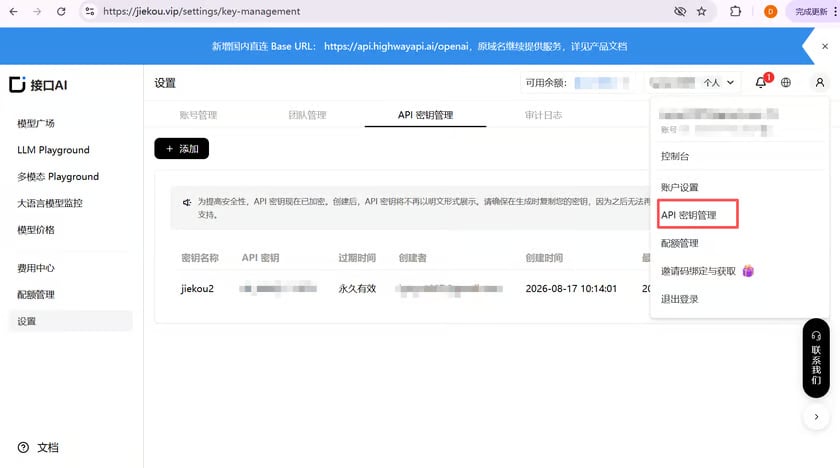
Go to the admin console, click “My” in the upper right corner, and select “API Key Management” from the dropdown list.
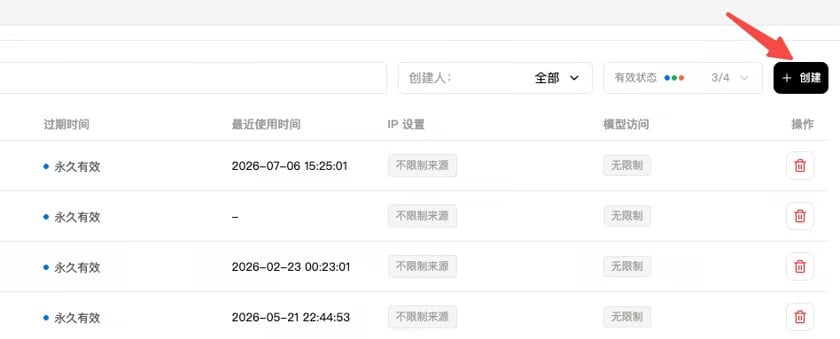
Click “Create” and enter a key name. We recommend using a name that is easy to identify, so you can distinguish keys for different purposes in the console later.
Click to copy and record the generated Key. It cannot be viewed again in the console, so please keep it safe for future use.
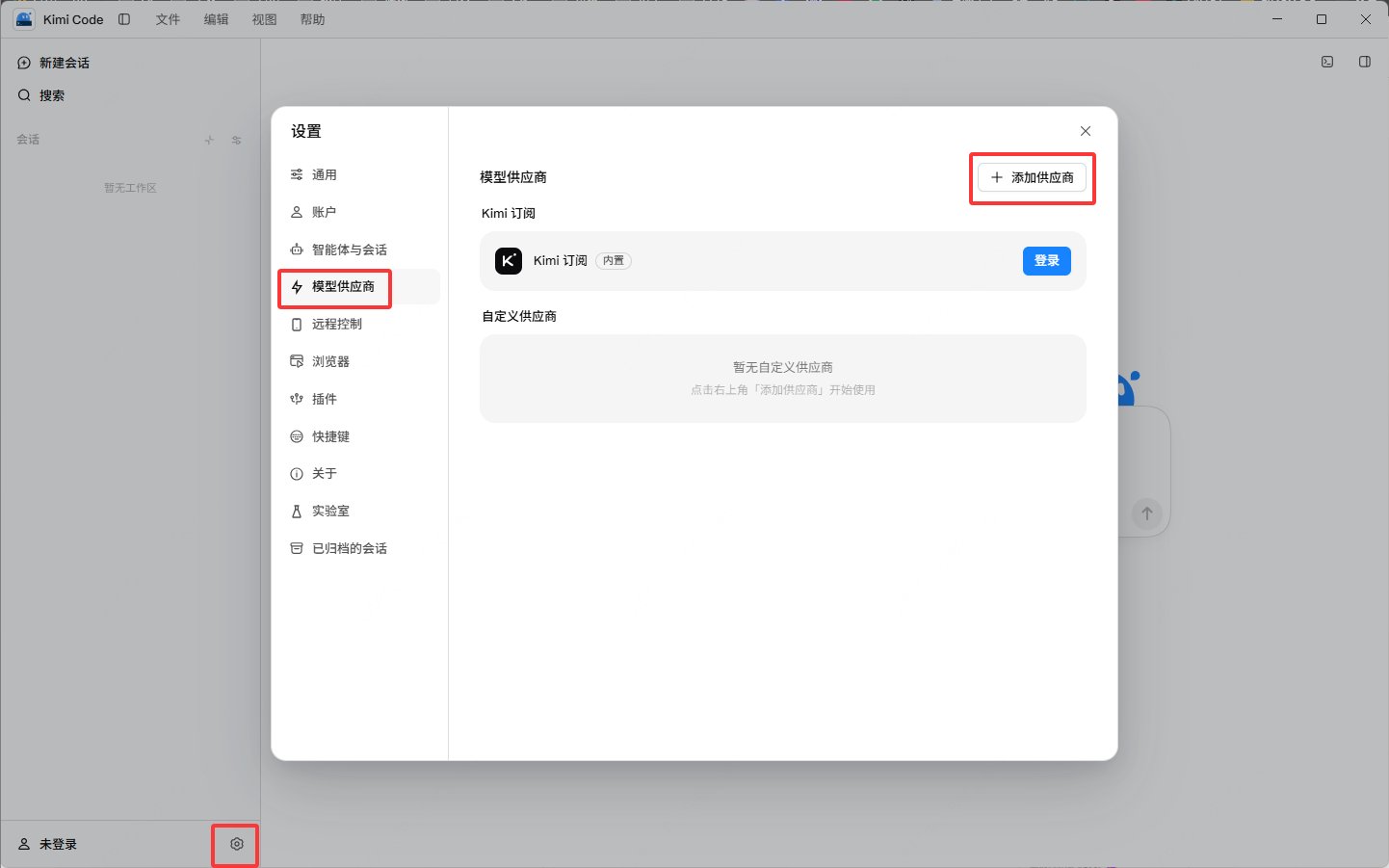
Open Kimi Code, go to the settings page, and click “Custom Provider” in the “Model Providers” tab
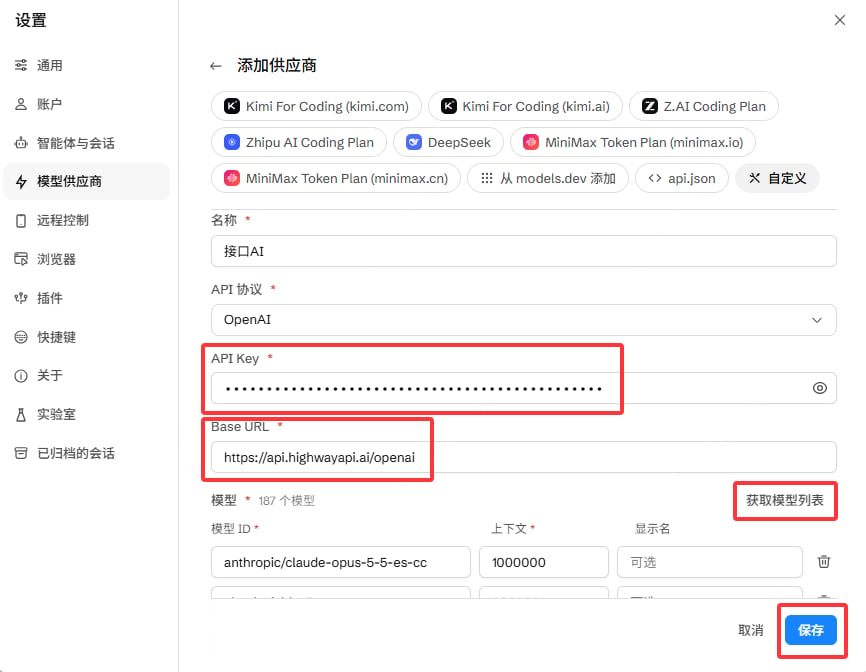
Enter the API Key you just copied, fill in the URL, and select the API protocol (API Endpoint) that suits the model you want to call. Click “Get Model List” to fetch Interface AI’s models automatically—no manual input needed. Once configured, click “Save” to call the API service provided by Interface AI in Kimi Code
{"docsConfig":{"theme":"aspen","$schema":"https://mintlify.com/docs.json","name":"JieKou AI Docs","description":"接口AI 开发者文档:大语言模型与图像、视频、音频等多模态模型 API 的接入、调用与计费说明。","colors":{"primary":"#000000","light":"#0071E3","dark":"#0071E3"},"logo":{"light":"https://mintcdn.com/jiekou/Mf1wGBLqNABiRgF8/logo/light.svg?fit=max\u0026auto=format\u0026n=Mf1wGBLqNABiRgF8\u0026q=85\u0026s=81df34bfa762625ad3a4e18f59a81a0e","dark":"https://mintcdn.com/jiekou/Mf1wGBLqNABiRgF8/logo/dark.svg?fit=max\u0026auto=format\u0026n=Mf1wGBLqNABiRgF8\u0026q=85\u0026s=b81968885d04f4c09c4058bad9c364e1","href":"https://jiekou.vip"},"favicon":"https://mintcdn.com/jiekou/M__ek7klV-HYX16k/favicon.ico?fit=max\u0026auto=format\u0026n=M__ek7klV-HYX16k\u0026q=85\u0026s=7fb1bfe34418ab40c7c6025450bf40e0","navbar":{"links":[{"href":"https://jiekou.vip/models-console/library","label":"控制台"}],"primary":{"type":"button","label":"官网首页","href":"https://jiekou.vip"}},"seo":{"metatags":{"og:site_name":"接口AI 文档中心","application-name":"接口AI 文档中心","apple-mobile-web-app-title":"接口AI 文档中心"},"organization":{"name":"接口AI","url":"https://jiekou.ai"},"indexing":"all"},"contextual":{"options":["copy","view","chatgpt","claude","perplexity","mcp","add-mcp","cursor","vscode"],"display":"header"},"metadata":{"timestamp":true},"markdown":{"instructions":["JieKou AI model APIs are OpenAI-compatible. Base URL for users in mainland China (direct, no VPN): https://api.highwayapi.ai/openai; elsewhere: https://api.jiekou.ai/openai. Anthropic-compatible base URL: https://api.highwayapi.ai/anthropic or https://api.jiekou.ai/anthropic.","Authenticate with `Authorization: Bearer \u003cAPI_KEY>`; with Anthropic SDKs or Claude Code, pass the same key as `ANTHROPIC_AUTH_TOKEN`. Users create keys at https://jiekou.ai/settings/key-management. Never print or hardcode a real key.","Get current model IDs from GET https://api.jiekou.ai/openai/v1/models instead of reusing model names from memory."]},"styling":{"latex":true},"navigation":{"languages":[{"language":"zh","default":true,"href":"docs/home"},{"language":"en","href":"en/docs/home"},{"language":"es","href":"es/docs/home"},{"language":"pt-BR","href":"pt/docs/home"},{"language":"fr","href":"fr/docs/home"},{"language":"de","href":"de/docs/home"},{"language":"ja","href":"ja/docs/home"},{"language":"ru","href":"ru/docs/home"}]}},"deployment":{"deploymentMetadataValue":{"subdomain":"jiekou","hasAudioNarration":false,"actualSubdomain":"jiekou","customDomains":["docs.jiekou.ai"],"gitSource":{"type":"github","owner":"jiekouai","repo":"jiekou-docs","deployBranch":"main","contentDirectory":"","isPrivate":true,"mountPath":"","label":""},"chroma":{"liveDeploymentHistoryId":"6aec4d31dd9d9f5b04d731dc","collectionId":"43f0ff20-5cf6-4ba4-85f4-be81fd3b9627","schemaVersion":"v3","latestBuiltDeploymentHistoryId":"6aec4d31dd9d9f5b04d731dc"},"entitlements":{},"buildId":"6aec4d31dd9d9f5b04d731dc","clientVersion":"0.0.4067","searchFilterCounts":[{"language":"de","tag":"Leitfaden für Modelldienste","count":35},{"language":"zh","tag":"模型服务用户指南","count":35},{"language":"en","tag":"Model Service Guide","count":35},{"language":"es","tag":"Guía del servicio de modelos","count":35},{"language":"fr","tag":"Guide du service de modèles","count":35},{"language":"ja","tag":"モデルサービスガイド","count":35},{"language":"pt-BR","tag":"Guia do serviço de modelos","count":35},{"language":"ru","tag":"Руководство по сервису моделей","count":35},{"language":"de","tag":"Einrichtung von Drittanbieter-Tools","count":22},{"language":"zh","tag":"第三方工具配置","count":22},{"language":"zh","tag":"模型服务 API 手册","count":22},{"language":"en","tag":"Third-party Tool Setup","count":22},{"language":"en","tag":"Model Service API Reference","count":22},{"language":"es","tag":"Configuración de herramientas de terceros","count":22},{"language":"fr","tag":"Configuration des outils tiers","count":22},{"language":"ja","tag":"サードパーティツール設定","count":22},{"language":"pt-BR","tag":"Configuração de ferramentas de terceiros","count":22},{"language":"ru","tag":"Настройка сторонних инструментов","count":22},{"language":"de","tag":"API-Referenz für Modelldienste","count":19},{"language":"es","tag":"Referencia de API del servicio de modelos","count":19},{"language":"fr","tag":"Référence API du service de modèles","count":19},{"language":"ja","tag":"モデルサービス API リファレンス","count":19},{"language":"pt-BR","tag":"Referência da API do serviço de modelos","count":19},{"language":"ru","tag":"Справочник API сервиса моделей","count":19},{"language":"zh","tag":"账号用户指南","count":16},{"language":"en","tag":"Account Guide","count":16},{"language":"de","tag":"Kontoleitfaden","count":14},{"language":"es","tag":"Guía de cuenta","count":14},{"language":"fr","tag":"Guide du compte","count":14},{"language":"ja","tag":"アカウントガイド","count":14},{"language":"pt-BR","tag":"Guia da conta","count":14},{"language":"ru","tag":"Руководство по аккаунту","count":14},{"language":"de","tag":"LLM API","count":9},{"language":"zh","tag":"大语言模型 API","count":9},{"language":"en","tag":"LLM API","count":9},{"language":"es","tag":"API de LLM","count":9},{"language":"fr","tag":"API LLM","count":9},{"language":"ja","tag":"LLM API","count":9},{"language":"pt-BR","tag":"API de LLM","count":9},{"language":"ru","tag":"API больших языковых моделей","count":9},{"language":"zh","tag":"账号管理","count":8},{"language":"en","tag":"Account Management","count":8},{"language":"de","tag":"FAQ","count":7},{"language":"zh","tag":"常见问题","count":7},{"language":"en","tag":"FAQ","count":7},{"language":"es","tag":"Preguntas frecuentes","count":7},{"language":"fr","tag":"FAQ","count":7},{"language":"ja","tag":"FAQ","count":7},{"language":"pt-BR","tag":"Perguntas frequentes","count":7},{"language":"ru","tag":"Часто задаваемые вопросы","count":7},{"language":"de","tag":"Große Sprachmodelle","count":6},{"language":"de","tag":"Kontoverwaltung","count":6},{"language":"zh","tag":"大语言","count":6},{"language":"en","tag":"Large Language Models","count":6},{"language":"es","tag":"Modelos de lenguaje","count":6},{"language":"es","tag":"Gestión de cuenta","count":6},{"language":"fr","tag":"Grands modèles de langage","count":6},{"language":"fr","tag":"Gestion du compte","count":6},{"language":"ja","tag":"大規模言語モデル","count":6},{"language":"ja","tag":"アカウント管理","count":6},{"language":"pt-BR","tag":"Modelos de linguagem","count":6},{"language":"pt-BR","tag":"Gerenciamento da conta","count":6},{"language":"ru","tag":"Большие языковые модели","count":6},{"language":"ru","tag":"Управление аккаунтом","count":6},{"language":"de","tag":"Bilder","count":5},{"language":"zh","tag":"图像","count":5},{"language":"en","tag":"Images","count":5},{"language":"es","tag":"Imágenes","count":5},{"language":"fr","tag":"Images","count":5},{"language":"ja","tag":"画像","count":5},{"language":"pt-BR","tag":"Imagens","count":5},{"language":"ru","tag":"Изображения","count":5},{"language":"de","tag":"API-Grundlagen","count":4},{"language":"zh","tag":"API 基础","count":4},{"language":"en","tag":"API Basics","count":4},{"language":"es","tag":"Conceptos básicos de API","count":4},{"language":"fr","tag":"Bases de l'API","count":4},{"language":"ja","tag":"API の基本","count":4},{"language":"pt-BR","tag":"Noções básicas da API","count":4},{"language":"ru","tag":"Основы API","count":4}]},"assistantConfig":{},"basePath":"","hasChatPermissions":false,"hasWebMcpPermissions":false,"toggles":[{"name":"kill-isr","enabled":true,"variant":{"name":"disabled","enabled":false,"feature_enabled":true},"impressionData":false},{"name":"agent-mintlify-slack","enabled":true,"variant":{"name":"disabled","enabled":false,"feature_enabled":true},"impressionData":false},{"name":"agent-integrations-settings","enabled":true,"variant":{"name":"disabled","enabled":false,"feature_enabled":true},"impressionData":false},{"name":"rbac-expansion","enabled":true,"variant":{"name":"disabled","enabled":false,"feature_enabled":true},"impressionData":false},{"name":"automations-pr-grouping","enabled":true,"variant":{"name":"disabled","enabled":false,"feature_enabled":true},"impressionData":false},{"name":"custom-prefix","enabled":true,"variant":{"name":"disabled","enabled":false,"feature_enabled":true},"impressionData":false},{"name":"analytics-v7","enabled":true,"variant":{"name":"disabled","enabled":false,"feature_enabled":true},"impressionData":false},{"name":"user-flows-analytics","enabled":true,"variant":{"name":"disabled","enabled":false,"feature_enabled":true},"impressionData":false},{"name":"no-publish-flow","enabled":true,"variant":{"name":"disabled","enabled":false,"feature_enabled":true},"impressionData":false},{"name":"workos-onboarding","enabled":true,"variant":{"name":"disabled","enabled":false,"feature_enabled":true},"impressionData":false},{"name":"llms-txt-v2","enabled":true,"variant":{"name":"disabled","enabled":false,"feature_enabled":true},"impressionData":false},{"name":"snapshot-serving-live","enabled":true,"variant":{"name":"disabled","enabled":false,"feature_enabled":true},"impressionData":false},{"name":"stripTemperatureMiddleware","enabled":true,"variant":{"name":"disabled","enabled":false,"feature_enabled":true},"impressionData":false},{"name":"support-platform-pylon-zendesk","enabled":true,"variant":{"name":"disabled","enabled":false,"feature_enabled":true},"impressionData":false},{"name":"snapshot-serving","enabled":true,"variant":{"name":"disabled","enabled":false,"feature_enabled":true},"impressionData":false},{"name":"instant-rollback","enabled":true,"variant":{"name":"disabled","enabled":false,"feature_enabled":true},"impressionData":false},{"name":"granular-notifications-server","enabled":true,"variant":{"name":"disabled","enabled":false,"feature_enabled":true},"impressionData":false},{"name":"granular-notifications","enabled":true,"variant":{"name":"disabled","enabled":false,"feature_enabled":true},"impressionData":false},{"name":"automations-fable","enabled":true,"variant":{"name":"disabled","enabled":false,"feature_enabled":true},"impressionData":false},{"name":"fixed-ai-action-pricing","enabled":true,"variant":{"name":"disabled","enabled":false,"feature_enabled":true},"impressionData":false},{"name":"automation-resolve-merge-conflict","enabled":true,"variant":{"name":"disabled","enabled":false,"feature_enabled":true},"impressionData":false},{"name":"scoped-publishing","enabled":true,"variant":{"name":"disabled","enabled":false,"feature_enabled":true},"impressionData":false},{"name":"mintql","enabled":true,"variant":{"name":"disabled","enabled":false,"feature_enabled":true},"impressionData":false},{"name":"page-level-analytics","enabled":true,"variant":{"name":"disabled","enabled":false,"feature_enabled":true},"impressionData":false},{"name":"editor-version-history-v2","enabled":true,"variant":{"name":"disabled","enabled":false,"feature_enabled":true},"impressionData":false},{"name":"billing-page-v2","enabled":true,"variant":{"name":"disabled","enabled":false,"feature_enabled":true},"impressionData":false},{"name":"full-page-search","enabled":true,"variant":{"name":"disabled","enabled":false,"feature_enabled":true},"impressionData":false},{"name":"workspace-projects","enabled":true,"variant":{"name":"disabled","enabled":false,"feature_enabled":true},"impressionData":false},{"name":"assistant-v5","enabled":true,"variant":{"name":"disabled","enabled":false,"feature_enabled":true},"impressionData":false},{"name":"fork-pr-previews","enabled":true,"variant":{"name":"disabled","enabled":false,"feature_enabled":true},"impressionData":false},{"name":"revalidation-jwt","enabled":true,"variant":{"name":"disabled","enabled":false,"feature_enabled":true},"impressionData":false},{"name":"vite-origin","enabled":true,"variant":{"name":"disabled","enabled":false,"feature_enabled":true},"impressionData":false},{"name":"workos-sso-scim","enabled":true,"variant":{"name":"disabled","enabled":false,"feature_enabled":true},"impressionData":false},{"name":"hobby-abuse-scan","enabled":true,"variant":{"name":"disabled","enabled":false,"feature_enabled":true},"impressionData":false},{"name":"dashboard-inbox","enabled":true,"variant":{"name":"disabled","enabled":false,"feature_enabled":true},"impressionData":false},{"name":"workos-signup","enabled":true,"variant":{"name":"disabled","enabled":false,"feature_enabled":true},"impressionData":false},{"name":"turbopuffer-dual-write","enabled":true,"variant":{"name":"disabled","enabled":false,"feature_enabled":true},"impressionData":false},{"name":"workos-enabled","enabled":true,"variant":{"name":"disabled","enabled":false,"feature_enabled":true},"impressionData":false},{"name":"approve-review-flow","enabled":true,"variant":{"name":"disabled","enabled":false,"feature_enabled":true},"impressionData":false},{"name":"sso-setup-deadline-banner","enabled":true,"variant":{"name":"disabled","enabled":false,"feature_enabled":true},"impressionData":false},{"name":"turbopuffer-serve","enabled":true,"variant":{"name":"disabled","enabled":false,"feature_enabled":true},"impressionData":false},{"name":"live-agents","enabled":true,"variant":{"name":"disabled","enabled":false,"feature_enabled":true},"impressionData":false}],"googleFontsInlined":false},"customCss":[{"filePath":"global.css","content":"*[style*=\"rgb(124, 58, 237)\"],*[style*=\"#7c3aed\"],*[style*=\"7c3aed\"]{background-color:#F5F5F5!important;background:#F5F5F5!important}#navbar .nav-tabs-item[data-active=\"true\"],#navbar .nav-tabs-item[aria-current=\"location\"]{background-color:transparent!important;background:transparent!important}#sidebar *[class*=\"active\"],#sidebar *[aria-selected=\"true\"],#sidebar *[data-active=\"true\"]{background-color:#F5F5F5!important}#sidebar button.bg-\\\\[var\\\\(--primary\\\\) \\\\],\n#sidebar a.bg-\\\\[var\\\\(--primary\\\\) \\\\]{background-color:#F5F5F5!important}.table-container{overflow-x:scroll;box-shadow:3px 0 10px 0 rgba(25, 85, 140, .05)}.table-container table{margin-top:0}.table thead{background-color:#eef2f150}.table thead th{padding:8px 10px;text-align:left;white-space:nowrap}.table tbody td{padding:6px 10px}.table-big thead th{padding:12px 10px}.table-big tbody td{padding:10px 10px}.table .list-col{position:relative;padding-left:31px;margin:0;text-align:left}.table .list-col::before{content:\"•\";position:absolute;left:18px;top:6px;color:#16b063b0}.table .list-sub-col{position:relative;padding-left:46px;margin:0;text-align:left}.table .list-sub-col::before{content:\"\";position:absolute;left:36px;top:15px;width:4px;height:4px;background-color:#16b06380}.table .list-grandson-col{position:relative;padding-left:60px;margin:0;text-align:left}.table .list-grandson-col::before{content:\"\";position:absolute;left:50px;top:15px;width:4px;height:4px;border-radius:100%;border:1px solid #16b06380}.table .list-grandson-sub-col{position:relative;padding-left:66px;margin:0;text-align:left}.table .list-grandson-sub-col::before{content:\"\";position:absolute;left:58px;top:16px;width:3px;height:3px;border-radius:100%;border:1px solid #16b06350}.table .type-desc{display:inline-block;margin-left:12px;color:#9e9c98b0}.table .type-desc-narrow{margin-left:4px}.table .delete{text-decoration:line-through}.table .deprecated{display:inline-block;color:#f23030;margin-bottom:4px}.table .new-field{display:inline-block;margin-bottom:4px;color:#22ad5c}.table .moved{display:inline-block;margin-bottom:4px;color:#f27430}.table .inline-block{display:inline-block}.table .mt-1{margin-top:4px}.table .mt-2{margin-top:8px}.table .ml-0{margin-left:0}.model-id-item{padding:.125rem .5rem;color:#111827;font-size:.875em;font-weight:500;font-variant-ligatures:none;overflow-wrap:break-word;border-radius:var(--rounded-md, .375rem);background-color:rgb(var(--gray-100) / .5)}.param_text{font-size:14px}.param_frame{width:100%;padding:0 8px}.unified-api-container span[data-as=p]{display:block;margin-top:1.25em;margin-bottom:1.25em}.unified-api-inline-label{padding:2px 8px;border-radius:6px;background-color:#F1EFF580;color:#111827;font-size:12px;font-family:var(--font-jetbrains-mono), ui-monospace, SFMono-Regular, Menlo, Monaco, Consolas, \"Liberation Mono\", \"Courier New\", monospace}.unified-api-selector-container{margin-bottom:16px}.unified-api-description{padding:6px 8px;font-size:15px;color:#4f4e4a;border-radius:6px;border-left:4px solid #fafafa;background-color:#fdfdfd}.unified-api-selector-label{display:block;margin-top:36px;margin-bottom:12px;font-size:15px;font-weight:500;color:#374151;line-height:1.25}.unified-api-selector-wrapper{position:relative;max-width:300px}.unified-api-selector-button{height:40px;width:100%;border-radius:6px;border:1px solid #d1d5db;background-color:#ffffff;padding:0 32px 0 12px;font-size:14px;color:#374151;outline:none;cursor:pointer;text-align:left;display:flex;align-items:center;justify-content:space-between;transition:border-color 0.2s ease-in-out, box-shadow 0.2s ease-in-out;box-shadow:0 1px 2px 0 rgba(0, 0, 0, 0.05);font-family:var(--font-jetbrains-mono), ui-monospace, SFMono-Regular, Menlo, Monaco, Consolas, \"Liberation Mono\", \"Courier New\", monospace}.unified-api-selector-button:hover{border-color:#9ca3af}.unified-api-selector-button:focus{border-color:#3b82f6;box-shadow:0 0 0 3px rgba(59, 130, 246, 0.1)}.unified-api-selector-arrow{transition:transform 0.2s ease-in-out}.unified-api-selector-arrow.open{transform:rotate(180deg)}.unified-api-selector-dropdown{position:absolute;top:100%;left:0;right:0;z-index:50;margin-top:4px;border-radius:6px;border:1px solid #d1d5db;background-color:#ffffff;box-shadow:0 10px 25px -3px rgba(0, 0, 0, 0.2), 0 4px 10px -2px rgba(0, 0, 0, 0.15);max-height:275px;overflow:hidden}.unified-api-selector-dropdown::after{content:'';position:sticky;bottom:0;left:0;right:0;height:12px;background:linear-gradient(to top, rgba(255, 255, 255, 1) 0%, rgba(255, 255, 255, 0.5) 50%, rgba(255, 255, 255, 0.3) 100%);z-index:10;pointer-events:none;display:block;margin-top:-12px}.unified-api-selector-option{padding:10px 12px;font-size:14px;color:#374151;cursor:pointer;background-color:#ffffff}.unified-api-selector-option:not(:last-child){margin-top:1px;margin-bottom:1px;border-bottom:1px solid #f5f5f5}.unified-api-selector-option.selected{background-color:#f3f4f6}.unified-api-selector-option:hover:not(.selected){background-color:#f8fafc}.dark .unified-api-selector-label{color:inherit}.dark .unified-api-search-container{background-color:#1f2937}.dark .unified-api-search-input{background-color:#1f2937;color:#e5e7eb}.dark .unified-api-selector-button{border:1px solid #4b5563;background-color:#1f2937;color:#e5e7eb;box-shadow:0 1px 2px 0 rgba(0, 0, 0, 0.3)}.dark .unified-api-selector-button:hover{border-color:#6b7280}.dark .unified-api-selector-button:focus{border-color:#3b82f6;box-shadow:0 0 0 3px rgba(59, 130, 246, 0.2)}.dark .unified-api-selector-dropdown{border:1px solid #4b5563;background-color:#1f2937;box-shadow:0 10px 25px -3px rgba(0, 0, 0, 0.4), 0 4px 10px -2px rgba(0, 0, 0, 0.3)}.dark .unified-api-selector-dropdown::after{background:linear-gradient(to top, rgba(31, 41, 55, 1) 0%, rgba(31, 41, 55, 0.5) 50%, rgba(31, 41, 55, 0.3) 100%)}.dark .unified-api-selector-option{color:#e5e7eb;background-color:#1f2937}.dark .unified-api-selector-option:not(:last-child){border-bottom:1px solid #374151}.dark .unified-api-selector-option.selected{background-color:#374151}.dark .unified-api-selector-option:hover:not(.selected){background-color:#2d3748}.dark .unified-api-description{padding:0;background-color:inherit;color:#e5e7eb;border-left:none}.unified-api-loading-container{display:flex;flex-direction:column;align-items:center;justify-content:center;padding:48px 24px;text-align:center}.unified-api-loading-spinner{width:32px;height:32px;border:3px solid #f3f4f6;border-top:3px solid #7c3aed;border-radius:50%;animation:unified-api-spin 1s linear infinite;margin-bottom:16px}.unified-api-loading-text{color:#6b7280;font-size:14px;margin:0}@keyframes unified-api-spin{0%{transform:rotate(0deg)}100%{transform:rotate(360deg)}}.unified-api-search-container{padding:8px 12px;border-bottom:1px solid #e5e7eb;background-color:#fefefe}.unified-api-search-input{width:100%;padding:8px 12px;border:1px solid #d1d5db;border-radius:4px;font-size:14px;background-color:#ffffff;color:#374151;outline:none;transition:border-color 0.2s ease}.unified-api-search-input:focus{border-color:#7c3aed;box-shadow:0 0 0 3px rgba(124, 58, 237, 0.1)}.unified-api-search-input::placeholder{color:#9ca3af}.unified-api-options-container{padding-bottom:12px;max-height:calc(275px - 48px);overflow-y:auto}.unified-api-no-results{padding:16px 12px;text-align:center;color:#6b7280;font-size:14px;font-style:italic}:root{--nv-toc-band-color: var(--primary)}.dark{--nv-toc-band-color: var(--primary-light)}html[data-nv-toc-band] #table-of-contents [data-layout-item=\"toc-item-link\"],html[data-nv-toc-band] #table-of-contents [data-layout-item=\"toc-item\"]{border-left-color:transparent}:root{--nv-toc-band-from: 30%;--nv-toc-band-to: 0%;--nv-toc-band-fade: 100%}html[data-nv-toc-band] #table-of-contents[data-look=\"default\"] [data-layout-item=\"toc-item\"][data-active]>[data-layout-item=\"toc-item-link\"]:not([data-nv-in-view]){color:rgb(var(--gray-600))}html[data-nv-toc-band] #table-of-contents[data-look=\"default\"] [data-layout-item=\"toc-item\"] [data-layout-item=\"toc-item\"][data-active]>[data-layout-item=\"toc-item-link\"]:not([data-nv-in-view]){color:rgb(var(--gray-500))}html.dark[data-nv-toc-band] #table-of-contents[data-look=\"default\"] [data-layout-item=\"toc-item\"][data-active]>[data-layout-item=\"toc-item-link\"]:not([data-nv-in-view]),html.dark[data-nv-toc-band] #table-of-contents[data-look=\"default\"] [data-layout-item=\"toc-item\"] [data-layout-item=\"toc-item\"][data-active]>[data-layout-item=\"toc-item-link\"]:not([data-nv-in-view]){color:rgb(var(--gray-400))}html[data-nv-toc-band] #table-of-contents[data-look=\"default\"] [data-layout-item=\"toc-item\"][data-active]>[data-layout-item=\"toc-item-link\"]:not([data-nv-in-view]){text-shadow:none}html[data-nv-toc-band] #table-of-contents[data-look=\"default\"] [data-layout-item=\"toc-item\"][data-active]>[data-layout-item=\"toc-item-link\"]:not([data-nv-in-view]):hover,html[data-nv-toc-band] #table-of-contents[data-look=\"default\"] [data-layout-item=\"toc-item\"] [data-layout-item=\"toc-item\"][data-active]>[data-layout-item=\"toc-item-link\"]:not([data-nv-in-view]):hover{color:rgb(var(--gray-900))}html.dark[data-nv-toc-band] #table-of-contents[data-look=\"default\"] [data-layout-item=\"toc-item\"][data-active]>[data-layout-item=\"toc-item-link\"]:not([data-nv-in-view]):hover,html.dark[data-nv-toc-band] #table-of-contents[data-look=\"default\"] [data-layout-item=\"toc-item\"] [data-layout-item=\"toc-item\"][data-active]>[data-layout-item=\"toc-item-link\"]:not([data-nv-in-view]):hover{color:rgb(var(--gray-300))}#table-of-contents [data-layout-item=\"toc-item-link\"][data-nv-in-view]{color:rgb(var(--gray-900))}.dark #table-of-contents [data-layout-item=\"toc-item-link\"][data-nv-in-view]{color:rgb(var(--gray-100))}#table-of-contents nav{position:relative;isolation:isolate}.nv-toc-band{position:absolute;inset:0;z-index:-1;pointer-events:none;background:linear-gradient(to right, rgb(var(--nv-toc-band-color) / 0.3), transparent);clip-path:inset(0 0 100% round 8px)}.nv-toc-band[data-ready]{transition:clip-path 300ms ease-out}@supports (background: linear-gradient(in oklab, red, blue)) and (color: color-mix(in oklab, red, blue)){.nv-toc-band{background:linear-gradient(\n to right in oklab,\n color-mix(in oklab, rgb(var(--nv-toc-band-color)) var(--nv-toc-band-from), transparent),\n color-mix(in oklab, rgb(var(--nv-toc-band-color)) var(--nv-toc-band-to), transparent)\n var(--nv-toc-band-fade)\n )}}@media (prefers-reduced-motion: reduce){.nv-toc-band[data-ready]{transition:none}}#content-container:has(#content[data-page-href$=\"/docs/home\"]){max-width:72rem}"}],"page":{"pagePath":"en/docs/integration/kimi-code","slug":"/en/docs/integration/kimi-code","pageMetadata":{"title":"Kimi Code","og:title":"Interface AI × Kimi Code","description":null,"href":"/en/docs/integration/kimi-code"},"pageType":"default","mdx":{"mdxSource":{"compiledSource":"\"use strict\";const{Fragment:_Fragment,jsx:_jsx,jsxs:_jsxs}=arguments[0];const{useMDXComponents:_provideComponents}=arguments[0];function _createMdxContent(props){const _components={a:`a`,li:`li`,ol:`ol`,p:`p`,ul:`ul`,..._provideComponents(),...props.components},{Heading,OptimizedImage}=_components;if(!Heading)_missingMdxReference(`Heading`,true);if(!OptimizedImage)_missingMdxReference(`OptimizedImage`,true);return _jsxs(_Fragment,{children:[_jsx(Heading,{level:`2`,id:`what-is-kimi-code`,children:`What is Kimi Code?`}),`\n`,_jsx(_components.p,{children:`Kimi Code is an AI coding agent built by Moonshot AI on top of the Kimi models, available in three forms: CLI, desktop app, and IDE plugin. It can read and modify code, execute shell commands, search files, and fetch web pages, then autonomously decide its next step based on the execution results. Its workflow emphasizes a Plan-first approach: it presents a reviewable execution plan before taking action.`}),`\n`,_jsx(_components.p,{children:`The terminal form, Kimi Code CLI, provides a TUI designed for long sessions, single-binary installation, video input, conversational MCP configuration, a plugin and skill marketplace, parallel sub-agents, and lifecycle Hooks, and it can connect to editors such as Zed and JetBrains via the ACP protocol. The desktop app provides project and session workspaces, approval cards, a built-in browser preview, and a diff panel. The CLI is open-sourced under the MIT license, while the models and cloud services are billed separately through the Kimi membership system.`}),`\n`,_jsxs(_components.p,{children:[`Official website: `,_jsx(_components.a,{href:`https://www.kimi.ai/code/zh-hans`,children:`https://www.kimi.ai/code/zh-hans`})]}),`\n`,_jsxs(_components.p,{children:[`GitHub: `,_jsx(_components.a,{href:`https://github.com/MoonshotAI/kimi-code`,children:`https://github.com/MoonshotAI/kimi-code`})]}),`\n`,_jsx(_components.p,{children:`With the API service provided by Interface AI, you can call the world’s leading large models in Kimi Code and seamlessly integrate them into your Kimi Code workflow. Below, we use Kimi Code Desktop as an example to demonstrate the integration process.`}),`\n`,_jsx(Heading,{level:`2`,id:`how-to-integrate-interface-ai-into-kimi-code`,children:`How to integrate Interface AI into Kimi Code?`}),`\n`,_jsx(Heading,{level:`3`,id:`get-an-api-key`,children:`Get an API Key`}),`\n`,_jsxs(_components.ol,{children:[`\n`,_jsxs(_components.li,{children:[`\n`,_jsx(_components.p,{children:`Log in to the official website jiekou.ai and register.`}),`\n`]}),`\n`,_jsxs(_components.li,{children:[`\n`,_jsx(_components.p,{children:`Go to the admin console, click “My” in the upper right corner, and select “API Key Management” from the dropdown list.`}),`\n`,_jsx(OptimizedImage,{src:`https://mintcdn.com/jiekou/f-T_E3hNj8sGYUsR/images/kimi-code-01.png?fit=max\u0026auto=format\u0026n=f-T_E3hNj8sGYUsR\u0026q=85\u0026s=6e27c0e82bcd93a47bb77c7dab2d8af3`,alt:``,\"data-og-width\":`840`,width:`840`,\"data-og-height\":`468`,height:`468`,\"data-path\":`images/kimi-code-01.png`,\"data-optimize\":`true`,\"data-opv\":`3`,srcset:`https://mintcdn.com/jiekou/f-T_E3hNj8sGYUsR/images/kimi-code-01.png?w=280\u0026fit=max\u0026auto=format\u0026n=f-T_E3hNj8sGYUsR\u0026q=85\u0026s=ae151dcc6451a1ad5d6d4663042645b4 280w, https://mintcdn.com/jiekou/f-T_E3hNj8sGYUsR/images/kimi-code-01.png?w=560\u0026fit=max\u0026auto=format\u0026n=f-T_E3hNj8sGYUsR\u0026q=85\u0026s=ad02ac6483389a2becd3d2e8f8dd0de9 560w, https://mintcdn.com/jiekou/f-T_E3hNj8sGYUsR/images/kimi-code-01.png?w=840\u0026fit=max\u0026auto=format\u0026n=f-T_E3hNj8sGYUsR\u0026q=85\u0026s=51f8b1499f307bc5433ff369166ec8d6 840w, https://mintcdn.com/jiekou/f-T_E3hNj8sGYUsR/images/kimi-code-01.png?w=1100\u0026fit=max\u0026auto=format\u0026n=f-T_E3hNj8sGYUsR\u0026q=85\u0026s=f818e51978b584f5b00e384a153e8817 1100w, https://mintcdn.com/jiekou/f-T_E3hNj8sGYUsR/images/kimi-code-01.png?w=1650\u0026fit=max\u0026auto=format\u0026n=f-T_E3hNj8sGYUsR\u0026q=85\u0026s=2fd26899e6983d04f8c7496a2a56eaca 1650w, https://mintcdn.com/jiekou/f-T_E3hNj8sGYUsR/images/kimi-code-01.png?w=2500\u0026fit=max\u0026auto=format\u0026n=f-T_E3hNj8sGYUsR\u0026q=85\u0026s=4164fa7917ed182840c2836a33eee17e 2500w`}),`\n`]}),`\n`,_jsxs(_components.li,{children:[`\n`,_jsx(_components.p,{children:`Click “Create” and enter a key name. We recommend using a name that is easy to identify, so you can distinguish keys for different purposes in the console later.`}),`\n`,_jsx(OptimizedImage,{src:`https://mintcdn.com/jiekou/f-T_E3hNj8sGYUsR/images/kimi-code-02.png?fit=max\u0026auto=format\u0026n=f-T_E3hNj8sGYUsR\u0026q=85\u0026s=c0e942c240553fb5d53d70e769c5b8b7`,alt:``,\"data-og-width\":`840`,width:`840`,\"data-og-height\":`339`,height:`339`,\"data-path\":`images/kimi-code-02.png`,\"data-optimize\":`true`,\"data-opv\":`3`,srcset:`https://mintcdn.com/jiekou/f-T_E3hNj8sGYUsR/images/kimi-code-02.png?w=280\u0026fit=max\u0026auto=format\u0026n=f-T_E3hNj8sGYUsR\u0026q=85\u0026s=d2edd88f00685dd2aef2c9914146e577 280w, https://mintcdn.com/jiekou/f-T_E3hNj8sGYUsR/images/kimi-code-02.png?w=560\u0026fit=max\u0026auto=format\u0026n=f-T_E3hNj8sGYUsR\u0026q=85\u0026s=faac2161f6796e7bc5659ab488db72c9 560w, https://mintcdn.com/jiekou/f-T_E3hNj8sGYUsR/images/kimi-code-02.png?w=840\u0026fit=max\u0026auto=format\u0026n=f-T_E3hNj8sGYUsR\u0026q=85\u0026s=19edaee45c3b832a6f940a35574430cd 840w, https://mintcdn.com/jiekou/f-T_E3hNj8sGYUsR/images/kimi-code-02.png?w=1100\u0026fit=max\u0026auto=format\u0026n=f-T_E3hNj8sGYUsR\u0026q=85\u0026s=09ae3f95dde96122ae2025ba71e36199 1100w, https://mintcdn.com/jiekou/f-T_E3hNj8sGYUsR/images/kimi-code-02.png?w=1650\u0026fit=max\u0026auto=format\u0026n=f-T_E3hNj8sGYUsR\u0026q=85\u0026s=babc4b2dae5e943fbc3327fcd241c3fb 1650w, https://mintcdn.com/jiekou/f-T_E3hNj8sGYUsR/images/kimi-code-02.png?w=2500\u0026fit=max\u0026auto=format\u0026n=f-T_E3hNj8sGYUsR\u0026q=85\u0026s=6975eeead737e77de697154f8bdf80bf 2500w`}),`\n`]}),`\n`,_jsxs(_components.li,{children:[`\n`,_jsx(_components.p,{children:`Click to copy and record the generated Key. It cannot be viewed again in the console, so please keep it safe for future use.`}),`\n`]}),`\n`]}),`\n`,_jsx(Heading,{level:`3`,id:`integrate-interface-ai-into-kimi-code`,children:`Integrate Interface AI into Kimi Code`}),`\n`,_jsxs(_components.ol,{children:[`\n`,_jsxs(_components.li,{children:[`\n`,_jsx(_components.p,{children:`Open Kimi Code, go to the settings page, and click “Custom Provider” in the “Model Providers” tab`}),`\n`,_jsx(OptimizedImage,{src:`https://mintcdn.com/jiekou/eY20tqhq6niA3Adp/images/kimi-code-03.png?fit=max\u0026auto=format\u0026n=eY20tqhq6niA3Adp\u0026q=85\u0026s=d15d39d3c993652b92c390f0f692726d`,alt:``,\"data-og-width\":`1442`,width:`1442`,\"data-og-height\":`901`,height:`901`,\"data-path\":`images/kimi-code-03.png`,\"data-optimize\":`true`,\"data-opv\":`3`,srcset:`https://mintcdn.com/jiekou/eY20tqhq6niA3Adp/images/kimi-code-03.png?w=280\u0026fit=max\u0026auto=format\u0026n=eY20tqhq6niA3Adp\u0026q=85\u0026s=6636c08575c1cb3471a5dfe0142bf54f 280w, https://mintcdn.com/jiekou/eY20tqhq6niA3Adp/images/kimi-code-03.png?w=560\u0026fit=max\u0026auto=format\u0026n=eY20tqhq6niA3Adp\u0026q=85\u0026s=6278ec1e3f71404054cd2bb3dedc5881 560w, https://mintcdn.com/jiekou/eY20tqhq6niA3Adp/images/kimi-code-03.png?w=840\u0026fit=max\u0026auto=format\u0026n=eY20tqhq6niA3Adp\u0026q=85\u0026s=1572e0b7d4028a1e720944b37efa81f7 840w, https://mintcdn.com/jiekou/eY20tqhq6niA3Adp/images/kimi-code-03.png?w=1100\u0026fit=max\u0026auto=format\u0026n=eY20tqhq6niA3Adp\u0026q=85\u0026s=52fbac8ee90624a1eb041f09167f3d25 1100w, https://mintcdn.com/jiekou/eY20tqhq6niA3Adp/images/kimi-code-03.png?w=1650\u0026fit=max\u0026auto=format\u0026n=eY20tqhq6niA3Adp\u0026q=85\u0026s=fe69610602269fbb5639507869de1898 1650w, https://mintcdn.com/jiekou/eY20tqhq6niA3Adp/images/kimi-code-03.png?w=2500\u0026fit=max\u0026auto=format\u0026n=eY20tqhq6niA3Adp\u0026q=85\u0026s=910c46d668357d05d775957a7ae8f665 2500w`}),`\n`]}),`\n`,_jsxs(_components.li,{children:[`\n`,_jsx(_components.p,{children:`Enter the API Key you just copied, fill in the URL, and select the API protocol (API Endpoint) that suits the model you want to call. Click “Get Model List” to fetch Interface AI’s models automatically—no manual input needed. Once configured, click “Save” to call the API service provided by Interface AI in Kimi Code`}),`\n`]}),`\n`]}),`\n`,_jsxs(_components.ul,{children:[`\n`,_jsxs(_components.li,{children:[`China direct-connect URL: `,_jsx(_components.a,{href:`https://api.highwayapi.ai/openai`,children:`https://api.highwayapi.ai/openai`})]}),`\n`,_jsxs(_components.li,{children:[`International URL: `,_jsx(_components.a,{href:`https://api.jiekou.ai/openai`,children:`https://api.jiekou.ai/openai`}),`\n`,_jsx(OptimizedImage,{src:`https://mintcdn.com/jiekou/eY20tqhq6niA3Adp/images/kimi-code-04.png?fit=max\u0026auto=format\u0026n=eY20tqhq6niA3Adp\u0026q=85\u0026s=7f026dd104fd89de2359ca31fb0a7ba1`,alt:``,\"data-og-width\":`866`,width:`866`,\"data-og-height\":`672`,height:`672`,\"data-path\":`images/kimi-code-04.png`,\"data-optimize\":`true`,\"data-opv\":`3`,srcset:`https://mintcdn.com/jiekou/eY20tqhq6niA3Adp/images/kimi-code-04.png?w=280\u0026fit=max\u0026auto=format\u0026n=eY20tqhq6niA3Adp\u0026q=85\u0026s=3a24c02f558c9378e50f1bcc9c5a24b0 280w, https://mintcdn.com/jiekou/eY20tqhq6niA3Adp/images/kimi-code-04.png?w=560\u0026fit=max\u0026auto=format\u0026n=eY20tqhq6niA3Adp\u0026q=85\u0026s=8f8af9cbb829729097618467cb646158 560w, https://mintcdn.com/jiekou/eY20tqhq6niA3Adp/images/kimi-code-04.png?w=840\u0026fit=max\u0026auto=format\u0026n=eY20tqhq6niA3Adp\u0026q=85\u0026s=a2456eab692c5aa66ea6d20e55ffb74a 840w, https://mintcdn.com/jiekou/eY20tqhq6niA3Adp/images/kimi-code-04.png?w=1100\u0026fit=max\u0026auto=format\u0026n=eY20tqhq6niA3Adp\u0026q=85\u0026s=6e5c21a06e5eb376c49b63f314a785f7 1100w, https://mintcdn.com/jiekou/eY20tqhq6niA3Adp/images/kimi-code-04.png?w=1650\u0026fit=max\u0026auto=format\u0026n=eY20tqhq6niA3Adp\u0026q=85\u0026s=0e7f50c5e2b52d648745c53aabb7fecf 1650w, https://mintcdn.com/jiekou/eY20tqhq6niA3Adp/images/kimi-code-04.png?w=2500\u0026fit=max\u0026auto=format\u0026n=eY20tqhq6niA3Adp\u0026q=85\u0026s=8b73dd3de73822bc66465f73cebb667a 2500w`}),`\n`]}),`\n`]})]})}function MDXContent(props={}){const{wrapper:MDXLayout}={..._provideComponents(),...props.components};return MDXLayout?_jsx(MDXLayout,{...props,children:_jsx(_createMdxContent,{...props})}):_createMdxContent(props)}return{default:MDXContent};function _missingMdxReference(id,component){throw new Error(`Expected `+(component?`component`:`object`)+\" `\"+id+\"` to be defined: you likely forgot to import, pass, or provide it.\")}","frontmatter":{},"scope":{"config":{},"pageMetadata":{"title":"Kimi Code","og:title":"Interface AI × Kimi Code","description":null,"href":"/en/docs/integration/kimi-code"}}},"mdxSourceWithNoJs":null},"mdxExtracts":{"tableOfContents":[{"title":"What is Kimi Code?","slug":"what-is-kimi-code","depth":2,"children":[]},{"title":"How to integrate Interface AI into Kimi Code?","slug":"how-to-integrate-interface-ai-into-kimi-code","depth":2,"children":[{"title":"Get an API Key","slug":"get-an-api-key","depth":3,"children":[]},{"title":"Integrate Interface AI into Kimi Code","slug":"integrate-interface-ai-into-kimi-code","depth":3,"children":[]}]}],"codeExamples":{}},"jsLinks":["/_mintlify/custom/jiekou/66d6c24ef801984b/scripts/remoteData.js","/_mintlify/custom/jiekou/8ae569e8e123640c/scripts/gen-web-info/config.js","/_mintlify/custom/jiekou/2b947a82b530b471/scripts/gen-web-info/index.js","/_mintlify/custom/jiekou/1b96e903eb2e285d/toc-band.js"],"subdomain":"jiekou","siteName":"JieKou AI Docs","title":"Interface AI × Kimi Code","navMaps":{"firstHrefInVersion":{},"firstHrefInLanguage":{"zh":{"href":"/docs/integration/kimi-code","matchLevel":1},"en":{"href":"/en/docs/integration/kimi-code","matchLevel":0},"es":{"href":"/es/docs/integration/kimi-code","matchLevel":1},"pt-BR":{"href":"/pt/docs/integration/kimi-code","matchLevel":1},"fr":{"href":"/fr/docs/integration/kimi-code","matchLevel":1},"de":{"href":"/de/docs/integration/kimi-code","matchLevel":1},"ja":{"href":"/ja/docs/integration/kimi-code","matchLevel":1},"ru":{"href":"/ru/docs/integration/kimi-code","matchLevel":1}}},"lastModified":"2026-11-05T09:04:57.659Z","gitLastModified":"2026-11-05T08:03:46.000Z","originalFileLocation":"en/docs/integration/kimi-code.mdx","locale":"en"},"headHtml":"\u003cscript data-mint-head>(function(){var d=document.documentElement,p=null;if(!p){try{p=localStorage.getItem(\"isDarkMode\")}catch(e){}if(p==='true')p='dark';else if(p==='false')p='light';if(p!=='light'\u0026\u0026p!=='dark'\u0026\u0026p!=='system')p=\"system\"}var r=p==='system'?(matchMedia(\"(prefers-color-scheme: dark)\").matches?'dark':'light'):p;d.classList.remove(r==='dark'?'light':'dark');d.classList.add(r);d.setAttribute(\"data-theme-preference\",p)})();\u003c/script>\u003cmeta data-mint-head name=\"application-name\" content=\"JieKou AI Docs\">\u003cmeta data-mint-head name=\"generator\" content=\"Mintlify\">\u003clink data-mint-head rel=\"icon\" type=\"image/png\" sizes=\"192x192\" href=\"/mintlify-assets/_mintlify/favicons/jiekou/oOvNr3EXOz4PkTkF/_generated/favicon/android-chrome-192x192.png\" media=\"(prefers-color-scheme: light)\">\u003clink data-mint-head rel=\"apple-touch-icon\" type=\"image/png\" sizes=\"180x180\" href=\"/mintlify-assets/_mintlify/favicons/jiekou/oOvNr3EXOz4PkTkF/_generated/favicon/apple-touch-icon.png\">\u003clink data-mint-head rel=\"icon\" type=\"image/png\" sizes=\"16x16\" href=\"/mintlify-assets/_mintlify/favicons/jiekou/oOvNr3EXOz4PkTkF/_generated/favicon/favicon-16x16.png\" media=\"(prefers-color-scheme: light)\">\u003clink data-mint-head rel=\"icon\" type=\"image/png\" sizes=\"32x32\" href=\"/mintlify-assets/_mintlify/favicons/jiekou/oOvNr3EXOz4PkTkF/_generated/favicon/favicon-32x32.png\" media=\"(prefers-color-scheme: light)\">\u003clink data-mint-head rel=\"shortcut icon\" type=\"image/x-icon\" href=\"/mintlify-assets/_mintlify/favicons/jiekou/oOvNr3EXOz4PkTkF/_generated/favicon/favicon.ico\" media=\"(prefers-color-scheme: light)\">\u003clink data-mint-head rel=\"icon\" type=\"image/png\" sizes=\"192x192\" href=\"/mintlify-assets/_mintlify/favicons/jiekou/oOvNr3EXOz4PkTkF/_generated/favicon-dark/android-chrome-192x192.png\" media=\"(prefers-color-scheme: dark)\">\u003clink data-mint-head rel=\"icon\" type=\"image/png\" sizes=\"16x16\" href=\"/mintlify-assets/_mintlify/favicons/jiekou/oOvNr3EXOz4PkTkF/_generated/favicon-dark/favicon-16x16.png\" media=\"(prefers-color-scheme: dark)\">\u003clink data-mint-head rel=\"icon\" type=\"image/png\" sizes=\"32x32\" href=\"/mintlify-assets/_mintlify/favicons/jiekou/oOvNr3EXOz4PkTkF/_generated/favicon-dark/favicon-32x32.png\" media=\"(prefers-color-scheme: dark)\">\u003clink data-mint-head rel=\"shortcut icon\" type=\"image/x-icon\" href=\"/mintlify-assets/_mintlify/favicons/jiekou/oOvNr3EXOz4PkTkF/_generated/favicon-dark/favicon.ico\" media=\"(prefers-color-scheme: dark)\">\u003cmeta data-mint-head property=\"og:title\" content=\"Interface AI × Kimi Code\">\u003cmeta data-mint-head property=\"og:site_name\" content=\"接口AI 文档中心\">\u003cmeta data-mint-head property=\"og:url\" content=\"https://docs.jiekou.ai/en/docs/integration/kimi-code\">\u003cmeta data-mint-head property=\"og:type\" content=\"website\">\u003cmeta data-mint-head property=\"og:image\" content=\"https://jiekou.mintlify.app/_mintlify/api/og/v2?division=Third-party+Tool+Setup\u0026amp;title=Kimi+Code\u0026amp;theme=23791efa182c1f70f1efca08\u0026amp;signature=71baee93d87be4a66ca913ab86d8ca30bbcd9e6e05d0f24bfcd7e97bac6d9b50\">\u003cmeta data-mint-head property=\"og:image:width\" content=\"1200\">\u003cmeta data-mint-head property=\"og:image:height\" content=\"630\">\u003cmeta data-mint-head name=\"twitter:card\" content=\"summary_large_image\">\u003cmeta data-mint-head name=\"twitter:title\" content=\"Interface AI × Kimi Code\">\u003cmeta data-mint-head name=\"twitter:image\" content=\"https://jiekou.mintlify.app/_mintlify/api/og/v2?division=Third-party+Tool+Setup\u0026amp;title=Kimi+Code\u0026amp;theme=23791efa182c1f70f1efca08\u0026amp;signature=71baee93d87be4a66ca913ab86d8ca30bbcd9e6e05d0f24bfcd7e97bac6d9b50\">\u003cmeta data-mint-head name=\"twitter:image:width\" content=\"1200\">\u003cmeta data-mint-head name=\"twitter:image:height\" content=\"630\">\u003cmeta data-mint-head name=\"msapplication-config\" content=\"/mintlify-assets/_mintlify/favicons/jiekou/oOvNr3EXOz4PkTkF/_generated/favicon/browserconfig.xml\">\u003cmeta data-mint-head name=\"apple-mobile-web-app-title\" content=\"接口AI 文档中心\">\u003cmeta data-mint-head name=\"msapplication-TileColor\" content=\"#000000\">\u003cmeta data-mint-head name=\"application-name\" content=\"接口AI 文档中心\">\u003clink data-mint-head rel=\"canonical\" href=\"https://docs.jiekou.ai/en/docs/integration/kimi-code\">\u003clink data-mint-head rel=\"alternate\" type=\"application/xml\" href=\"/sitemap.xml\">\u003clink data-mint-head rel=\"alternate\" type=\"text/markdown\" href=\"/en/docs/integration/kimi-code.md\">\u003clink data-mint-head rel=\"alternate\" hreflang=\"en\" href=\"https://docs.jiekou.ai/en/docs/integration/kimi-code\">\u003clink data-mint-head rel=\"alternate\" hreflang=\"zh\" href=\"https://docs.jiekou.ai/docs/integration/kimi-code\">\u003clink data-mint-head rel=\"alternate\" hreflang=\"es\" href=\"https://docs.jiekou.ai/es/docs/integration/kimi-code\">\u003clink data-mint-head rel=\"alternate\" hreflang=\"pt-BR\" href=\"https://docs.jiekou.ai/pt/docs/integration/kimi-code\">\u003clink data-mint-head rel=\"alternate\" hreflang=\"fr\" href=\"https://docs.jiekou.ai/fr/docs/integration/kimi-code\">\u003clink data-mint-head rel=\"alternate\" hreflang=\"de\" href=\"https://docs.jiekou.ai/de/docs/integration/kimi-code\">\u003clink data-mint-head rel=\"alternate\" hreflang=\"ja\" href=\"https://docs.jiekou.ai/ja/docs/integration/kimi-code\">\u003clink data-mint-head rel=\"alternate\" hreflang=\"ru\" href=\"https://docs.jiekou.ai/ru/docs/integration/kimi-code\">\u003clink data-mint-head rel=\"alternate\" hreflang=\"x-default\" href=\"https://docs.jiekou.ai/docs/integration/kimi-code\">\u003cscript data-mint-head type=\"application/ld+json\">{\"@context\":\"https://schema.org\",\"@graph\":[{\"@type\":\"Organization\",\"@id\":\"https://jiekou.ai/#organization\",\"name\":\"接口AI\",\"url\":\"https://jiekou.ai\",\"logo\":{\"@type\":\"ImageObject\",\"url\":\"https://mintcdn.com/jiekou/Mf1wGBLqNABiRgF8/logo/light.svg?fit=max\u0026auto=format\u0026n=Mf1wGBLqNABiRgF8\u0026q=85\u0026s=81df34bfa762625ad3a4e18f59a81a0e\"}},{\"@type\":\"WebSite\",\"@id\":\"https://docs.jiekou.ai#website\",\"name\":\"JieKou AI Docs\",\"url\":\"https://docs.jiekou.ai\",\"publisher\":{\"@id\":\"https://jiekou.ai/#organization\"}},{\"@type\":\"WebPage\",\"@id\":\"https://docs.jiekou.ai/en/docs/integration/kimi-code#webpage\",\"url\":\"https://docs.jiekou.ai/en/docs/integration/kimi-code\",\"name\":\"Kimi Code\",\"dateModified\":\"2026-11-05T08:03:46.000Z\",\"isPartOf\":{\"@id\":\"https://docs.jiekou.ai#website\"},\"breadcrumb\":{\"@id\":\"https://docs.jiekou.ai/en/docs/integration/kimi-code#breadcrumb\"}},{\"@type\":\"BreadcrumbList\",\"@id\":\"https://docs.jiekou.ai/en/docs/integration/kimi-code#breadcrumb\",\"itemListElement\":[{\"@type\":\"ListItem\",\"position\":1,\"name\":\"Third-party Tool Setup\",\"item\":\"https://docs.jiekou.ai/en/docs/integration/workbuddy\"},{\"@type\":\"ListItem\",\"position\":2,\"name\":\"Kimi Code\",\"item\":\"https://docs.jiekou.ai/en/docs/integration/kimi-code\"}]},{\"@type\":[\"Article\",\"TechArticle\"],\"@id\":\"https://docs.jiekou.ai/en/docs/integration/kimi-code#article\",\"headline\":\"Kimi Code\",\"name\":\"Kimi Code\",\"url\":\"https://docs.jiekou.ai/en/docs/integration/kimi-code\",\"mainEntityOfPage\":{\"@id\":\"https://docs.jiekou.ai/en/docs/integration/kimi-code#webpage\"},\"dateModified\":\"2026-11-05T08:03:46.000Z\",\"publisher\":{\"@id\":\"https://jiekou.ai/#organization\"},\"isPartOf\":{\"@id\":\"https://docs.jiekou.ai#website\"}}]}\u003c/script>\u003cscript data-mint-head type=\"application/ld+json\">{\"@context\":\"https://schema.org\",\"@type\":\"WebSite\",\"name\":\"JieKou AI Docs\",\"creator\":{\"@type\":\"Organization\",\"name\":\"Mintlify\",\"url\":\"https://mintlify.com\"}}\u003c/script>","siteName":"JieKou AI Docs","nav":{"global":null,"languages":[{"language":"zh","default":true,"pages":[{"title":"zh","href":"/docs/integration/kimi-code"}]},{"language":"en","tabs":[{"tab":"Home","pages":[{"title":"Home","href":"/en/docs/home"}]},{"tab":"Product Announcements","pages":[{"title":"Product Announcements","href":"/en/docs/announcement/announcement"}]},{"tab":"Model Service Guide","groups":[{"group":"Getting Started","boost":2,"pages":[{"title":"Introduction","href":"/en/docs/model/overview"}]},{"group":"LLM API","pages":[{"title":"Large Language Models","href":"/en/docs/model/llm"},{"title":"Recommended Models","href":"/en/docs/model/llm-recommended"},{"title":"Vision-Language Models","href":"/en/docs/model/visual"},{"title":"Reasoning Models","href":"/en/docs/model/inference"},{"title":"Tool Calling (Function Calling)","sidebarTitle":"Function Calling","href":"/en/docs/model/llm-function-calling"},{"title":"Structured Outputs","sidebarTitle":"Structured Outputs","href":"/en/docs/model/llm-structured-outputs"},{"title":"Rate Limits","sidebarTitle":"Rate Limits","href":"/en/docs/model/llm-rate-limits"},{"title":"Large Language Model Monitoring","href":"/en/docs/model/llm-api-metrics"},{"title":"Compatible with Anthropic SDK","href":"/en/docs/model/llm-anthropic-compatibility"}]},{"group":"Model Providers","pages":[{"title":"Gemini","href":"/en/docs/providers/gemini"},{"title":"Anthropic","href":"/en/docs/providers/anthropic"}]},{"group":"Model Features","pages":[{"title":"Prompt caching","href":"/en/docs/feature/prompt-caching"}]},{"group":"Third-party Tool Setup","pages":[{"title":"Workbuddy","href":"/en/docs/integration/workbuddy"},{"title":"DeepSeek Harness","href":"/en/docs/integration/deepseek-harness"},{"title":"Magpie","href":"/en/docs/integration/magpie"},{"title":"Zcode","description":null,"href":"/en/docs/integration/zcode"},{"title":"Kimi Code","href":"/en/docs/integration/kimi-code"},{"title":"Qoder","description":null,"href":"/en/docs/integration/qoder"},{"title":"MiniMax Code","href":"/en/docs/integration/minimax-code"},{"title":"Pi","href":"/en/docs/integration/pi"},{"title":"Hermes","href":"/en/docs/integration/hermes"},{"title":"Cline","href":"/en/docs/integration/cline"},{"title":"TRAE","href":"/en/docs/integration/trae"},{"title":"CC Switch","href":"/en/docs/integration/cc-switch"},{"title":"Chatbox","href":"/en/docs/integration/chatbox"},{"title":"Claude Code","href":"/en/docs/integration/claudecode"},{"title":"OpenAI Codex CLI","href":"/en/docs/integration/codex"},{"title":"DeepChat","href":"/en/docs/integration/deepchat"},{"title":"LangBot","href":"/en/docs/integration/langbot"},{"title":"RAGFlow","href":"/en/docs/integration/ragflow"},{"title":"OpenManus","href":"/en/docs/integration/openmanus"},{"title":"DeepSearcher","href":"/en/docs/integration/deepsearcher"},{"title":"OpenCode","href":"/en/docs/integration/opencode"},{"title":"OpenClaw","href":"/en/docs/integration/openclaw"}]}]},{"tab":"Model Service API Reference","pages":[{"title":"Model Service API Reference","href":"/en/docs/models/reference-authentication"}]},{"tab":"Account Guide","pages":[{"title":"Account Guide","href":"/en/docs/support/quickstart"}]}]},{"language":"es","pages":[{"title":"es","href":"/es/docs/integration/kimi-code"}]},{"language":"pt-BR","pages":[{"title":"pt-BR","href":"/pt/docs/integration/kimi-code"}]},{"language":"fr","pages":[{"title":"fr","href":"/fr/docs/integration/kimi-code"}]},{"language":"de","pages":[{"title":"de","href":"/de/docs/integration/kimi-code"}]},{"language":"ja","pages":[{"title":"ja","href":"/ja/docs/integration/kimi-code"}]},{"language":"ru","pages":[{"title":"ru","href":"/ru/docs/integration/kimi-code"}]}]},"basePath":"","title":"Interface AI × Kimi Code","buildId":"dpl_9VVk5y1P8k1ATeJguVngy9Q3cmbD","deploymentId":"dpl_9VVk5y1P8k1ATeJguVngy9Q3cmbD","dynamics":["a74be98ba7"],"chunks":["zoom-image-lightbox-CvtNkYOX.js","lightbox-handle-r17bVUz3.js"]}