magpie lets every Agent use every model. Add each provider just once—DeepSeek, Kimi, GLM, Qwen, OpenRouter, Ollama, or the Claude and ChatGPT subscriptions you’re already paying for—then pick any of them with one click in Codex, Claude Code, Gemini CLI, or any Agent.Every Agent keeps its models in its own config file, each with a different format, and keys and base URLs are managed separately. A subscription you pay for can only be used in one Agent. magpie brings all of this together in one app and one local gateway:
Any Agent with any model, chosen from a single table. magpie only changes the one key in the Agent config that needs changing.
One provider works everywhere: API keys, local models, or your logged-in Claude, ChatGPT, Copilot, Gemini, and Grok subscriptions.
No interruption when quota runs out: the next account from the same provider takes over automatically, and routing groups can switch to other models or providers, so the Agent never sees an error. If you have only one account and no routing group, there’s nothing to switch to, and the error is returned to the Agent as-is.
Keys never leave your computer: once you enable redaction in Settings → Privacy (off by default), keys, passwords, and email addresses in prompts are redacted locally before the request leaves your computer, and swapped back to their original values in the response.
If you use more than one Agent, more than one provider, or more than one account, it’s for you. If you use just one Agent with only its own subscription and that’s enough, you don’t need magpie.Supports macOS, Windows, and Linux (menu bar app, window, TUI, web interface, and CLI), and can also run on Docker and Termux.
Log in to the official website jiekou.ai to sign up.
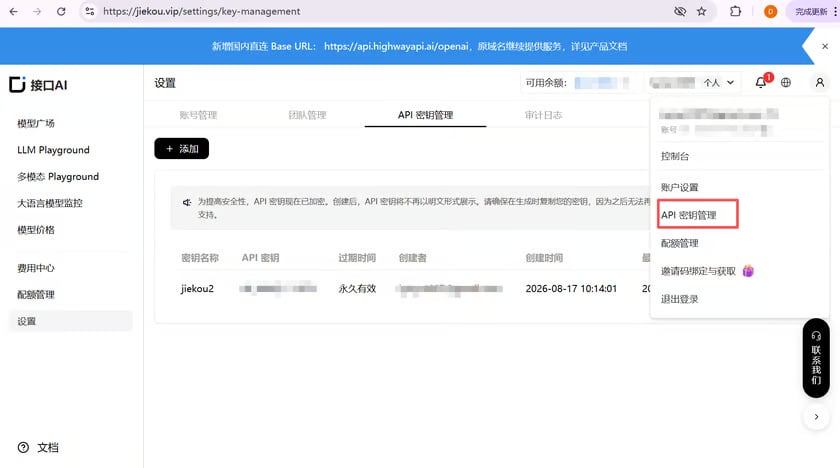
Go to the admin console, click “My” in the upper right corner, and select “API Key Management” from the dropdown.
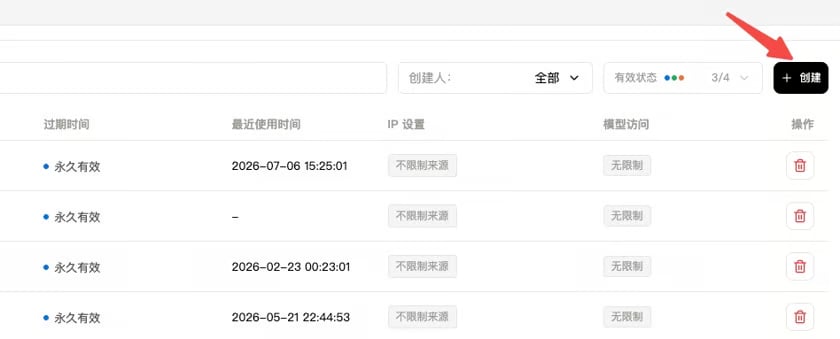
Click “Create” and enter a key name. We recommend using a name that’s easy to recognize, so you can tell keys with different purposes apart later in the console.
Click to copy and record the generated Key. It cannot be viewed again in the console, so please store it safely for future use.
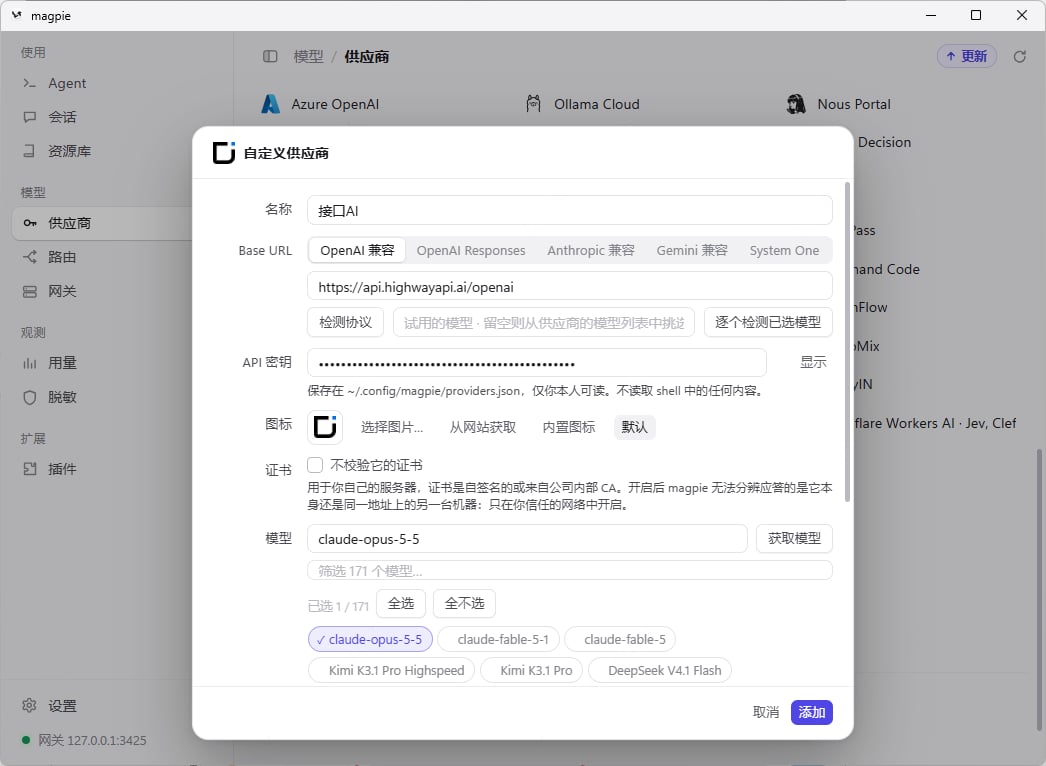
Enter the model ID or click “Fetch Models” to view the model list, then click “Add” to connect
Last modified on November 5, 2026
{"docsConfig":{"theme":"aspen","$schema":"https://mintlify.com/docs.json","name":"JieKou AI Docs","description":"接口AI 开发者文档:大语言模型与图像、视频、音频等多模态模型 API 的接入、调用与计费说明。","colors":{"primary":"#000000","light":"#0071E3","dark":"#0071E3"},"logo":{"light":"https://mintcdn.com/jiekou/Mf1wGBLqNABiRgF8/logo/light.svg?fit=max\u0026auto=format\u0026n=Mf1wGBLqNABiRgF8\u0026q=85\u0026s=81df34bfa762625ad3a4e18f59a81a0e","dark":"https://mintcdn.com/jiekou/Mf1wGBLqNABiRgF8/logo/dark.svg?fit=max\u0026auto=format\u0026n=Mf1wGBLqNABiRgF8\u0026q=85\u0026s=b81968885d04f4c09c4058bad9c364e1","href":"https://jiekou.vip"},"favicon":"https://mintcdn.com/jiekou/M__ek7klV-HYX16k/favicon.ico?fit=max\u0026auto=format\u0026n=M__ek7klV-HYX16k\u0026q=85\u0026s=7fb1bfe34418ab40c7c6025450bf40e0","navbar":{"links":[{"href":"https://jiekou.vip/models-console/library","label":"控制台"}],"primary":{"type":"button","label":"官网首页","href":"https://jiekou.vip"}},"seo":{"metatags":{"og:site_name":"接口AI 文档中心","application-name":"接口AI 文档中心","apple-mobile-web-app-title":"接口AI 文档中心"},"organization":{"name":"接口AI","url":"https://jiekou.ai"},"indexing":"all"},"contextual":{"options":["copy","view","chatgpt","claude","perplexity","mcp","add-mcp","cursor","vscode"],"display":"header"},"metadata":{"timestamp":true},"markdown":{"instructions":["JieKou AI model APIs are OpenAI-compatible. Base URL for users in mainland China (direct, no VPN): https://api.highwayapi.ai/openai; elsewhere: https://api.jiekou.ai/openai. Anthropic-compatible base URL: https://api.highwayapi.ai/anthropic or https://api.jiekou.ai/anthropic.","Authenticate with `Authorization: Bearer \u003cAPI_KEY>`; with Anthropic SDKs or Claude Code, pass the same key as `ANTHROPIC_AUTH_TOKEN`. Users create keys at https://jiekou.ai/settings/key-management. Never print or hardcode a real key.","Get current model IDs from GET https://api.jiekou.ai/openai/v1/models instead of reusing model names from memory."]},"styling":{"latex":true},"navigation":{"languages":[{"language":"zh","default":true,"href":"docs/home"},{"language":"en","href":"en/docs/home"},{"language":"es","href":"es/docs/home"},{"language":"pt-BR","href":"pt/docs/home"},{"language":"fr","href":"fr/docs/home"},{"language":"de","href":"de/docs/home"},{"language":"ja","href":"ja/docs/home"},{"language":"ru","href":"ru/docs/home"}]}},"deployment":{"deploymentMetadataValue":{"subdomain":"jiekou","hasAudioNarration":false,"actualSubdomain":"jiekou","customDomains":["docs.jiekou.ai"],"gitSource":{"type":"github","owner":"jiekouai","repo":"jiekou-docs","deployBranch":"main","contentDirectory":"","isPrivate":true,"mountPath":"","label":""},"chroma":{"liveDeploymentHistoryId":"6aec4d31dd9d9f5b04d731dc","collectionId":"43f0ff20-5cf6-4ba4-85f4-be81fd3b9627","schemaVersion":"v3","latestBuiltDeploymentHistoryId":"6aec4d31dd9d9f5b04d731dc"},"entitlements":{},"buildId":"6aec4d31dd9d9f5b04d731dc","clientVersion":"0.0.4067","searchFilterCounts":[{"language":"de","tag":"Leitfaden für Modelldienste","count":35},{"language":"zh","tag":"模型服务用户指南","count":35},{"language":"en","tag":"Model Service Guide","count":35},{"language":"es","tag":"Guía del servicio de modelos","count":35},{"language":"fr","tag":"Guide du service de modèles","count":35},{"language":"ja","tag":"モデルサービスガイド","count":35},{"language":"pt-BR","tag":"Guia do serviço de modelos","count":35},{"language":"ru","tag":"Руководство по сервису моделей","count":35},{"language":"de","tag":"Einrichtung von Drittanbieter-Tools","count":22},{"language":"zh","tag":"第三方工具配置","count":22},{"language":"zh","tag":"模型服务 API 手册","count":22},{"language":"en","tag":"Third-party Tool Setup","count":22},{"language":"en","tag":"Model Service API Reference","count":22},{"language":"es","tag":"Configuración de herramientas de terceros","count":22},{"language":"fr","tag":"Configuration des outils tiers","count":22},{"language":"ja","tag":"サードパーティツール設定","count":22},{"language":"pt-BR","tag":"Configuração de ferramentas de terceiros","count":22},{"language":"ru","tag":"Настройка сторонних инструментов","count":22},{"language":"de","tag":"API-Referenz für Modelldienste","count":19},{"language":"es","tag":"Referencia de API del servicio de modelos","count":19},{"language":"fr","tag":"Référence API du service de modèles","count":19},{"language":"ja","tag":"モデルサービス API リファレンス","count":19},{"language":"pt-BR","tag":"Referência da API do serviço de modelos","count":19},{"language":"ru","tag":"Справочник API сервиса моделей","count":19},{"language":"zh","tag":"账号用户指南","count":16},{"language":"en","tag":"Account Guide","count":16},{"language":"de","tag":"Kontoleitfaden","count":14},{"language":"es","tag":"Guía de cuenta","count":14},{"language":"fr","tag":"Guide du compte","count":14},{"language":"ja","tag":"アカウントガイド","count":14},{"language":"pt-BR","tag":"Guia da conta","count":14},{"language":"ru","tag":"Руководство по аккаунту","count":14},{"language":"de","tag":"LLM API","count":9},{"language":"zh","tag":"大语言模型 API","count":9},{"language":"en","tag":"LLM API","count":9},{"language":"es","tag":"API de LLM","count":9},{"language":"fr","tag":"API LLM","count":9},{"language":"ja","tag":"LLM API","count":9},{"language":"pt-BR","tag":"API de LLM","count":9},{"language":"ru","tag":"API больших языковых моделей","count":9},{"language":"zh","tag":"账号管理","count":8},{"language":"en","tag":"Account Management","count":8},{"language":"de","tag":"FAQ","count":7},{"language":"zh","tag":"常见问题","count":7},{"language":"en","tag":"FAQ","count":7},{"language":"es","tag":"Preguntas frecuentes","count":7},{"language":"fr","tag":"FAQ","count":7},{"language":"ja","tag":"FAQ","count":7},{"language":"pt-BR","tag":"Perguntas frequentes","count":7},{"language":"ru","tag":"Часто задаваемые вопросы","count":7},{"language":"de","tag":"Große Sprachmodelle","count":6},{"language":"de","tag":"Kontoverwaltung","count":6},{"language":"zh","tag":"大语言","count":6},{"language":"en","tag":"Large Language Models","count":6},{"language":"es","tag":"Modelos de lenguaje","count":6},{"language":"es","tag":"Gestión de cuenta","count":6},{"language":"fr","tag":"Grands modèles de langage","count":6},{"language":"fr","tag":"Gestion du compte","count":6},{"language":"ja","tag":"大規模言語モデル","count":6},{"language":"ja","tag":"アカウント管理","count":6},{"language":"pt-BR","tag":"Modelos de linguagem","count":6},{"language":"pt-BR","tag":"Gerenciamento da conta","count":6},{"language":"ru","tag":"Большие языковые модели","count":6},{"language":"ru","tag":"Управление аккаунтом","count":6},{"language":"de","tag":"Bilder","count":5},{"language":"zh","tag":"图像","count":5},{"language":"en","tag":"Images","count":5},{"language":"es","tag":"Imágenes","count":5},{"language":"fr","tag":"Images","count":5},{"language":"ja","tag":"画像","count":5},{"language":"pt-BR","tag":"Imagens","count":5},{"language":"ru","tag":"Изображения","count":5},{"language":"de","tag":"API-Grundlagen","count":4},{"language":"zh","tag":"API 基础","count":4},{"language":"en","tag":"API Basics","count":4},{"language":"es","tag":"Conceptos básicos de API","count":4},{"language":"fr","tag":"Bases de l'API","count":4},{"language":"ja","tag":"API の基本","count":4},{"language":"pt-BR","tag":"Noções básicas da API","count":4},{"language":"ru","tag":"Основы API","count":4}]},"assistantConfig":{},"basePath":"","hasChatPermissions":false,"hasWebMcpPermissions":false,"toggles":[{"name":"kill-isr","enabled":true,"variant":{"name":"disabled","enabled":false,"feature_enabled":true},"impressionData":false},{"name":"agent-mintlify-slack","enabled":true,"variant":{"name":"disabled","enabled":false,"feature_enabled":true},"impressionData":false},{"name":"agent-integrations-settings","enabled":true,"variant":{"name":"disabled","enabled":false,"feature_enabled":true},"impressionData":false},{"name":"rbac-expansion","enabled":true,"variant":{"name":"disabled","enabled":false,"feature_enabled":true},"impressionData":false},{"name":"automations-pr-grouping","enabled":true,"variant":{"name":"disabled","enabled":false,"feature_enabled":true},"impressionData":false},{"name":"custom-prefix","enabled":true,"variant":{"name":"disabled","enabled":false,"feature_enabled":true},"impressionData":false},{"name":"analytics-v7","enabled":true,"variant":{"name":"disabled","enabled":false,"feature_enabled":true},"impressionData":false},{"name":"user-flows-analytics","enabled":true,"variant":{"name":"disabled","enabled":false,"feature_enabled":true},"impressionData":false},{"name":"no-publish-flow","enabled":true,"variant":{"name":"disabled","enabled":false,"feature_enabled":true},"impressionData":false},{"name":"workos-onboarding","enabled":true,"variant":{"name":"disabled","enabled":false,"feature_enabled":true},"impressionData":false},{"name":"llms-txt-v2","enabled":true,"variant":{"name":"disabled","enabled":false,"feature_enabled":true},"impressionData":false},{"name":"snapshot-serving-live","enabled":true,"variant":{"name":"disabled","enabled":false,"feature_enabled":true},"impressionData":false},{"name":"stripTemperatureMiddleware","enabled":true,"variant":{"name":"disabled","enabled":false,"feature_enabled":true},"impressionData":false},{"name":"support-platform-pylon-zendesk","enabled":true,"variant":{"name":"disabled","enabled":false,"feature_enabled":true},"impressionData":false},{"name":"snapshot-serving","enabled":true,"variant":{"name":"disabled","enabled":false,"feature_enabled":true},"impressionData":false},{"name":"instant-rollback","enabled":true,"variant":{"name":"disabled","enabled":false,"feature_enabled":true},"impressionData":false},{"name":"granular-notifications-server","enabled":true,"variant":{"name":"disabled","enabled":false,"feature_enabled":true},"impressionData":false},{"name":"granular-notifications","enabled":true,"variant":{"name":"disabled","enabled":false,"feature_enabled":true},"impressionData":false},{"name":"automations-fable","enabled":true,"variant":{"name":"disabled","enabled":false,"feature_enabled":true},"impressionData":false},{"name":"fixed-ai-action-pricing","enabled":true,"variant":{"name":"disabled","enabled":false,"feature_enabled":true},"impressionData":false},{"name":"automation-resolve-merge-conflict","enabled":true,"variant":{"name":"disabled","enabled":false,"feature_enabled":true},"impressionData":false},{"name":"scoped-publishing","enabled":true,"variant":{"name":"disabled","enabled":false,"feature_enabled":true},"impressionData":false},{"name":"mintql","enabled":true,"variant":{"name":"disabled","enabled":false,"feature_enabled":true},"impressionData":false},{"name":"page-level-analytics","enabled":true,"variant":{"name":"disabled","enabled":false,"feature_enabled":true},"impressionData":false},{"name":"editor-version-history-v2","enabled":true,"variant":{"name":"disabled","enabled":false,"feature_enabled":true},"impressionData":false},{"name":"billing-page-v2","enabled":true,"variant":{"name":"disabled","enabled":false,"feature_enabled":true},"impressionData":false},{"name":"full-page-search","enabled":true,"variant":{"name":"disabled","enabled":false,"feature_enabled":true},"impressionData":false},{"name":"workspace-projects","enabled":true,"variant":{"name":"disabled","enabled":false,"feature_enabled":true},"impressionData":false},{"name":"assistant-v5","enabled":true,"variant":{"name":"disabled","enabled":false,"feature_enabled":true},"impressionData":false},{"name":"fork-pr-previews","enabled":true,"variant":{"name":"disabled","enabled":false,"feature_enabled":true},"impressionData":false},{"name":"revalidation-jwt","enabled":true,"variant":{"name":"disabled","enabled":false,"feature_enabled":true},"impressionData":false},{"name":"vite-origin","enabled":true,"variant":{"name":"disabled","enabled":false,"feature_enabled":true},"impressionData":false},{"name":"workos-sso-scim","enabled":true,"variant":{"name":"disabled","enabled":false,"feature_enabled":true},"impressionData":false},{"name":"hobby-abuse-scan","enabled":true,"variant":{"name":"disabled","enabled":false,"feature_enabled":true},"impressionData":false},{"name":"dashboard-inbox","enabled":true,"variant":{"name":"disabled","enabled":false,"feature_enabled":true},"impressionData":false},{"name":"workos-signup","enabled":true,"variant":{"name":"disabled","enabled":false,"feature_enabled":true},"impressionData":false},{"name":"turbopuffer-dual-write","enabled":true,"variant":{"name":"disabled","enabled":false,"feature_enabled":true},"impressionData":false},{"name":"workos-enabled","enabled":true,"variant":{"name":"disabled","enabled":false,"feature_enabled":true},"impressionData":false},{"name":"approve-review-flow","enabled":true,"variant":{"name":"disabled","enabled":false,"feature_enabled":true},"impressionData":false},{"name":"sso-setup-deadline-banner","enabled":true,"variant":{"name":"disabled","enabled":false,"feature_enabled":true},"impressionData":false},{"name":"turbopuffer-serve","enabled":true,"variant":{"name":"disabled","enabled":false,"feature_enabled":true},"impressionData":false},{"name":"live-agents","enabled":true,"variant":{"name":"disabled","enabled":false,"feature_enabled":true},"impressionData":false}],"googleFontsInlined":false},"customCss":[{"filePath":"global.css","content":"*[style*=\"rgb(124, 58, 237)\"],*[style*=\"#7c3aed\"],*[style*=\"7c3aed\"]{background-color:#F5F5F5!important;background:#F5F5F5!important}#navbar .nav-tabs-item[data-active=\"true\"],#navbar .nav-tabs-item[aria-current=\"location\"]{background-color:transparent!important;background:transparent!important}#sidebar *[class*=\"active\"],#sidebar *[aria-selected=\"true\"],#sidebar *[data-active=\"true\"]{background-color:#F5F5F5!important}#sidebar button.bg-\\\\[var\\\\(--primary\\\\) \\\\],\n#sidebar a.bg-\\\\[var\\\\(--primary\\\\) \\\\]{background-color:#F5F5F5!important}.table-container{overflow-x:scroll;box-shadow:3px 0 10px 0 rgba(25, 85, 140, .05)}.table-container table{margin-top:0}.table thead{background-color:#eef2f150}.table thead th{padding:8px 10px;text-align:left;white-space:nowrap}.table tbody td{padding:6px 10px}.table-big thead th{padding:12px 10px}.table-big tbody td{padding:10px 10px}.table .list-col{position:relative;padding-left:31px;margin:0;text-align:left}.table .list-col::before{content:\"•\";position:absolute;left:18px;top:6px;color:#16b063b0}.table .list-sub-col{position:relative;padding-left:46px;margin:0;text-align:left}.table .list-sub-col::before{content:\"\";position:absolute;left:36px;top:15px;width:4px;height:4px;background-color:#16b06380}.table .list-grandson-col{position:relative;padding-left:60px;margin:0;text-align:left}.table .list-grandson-col::before{content:\"\";position:absolute;left:50px;top:15px;width:4px;height:4px;border-radius:100%;border:1px solid #16b06380}.table .list-grandson-sub-col{position:relative;padding-left:66px;margin:0;text-align:left}.table .list-grandson-sub-col::before{content:\"\";position:absolute;left:58px;top:16px;width:3px;height:3px;border-radius:100%;border:1px solid #16b06350}.table .type-desc{display:inline-block;margin-left:12px;color:#9e9c98b0}.table .type-desc-narrow{margin-left:4px}.table .delete{text-decoration:line-through}.table .deprecated{display:inline-block;color:#f23030;margin-bottom:4px}.table .new-field{display:inline-block;margin-bottom:4px;color:#22ad5c}.table .moved{display:inline-block;margin-bottom:4px;color:#f27430}.table .inline-block{display:inline-block}.table .mt-1{margin-top:4px}.table .mt-2{margin-top:8px}.table .ml-0{margin-left:0}.model-id-item{padding:.125rem .5rem;color:#111827;font-size:.875em;font-weight:500;font-variant-ligatures:none;overflow-wrap:break-word;border-radius:var(--rounded-md, .375rem);background-color:rgb(var(--gray-100) / .5)}.param_text{font-size:14px}.param_frame{width:100%;padding:0 8px}.unified-api-container span[data-as=p]{display:block;margin-top:1.25em;margin-bottom:1.25em}.unified-api-inline-label{padding:2px 8px;border-radius:6px;background-color:#F1EFF580;color:#111827;font-size:12px;font-family:var(--font-jetbrains-mono), ui-monospace, SFMono-Regular, Menlo, Monaco, Consolas, \"Liberation Mono\", \"Courier New\", monospace}.unified-api-selector-container{margin-bottom:16px}.unified-api-description{padding:6px 8px;font-size:15px;color:#4f4e4a;border-radius:6px;border-left:4px solid #fafafa;background-color:#fdfdfd}.unified-api-selector-label{display:block;margin-top:36px;margin-bottom:12px;font-size:15px;font-weight:500;color:#374151;line-height:1.25}.unified-api-selector-wrapper{position:relative;max-width:300px}.unified-api-selector-button{height:40px;width:100%;border-radius:6px;border:1px solid #d1d5db;background-color:#ffffff;padding:0 32px 0 12px;font-size:14px;color:#374151;outline:none;cursor:pointer;text-align:left;display:flex;align-items:center;justify-content:space-between;transition:border-color 0.2s ease-in-out, box-shadow 0.2s ease-in-out;box-shadow:0 1px 2px 0 rgba(0, 0, 0, 0.05);font-family:var(--font-jetbrains-mono), ui-monospace, SFMono-Regular, Menlo, Monaco, Consolas, \"Liberation Mono\", \"Courier New\", monospace}.unified-api-selector-button:hover{border-color:#9ca3af}.unified-api-selector-button:focus{border-color:#3b82f6;box-shadow:0 0 0 3px rgba(59, 130, 246, 0.1)}.unified-api-selector-arrow{transition:transform 0.2s ease-in-out}.unified-api-selector-arrow.open{transform:rotate(180deg)}.unified-api-selector-dropdown{position:absolute;top:100%;left:0;right:0;z-index:50;margin-top:4px;border-radius:6px;border:1px solid #d1d5db;background-color:#ffffff;box-shadow:0 10px 25px -3px rgba(0, 0, 0, 0.2), 0 4px 10px -2px rgba(0, 0, 0, 0.15);max-height:275px;overflow:hidden}.unified-api-selector-dropdown::after{content:'';position:sticky;bottom:0;left:0;right:0;height:12px;background:linear-gradient(to top, rgba(255, 255, 255, 1) 0%, rgba(255, 255, 255, 0.5) 50%, rgba(255, 255, 255, 0.3) 100%);z-index:10;pointer-events:none;display:block;margin-top:-12px}.unified-api-selector-option{padding:10px 12px;font-size:14px;color:#374151;cursor:pointer;background-color:#ffffff}.unified-api-selector-option:not(:last-child){margin-top:1px;margin-bottom:1px;border-bottom:1px solid #f5f5f5}.unified-api-selector-option.selected{background-color:#f3f4f6}.unified-api-selector-option:hover:not(.selected){background-color:#f8fafc}.dark .unified-api-selector-label{color:inherit}.dark .unified-api-search-container{background-color:#1f2937}.dark .unified-api-search-input{background-color:#1f2937;color:#e5e7eb}.dark .unified-api-selector-button{border:1px solid #4b5563;background-color:#1f2937;color:#e5e7eb;box-shadow:0 1px 2px 0 rgba(0, 0, 0, 0.3)}.dark .unified-api-selector-button:hover{border-color:#6b7280}.dark .unified-api-selector-button:focus{border-color:#3b82f6;box-shadow:0 0 0 3px rgba(59, 130, 246, 0.2)}.dark .unified-api-selector-dropdown{border:1px solid #4b5563;background-color:#1f2937;box-shadow:0 10px 25px -3px rgba(0, 0, 0, 0.4), 0 4px 10px -2px rgba(0, 0, 0, 0.3)}.dark .unified-api-selector-dropdown::after{background:linear-gradient(to top, rgba(31, 41, 55, 1) 0%, rgba(31, 41, 55, 0.5) 50%, rgba(31, 41, 55, 0.3) 100%)}.dark .unified-api-selector-option{color:#e5e7eb;background-color:#1f2937}.dark .unified-api-selector-option:not(:last-child){border-bottom:1px solid #374151}.dark .unified-api-selector-option.selected{background-color:#374151}.dark .unified-api-selector-option:hover:not(.selected){background-color:#2d3748}.dark .unified-api-description{padding:0;background-color:inherit;color:#e5e7eb;border-left:none}.unified-api-loading-container{display:flex;flex-direction:column;align-items:center;justify-content:center;padding:48px 24px;text-align:center}.unified-api-loading-spinner{width:32px;height:32px;border:3px solid #f3f4f6;border-top:3px solid #7c3aed;border-radius:50%;animation:unified-api-spin 1s linear infinite;margin-bottom:16px}.unified-api-loading-text{color:#6b7280;font-size:14px;margin:0}@keyframes unified-api-spin{0%{transform:rotate(0deg)}100%{transform:rotate(360deg)}}.unified-api-search-container{padding:8px 12px;border-bottom:1px solid #e5e7eb;background-color:#fefefe}.unified-api-search-input{width:100%;padding:8px 12px;border:1px solid #d1d5db;border-radius:4px;font-size:14px;background-color:#ffffff;color:#374151;outline:none;transition:border-color 0.2s ease}.unified-api-search-input:focus{border-color:#7c3aed;box-shadow:0 0 0 3px rgba(124, 58, 237, 0.1)}.unified-api-search-input::placeholder{color:#9ca3af}.unified-api-options-container{padding-bottom:12px;max-height:calc(275px - 48px);overflow-y:auto}.unified-api-no-results{padding:16px 12px;text-align:center;color:#6b7280;font-size:14px;font-style:italic}:root{--nv-toc-band-color: var(--primary)}.dark{--nv-toc-band-color: var(--primary-light)}html[data-nv-toc-band] #table-of-contents [data-layout-item=\"toc-item-link\"],html[data-nv-toc-band] #table-of-contents [data-layout-item=\"toc-item\"]{border-left-color:transparent}:root{--nv-toc-band-from: 30%;--nv-toc-band-to: 0%;--nv-toc-band-fade: 100%}html[data-nv-toc-band] #table-of-contents[data-look=\"default\"] [data-layout-item=\"toc-item\"][data-active]>[data-layout-item=\"toc-item-link\"]:not([data-nv-in-view]){color:rgb(var(--gray-600))}html[data-nv-toc-band] #table-of-contents[data-look=\"default\"] [data-layout-item=\"toc-item\"] [data-layout-item=\"toc-item\"][data-active]>[data-layout-item=\"toc-item-link\"]:not([data-nv-in-view]){color:rgb(var(--gray-500))}html.dark[data-nv-toc-band] #table-of-contents[data-look=\"default\"] [data-layout-item=\"toc-item\"][data-active]>[data-layout-item=\"toc-item-link\"]:not([data-nv-in-view]),html.dark[data-nv-toc-band] #table-of-contents[data-look=\"default\"] [data-layout-item=\"toc-item\"] [data-layout-item=\"toc-item\"][data-active]>[data-layout-item=\"toc-item-link\"]:not([data-nv-in-view]){color:rgb(var(--gray-400))}html[data-nv-toc-band] #table-of-contents[data-look=\"default\"] [data-layout-item=\"toc-item\"][data-active]>[data-layout-item=\"toc-item-link\"]:not([data-nv-in-view]){text-shadow:none}html[data-nv-toc-band] #table-of-contents[data-look=\"default\"] [data-layout-item=\"toc-item\"][data-active]>[data-layout-item=\"toc-item-link\"]:not([data-nv-in-view]):hover,html[data-nv-toc-band] #table-of-contents[data-look=\"default\"] [data-layout-item=\"toc-item\"] [data-layout-item=\"toc-item\"][data-active]>[data-layout-item=\"toc-item-link\"]:not([data-nv-in-view]):hover{color:rgb(var(--gray-900))}html.dark[data-nv-toc-band] #table-of-contents[data-look=\"default\"] [data-layout-item=\"toc-item\"][data-active]>[data-layout-item=\"toc-item-link\"]:not([data-nv-in-view]):hover,html.dark[data-nv-toc-band] #table-of-contents[data-look=\"default\"] [data-layout-item=\"toc-item\"] [data-layout-item=\"toc-item\"][data-active]>[data-layout-item=\"toc-item-link\"]:not([data-nv-in-view]):hover{color:rgb(var(--gray-300))}#table-of-contents [data-layout-item=\"toc-item-link\"][data-nv-in-view]{color:rgb(var(--gray-900))}.dark #table-of-contents [data-layout-item=\"toc-item-link\"][data-nv-in-view]{color:rgb(var(--gray-100))}#table-of-contents nav{position:relative;isolation:isolate}.nv-toc-band{position:absolute;inset:0;z-index:-1;pointer-events:none;background:linear-gradient(to right, rgb(var(--nv-toc-band-color) / 0.3), transparent);clip-path:inset(0 0 100% round 8px)}.nv-toc-band[data-ready]{transition:clip-path 300ms ease-out}@supports (background: linear-gradient(in oklab, red, blue)) and (color: color-mix(in oklab, red, blue)){.nv-toc-band{background:linear-gradient(\n to right in oklab,\n color-mix(in oklab, rgb(var(--nv-toc-band-color)) var(--nv-toc-band-from), transparent),\n color-mix(in oklab, rgb(var(--nv-toc-band-color)) var(--nv-toc-band-to), transparent)\n var(--nv-toc-band-fade)\n )}}@media (prefers-reduced-motion: reduce){.nv-toc-band[data-ready]{transition:none}}#content-container:has(#content[data-page-href$=\"/docs/home\"]){max-width:72rem}"}],"page":{"pagePath":"en/docs/integration/magpie","slug":"/en/docs/integration/magpie","pageMetadata":{"title":"Magpie","og:title":"Interface AI × Magpie","description":null,"href":"/en/docs/integration/magpie"},"pageType":"default","mdx":{"mdxSource":{"compiledSource":"\"use strict\";const{Fragment:_Fragment,jsx:_jsx,jsxs:_jsxs}=arguments[0];const{useMDXComponents:_provideComponents}=arguments[0];function _createMdxContent(props){const _components={a:`a`,li:`li`,ol:`ol`,p:`p`,ul:`ul`,..._provideComponents(),...props.components},{Heading,OptimizedImage}=_components;if(!Heading)_missingMdxReference(`Heading`,true);if(!OptimizedImage)_missingMdxReference(`OptimizedImage`,true);return _jsxs(_Fragment,{children:[_jsx(Heading,{level:`2`,id:`what-is-magpie`,children:`What is Magpie?`}),`\n`,_jsx(_components.p,{children:`magpie lets every Agent use every model. Add each provider just once—DeepSeek, Kimi, GLM, Qwen, OpenRouter, Ollama, or the Claude and ChatGPT subscriptions you’re already paying for—then pick any of them with one click in Codex, Claude Code, Gemini CLI, or any Agent.`}),`\n`,_jsx(_components.p,{children:`Every Agent keeps its models in its own config file, each with a different format, and keys and base URLs are managed separately. A subscription you pay for can only be used in one Agent. magpie brings all of this together in one app and one local gateway:`}),`\n`,_jsxs(_components.ul,{children:[`\n`,_jsx(_components.li,{children:`Any Agent with any model, chosen from a single table. magpie only changes the one key in the Agent config that needs changing.`}),`\n`,_jsx(_components.li,{children:`One provider works everywhere: API keys, local models, or your logged-in Claude, ChatGPT, Copilot, Gemini, and Grok subscriptions.`}),`\n`,_jsx(_components.li,{children:`No interruption when quota runs out: the next account from the same provider takes over automatically, and routing groups can switch to other models or providers, so the Agent never sees an error. If you have only one account and no routing group, there’s nothing to switch to, and the error is returned to the Agent as-is.`}),`\n`,_jsx(_components.li,{children:`Keys never leave your computer: once you enable redaction in Settings → Privacy (off by default), keys, passwords, and email addresses in prompts are redacted locally before the request leaves your computer, and swapped back to their original values in the response.`}),`\n`]}),`\n`,_jsx(_components.p,{children:`If you use more than one Agent, more than one provider, or more than one account, it’s for you. If you use just one Agent with only its own subscription and that’s enough, you don’t need magpie.`}),`\n`,_jsx(_components.p,{children:`Supports macOS, Windows, and Linux (menu bar app, window, TUI, web interface, and CLI), and can also run on Docker and Termux.`}),`\n`,_jsx(Heading,{level:`2`,id:`how-to-connect-interface-ai-to-magpie`,children:`How to Connect Interface AI to Magpie?`}),`\n`,_jsx(Heading,{level:`3`,id:`get-an-api-key`,children:`Get an API Key`}),`\n`,_jsxs(_components.ol,{children:[`\n`,_jsxs(_components.li,{children:[`\n`,_jsx(_components.p,{children:`Log in to the official website jiekou.ai to sign up.`}),`\n`]}),`\n`,_jsxs(_components.li,{children:[`\n`,_jsx(_components.p,{children:`Go to the admin console, click “My” in the upper right corner, and select “API Key Management” from the dropdown.`}),`\n`,_jsx(OptimizedImage,{src:`https://mintcdn.com/jiekou/f-T_E3hNj8sGYUsR/images/magpie-01.png?fit=max\u0026auto=format\u0026n=f-T_E3hNj8sGYUsR\u0026q=85\u0026s=c123fc8d8326ed7b03e6275713012eb5`,alt:``,\"data-og-width\":`840`,width:`840`,\"data-og-height\":`468`,height:`468`,\"data-path\":`images/magpie-01.png`,\"data-optimize\":`true`,\"data-opv\":`3`,srcset:`https://mintcdn.com/jiekou/f-T_E3hNj8sGYUsR/images/magpie-01.png?w=280\u0026fit=max\u0026auto=format\u0026n=f-T_E3hNj8sGYUsR\u0026q=85\u0026s=9dce8ccf3782c2915545a959a52bf1a9 280w, https://mintcdn.com/jiekou/f-T_E3hNj8sGYUsR/images/magpie-01.png?w=560\u0026fit=max\u0026auto=format\u0026n=f-T_E3hNj8sGYUsR\u0026q=85\u0026s=4ff608d016fc1bcc858686190103978e 560w, https://mintcdn.com/jiekou/f-T_E3hNj8sGYUsR/images/magpie-01.png?w=840\u0026fit=max\u0026auto=format\u0026n=f-T_E3hNj8sGYUsR\u0026q=85\u0026s=e42b7c6ee235e1436f8431d09c79258e 840w, https://mintcdn.com/jiekou/f-T_E3hNj8sGYUsR/images/magpie-01.png?w=1100\u0026fit=max\u0026auto=format\u0026n=f-T_E3hNj8sGYUsR\u0026q=85\u0026s=f9a3079b643f4d8817db37e56c352b5b 1100w, https://mintcdn.com/jiekou/f-T_E3hNj8sGYUsR/images/magpie-01.png?w=1650\u0026fit=max\u0026auto=format\u0026n=f-T_E3hNj8sGYUsR\u0026q=85\u0026s=e49c9206d0d5acf8531e8051adf1ec9a 1650w, https://mintcdn.com/jiekou/f-T_E3hNj8sGYUsR/images/magpie-01.png?w=2500\u0026fit=max\u0026auto=format\u0026n=f-T_E3hNj8sGYUsR\u0026q=85\u0026s=1df482b1ba6ed567277060de0211ee23 2500w`}),`\n`]}),`\n`,_jsxs(_components.li,{children:[`\n`,_jsx(_components.p,{children:`Click “Create” and enter a key name. We recommend using a name that’s easy to recognize, so you can tell keys with different purposes apart later in the console.`}),`\n`,_jsx(OptimizedImage,{src:`https://mintcdn.com/jiekou/f-T_E3hNj8sGYUsR/images/magpie-02.png?fit=max\u0026auto=format\u0026n=f-T_E3hNj8sGYUsR\u0026q=85\u0026s=6e87360fa491250e85699d119031cbf4`,alt:``,\"data-og-width\":`840`,width:`840`,\"data-og-height\":`339`,height:`339`,\"data-path\":`images/magpie-02.png`,\"data-optimize\":`true`,\"data-opv\":`3`,srcset:`https://mintcdn.com/jiekou/f-T_E3hNj8sGYUsR/images/magpie-02.png?w=280\u0026fit=max\u0026auto=format\u0026n=f-T_E3hNj8sGYUsR\u0026q=85\u0026s=a1ab407593e12785d7844dfb72e98f07 280w, https://mintcdn.com/jiekou/f-T_E3hNj8sGYUsR/images/magpie-02.png?w=560\u0026fit=max\u0026auto=format\u0026n=f-T_E3hNj8sGYUsR\u0026q=85\u0026s=533af97304ce937fac1b405671f1c3d9 560w, https://mintcdn.com/jiekou/f-T_E3hNj8sGYUsR/images/magpie-02.png?w=840\u0026fit=max\u0026auto=format\u0026n=f-T_E3hNj8sGYUsR\u0026q=85\u0026s=2bbd6d6d8432fde9d60c5999975ceb84 840w, https://mintcdn.com/jiekou/f-T_E3hNj8sGYUsR/images/magpie-02.png?w=1100\u0026fit=max\u0026auto=format\u0026n=f-T_E3hNj8sGYUsR\u0026q=85\u0026s=66c6e91e700be5c000a7507ebf824e43 1100w, https://mintcdn.com/jiekou/f-T_E3hNj8sGYUsR/images/magpie-02.png?w=1650\u0026fit=max\u0026auto=format\u0026n=f-T_E3hNj8sGYUsR\u0026q=85\u0026s=7f8a09ee2735fa998dba16989fc19b28 1650w, https://mintcdn.com/jiekou/f-T_E3hNj8sGYUsR/images/magpie-02.png?w=2500\u0026fit=max\u0026auto=format\u0026n=f-T_E3hNj8sGYUsR\u0026q=85\u0026s=43d7090496aaa7e77ad2917c94901ae4 2500w`}),`\n`]}),`\n`,_jsxs(_components.li,{children:[`\n`,_jsx(_components.p,{children:`Click to copy and record the generated Key. It cannot be viewed again in the console, so please store it safely for future use.`}),`\n`]}),`\n`]}),`\n`,_jsx(Heading,{level:`3`,id:`connect-interface-ai-to-magpie`,children:`Connect Interface AI to Magpie`}),`\n`,_jsxs(_components.ol,{children:[`\n`,_jsxs(_components.li,{children:[`\n`,_jsx(_components.p,{children:`Add a custom provider under Providers`}),`\n`,_jsx(OptimizedImage,{src:`https://mintcdn.com/jiekou/eY20tqhq6niA3Adp/images/magpie-03.png?fit=max\u0026auto=format\u0026n=eY20tqhq6niA3Adp\u0026q=85\u0026s=fb3087b909f1f06080f6ca4813ab44ef`,alt:``,\"data-og-width\":`1046`,width:`1046`,\"data-og-height\":`766`,height:`766`,\"data-path\":`images/magpie-03.png`,\"data-optimize\":`true`,\"data-opv\":`3`,srcset:`https://mintcdn.com/jiekou/eY20tqhq6niA3Adp/images/magpie-03.png?w=280\u0026fit=max\u0026auto=format\u0026n=eY20tqhq6niA3Adp\u0026q=85\u0026s=4af6b36d24aee0227ba53a05ecdf0430 280w, https://mintcdn.com/jiekou/eY20tqhq6niA3Adp/images/magpie-03.png?w=560\u0026fit=max\u0026auto=format\u0026n=eY20tqhq6niA3Adp\u0026q=85\u0026s=70eab7396e6122f6e0493bd0825ac985 560w, https://mintcdn.com/jiekou/eY20tqhq6niA3Adp/images/magpie-03.png?w=840\u0026fit=max\u0026auto=format\u0026n=eY20tqhq6niA3Adp\u0026q=85\u0026s=d75572edcfd5ee16a56e4f9be691a538 840w, https://mintcdn.com/jiekou/eY20tqhq6niA3Adp/images/magpie-03.png?w=1100\u0026fit=max\u0026auto=format\u0026n=eY20tqhq6niA3Adp\u0026q=85\u0026s=87e85c797f104bb5b2b12ba78fa63d7a 1100w, https://mintcdn.com/jiekou/eY20tqhq6niA3Adp/images/magpie-03.png?w=1650\u0026fit=max\u0026auto=format\u0026n=eY20tqhq6niA3Adp\u0026q=85\u0026s=39fb8c0a8c10fbe10dc6fa1686ed185f 1650w, https://mintcdn.com/jiekou/eY20tqhq6niA3Adp/images/magpie-03.png?w=2500\u0026fit=max\u0026auto=format\u0026n=eY20tqhq6niA3Adp\u0026q=85\u0026s=fc08a511a366aa5ecb51a9d1dc163093 2500w`}),`\n`]}),`\n`,_jsxs(_components.li,{children:[`\n`,_jsx(_components.p,{children:`Paste the API Key you just copied, enter the URL, and select the API format (API Endpoint) that matches the model you want to call`}),`\n`]}),`\n`]}),`\n`,_jsxs(_components.ul,{children:[`\n`,_jsxs(_components.li,{children:[`Domestic direct-connection URL: `,_jsx(_components.a,{href:`https://api.highwayapi.ai/openai`,children:`https://api.highwayapi.ai/openai`})]}),`\n`,_jsxs(_components.li,{children:[`International URL: `,_jsx(_components.a,{href:`https://api.jiekou.ai/openai`,children:`https://api.jiekou.ai/openai`}),`\n`,_jsx(OptimizedImage,{src:`https://mintcdn.com/jiekou/eY20tqhq6niA3Adp/images/magpie-04.png?fit=max\u0026auto=format\u0026n=eY20tqhq6niA3Adp\u0026q=85\u0026s=8ffe91b383d1f6b8e217d0c306c53806`,alt:``,\"data-og-width\":`1046`,width:`1046`,\"data-og-height\":`766`,height:`766`,\"data-path\":`images/magpie-04.png`,\"data-optimize\":`true`,\"data-opv\":`3`,srcset:`https://mintcdn.com/jiekou/eY20tqhq6niA3Adp/images/magpie-04.png?w=280\u0026fit=max\u0026auto=format\u0026n=eY20tqhq6niA3Adp\u0026q=85\u0026s=0fa9fa56b30c61672f79d1459337da4f 280w, https://mintcdn.com/jiekou/eY20tqhq6niA3Adp/images/magpie-04.png?w=560\u0026fit=max\u0026auto=format\u0026n=eY20tqhq6niA3Adp\u0026q=85\u0026s=e5910d2a51433d8b4580a17543e54374 560w, https://mintcdn.com/jiekou/eY20tqhq6niA3Adp/images/magpie-04.png?w=840\u0026fit=max\u0026auto=format\u0026n=eY20tqhq6niA3Adp\u0026q=85\u0026s=93a7ac9b7a344a838d843a9aaab4d67f 840w, https://mintcdn.com/jiekou/eY20tqhq6niA3Adp/images/magpie-04.png?w=1100\u0026fit=max\u0026auto=format\u0026n=eY20tqhq6niA3Adp\u0026q=85\u0026s=0f7d1db589fb78a23d5f69e85a6e7080 1100w, https://mintcdn.com/jiekou/eY20tqhq6niA3Adp/images/magpie-04.png?w=1650\u0026fit=max\u0026auto=format\u0026n=eY20tqhq6niA3Adp\u0026q=85\u0026s=f19c065c952c3538e867c6b9481bf678 1650w, https://mintcdn.com/jiekou/eY20tqhq6niA3Adp/images/magpie-04.png?w=2500\u0026fit=max\u0026auto=format\u0026n=eY20tqhq6niA3Adp\u0026q=85\u0026s=c4ef2cf50bd18613540a40ec0e836d11 2500w`}),`\n`]}),`\n`]}),`\n`,_jsxs(_components.ol,{start:`3`,children:[`\n`,_jsx(_components.li,{children:`Enter the model ID or click “Fetch Models” to view the model list, then click “Add” to connect`}),`\n`]})]})}function MDXContent(props={}){const{wrapper:MDXLayout}={..._provideComponents(),...props.components};return MDXLayout?_jsx(MDXLayout,{...props,children:_jsx(_createMdxContent,{...props})}):_createMdxContent(props)}return{default:MDXContent};function _missingMdxReference(id,component){throw new Error(`Expected `+(component?`component`:`object`)+\" `\"+id+\"` to be defined: you likely forgot to import, pass, or provide it.\")}","frontmatter":{},"scope":{"config":{},"pageMetadata":{"title":"Magpie","og:title":"Interface AI × Magpie","description":null,"href":"/en/docs/integration/magpie"}}},"mdxSourceWithNoJs":null},"mdxExtracts":{"tableOfContents":[{"title":"What is Magpie?","slug":"what-is-magpie","depth":2,"children":[]},{"title":"How to Connect Interface AI to Magpie?","slug":"how-to-connect-interface-ai-to-magpie","depth":2,"children":[{"title":"Get an API Key","slug":"get-an-api-key","depth":3,"children":[]},{"title":"Connect Interface AI to Magpie","slug":"connect-interface-ai-to-magpie","depth":3,"children":[]}]}],"codeExamples":{}},"jsLinks":["/_mintlify/custom/jiekou/66d6c24ef801984b/scripts/remoteData.js","/_mintlify/custom/jiekou/8ae569e8e123640c/scripts/gen-web-info/config.js","/_mintlify/custom/jiekou/2b947a82b530b471/scripts/gen-web-info/index.js","/_mintlify/custom/jiekou/1b96e903eb2e285d/toc-band.js"],"subdomain":"jiekou","siteName":"JieKou AI Docs","title":"Interface AI × Magpie","navMaps":{"firstHrefInVersion":{},"firstHrefInLanguage":{"zh":{"href":"/docs/integration/magpie","matchLevel":1},"en":{"href":"/en/docs/integration/magpie","matchLevel":0},"es":{"href":"/es/docs/integration/magpie","matchLevel":1},"pt-BR":{"href":"/pt/docs/integration/magpie","matchLevel":1},"fr":{"href":"/fr/docs/integration/magpie","matchLevel":1},"de":{"href":"/de/docs/integration/magpie","matchLevel":1},"ja":{"href":"/ja/docs/integration/magpie","matchLevel":1},"ru":{"href":"/ru/docs/integration/magpie","matchLevel":1}}},"lastModified":"2026-11-05T09:04:57.665Z","gitLastModified":"2026-11-05T08:03:46.000Z","originalFileLocation":"en/docs/integration/magpie.mdx","locale":"en"},"headHtml":"\u003cscript data-mint-head>(function(){var d=document.documentElement,p=null;if(!p){try{p=localStorage.getItem(\"isDarkMode\")}catch(e){}if(p==='true')p='dark';else if(p==='false')p='light';if(p!=='light'\u0026\u0026p!=='dark'\u0026\u0026p!=='system')p=\"system\"}var r=p==='system'?(matchMedia(\"(prefers-color-scheme: dark)\").matches?'dark':'light'):p;d.classList.remove(r==='dark'?'light':'dark');d.classList.add(r);d.setAttribute(\"data-theme-preference\",p)})();\u003c/script>\u003cmeta data-mint-head name=\"application-name\" content=\"JieKou AI Docs\">\u003cmeta data-mint-head name=\"generator\" content=\"Mintlify\">\u003clink data-mint-head rel=\"icon\" type=\"image/png\" sizes=\"192x192\" href=\"/mintlify-assets/_mintlify/favicons/jiekou/oOvNr3EXOz4PkTkF/_generated/favicon/android-chrome-192x192.png\" media=\"(prefers-color-scheme: light)\">\u003clink data-mint-head rel=\"apple-touch-icon\" type=\"image/png\" sizes=\"180x180\" href=\"/mintlify-assets/_mintlify/favicons/jiekou/oOvNr3EXOz4PkTkF/_generated/favicon/apple-touch-icon.png\">\u003clink data-mint-head rel=\"icon\" type=\"image/png\" sizes=\"16x16\" href=\"/mintlify-assets/_mintlify/favicons/jiekou/oOvNr3EXOz4PkTkF/_generated/favicon/favicon-16x16.png\" media=\"(prefers-color-scheme: light)\">\u003clink data-mint-head rel=\"icon\" type=\"image/png\" sizes=\"32x32\" href=\"/mintlify-assets/_mintlify/favicons/jiekou/oOvNr3EXOz4PkTkF/_generated/favicon/favicon-32x32.png\" media=\"(prefers-color-scheme: light)\">\u003clink data-mint-head rel=\"shortcut icon\" type=\"image/x-icon\" href=\"/mintlify-assets/_mintlify/favicons/jiekou/oOvNr3EXOz4PkTkF/_generated/favicon/favicon.ico\" media=\"(prefers-color-scheme: light)\">\u003clink data-mint-head rel=\"icon\" type=\"image/png\" sizes=\"192x192\" href=\"/mintlify-assets/_mintlify/favicons/jiekou/oOvNr3EXOz4PkTkF/_generated/favicon-dark/android-chrome-192x192.png\" media=\"(prefers-color-scheme: dark)\">\u003clink data-mint-head rel=\"icon\" type=\"image/png\" sizes=\"16x16\" href=\"/mintlify-assets/_mintlify/favicons/jiekou/oOvNr3EXOz4PkTkF/_generated/favicon-dark/favicon-16x16.png\" media=\"(prefers-color-scheme: dark)\">\u003clink data-mint-head rel=\"icon\" type=\"image/png\" sizes=\"32x32\" href=\"/mintlify-assets/_mintlify/favicons/jiekou/oOvNr3EXOz4PkTkF/_generated/favicon-dark/favicon-32x32.png\" media=\"(prefers-color-scheme: dark)\">\u003clink data-mint-head rel=\"shortcut icon\" type=\"image/x-icon\" href=\"/mintlify-assets/_mintlify/favicons/jiekou/oOvNr3EXOz4PkTkF/_generated/favicon-dark/favicon.ico\" media=\"(prefers-color-scheme: dark)\">\u003cmeta data-mint-head property=\"og:title\" content=\"Interface AI × Magpie\">\u003cmeta data-mint-head property=\"og:site_name\" content=\"接口AI 文档中心\">\u003cmeta data-mint-head property=\"og:url\" content=\"https://docs.jiekou.ai/en/docs/integration/magpie\">\u003cmeta data-mint-head property=\"og:type\" content=\"website\">\u003cmeta data-mint-head property=\"og:image\" content=\"https://jiekou.mintlify.app/_mintlify/api/og/v2?division=Third-party+Tool+Setup\u0026amp;title=Magpie\u0026amp;theme=23791efa182c1f70f1efca08\u0026amp;signature=df73b26a4c0b566a90b87317b2d584c5e07968c9485c0622d1e768c8d604c729\">\u003cmeta data-mint-head property=\"og:image:width\" content=\"1200\">\u003cmeta data-mint-head property=\"og:image:height\" content=\"630\">\u003cmeta data-mint-head name=\"twitter:card\" content=\"summary_large_image\">\u003cmeta data-mint-head name=\"twitter:title\" content=\"Interface AI × Magpie\">\u003cmeta data-mint-head name=\"twitter:image\" content=\"https://jiekou.mintlify.app/_mintlify/api/og/v2?division=Third-party+Tool+Setup\u0026amp;title=Magpie\u0026amp;theme=23791efa182c1f70f1efca08\u0026amp;signature=df73b26a4c0b566a90b87317b2d584c5e07968c9485c0622d1e768c8d604c729\">\u003cmeta data-mint-head name=\"twitter:image:width\" content=\"1200\">\u003cmeta data-mint-head name=\"twitter:image:height\" content=\"630\">\u003cmeta data-mint-head name=\"msapplication-config\" content=\"/mintlify-assets/_mintlify/favicons/jiekou/oOvNr3EXOz4PkTkF/_generated/favicon/browserconfig.xml\">\u003cmeta data-mint-head name=\"apple-mobile-web-app-title\" content=\"接口AI 文档中心\">\u003cmeta data-mint-head name=\"msapplication-TileColor\" content=\"#000000\">\u003cmeta data-mint-head name=\"application-name\" content=\"接口AI 文档中心\">\u003clink data-mint-head rel=\"canonical\" href=\"https://docs.jiekou.ai/en/docs/integration/magpie\">\u003clink data-mint-head rel=\"alternate\" type=\"application/xml\" href=\"/sitemap.xml\">\u003clink data-mint-head rel=\"alternate\" type=\"text/markdown\" href=\"/en/docs/integration/magpie.md\">\u003clink data-mint-head rel=\"alternate\" hreflang=\"en\" href=\"https://docs.jiekou.ai/en/docs/integration/magpie\">\u003clink data-mint-head rel=\"alternate\" hreflang=\"zh\" href=\"https://docs.jiekou.ai/docs/integration/magpie\">\u003clink data-mint-head rel=\"alternate\" hreflang=\"es\" href=\"https://docs.jiekou.ai/es/docs/integration/magpie\">\u003clink data-mint-head rel=\"alternate\" hreflang=\"pt-BR\" href=\"https://docs.jiekou.ai/pt/docs/integration/magpie\">\u003clink data-mint-head rel=\"alternate\" hreflang=\"fr\" href=\"https://docs.jiekou.ai/fr/docs/integration/magpie\">\u003clink data-mint-head rel=\"alternate\" hreflang=\"de\" href=\"https://docs.jiekou.ai/de/docs/integration/magpie\">\u003clink data-mint-head rel=\"alternate\" hreflang=\"ja\" href=\"https://docs.jiekou.ai/ja/docs/integration/magpie\">\u003clink data-mint-head rel=\"alternate\" hreflang=\"ru\" href=\"https://docs.jiekou.ai/ru/docs/integration/magpie\">\u003clink data-mint-head rel=\"alternate\" hreflang=\"x-default\" href=\"https://docs.jiekou.ai/docs/integration/magpie\">\u003cscript data-mint-head type=\"application/ld+json\">{\"@context\":\"https://schema.org\",\"@graph\":[{\"@type\":\"Organization\",\"@id\":\"https://jiekou.ai/#organization\",\"name\":\"接口AI\",\"url\":\"https://jiekou.ai\",\"logo\":{\"@type\":\"ImageObject\",\"url\":\"https://mintcdn.com/jiekou/Mf1wGBLqNABiRgF8/logo/light.svg?fit=max\u0026auto=format\u0026n=Mf1wGBLqNABiRgF8\u0026q=85\u0026s=81df34bfa762625ad3a4e18f59a81a0e\"}},{\"@type\":\"WebSite\",\"@id\":\"https://docs.jiekou.ai#website\",\"name\":\"JieKou AI Docs\",\"url\":\"https://docs.jiekou.ai\",\"publisher\":{\"@id\":\"https://jiekou.ai/#organization\"}},{\"@type\":\"WebPage\",\"@id\":\"https://docs.jiekou.ai/en/docs/integration/magpie#webpage\",\"url\":\"https://docs.jiekou.ai/en/docs/integration/magpie\",\"name\":\"Magpie\",\"dateModified\":\"2026-11-05T08:03:46.000Z\",\"isPartOf\":{\"@id\":\"https://docs.jiekou.ai#website\"},\"breadcrumb\":{\"@id\":\"https://docs.jiekou.ai/en/docs/integration/magpie#breadcrumb\"}},{\"@type\":\"BreadcrumbList\",\"@id\":\"https://docs.jiekou.ai/en/docs/integration/magpie#breadcrumb\",\"itemListElement\":[{\"@type\":\"ListItem\",\"position\":1,\"name\":\"Third-party Tool Setup\",\"item\":\"https://docs.jiekou.ai/en/docs/integration/workbuddy\"},{\"@type\":\"ListItem\",\"position\":2,\"name\":\"Magpie\",\"item\":\"https://docs.jiekou.ai/en/docs/integration/magpie\"}]},{\"@type\":[\"Article\",\"TechArticle\"],\"@id\":\"https://docs.jiekou.ai/en/docs/integration/magpie#article\",\"headline\":\"Magpie\",\"name\":\"Magpie\",\"url\":\"https://docs.jiekou.ai/en/docs/integration/magpie\",\"mainEntityOfPage\":{\"@id\":\"https://docs.jiekou.ai/en/docs/integration/magpie#webpage\"},\"dateModified\":\"2026-11-05T08:03:46.000Z\",\"publisher\":{\"@id\":\"https://jiekou.ai/#organization\"},\"isPartOf\":{\"@id\":\"https://docs.jiekou.ai#website\"}}]}\u003c/script>\u003cscript data-mint-head type=\"application/ld+json\">{\"@context\":\"https://schema.org\",\"@type\":\"WebSite\",\"name\":\"JieKou AI Docs\",\"creator\":{\"@type\":\"Organization\",\"name\":\"Mintlify\",\"url\":\"https://mintlify.com\"}}\u003c/script>","siteName":"JieKou AI Docs","nav":{"global":null,"languages":[{"language":"zh","default":true,"pages":[{"title":"zh","href":"/docs/integration/magpie"}]},{"language":"en","tabs":[{"tab":"Home","pages":[{"title":"Home","href":"/en/docs/home"}]},{"tab":"Product Announcements","pages":[{"title":"Product Announcements","href":"/en/docs/announcement/announcement"}]},{"tab":"Model Service Guide","groups":[{"group":"Getting Started","boost":2,"pages":[{"title":"Introduction","href":"/en/docs/model/overview"}]},{"group":"LLM API","pages":[{"title":"Large Language Models","href":"/en/docs/model/llm"},{"title":"Recommended Models","href":"/en/docs/model/llm-recommended"},{"title":"Vision-Language Models","href":"/en/docs/model/visual"},{"title":"Reasoning Models","href":"/en/docs/model/inference"},{"title":"Tool Calling (Function Calling)","sidebarTitle":"Function Calling","href":"/en/docs/model/llm-function-calling"},{"title":"Structured Outputs","sidebarTitle":"Structured Outputs","href":"/en/docs/model/llm-structured-outputs"},{"title":"Rate Limits","sidebarTitle":"Rate Limits","href":"/en/docs/model/llm-rate-limits"},{"title":"Large Language Model Monitoring","href":"/en/docs/model/llm-api-metrics"},{"title":"Compatible with Anthropic SDK","href":"/en/docs/model/llm-anthropic-compatibility"}]},{"group":"Model Providers","pages":[{"title":"Gemini","href":"/en/docs/providers/gemini"},{"title":"Anthropic","href":"/en/docs/providers/anthropic"}]},{"group":"Model Features","pages":[{"title":"Prompt caching","href":"/en/docs/feature/prompt-caching"}]},{"group":"Third-party Tool Setup","pages":[{"title":"Workbuddy","href":"/en/docs/integration/workbuddy"},{"title":"DeepSeek Harness","description":null,"href":"/en/docs/integration/deepseek-harness"},{"title":"Magpie","href":"/en/docs/integration/magpie"},{"title":"Zcode","description":null,"href":"/en/docs/integration/zcode"},{"title":"Kimi Code","href":"/en/docs/integration/kimi-code"},{"title":"Qoder","href":"/en/docs/integration/qoder"},{"title":"MiniMax Code","href":"/en/docs/integration/minimax-code"},{"title":"Pi","href":"/en/docs/integration/pi"},{"title":"Hermes","href":"/en/docs/integration/hermes"},{"title":"Cline","href":"/en/docs/integration/cline"},{"title":"TRAE","href":"/en/docs/integration/trae"},{"title":"CC Switch","href":"/en/docs/integration/cc-switch"},{"title":"Chatbox","href":"/en/docs/integration/chatbox"},{"title":"Claude Code","href":"/en/docs/integration/claudecode"},{"title":"OpenAI Codex CLI","href":"/en/docs/integration/codex"},{"title":"DeepChat","href":"/en/docs/integration/deepchat"},{"title":"LangBot","href":"/en/docs/integration/langbot"},{"title":"RAGFlow","href":"/en/docs/integration/ragflow"},{"title":"OpenManus","href":"/en/docs/integration/openmanus"},{"title":"DeepSearcher","href":"/en/docs/integration/deepsearcher"},{"title":"OpenCode","href":"/en/docs/integration/opencode"},{"title":"OpenClaw","href":"/en/docs/integration/openclaw"}]}]},{"tab":"Model Service API Reference","pages":[{"title":"Model Service API Reference","href":"/en/docs/models/reference-authentication"}]},{"tab":"Account Guide","pages":[{"title":"Account Guide","href":"/en/docs/support/quickstart"}]}]},{"language":"es","pages":[{"title":"es","href":"/es/docs/integration/magpie"}]},{"language":"pt-BR","pages":[{"title":"pt-BR","href":"/pt/docs/integration/magpie"}]},{"language":"fr","pages":[{"title":"fr","href":"/fr/docs/integration/magpie"}]},{"language":"de","pages":[{"title":"de","href":"/de/docs/integration/magpie"}]},{"language":"ja","pages":[{"title":"ja","href":"/ja/docs/integration/magpie"}]},{"language":"ru","pages":[{"title":"ru","href":"/ru/docs/integration/magpie"}]}]},"basePath":"","title":"Interface AI × Magpie","buildId":"dpl_9VVk5y1P8k1ATeJguVngy9Q3cmbD","deploymentId":"dpl_9VVk5y1P8k1ATeJguVngy9Q3cmbD","dynamics":["a74be98ba7"],"chunks":["zoom-image-lightbox-CvtNkYOX.js","lightbox-handle-r17bVUz3.js"]}